

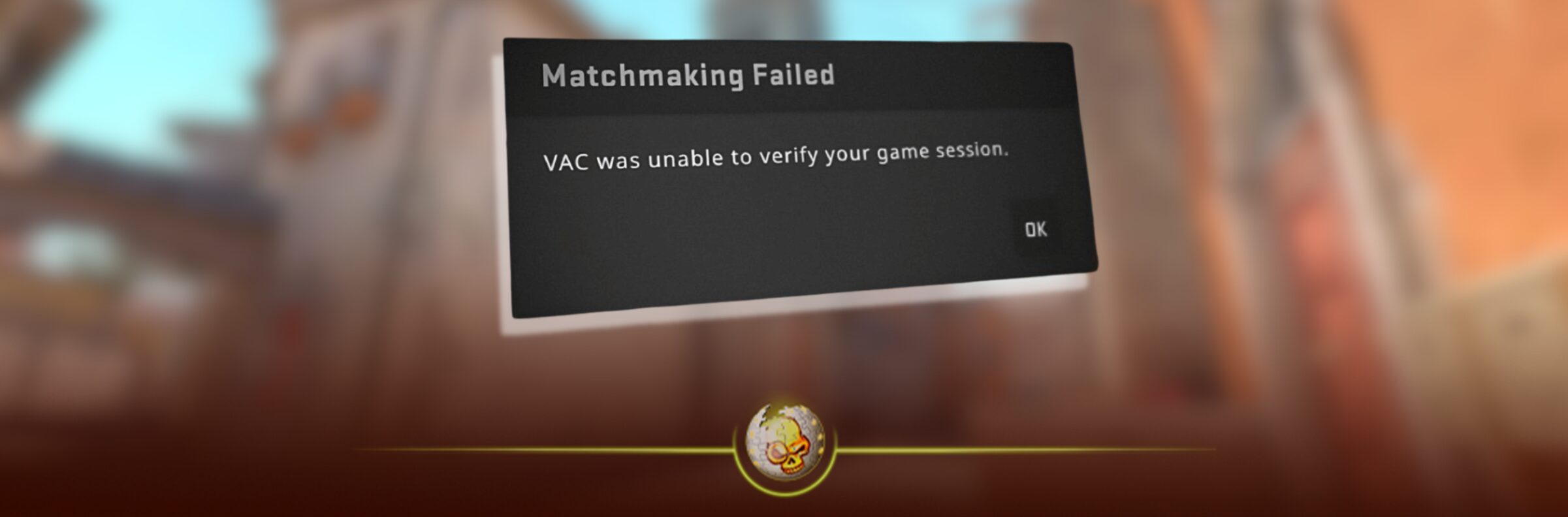
If CS2 is showing the message “VAC was unable to verify your game session”, the fastest fix is usually to restart Steam, verify your CS2 game files, and relaunch the game before queueing again. This error does not always mean you are banned. In most cases, it means Steam or Valve Anti Cheat could not properly confirm that your current CS2 session is clean and ready for secure matchmaking.
For most players, this takes only a few minutes to fix. Below, we will go through the easiest solutions first, then the deeper fixes if the error keeps coming back.
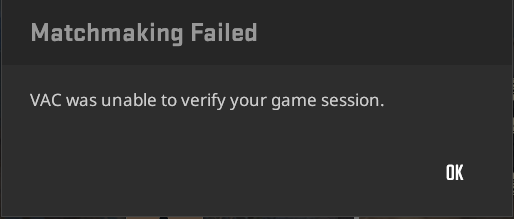
What Does “VAC Was Unable to Verify Your Game Session” Mean in CS2?
VAC stands for Valve Anti Cheat, the system Valve uses to help protect secure servers from cheating software and file tampering. When CS2 shows this error, it usually means VAC could not properly verify your game session before matchmaking.
That can happen because of corrupted game files, a bad Steam launch, third party software interfering with Steam, or a temporary issue with the game session itself. Valve’s own Steam support page says VAC related secure server errors can be caused by third party software interfering with Steam or the game.
The good news is that this specific message is usually fixable. It is not the same thing as receiving a VAC ban.
Quick Fix First
Before doing anything complicated, try this simple order:
Close CS2 completely. Then fully exit Steam, not just the game. Open Steam again, launch CS2, and try joining a casual match or deathmatch before going back into Premier or Competitive.
If that does not work, restart your PC. This clears stuck Steam processes, broken game sessions, and background conflicts that may be stopping VAC from checking your session properly.
Many CS2 players fix the error with only a restart, but if it keeps showing up, move to the next step.
How to Fix “VAC Was Unable to Verify Your Game Session” in CS2
| Fix | Difficulty | When to Try It |
|---|---|---|
| Restart CS2 and Steam | Easy | Try this first |
| Restart your PC | Easy | If restarting Steam does not work |
| Verify CS2 game files | Easy | If the error comes back |
| Clear Steam download cache | Easy | If Steam seems bugged |
| Run Steam as administrator | Easy | If Windows permissions may be blocking Steam |
| Close overlays and third party apps | Medium | If you use recording tools, boosters, or overlays |
| Repair Steam service | Medium | If VAC errors keep returning |
| Reinstall CS2 | Last resort | Only if nothing else works |
1. Restart CS2 and Steam
The simplest fix is also one of the most effective. Close CS2, then fully close Steam from the top left Steam menu or from the system tray. Open Steam again, launch CS2, and try matchmaking.
Do not just press the X on Steam and assume it closed. Steam can keep running in the background, which means the same broken session may still be active.
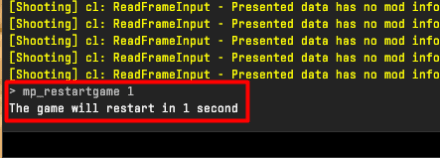
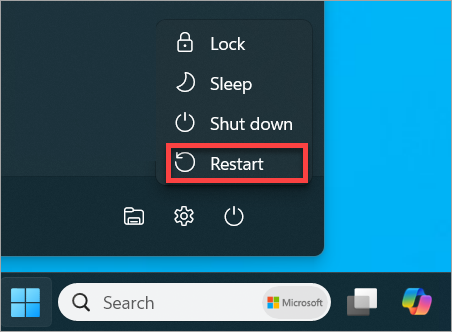
2. Restart Your PC
If restarting Steam does not fix it, restart your computer. This clears background processes and reloads Steam cleanly.
This is especially useful if CS2 was just updated, Steam was open for a long time, or your PC went into sleep mode before you launched the game.
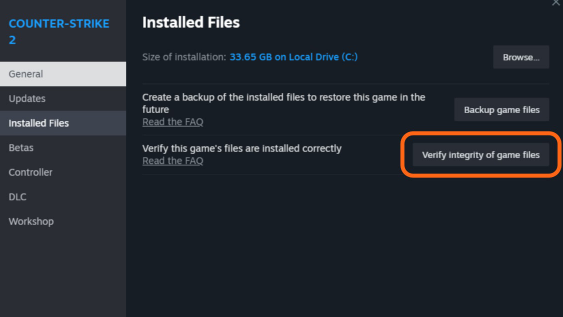
3. Verify Integrity of CS2 Game Files
This is the main fix most players should try.
Open Steam, go to your Library, right click Counter Strike 2, click Properties, go to Installed Files, then choose Verify integrity of game files. Steam’s official support page also recommends restarting your computer and launching Steam before verifying game files.
Steam will scan your CS2 files and replace anything missing, damaged, or incorrect. If CS2 had a broken file after an update, this usually fixes the VAC verification error.
4. Clear the Steam Download Cache
If verifying your game files does not work, clear your Steam download cache.
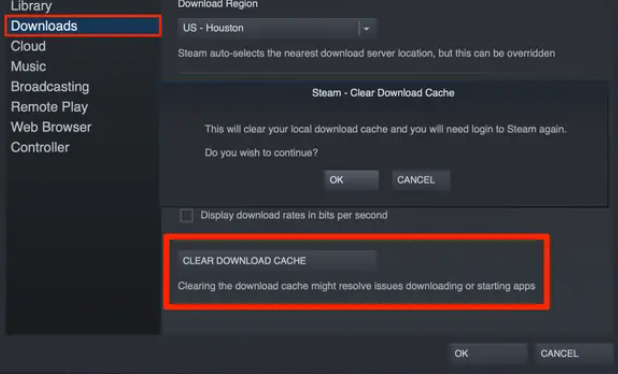
Open Steam settings, go to Downloads, then choose Clear Download Cache. Steam may ask you to sign in again after this.
This can help when Steam is stuck with corrupted temporary files or an update did not apply properly. Several CS2 fix guides also list clearing Steam’s download cache as a common solution for this VAC session error.
5. Run Steam as Administrator
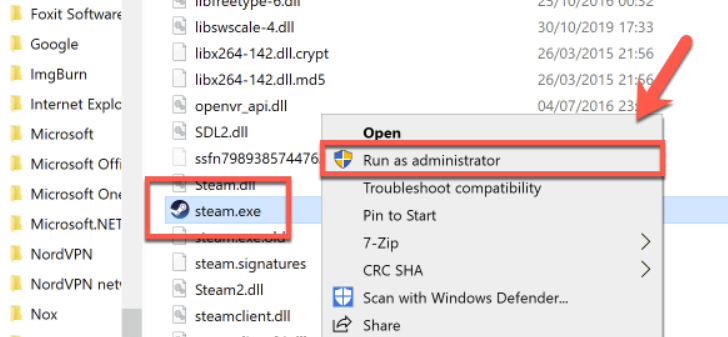
Close Steam completely. Then right click the Steam shortcut and choose Run as administrator.
This gives Steam the permissions it may need to properly launch CS2 and communicate with the VAC system. This is not always necessary, but it can help if Windows permissions are blocking something in the background.
After launching Steam as administrator, open CS2 and try joining a secure server again.
6. Close Third Party Apps and Overlays
VAC can sometimes be blocked by third party software running in the background. This does not always mean cheating software. It can include overlays, recording tools, system monitoring apps, game boosters, or programs that hook into games.
Before launching CS2, close apps like screen recorders, unnecessary overlays, FPS boosters, injectors, debuggers, or anything that modifies how games run. Valve says VAC secure server errors can be caused by third party software interfering with Steam or the game, so this is an important step if the basic fixes do not work.
Discord and NVIDIA overlays are usually fine for most players, but if you are stuck, temporarily closing them is worth testing.
7. Log Out and Back Into Steam
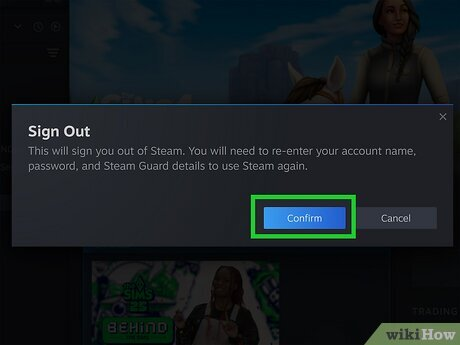
Another easy fix is to log out of Steam and sign back in.
Close CS2, open Steam, sign out of your account, restart Steam, then log back in. This can refresh your account session and help Steam reconnect properly before launching CS2 again.
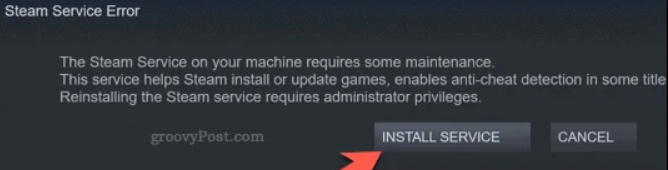
8. Repair the Steam Service
If the error keeps coming back even after verifying files, the Steam service itself may need to be repaired.
On Windows, close Steam first. Then press Windows Key + R, type:
"C:\Program Files (x86)\Steam\bin\SteamService.exe" /repair
Press Enter and let the repair finish. After that, restart your PC, open Steam, and launch CS2 again.
Only do this if the easier fixes did not work. For most players, verifying files and restarting Steam will be enough.
9. Reinstall CS2
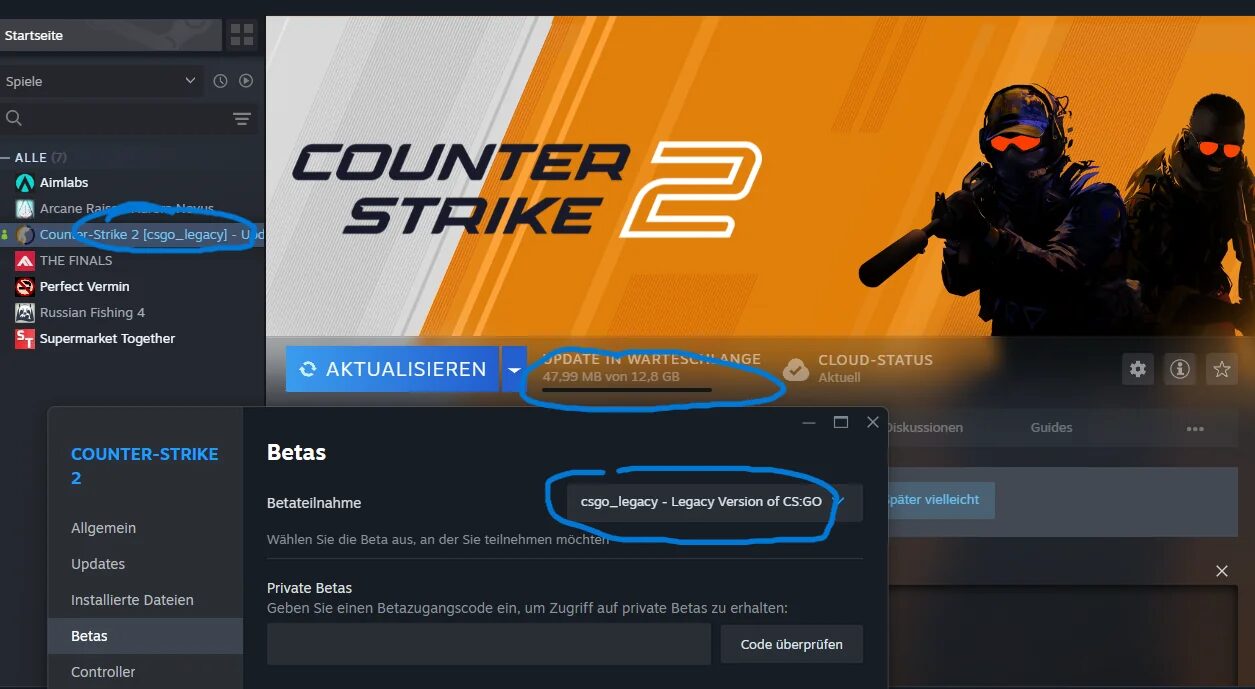
Reinstalling CS2 should be the last step. If the VAC error keeps coming back after everything else, uninstall CS2 from Steam, restart your PC, then reinstall the game.
This gives you a clean CS2 installation and removes any broken files that Steam may not have fixed during verification.
Is This Error the Same as a VAC Ban?
No. The message “VAC was unable to verify your game session” usually means VAC could not validate the current session. It does not automatically mean your account has been banned.
A VAC ban is different and will appear on your Steam profile or account status. This CS2 error usually blocks you from joining secure matchmaking until the issue is fixed.
Why Does This Error Happen After a CS2 Update?
CS2 updates can sometimes leave Steam with files that need to be checked again. If the game updates while Steam is already running, or if the update fails to install cleanly, VAC may not be able to verify the session.
That is why verifying game files is one of the most reliable fixes. Steam checks the installed files against the correct version and replaces anything that is missing or corrupted.
Read More From Daddyskins
- CS2 Premier Season 4: Start Date, Changes & What You Need to Know
- CS2 Premier Season 4 Leaks
- CS2 Premier 4 Skins & Knives – What We Know
- Harlequin & Achroma COLLECTION SKINS In-Game (New CS2 Update)
- CS2 update today full patch notes and changes explained
- IEM Kraków 2026 Stage 1 Preview and Predictions for CS2
- Cache return rumors resurface in CS2
- CS2 Patch Update January 30, 2026
- New CS2 Skins Just Dropped: Season 4 CS2 Skins
- Cheapest Pink CS2 Skins in 2026
- Valentine’s Day CS2 Skins
- Mudryk CS2 Faceit Ban Explained
- Movement Hub for CS2 Workshop Ranked 2026
- CS2 Danger Zone In 2026
- Esports Nations Cup 2026: What ENC Means for CS2
- When is the next CS2 tournament 2026
- IEM Atlanta 2026 CS2 Preview Teams Format Schedule
- Radar & Minimap Settings Guide for CS2
- Kyousuke CS2 Settings: Full Guide [2026]
- CS2 Weekly Drop Reset 2026
- How Does VAC Works in CS2?
- New York Sues Valve Over CS2 Loot Boxes
- Team Vitality Wins PGL Cluj Napoca 2026 in Dominant CS2 Grand Final
- CS2 Pro Crosshairs Codes 2026
- donk CS2 Settings: Full Guide [2026]
- CS:GO Steam Charts Surge After Valve Quietly Adds CS:GO Back to Steam
- CS:GO Is Back on Steam: How to Download CS:GO in 2026
- Inferno Update CS2: What Changed in the Latest Counter Strike 2 Patch
- CSFloat Item Cannot Be Inspected Due to CS2 Bug (Fix Guide)
- X-Ray Scanner for Cases Introduced in CS2 in Germany
- CS2 Cases Getting Banned? What the New X-Ray Scanner Update Means
- How Do Professionals Trade CS2 Skins?
- Cheapest Red Skins in CS2 (2026)
- CS2 Bunny Hop Commands 2026
- CS2 Cases Banned
- Best CS2 Prop Hunt Servers (2026 List)
- Animgraph 2 Beta CS2 Update April 2026 What Changed
- Cheapest Purple Skins CS2 (2026 List)
- Top Best Cheap CS2 Gloves Under $100 Right Now
- Top CS2 Cases to Open in 2026
- CS2 Viewmodel Settings Guide: How to Find Your Perfect Viewmodel
- PGL Bucharest 2026 CS2: Full Tournament Guide
- How to 1v1 in CS2 Complete Guide (2026)
- Mirage Callouts CS2: Full Guide
- Top 7 Best White CS2 Skins (2026 List)
- CS2 Rio Tournament 2026: + DaddySkins Vitality Case