
The best CS2 viewmodel and FOV settings for 2026 are usually viewmodel_fov 68, viewmodel_offset_x 2.5, viewmodel_offset_y 2, and viewmodel_offset_z negative 1.5 or negative 2. This gives most players a cleaner screen, moves the weapon away from the center, and makes it easier to focus on crosshair placement.
The important thing to understand is that CS2 does not let you fully change your real in game camera FOV in normal competitive matches. What you are changing with these commands is your weapon viewmodel, which controls how your hands and gun appear on screen. The standard CS2 viewmodel FOV range is from 54 to 68, with 68 making the weapon look smaller and more pushed away from your face.
Best CS2 Viewmodel Settings 2026
For most players, this is the best CS2 viewmodel setup to start with:
viewmodel_fov 68
viewmodel_offset_x 2.5
viewmodel_offset_y 2
viewmodel_offset_z -1.5
viewmodel_presetpos 0

This setup is good because it gives you a wider weapon view, keeps the gun from blocking too much of your screen, and still feels natural when spraying or holding angles. It is also close to what many competitive players use because it prioritizes visibility instead of making the gun look huge.
| Setting | Best Value | What It Does |
|---|---|---|
| viewmodel_fov | 68 | Makes the weapon appear smaller and farther away |
| viewmodel_offset_x | 2.5 | Moves the weapon more to the right side |
| viewmodel_offset_y | 2 | Pushes the weapon farther forward |
| viewmodel_offset_z | negative 1.5 | Lowers the weapon so it blocks less of the screen |
| viewmodel_presetpos | 0 | Lets you use a custom viewmodel |
What Is Viewmodel in CS2?
Viewmodel in CS2 is the position of your weapon, hands, and arms on your screen. It does not change where your bullets go, and it does not change your actual aim. Instead, it changes how much space your weapon takes up while you are playing.
This matters more than people think. If your gun is too close to the center of your screen, it can block enemies, utility lineups, or small movement on the edge of your vision. A better viewmodel makes the game feel cleaner and can help you stay more focused during fights.
Best CS2 FOV Setting
The best CS2 FOV setting for viewmodel is:
viewmodel_fov 68
This is the highest normal value for weapon FOV in CS2. A higher viewmodel FOV makes your weapon look smaller and farther away, which usually gives your screen a cleaner look. A lower value, like 54 or 60, makes the weapon look bigger and closer.
Here is the simple way to think about it:
| Viewmodel FOV | Best For | How It Feels |
|---|---|---|
| 54 | Players who like a close weapon | Bigger gun and tighter screen |
| 60 | Default style players | Balanced but still slightly close |
| 68 | Most competitive players | Cleaner screen and smaller weapon |
Best Competitive CS2 Viewmodel Settings
If you want a competitive viewmodel for Premier, FACEIT, matchmaking, or ranked games, use this:
viewmodel_fov 68
viewmodel_offset_x 2.5
viewmodel_offset_y 2
viewmodel_offset_z -2
viewmodel_presetpos 0

This version lowers the gun slightly more than the first setup. It is good for players who want the weapon to take up as little screen space as possible.
The main benefit is visibility. When you are holding tight angles on Mirage, Inferno, Ancient, Dust 2, or Nuke, your crosshair and enemy movement should be the focus. You do not want your weapon model covering extra space for no reason.
| Player Type | Recommended Settings | Why It Works |
|---|---|---|
| Rifler | viewmodel_fov 68, x 2.5, y 2, z -1.5 | Gives rifles more screen clearance without feeling too low |
| AWPer | viewmodel_fov 68, x 2, y 2, z -1.5 | Keeps the AWP cleaner when unscoped |
| Hybrid Player | viewmodel_fov 68, x 2.5, y 2, z -1.5 | Best all around setup for rifles, pistols, and AWP |
| Entry Fragger | viewmodel_fov 68, x 2.5, y 2, z -2 | Keeps the weapon low and out of the way during fast fights |
| Beginner | viewmodel_fov 68, x 2.5, y 2, z -1.5 | Easy to use and does not feel too extreme |
Best CS2 Viewmodel for Rifles
For AK 47, M4A4, M4A1 S, Galil, FAMAS, and SG 553, use this setup:
viewmodel_fov 68
viewmodel_offset_x 2.5
viewmodel_offset_y 2
viewmodel_offset_z -1.5

This is the best all around rifle viewmodel because rifles can take up a lot of visual space. By pushing the gun farther away and slightly lower, your screen feels more open without making the game feel weird.
This is especially useful for AK and M4 players because most rifle fights are decided by crosshair placement, shoulder peeks, and small enemy movements. A cleaner viewmodel makes those moments easier to see.
Best CS2 Viewmodel for AWP
For AWP players, the viewmodel matters a little differently. Your weapon model does not affect your scoped view, but it does affect how comfortable the game feels when you are unscoped, switching weapons, holding angles, or repositioning.
Use this AWP viewmodel:
viewmodel_fov 68
viewmodel_offset_x 2
viewmodel_offset_y 2
viewmodel_offset_z -1.5
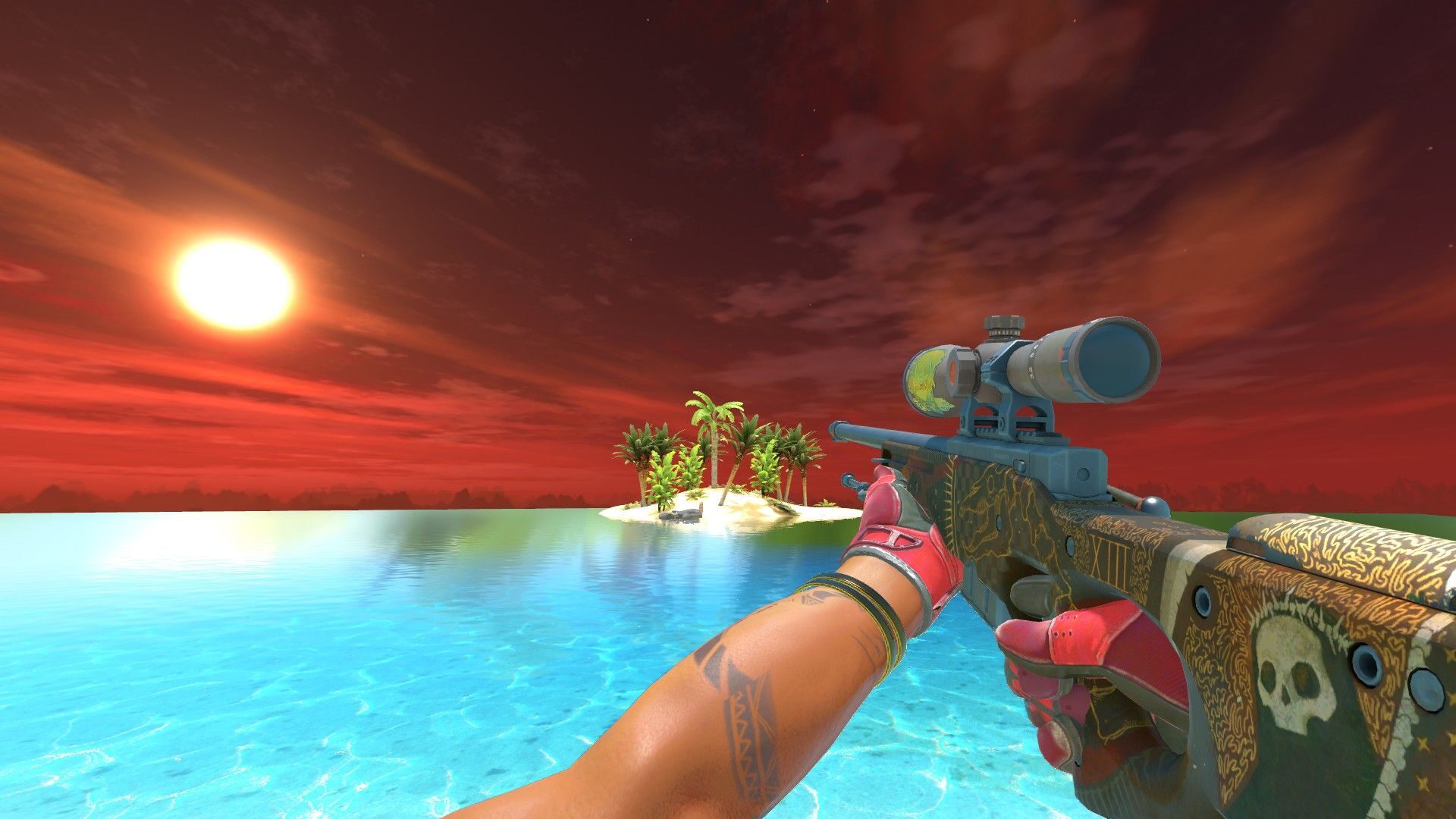
Some AWPers prefer x at 2 instead of 2.5 because it feels slightly less extreme. If you play rifle and AWP, x 2.5 is still the better all around choice.
Best CS2 Viewmodel for 4:3 Stretched
If you play 4:3 stretched, your screen already feels more zoomed in compared to 16:9. Because of that, you usually want a viewmodel that keeps the weapon out of the way.
Use this for 4:3 stretched:
viewmodel_fov 68
viewmodel_offset_x 2.5
viewmodel_offset_y 2
viewmodel_offset_z -2
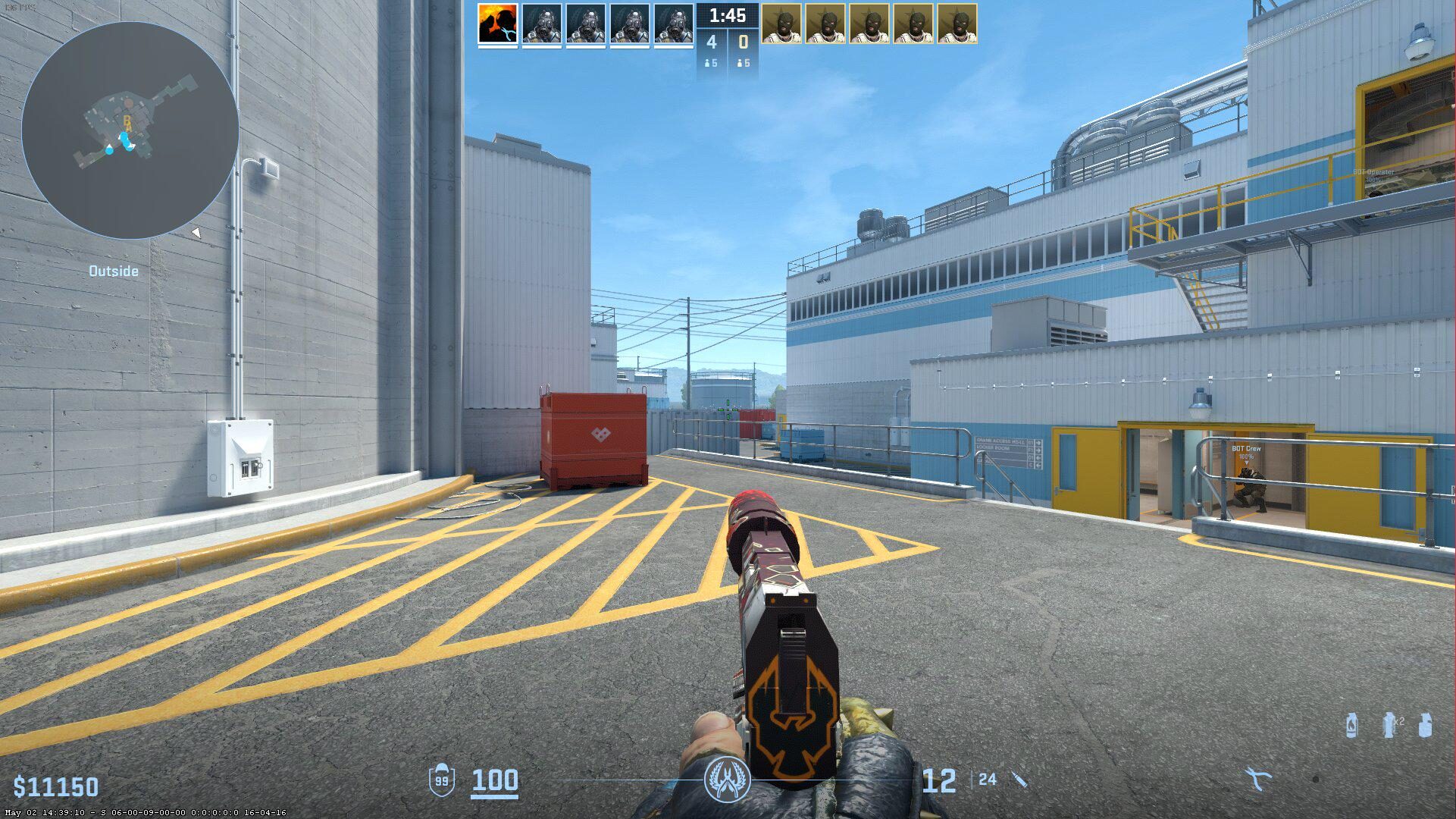
This is one of the best CS2 viewmodels for 4:3 stretched because it gives your weapon less presence on a tighter looking screen. Since 4:3 makes player models feel wider and closer, having a smaller weapon model helps keep the game from feeling crowded.
| Resolution Style | Best Settings | Why |
|---|---|---|
| 4:3 Stretched | viewmodel_fov 68, x 2.5, y 2, z -2 | Helps keep the weapon out of the way on a tighter looking screen |
| 16:9 | viewmodel_fov 68, x 2.5, y 2, z -1.5 | Clean but still natural on wider screens |
| 16:10 | viewmodel_fov 68, x 2.5, y 2, z -1.5 | Balanced option for players between 4:3 and 16:9 |
| 5:4 | viewmodel_fov 68, x 2.5, y 2, z -2 | Better for players using very stretched resolutions |
Best CS2 Viewmodel for 16:9
If you play 16:9, you already have a wider natural view compared to 4:3. That means you can use a slightly more balanced viewmodel if you want the gun to feel natural.
Use this for 16:9:
viewmodel_fov 68
viewmodel_offset_x 2.5
viewmodel_offset_y 2
viewmodel_offset_z -1.5
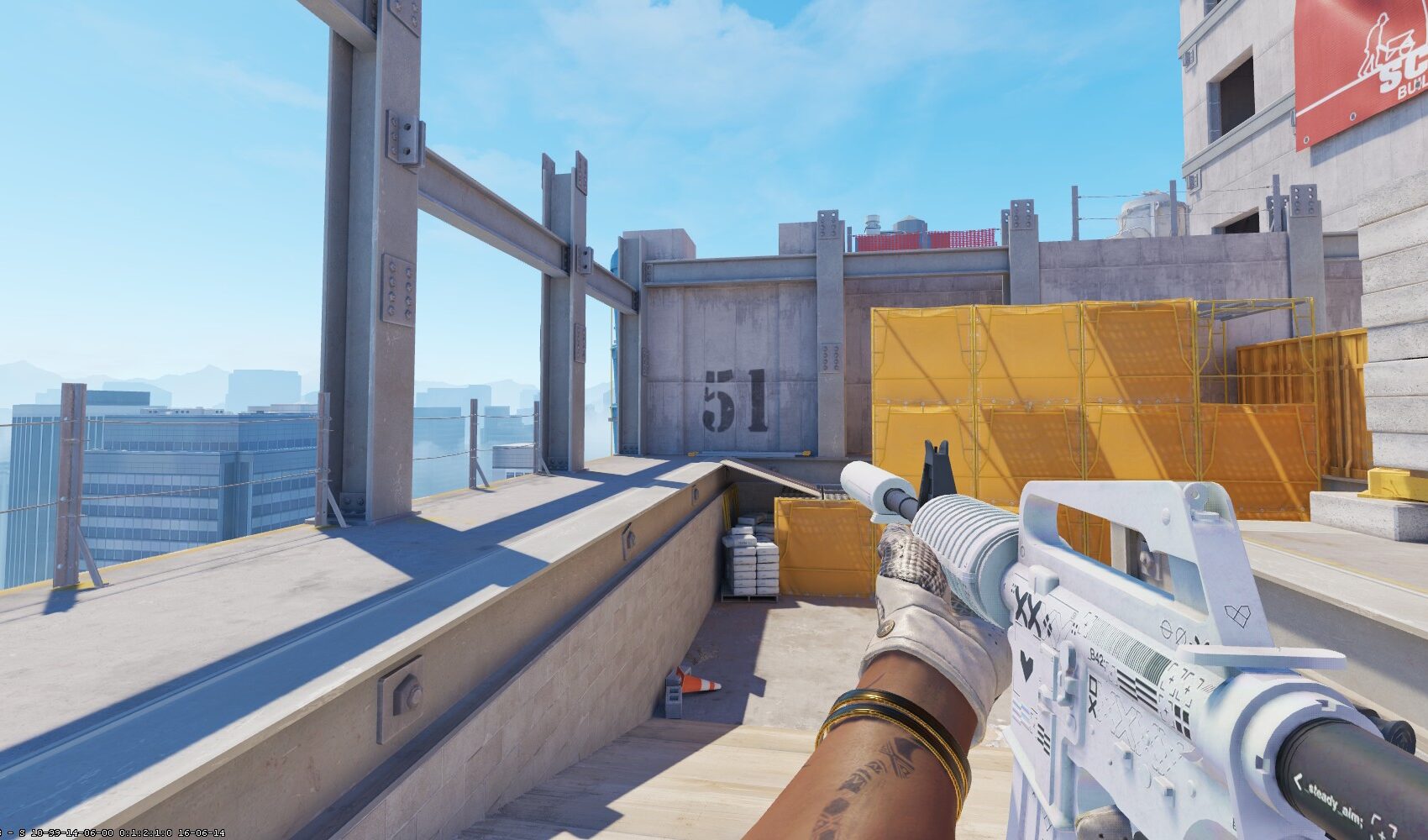
This is the best option for most 16:9 players because it keeps the weapon clean without making it feel too low. If you want an even cleaner screen, change z from minus 1.5 to minus 2.
How to Change Viewmodel and FOV in CS2
To change your CS2 viewmodel, you need to use the developer console. Go into your game settings, enable the developer console, then open it with the tilde key.
Once the console is open, paste your commands and press Enter.
Use this full command set:
viewmodel_fov 68
viewmodel_offset_x 2.5
viewmodel_offset_y 2
viewmodel_offset_z -1.5
viewmodel_presetpos 0
If the command does not seem to save, add it to your autoexec config so it loads every time you open CS2.
What Each CS2 Viewmodel Command Does
The main CS2 viewmodel commands are easy to understand once you break them down.
| Command | Meaning | Best Value |
|---|---|---|
| viewmodel_fov | Controls how close or far your weapon looks | 68 |
| viewmodel_offset_x | Moves your weapon left or right | 2.5 |
| viewmodel_offset_y | Moves your weapon forward or backward | 2 |
| viewmodel_offset_z | Moves your weapon up or down | -1.5 or -2 |
| viewmodel_presetpos | Controls whether you use a preset or custom viewmodel | 0 |
Read More From Daddyskins
- How Do Professionals Trade CS2 Skins?
- Cheapest Red Skins in CS2 (2026)
- CS2 Bunny Hop Commands 2026
- CS2 Cases Banned
- Best CS2 Prop Hunt Servers (2026 List)
- Animgraph 2 Beta CS2 Update April 2026 What Changed
- Cheapest Purple Skins CS2 (2026 List)
- Top Best Cheap CS2 Gloves Under $100 Right Now
- Top CS2 Cases to Open in 2026
- CS2 Viewmodel Settings Guide: How to Find Your Perfect Viewmodel
- PGL Bucharest 2026 CS2: Full Tournament Guide
- How to 1v1 in CS2 Complete Guide (2026)
- Mirage Callouts CS2: Full Guide
- Top 7 Best White CS2 Skins (2026 List)
- CS2 Rio Tournament 2026: + DaddySkins Vitality Case
- Is CS2 a Free to Play Game in 2026?
- 7 Cheapest Red Skins in CS2 to Trade Up (UPDATED)
- What Is the Cheapest Knife in CS2? (UPDATED)
- Best CS2 Cases to Open in May 2026 (UPDATED)
- Top 10 CS2 Players of 2026
- Best CS2 Knife Trade Ups (UPDATED)