
A lot of CS2 players spend hours tweaking sensitivity, crosshair color, and resolution, but barely touch one setting that is always on screen: the viewmodel.
That matters more than people think.
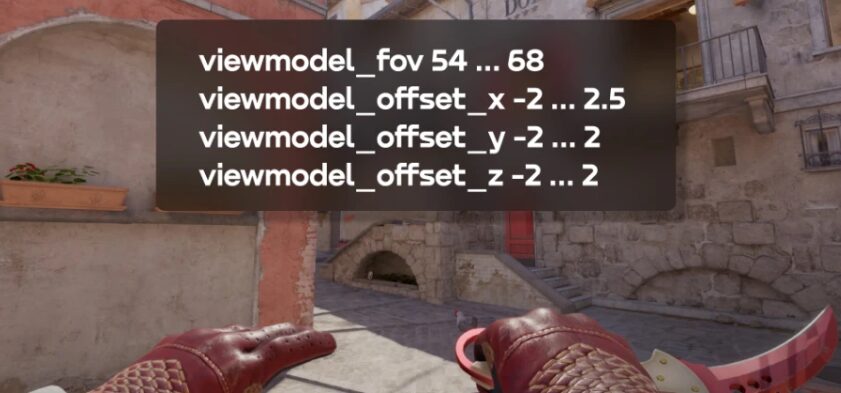
Your viewmodel controls how your weapon and hands appear on your screen. It does not change recoil, damage, or hit registration, but it absolutely changes how clean your screen looks, how much space your weapon blocks, and how comfortable the game feels during fights. The main commands used in CS2 are viewmodel_fov, viewmodel_offset_x, viewmodel_offset_y, and viewmodel_offset_z, with the commonly cited ranges of 54 to 68 for FOV, negative 2.5 to 2.5 for X, and negative 2 to 2 for both Y and Z.
If you have ever felt like your gun is taking up too much room, hiding enemies on close peeks, or simply making your screen feel cluttered, this guide is where you fix it.
What viewmodel means in CS2
In simple terms, the CS2 viewmodel is your first person weapon position. It controls where your gun sits, how far it looks from your camera, and how much of your screen it covers. That is why two players on the same resolution can still have the game feel very different.
Some players like a classic feel with the weapon more visible. Others want the cleanest possible screen so their crosshair area stays open. Neither approach is automatically wrong, but in competitive play, most people lean toward a more open and less intrusive setup.
Why viewmodel settings actually matter
A better viewmodel will not suddenly make your aim elite, but it can remove distractions.
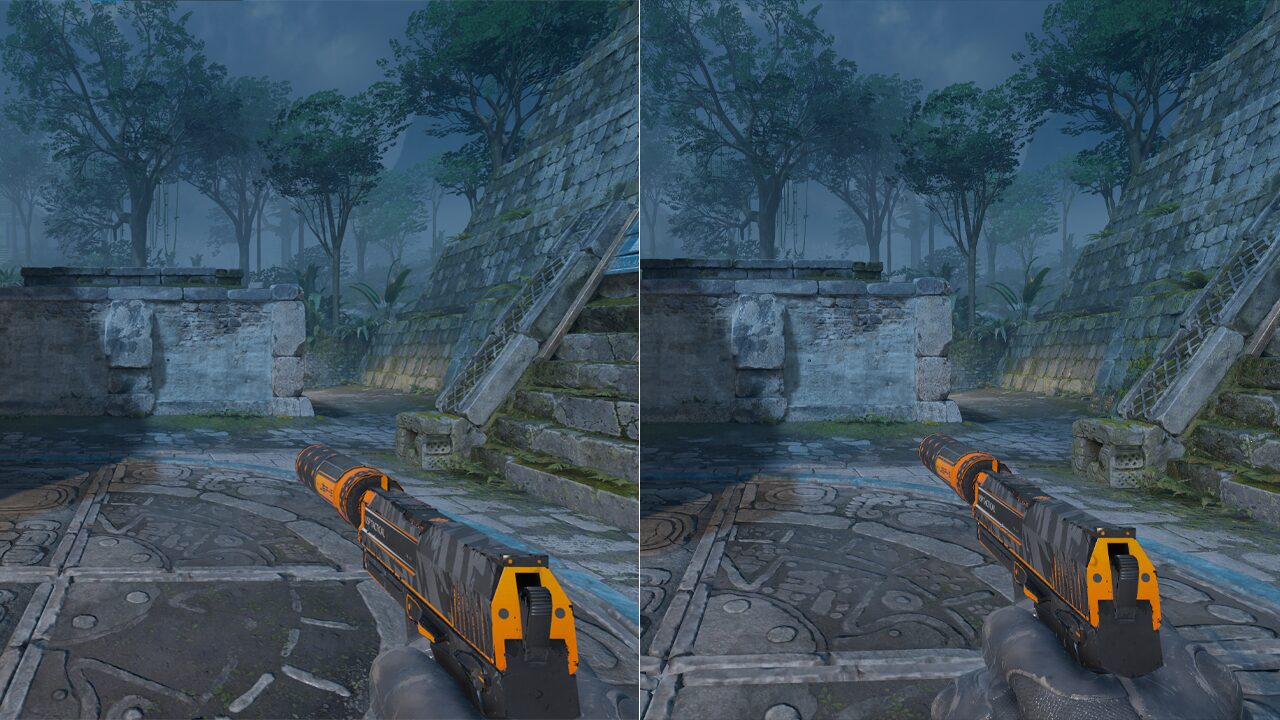
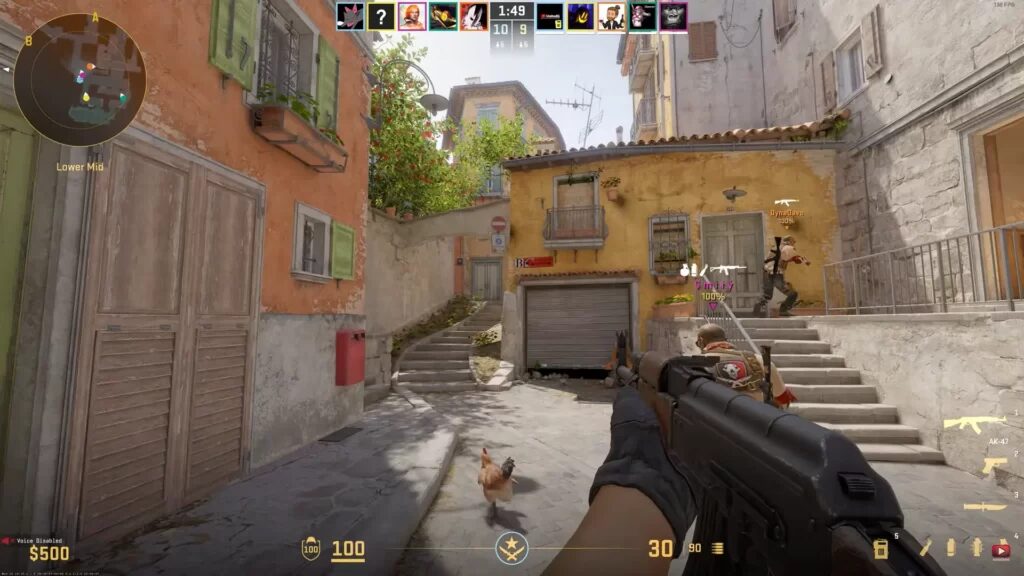
In CS2, tiny visual differences matter because fights happen fast and often at awkward angles. When your weapon sits too high, too centered, or too close, it can block information during peeks, sprays, and movement. A cleaner placement gives your eyes less to process in the middle of a duel. That is one reason many players push the weapon farther out and away from the center. Current guides and command references consistently describe higher FOV and more right shifted X values as the common visibility focused choice.
The bigger point is comfort. If your screen feels balanced, your focus stays on the fight instead of on the gun model bouncing around in front of you.
How to change your viewmodel in CS2
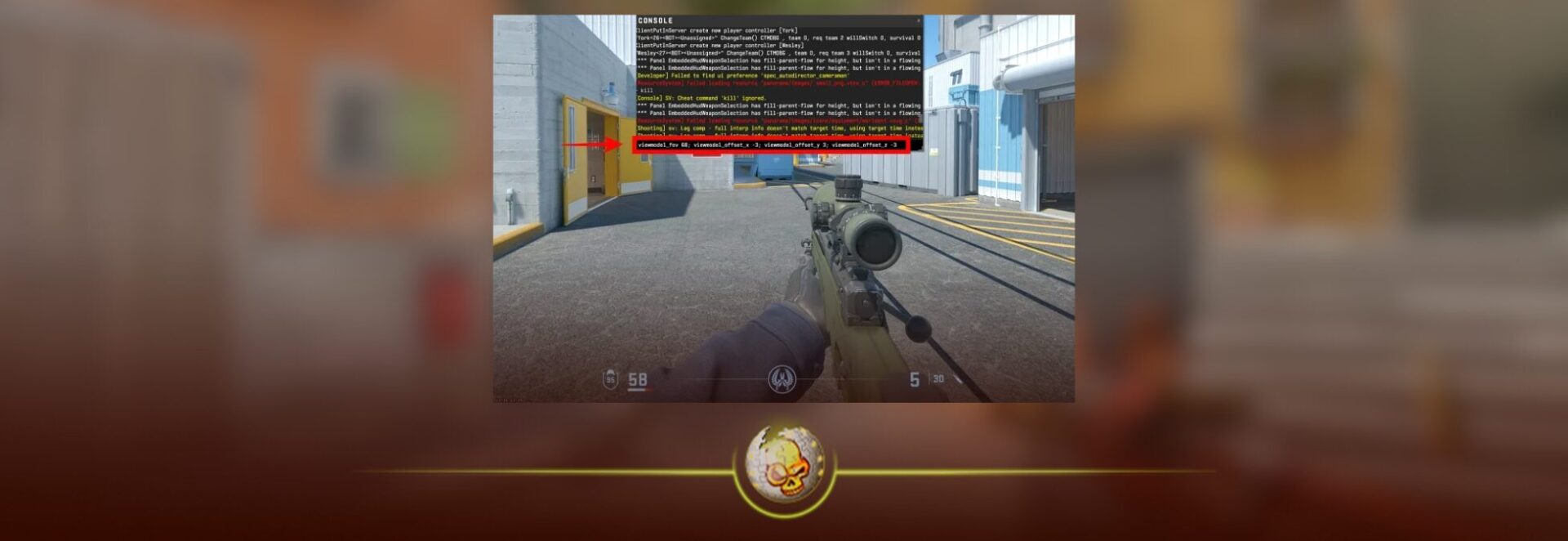
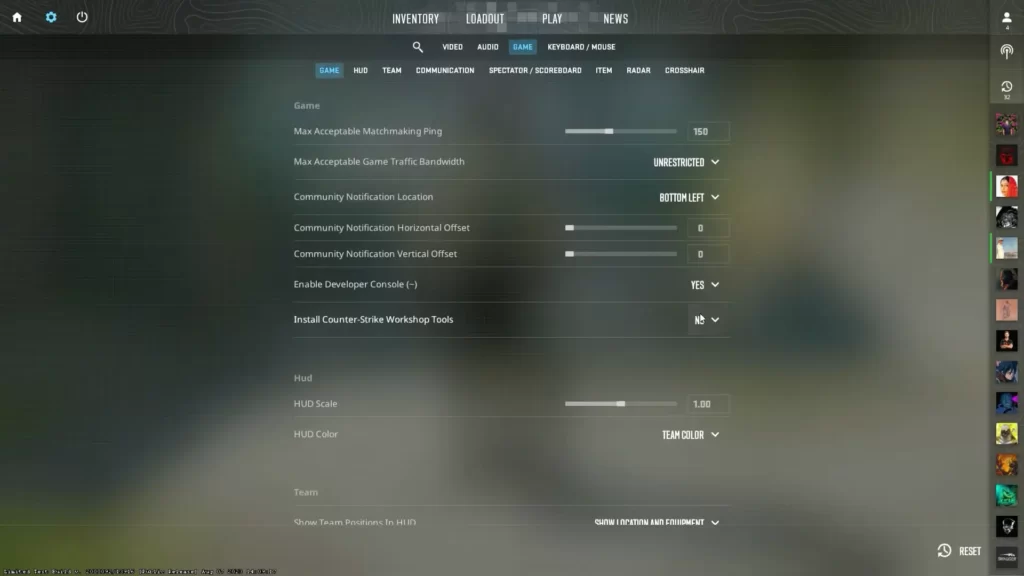
You can make basic hand and weapon changes through the game menu, but the full control comes from the developer console.
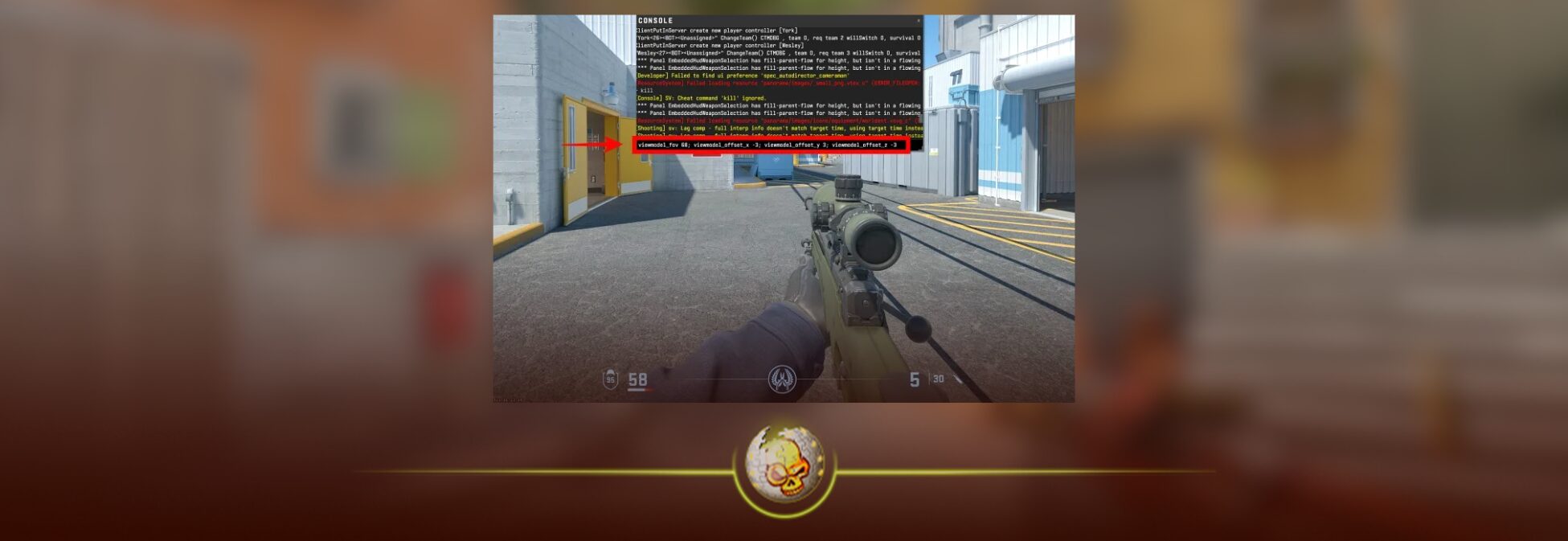
First, enable the developer console in the game settings. Then open it in game and enter the commands you want. The four most important viewmodel commands are the same ones most players use today:
viewmodel_fov
viewmodel_offset_x
viewmodel_offset_y
viewmodel_offset_z
These are still the core commands referenced across current CS2 guides, and they remain the easiest way to build a setup that matches how you play.
The best CS2 viewmodel settings for most players
If you want a strong starting point, use the setup below. It is popular for a reason. It keeps the gun out of the way without making the game feel strange or overdone.
| Setting | Recommended value | What it changes |
|---|---|---|
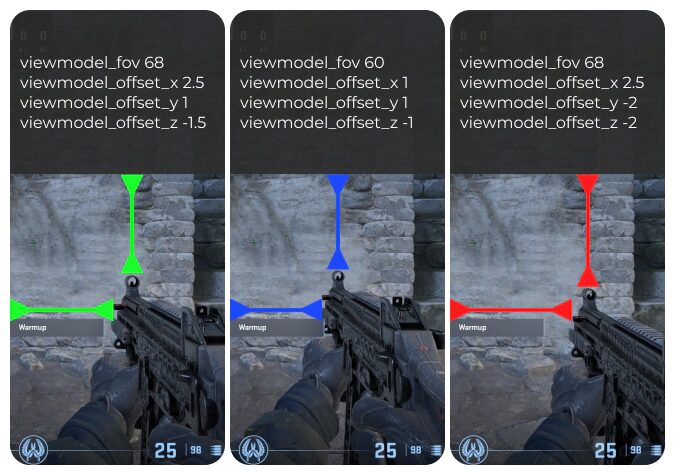
viewmodel_fov | 68 | Pushes the weapon farther out for a cleaner screen |
viewmodel_offset_x | 2.5 | Moves the weapon farther to the side |
viewmodel_offset_y | 0 | Keeps the depth balanced |
viewmodel_offset_z | -1.5 | Lowers the weapon slightly for less obstruction |
What each command does, explained like a player would actually want it explained
viewmodel_fov
This setting changes how far your weapon appears from your camera. Lower values make the weapon feel bigger and closer. Higher values push it out and free up more screen space. Current command references list 68 as the upper end, and that is also the number you see most often in pro and guide setups.
For most players, 68 is the best place to start because it instantly makes the game feel cleaner.
viewmodel_offset_x
This controls how far left or right the weapon sits. Positive values move it more toward the edge of the screen, which is why players chasing visibility usually push this one high. Current command documentation places the range between negative 2.5 and 2.5.
If your gun feels too close to the middle, this is the first setting to adjust.
viewmodel_offset_y
This affects the depth of the weapon model. In practice, it changes whether the gun feels tucked in or pushed out differently relative to your view. Current CS2 references list the usable range between negative 2 and 2.
A value of 0 is usually the safest option because it keeps things natural. Going too extreme here can make the setup feel odd fast.
viewmodel_offset_z
This moves the weapon up or down on the screen. Lowering it slightly can help reduce clutter around the lower center area of your screen, which is why many players keep this below zero. Current references place the range between negative 2 and 2.
If your weapon feels like it sits too high during rifle fights, lower this setting a bit.
What pro players are doing in 2026
One of the most useful patterns in CS2 is that top players are not all using wildly different viewmodels. There is a lot of overlap. ProSettings currently lists players such as ultimate with viewmodel_fov 68, viewmodel_offset_x 2.5, viewmodel_offset_y 0, and viewmodel_offset_z -1.5, and CS.MONEY also lists the same numbers for players like donk and NiKo in their CS2 settings coverage.
That does not mean you must copy pros exactly. It does mean there is a clear competitive trend: keep the screen open, keep the weapon lower impact, and avoid viewmodels that block your center vision.
The biggest mistake players make with viewmodel settings
The biggest mistake is chasing a setup that looks cool instead of one that feels clear.
A lot of players copy a random config, jump into a match, and assume that if it feels weird for ten seconds then it must be bad. That is not how this works. Viewmodel changes usually need a little time, especially if you have been using the default look for a long time.
The second mistake is changing too many settings at once. If you move every value around at the same time, you will not know what actually helped.
A better approach is simple:
Start with the common 68, 2.5, 0, negative 1.5 setup.
Play a few deathmatches.
Then make tiny changes, one at a time.
That is how you find your own best viewmodel instead of just wearing someone else’s.
Should you use the default viewmodel in CS2?
You can, and some players still do. One current source notes the default viewmodel_fov as 60, which is noticeably tighter than the more competitive 68 style setup many guides recommend.
The default is not bad. It is just less optimized for visibility.
If you are casual and like the classic look, you may never feel a need to change it. But if you are playing Premier, FACEIT, or grinding ranks seriously, there is a strong argument for moving toward a cleaner configuration.
My recommendation for DaddySkins readers
If your goal is to rank up, keep your screen clean.
Do not overthink it. Use the proven setup first. Let your eyes adjust. Then make small refinements based on your own comfort.
The best CS2 viewmodel settings for most people are still:
viewmodel_fov 68
viewmodel_offset_x 2.5
viewmodel_offset_y 0
viewmodel_offset_z -1.5
That setup is popular across current command guides and pro setting pages because it works. It opens space, keeps the weapon out of the way, and feels balanced enough for almost any rifle or AWP player.
Read More From Daddyskins
- CS2 Premier Season 4: Start Date, Changes & What You Need to Know
- CS2 Premier Season 4 Leaks
- CS2 Premier 4 Skins & Knives – What We Know
- Harlequin & Achroma COLLECTION SKINS In-Game (New CS2 Update)
- CS2 update today full patch notes and changes explained
- IEM Kraków 2026 Stage 1 Preview and Predictions for CS2
- Cache return rumors resurface in CS2
- CS2 Patch Update January 30, 2026
- New CS2 Skins Just Dropped: Season 4 CS2 Skins
- Cheapest Pink CS2 Skins in 2026
- Valentine’s Day CS2 Skins
- Mudryk CS2 Faceit Ban Explained
- Movement Hub for CS2 Workshop Ranked 2026
- CS2 Danger Zone In 2026
- Esports Nations Cup 2026: What ENC Means for CS2
- When is the next CS2 tournament 2026
- IEM Atlanta 2026 CS2 Preview Teams Format Schedule
- Radar & Minimap Settings Guide for CS2
- Kyousuke CS2 Settings: Full Guide [2026]
- CS2 Weekly Drop Reset 2026
- How Does VAC Works in CS2?
- New York Sues Valve Over CS2 Loot Boxes
- Team Vitality Wins PGL Cluj Napoca 2026 in Dominant CS2 Grand Final
- CS2 Pro Crosshairs Codes 2026
- donk CS2 Settings: Full Guide [2026]
- CS:GO Steam Charts Surge After Valve Quietly Adds CS:GO Back to Steam
- CS:GO Is Back on Steam: How to Download CS:GO in 2026
- Inferno Update CS2: What Changed in the Latest Counter Strike 2 Patch
- CSFloat Item Cannot Be Inspected Due to CS2 Bug (Fix Guide)
- X-Ray Scanner for Cases Introduced in CS2 in Germany
- CS2 Cases Getting Banned? What the New X-Ray Scanner Update Means
- How Do Professionals Trade CS2 Skins?
- Cheapest Red Skins in CS2 (2026)
- CS2 Bunny Hop Commands 2026
- CS2 Cases Banned
- Best CS2 Prop Hunt Servers (2026 List)
- Animgraph 2 Beta CS2 Update April 2026 What Changed
- Cheapest Purple Skins CS2 (2026 List)
- Top Best Cheap CS2 Gloves Under $100 Right Now
- Top CS2 Cases to Open in 2026