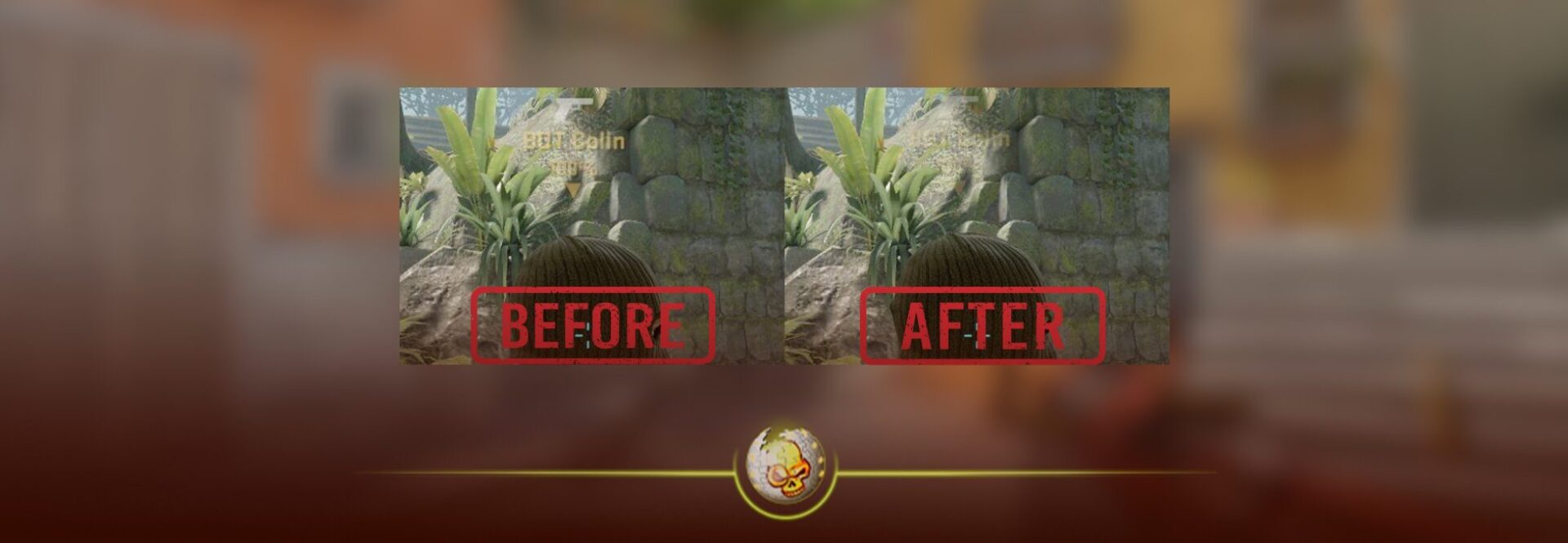
Counter Strike 2 is full of tiny settings that can quietly improve your gameplay. One of the newest commands that many players still do not know about is cl_teamid_overhead_fade_near_crosshair. This command helps prevent teammate icons from blocking your view when you are aiming at enemies.
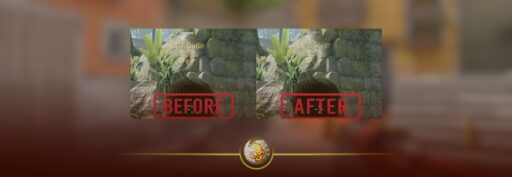
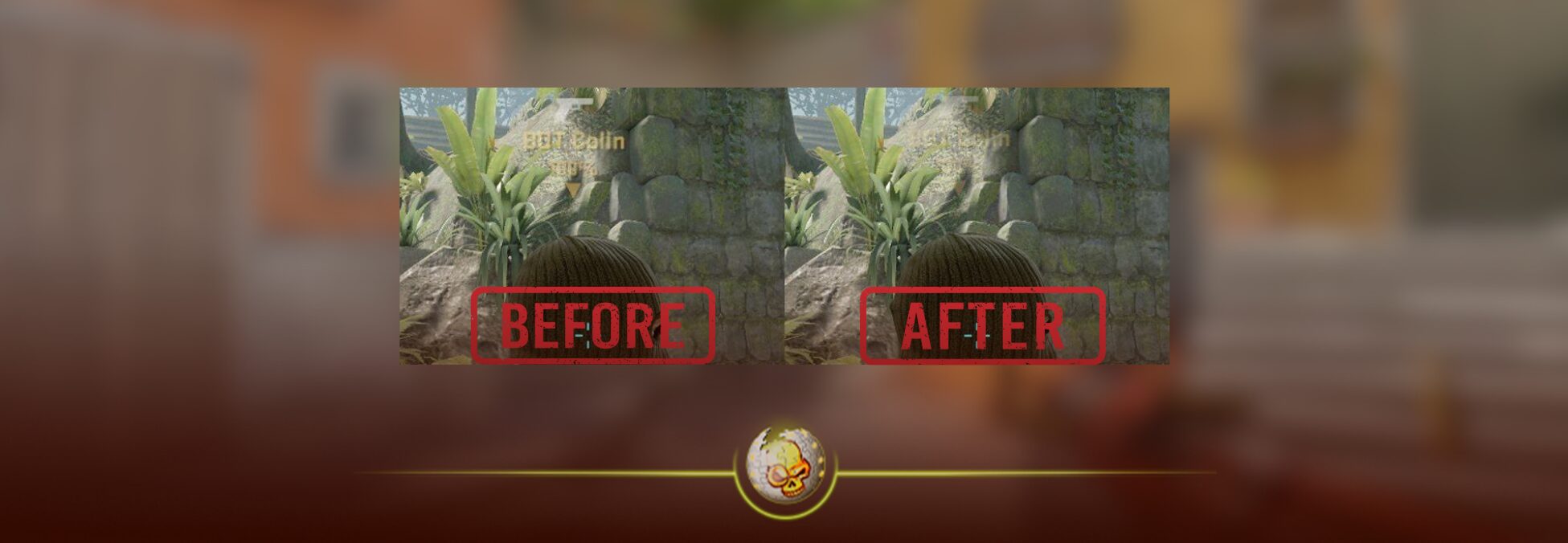
A recent post from CS2 creator Thour highlighted this command and showed how it works in game. The difference is small but can matter a lot in competitive matches where every pixel matters.
In this guide we will explain what the command does, how to enable it, why it helps, and a few other useful CS2 commands every player should know.
What Is cl_teamid_overhead_fade_near_crosshair in CS2?
The command:
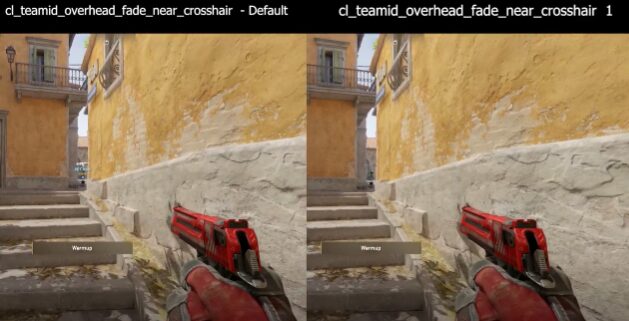
cl_teamid_overhead_fade_near_crosshair 1
tells the game to fade teammate nameplates when your crosshair gets close to them.
Normally in CS2, your teammates have information displayed above their heads such as:
• Player name
• Health
• Equipment icons
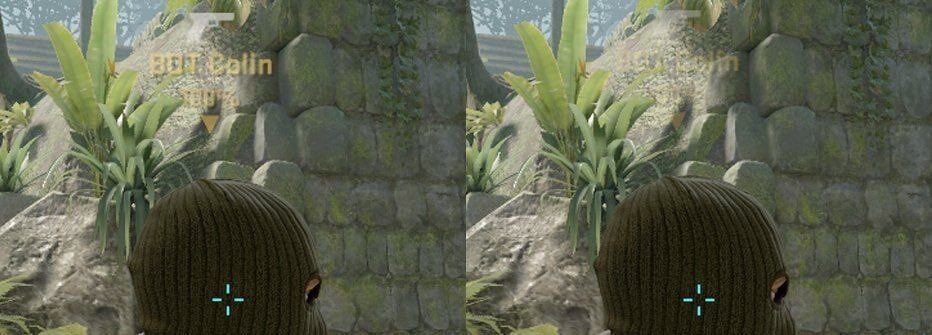
This information can sometimes block your crosshair or enemy models, especially in tight angles or when teammates are stacked close together.
When the command is enabled, the game automatically fades this information when your crosshair gets near it, allowing you to see enemies more clearly.
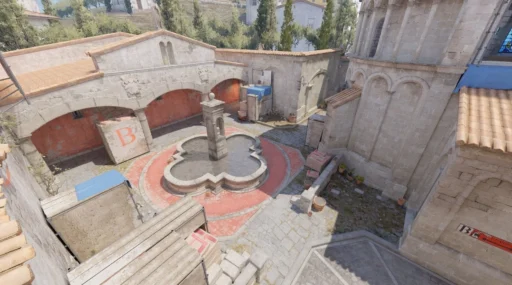
This is especially useful on maps like Inferno, where narrow angles and tight corridors can cause teammate info to overlap with enemy positions.
Why This Command Is Actually Useful
At first glance, this command might sound like a tiny visual tweak. But in competitive CS2, visibility and clarity are extremely important.
Here are a few situations where it helps.
1. Prevents Enemy Visibility Issues
Sometimes a teammate stands near an angle where an enemy might peek. Their overhead icon can cover part of that angle. With this command enabled, the icon fades away when you aim near it.
2. Improves Crosshair Focus
When you are holding a tight angle, visual clutter can distract your focus. Removing the overhead UI when aiming keeps your crosshair area cleaner.
3. Better for Close Stack Situations
In situations where multiple teammates are grouped together, the UI above them can become messy. This command helps keep things readable.
4. Competitive Edge
Even small visual advantages can matter. Removing unnecessary UI from your crosshair area can help you react faster.
How to Enable the Command in CS2
Enabling the command is very simple.
Step 1: Enable the Developer Console
- Open CS2 settings
- Go to Game
- Find Enable Developer Console
- Set it to Yes
Step 2: Open the Console
Press the ~ (tilde key) on your keyboard.
Step 3: Enter the Command
Paste this into the console: cl_teamid_overhead_fade_near_crosshair 1
Press Enter.
That is it. The setting will immediately apply.
What Do the Command Values Mean?
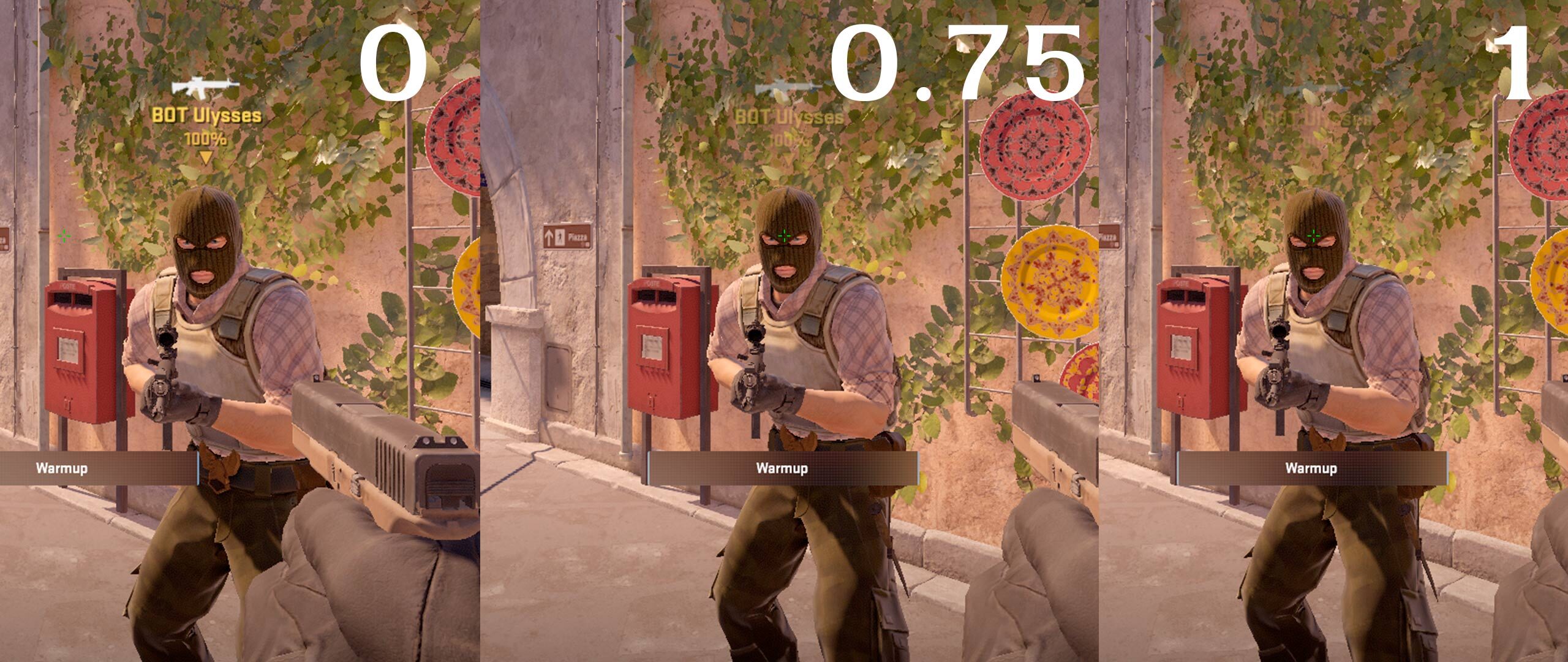
The command currently has two main values.
| Command Value | What It Does |
|---|---|
0 | Default behavior. Teammate info stays visible even near your crosshair |
1 | Teammate info fades when the crosshair gets close |
Most players prefer 1, because it keeps the center of your screen cleaner.
Other Useful CS2 Commands You Should Know
While cl_teamid_overhead_fade_near_crosshair is a great quality of life setting, there are several other console commands that many experienced players use.
Here are a few worth enabling.
| Command | What It Does |
|---|---|
cl_showfps 1 | Shows your FPS in game |
cl_radar_always_centered 0 | Makes radar easier to read |
cl_hud_radar_scale 1.15 | Expands radar for better visibility |
cl_crosshair_recoil 0 | Keeps crosshair stable while shooting |
viewmodel_fov 68 | Gives you a wider weapon view |
cl_use_opens_buy_menu 0 | Prevents accidentally opening the buy menu |
These commands are often used by competitive players to improve clarity and control during matches.
Why Small CS2 Settings Matter
Counter Strike has always been a game where tiny advantages add up. Small settings like radar tweaks, crosshair adjustments, and UI commands can improve your overall performance.
Commands like cl_teamid_overhead_fade_near_crosshair show that even small UI improvements can remove distractions and help players stay focused during fights.
If you are serious about improving in CS2, taking a few minutes to adjust your console settings can make a noticeable difference over time.
Final Thoughts
The command cl_teamid_overhead_fade_near_crosshair 1 is one of the easiest CS2 tweaks you can enable today. It removes visual clutter around your crosshair and prevents teammate UI from blocking enemies.
It is a simple change, but one that many competitive players are already using.
If you are constantly tweaking your CS2 settings for better visibility and performance, this command is definitely worth adding to your configuration.
Read More From Daddyskins
- 100 Thieves CS2 is back and the roster is now complete
- RYU CS2 Player Profile & Biography
- CS2 Bunny Hop Command
- SpotGuesser CS2 Guide (Spotguessr)
- BLAST Bounty Winter 2026 Schedule, Prize Pool, and Streams
- Aurora CS2 Team, Players and Stats
- Monte CS2 Team Roster Players Results and 2026 Outlook
- CS2 Premier Season 4: Everything You Need to Know
- CS2 Sticker Crafts of 2026 Best and Cleanest Craft Ideas
- CS2 Update 2026: Train Out, Anubis In, and Why This Week Matters
- CS2 Premier Season 4: Start Date, Changes & What You Need to Know
- CS2 Premier Season 4 Leaks
- CS2 Premier 4 Skins & Knives – What We Know
- Harlequin & Achroma COLLECTION SKINS In-Game (New CS2 Update)
- CS2 update today full patch notes and changes explained
- IEM Kraków 2026 Stage 1 Preview and Predictions for CS2
- Cache return rumors resurface in CS2
- CS2 Patch Update January 30, 2026
- New CS2 Skins Just Dropped: Season 4 CS2 Skins
- Cheapest Pink CS2 Skins in 2026
- Valentine’s Day CS2 Skins
- Mudryk CS2 Faceit Ban Explained
- Movement Hub for CS2 Workshop Ranked 2026
- CS2 Danger Zone In 2026
- Esports Nations Cup 2026: What ENC Means for CS2
- When is the next CS2 tournament 2026
- IEM Atlanta 2026 CS2 Preview Teams Format Schedule
- Radar & Minimap Settings Guide for CS2
- Kyousuke CS2 Settings: Full Guide [2026]
- CS2 Weekly Drop Reset 2026
- How Does VAC Works in CS2?
- New York Sues Valve Over CS2 Loot Boxes
- Team Vitality Wins PGL Cluj Napoca 2026 in Dominant CS2 Grand Final
- CS2 Pro Crosshairs Codes 2026
- donk CS2 Settings: Full Guide [2026]
- CS:GO Steam Charts Surge After Valve Quietly Adds CS:GO Back to Steam
- CS:GO Is Back on Steam: How to Download CS:GO in 2026
- Inferno Update CS2: What Changed in the Latest Counter Strike 2 Patch
- CSFloat Item Cannot Be Inspected Due to CS2 Bug (Fix Guide)
- X-Ray Scanner for Cases Introduced in CS2 in Germany
- CS2 Cases Getting Banned? What the New X-Ray Scanner Update Means
- How Do Professionals Trade CS2 Skins?
- Cheapest Red Skins in CS2 (2026)