Counter-Strike 2 can run on an older gaming PC, but getting it to run smoothly is another story. Smokes, water effects, detailed maps and busy gunfights can quickly expose a weak processor or poorly optimized setup.
The good news is that you usually do not need to replace your entire PC. Lowering the right graphics settings, removing background load and fixing a few Windows options can produce a noticeable CS2 FPS boost.
This guide explains how to increase FPS in CS2 in 2026 without downloading questionable “FPS packs” or filling your launch options with outdated CS:GO commands.
Check Your Current CS2 FPS First
Before changing anything, record your current performance. Otherwise, you will not know whether a setting actually helped or simply made the game look worse.
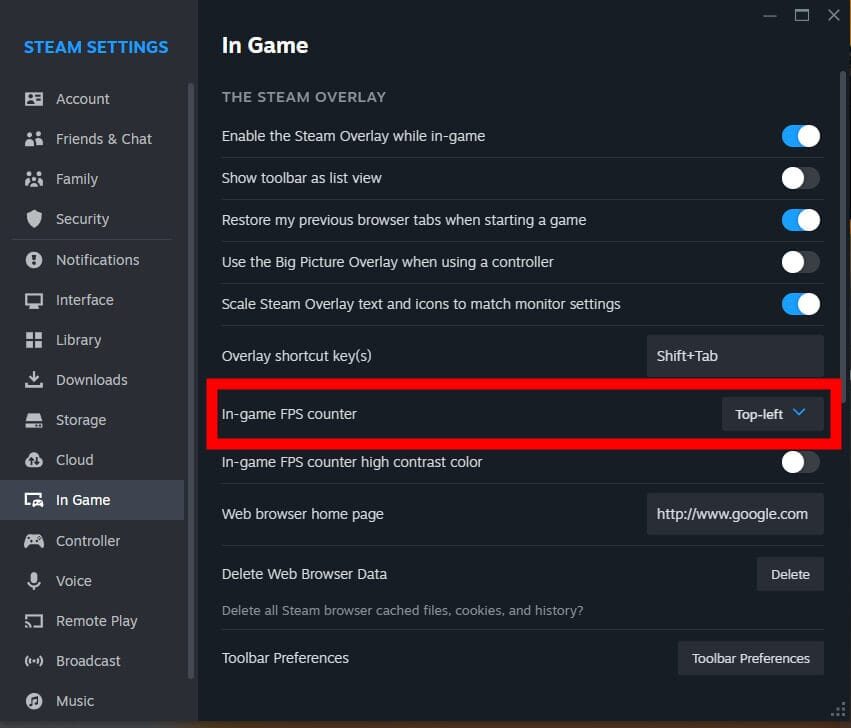
You can use Steam’s built-in FPS counter:
- Open Steam.
- Select Settings.
- Open the In Game tab.
- Enable the in-game FPS counter.
- Launch CS2 and test a normal match.
Our complete guide on how to show FPS in CS2 also covers console commands and the Steam overlay method.
Test on the same map and in similar conditions each time. An empty practice server will normally produce much higher FPS than a full Deathmatch lobby with players, grenades and effects everywhere.
Best CS2 Settings for More FPS
These are the first settings I would change on a low-end or mid-range PC.
| CS2 setting | Recommended value |
|---|---|
| Display Mode | Fullscreen |
| Refresh Rate | Highest available |
| Wait for Vertical Sync | Disabled |
| Multisampling Anti-Aliasing | None or 2x MSAA |
| Global Shadow Quality | Low |
| Dynamic Shadows | All |
| Model/Texture Detail | Low |
| Texture Filtering Mode | Bilinear |
| Shader Detail | Low |
| Particle Detail | Low |
| Ambient Occlusion | Disabled |
| High Dynamic Range | Performance |
| FidelityFX Super Resolution | Disabled or Quality |
| NVIDIA Reflex | Enabled |
Fullscreen is generally the best starting point for consistent competitive performance. V-Sync should also be disabled when your priority is maximum FPS and low latency.
Keep Dynamic Shadows set to All if possible. Player shadows can reveal an opponent before the player model becomes visible, so removing them completely may cost you useful information.
For a more detailed explanation of every option, compare our best CS2 settings for 2026, CS2 graphics settings guide and complete CS2 video settings guide.
Lower Your Resolution Carefully
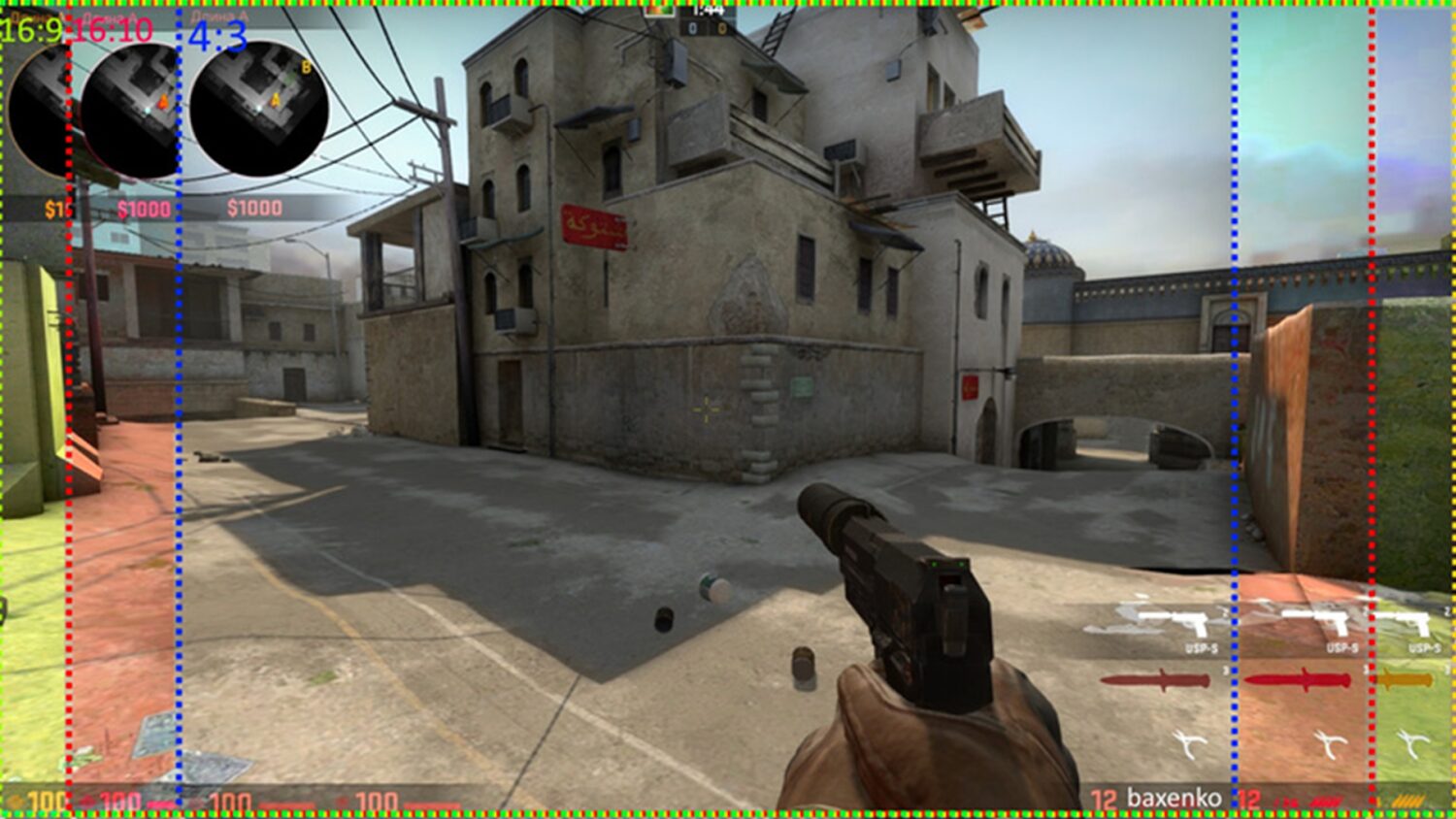
Dropping your resolution is one of the fastest ways to increase FPS when your graphics card is the bottleneck.
Try these resolutions in order:
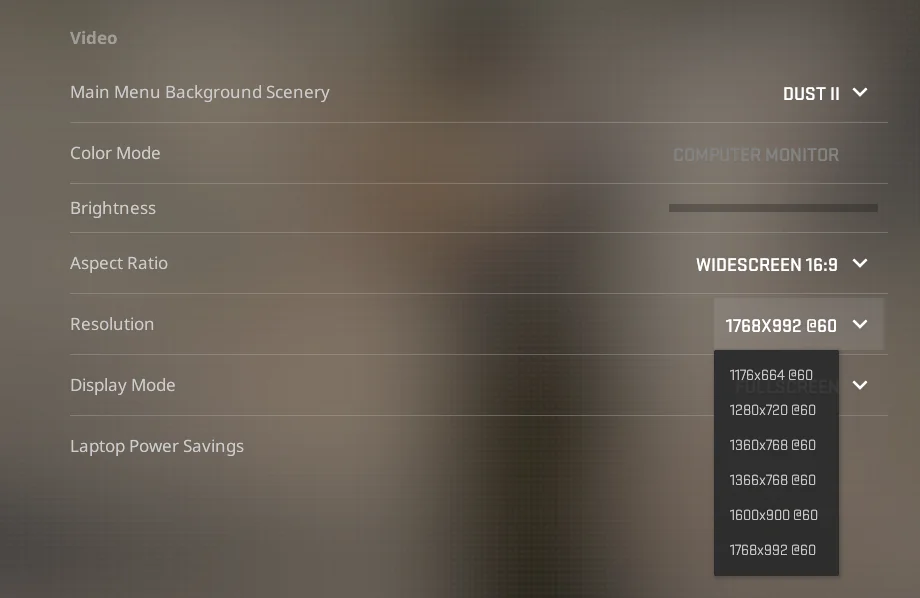
- 1920×1080 for the clearest picture
- 1600×900 for a small performance boost
- 1280×960 stretched for competitive 4:3
- 1280×720 for weaker systems
- 1024×768 as a last resort
A lower resolution reduces the number of pixels your GPU has to render. However, it will not solve every performance problem. CS2 can also be heavily limited by the processor, especially during gunfights, Deathmatch sessions and moments involving several players.
Start at your monitor’s native resolution, apply the lower graphics settings and then reduce the resolution only if your FPS is still too low.
Update Your Graphics Driver
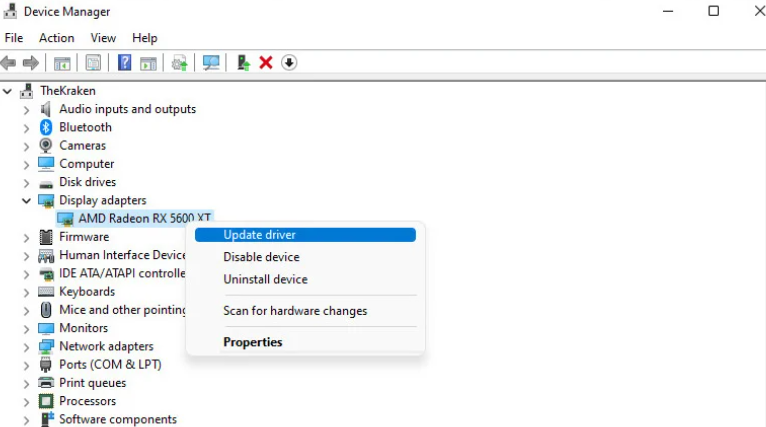
Outdated or broken graphics drivers can cause stuttering, crashes and sudden drops in performance. Download the latest stable driver directly through the NVIDIA App, AMD Software: Adrenalin Edition or Intel’s official driver utility.
NVIDIA players should enable NVIDIA Reflex Low Latency inside CS2. NVIDIA states that Reflex can reduce system latency in Counter-Strike 2 by up to 35% on supported GeForce hardware. “Enabled + Boost” keeps the GPU running at higher clock speeds, but it may use more power and slightly reduce FPS, so regular Enabled is the safer starting point.
Our best NVIDIA settings for CS2 guide covers the rest of the NVIDIA Control Panel options.
AMD users can enable Radeon Anti-Lag 2 through CS2 on supported hardware. AMD lists Counter-Strike 2 as an officially supported Anti-Lag 2 game, although availability can depend on the GPU, API and installed driver version.
Close Programs Running in the Background
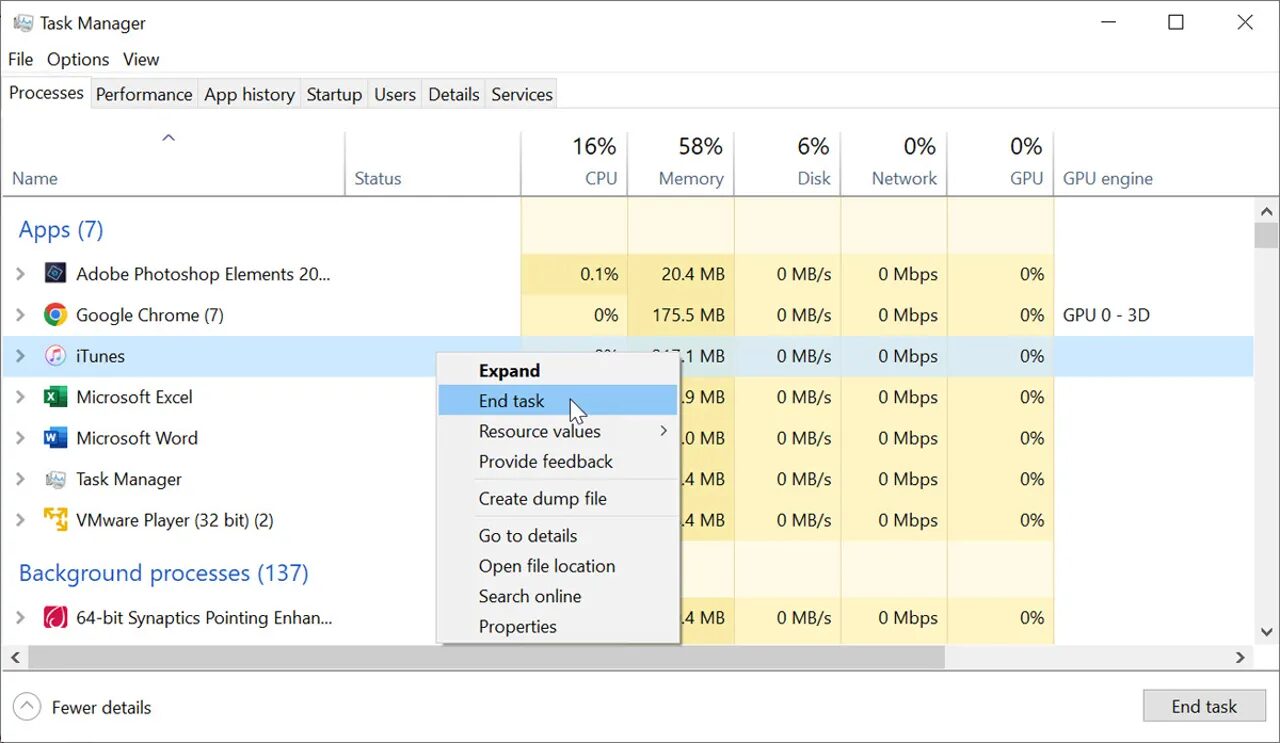
Chrome, Discord, OBS, RGB software and game overlays all use system resources. One program may not make a huge difference, but five or six running together can hurt frame consistency.
Before opening CS2:
- Close unnecessary browser tabs.
- Pause active downloads.
- Disable overlays you do not use.
- Close recording software when you are not recording.
- Check Task Manager for programs using excessive CPU, memory or GPU resources.
- Stop Windows Update or cloud storage from downloading during matches.
Be careful when ending unfamiliar Windows processes. Removing random services or using aggressive “debloat” programs can cause more problems than they solve.
Check Your Monitor Refresh Rate
A surprising number of players own a 144Hz or 240Hz monitor but still have Windows set to 60Hz.
Open Windows Settings > System > Display > Advanced Display, select your gaming monitor and choose its highest supported refresh rate. Microsoft confirms that this menu displays and controls the active resolution and refresh rate.
Your refresh rate does not directly create more FPS, but using the wrong setting prevents your monitor from displaying the extra frames your PC is already producing.
Do Not Copy Huge Launch-Option Lists
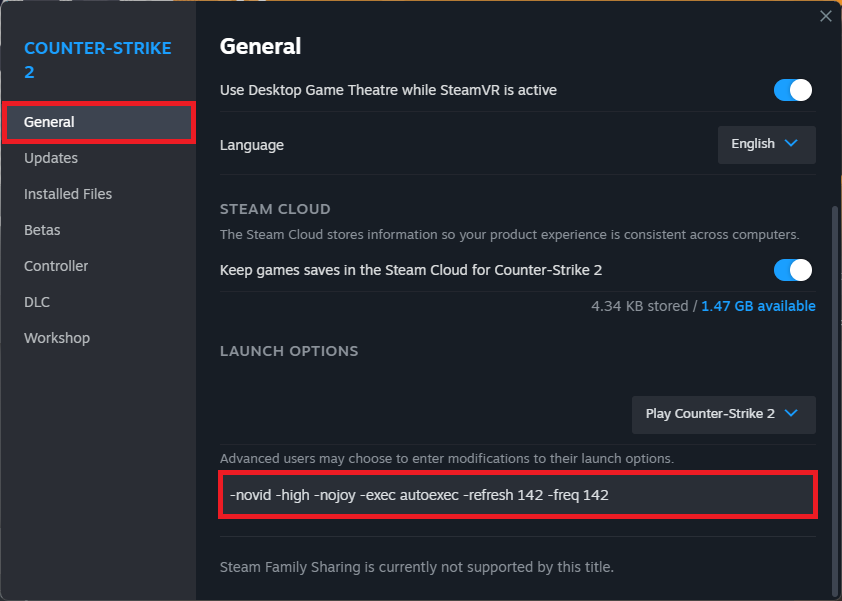
Launch options are not a secret performance upgrade. Most commands shared in old CS:GO videos are unnecessary in CS2.
Commands such as -threads, -tickrate 128 and cl_forcepreload 1 should not be blindly copied into your setup. CS2 and Windows already handle thread allocation automatically, while some older commands no longer work as players expect.
Start with an empty launch-options box. The only performance command most players may need is:
+fps_max 0
This removes the in-game FPS limit. However, uncapped FPS can increase temperatures and produce uneven frame times. A stable cap such as 300 FPS can sometimes feel better than constantly jumping between 250 and 500 FPS.
Read our CS2 launch options guide before adding anything else. Advanced users can save permanent commands through a proper CS2 config file.
Fix Sudden FPS Drops and Stuttering
When CS2 suddenly starts running worse after an update, try these fixes:
- Restart the PC.
- Update or reinstall the graphics driver.
- Verify the integrity of the CS2 game files through Steam.
- Remove unnecessary launch options.
- Reset recently changed graphics settings.
- Close overlays and recording programs.
- Check CPU and GPU temperatures.
- Make sure the game is installed on an SSD with free space remaining.
Valve currently lists Windows 10, 8 GB of RAM, a DirectX 11-compatible GPU and 85 GB of available storage as the minimum requirements. These specifications are enough to launch CS2, but they do not guarantee stable competitive FPS.
Our updated CS2 system requirements guide explains what hardware we recommend for 1080p, 144Hz and higher-refresh-rate gameplay.
Should You Upgrade Your CPU or GPU?
Lower your resolution and test the game again. If your FPS increases considerably, the graphics card was probably limiting performance. If the FPS barely changes, your processor may be the larger bottleneck.
For CS2, a strong modern CPU can be more important than buying the most expensive graphics card. Competitive players chasing 240 FPS or 360 FPS need consistent processor performance, fast memory and good cooling.
Before spending money, compare your setup with common CS2 pro settings. You can also clean up screen space with our best CS2 viewmodel settings and improve visibility using the CS2 crosshair guide.
Final Thoughts
The best way to increase FPS in CS2 is to make one change at a time and test it properly. Begin with fullscreen mode, low graphics settings, V-Sync disabled and the correct monitor refresh rate. After that, update your drivers, close background programs and lower the resolution only when necessary.
Avoid random registry edits and giant launch-option lists. A clean, stable setup will usually feel better than an “optimized” config filled with commands copied from old CS:GO videos.
Once your game is running smoothly, our CS2 beginner’s guide can help you work on movement, aiming, economy and the parts of the game that settings cannot fix.