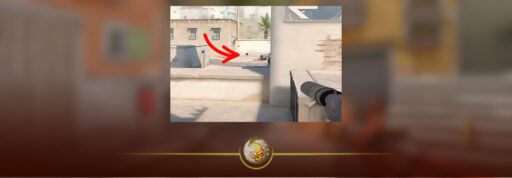
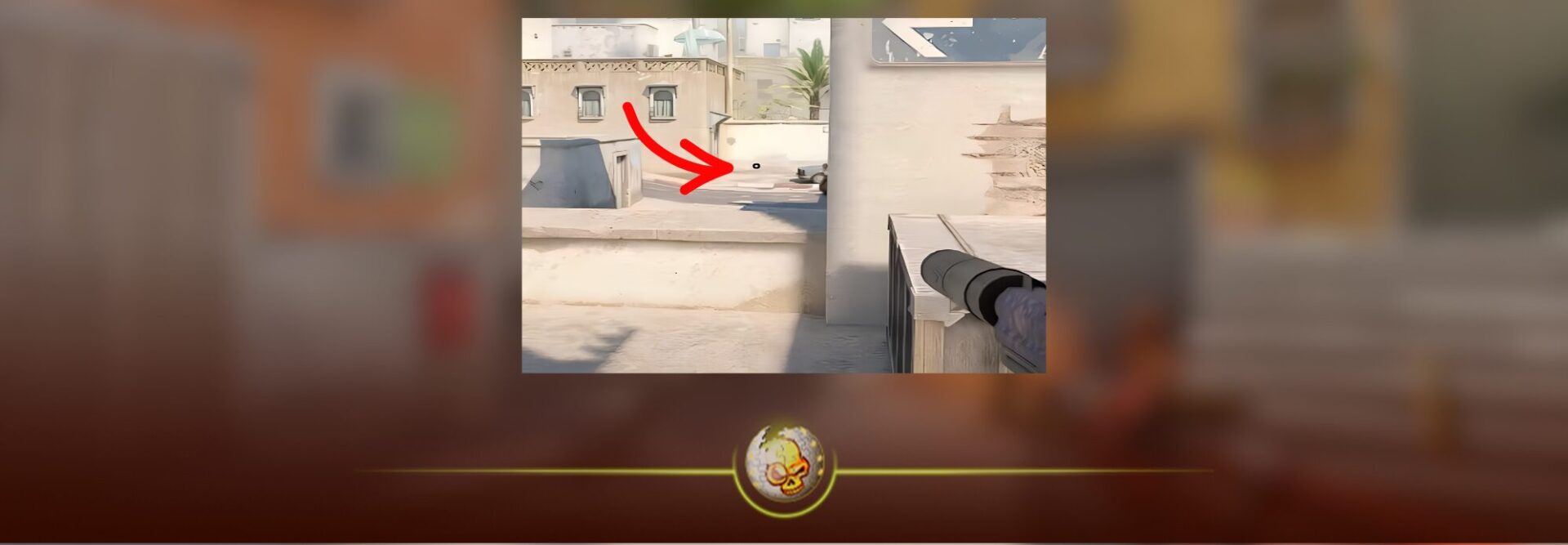
A dot crosshair gives you one clear point in the middle of your screen without four lines covering the target. It is clean, simple and especially popular with players who focus on tapping, bursting and holding tight head-level angles.
The best CS2 dot crosshair code to try in 2026 is:
CSGO-JaaMN-QODox-vueWF-sdtLn-PU9vO
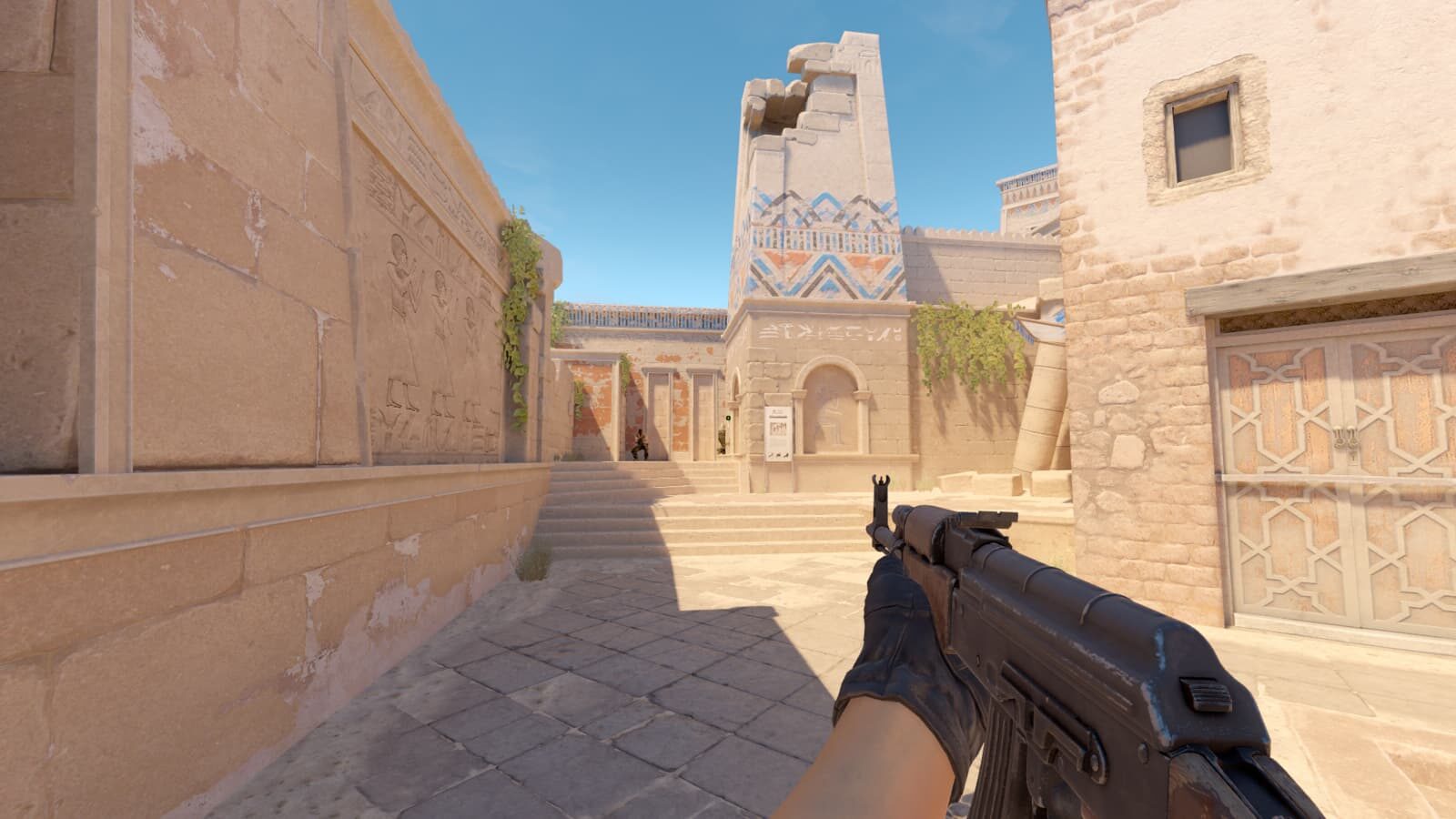
This code creates a small green dot with an outline that helps it remain visible against different parts of a map. It is a strong starting point, but you should still adjust its thickness, color and outline after playing a few matches.
A crosshair code will not automatically fix your aim. What it can do is give you a consistent reference point that is easy to follow during fights. The rest comes down to crosshair placement, movement, recoil control and practice.
How to Import a CS2 Dot Crosshair Code
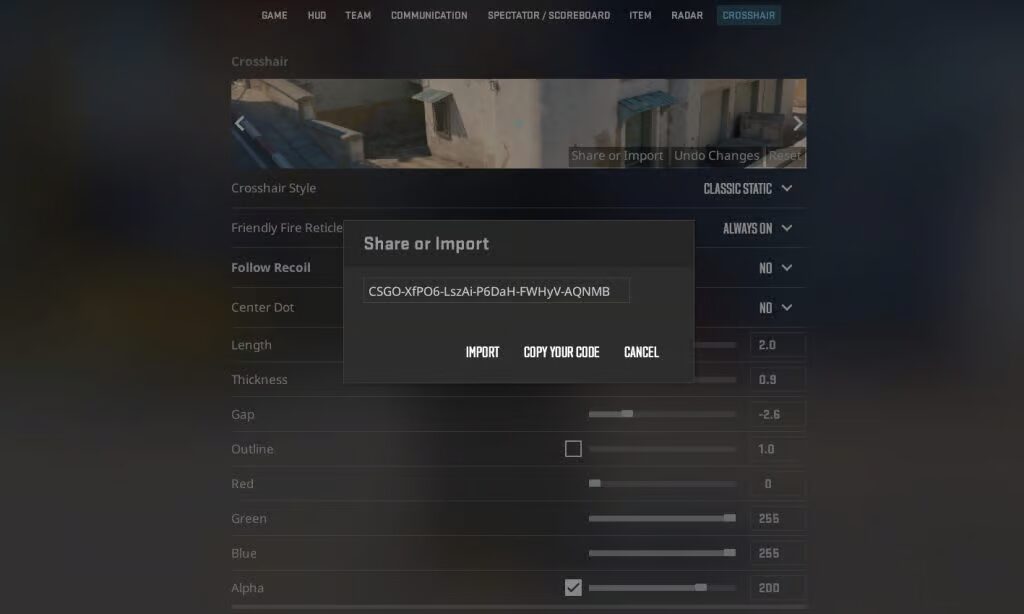
You do not need to use the developer console to import a crosshair code.
Open Counter-Strike 2 and follow these steps:
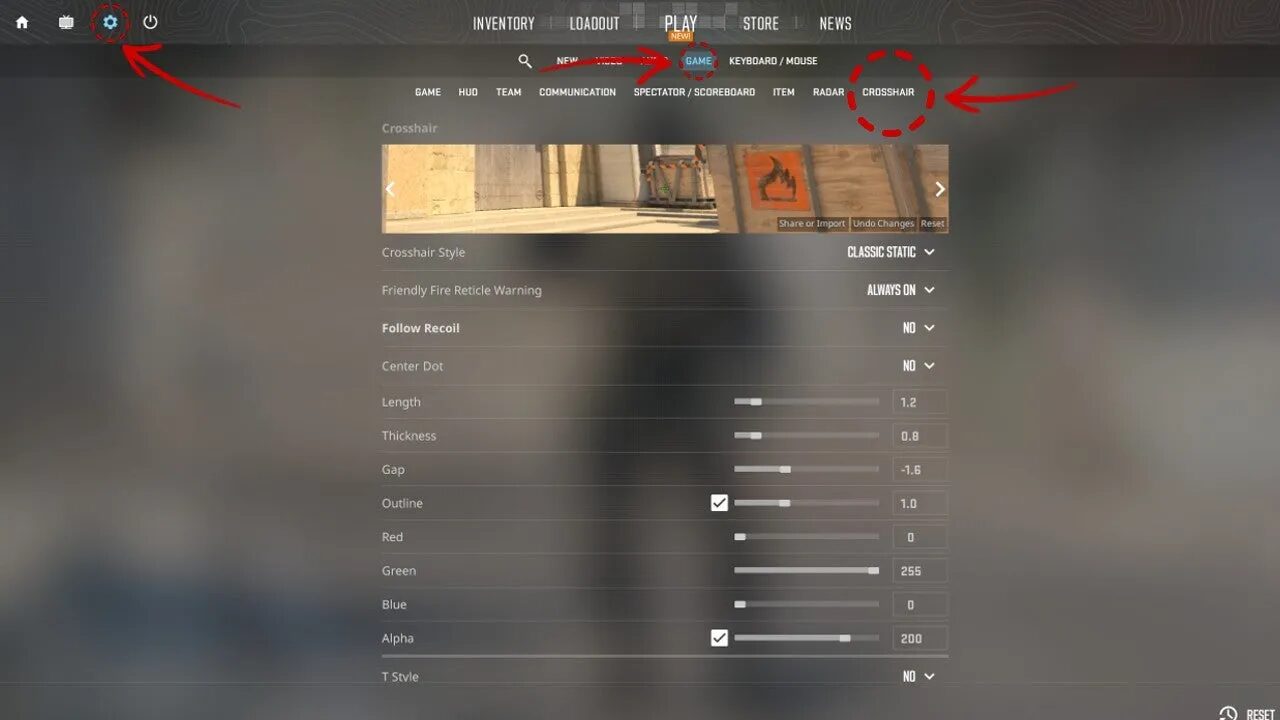
- Select the settings icon from the main menu.
- Open the Game tab.
- Select Crosshair.
- Click Share or Import.
- Paste the dot crosshair code.
- Select Import.
Your preview should immediately change to the new design.
Do not worry that the code begins with “CSGO.” CS2 crosshair share codes still use this format and can be pasted directly into the game.
For a complete breakdown of the menu and every available option, read our guide on how to change your crosshair in CS2. You can also compare the dot with other designs in our full CS2 crosshair guide.
What Is a Dot Crosshair in CS2?
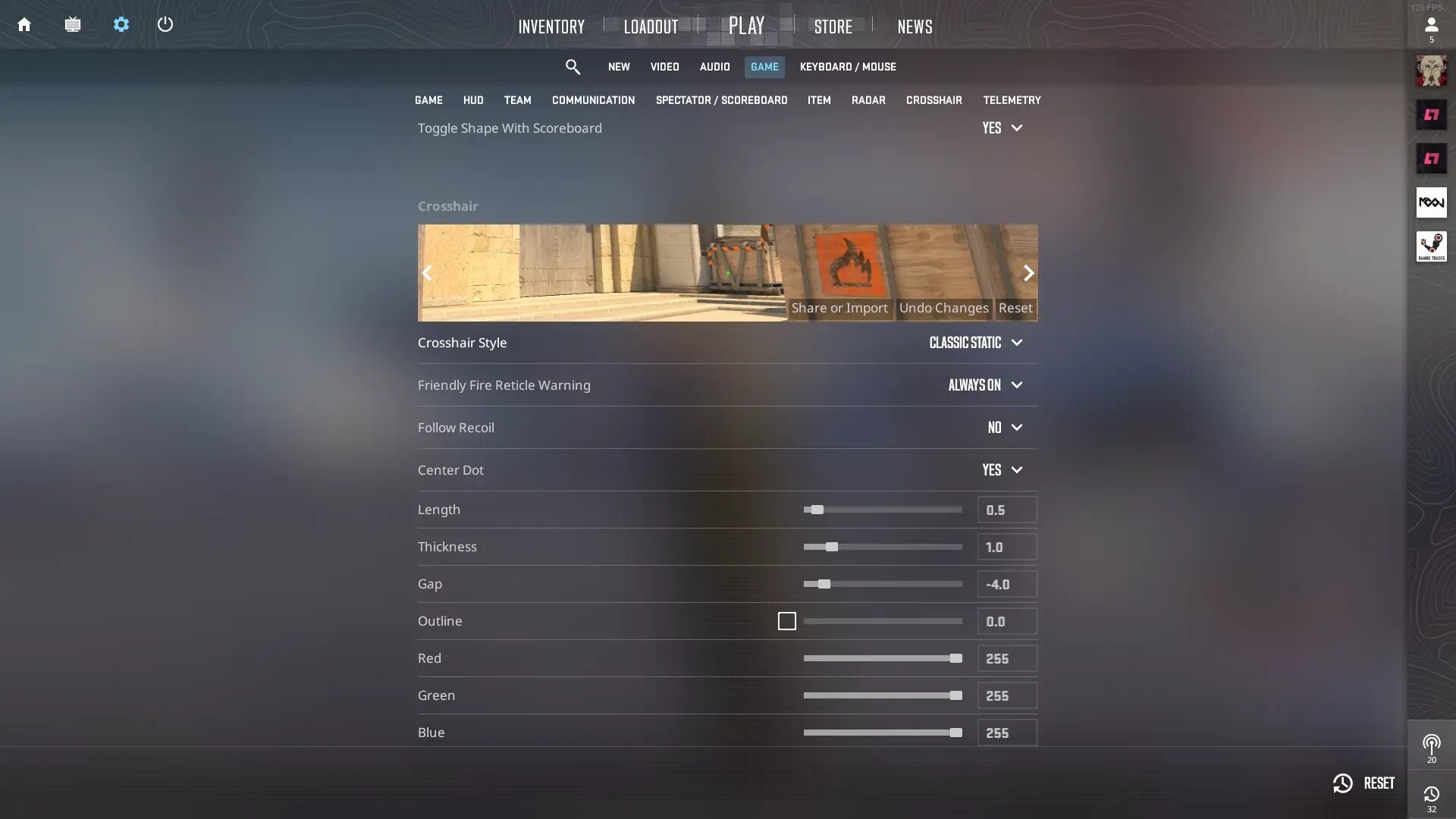
A dot crosshair removes the traditional lines and leaves a small point at the exact center of your screen.
The main benefit is visibility around the target. When you are aiming at a player’s head, there are no long crosshair lines covering their model. You can see exactly where the middle of your screen is placed.
However, a dot gives you less information than a normal crosshair. Four-line crosshairs make it easier to judge the center of a spray, track movement and quickly relocate your aim during chaotic fights. A very small dot can temporarily disappear from your vision, especially while spraying or moving between bright and dark areas.
That is why a dot often feels excellent for controlled taps but less forgiving during long rifle sprays.
Best CS2 Dot Crosshair Console Commands
Players who want complete control can build a dot manually through the developer console.
First, open Settings, select Game, and set Enable Developer Console to Yes. Press the tilde key below Escape to open the console.
Paste the following commands:
cl_crosshairstyle 4
cl_crosshairdot 1
cl_crosshairsize 0
cl_crosshairthickness 1
cl_crosshairgap -4
cl_crosshair_drawoutline 1
cl_crosshair_outlinethickness 1
cl_crosshaircolor 4
cl_crosshairusealpha 1
cl_crosshairalpha 255
cl_crosshair_t 0
cl_crosshairgap_useweaponvalue 0
cl_crosshair_recoil 0
This creates a static cyan dot with a dark outline. The static style keeps the crosshair from expanding while you move or shoot, while the outline prevents the dot from blending into the map.
Our list of CS2 crosshair commands explains what each command controls. Players who are unfamiliar with the console can also use our broader Counter-Strike console commands guide.
How to Change the Dot Size
The most important dot setting is thickness:
cl_crosshairthickness 1
A value around 0.5 creates a very small dot. It looks clean at close range but may become difficult to see during fast fights.
A value of 1 is a balanced starting point for most resolutions. It remains precise without becoming too distracting.
Values around 1.5 or 2 create a larger dot. This can be useful on a high-resolution display or for players who regularly lose sight of smaller crosshairs.
Do not automatically copy the smallest setting possible. A dot that looks perfect while standing still on an empty practice map may disappear once utility, player models and muzzle flashes fill the screen.
Your resolution also changes how the dot appears. A setting that looks tiny on 1920×1080 may appear much thicker on a stretched resolution. Our guide to the best CS2 resolution explains how aspect ratio and resolution change the way models and interface elements appear.
Best Color for a CS2 Dot Crosshair
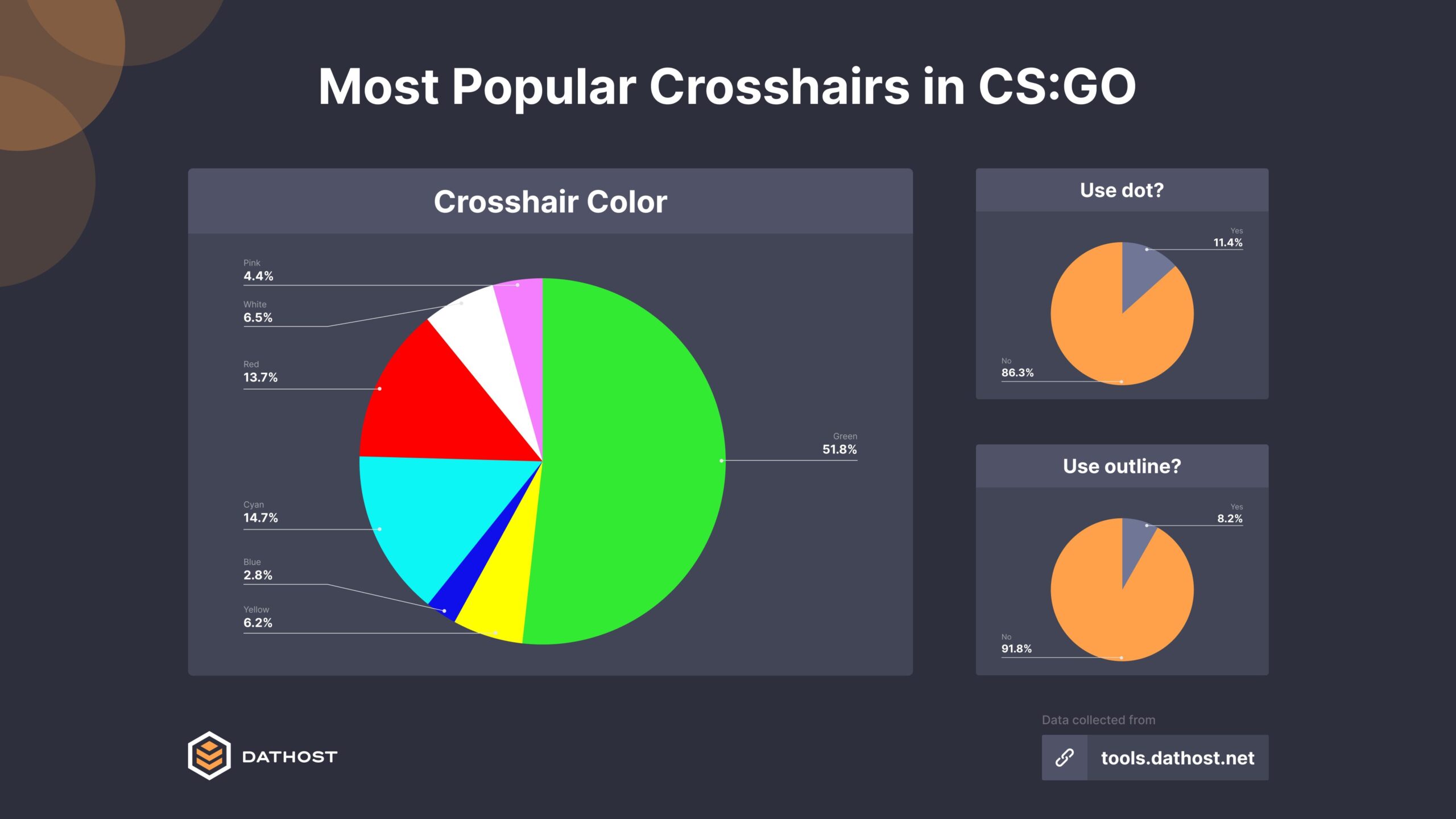
Green and cyan are reliable starting points because they provide strong contrast across many CS2 environments. The best choice still depends on your resolution, monitor and personal eyesight.
Use these preset commands:
cl_crosshaircolor 1
This produces a green crosshair.
cl_crosshaircolor 4
This produces a cyan crosshair.
For a custom color, set cl_crosshaircolor 5 and enter your own RGB values:
cl_crosshaircolor 5
cl_crosshaircolor_r 255
cl_crosshaircolor_g 0
cl_crosshaircolor_b 255
That combination creates a bright magenta dot.
Test your color on both bright and dark areas. A white dot may look clean in the settings menu but disappear against pale walls or the sky. A dark dot can become difficult to follow in shadows.
Visibility is also affected by your video configuration. The best CS2 settings for 2026 provide a complete competitive setup, while our CS2 NVIDIA settings guide focuses on clarity, performance and input delay.
Dot Crosshair Advantages
The biggest advantage is the unobstructed view.
A pure dot does not cover as much of the enemy model, making it comfortable for precise taps and small aim corrections. It also keeps your screen clean and provides an obvious point for lining up utility or holding narrow gaps.
Players who enjoy disciplined rifling may find it easier to concentrate on the target rather than the shape of the crosshair.
Dot Crosshair Disadvantages
The same minimal design can also be its weakness.
During a spray, a tiny dot gives you very little visual structure to follow. It may be harder to see against certain backgrounds, especially without an outline. Some players also struggle to relocate the dot after a fast flick or wide turn.
If spraying feels inconsistent, the problem may not be the dot alone. Study the mechanics in our CS2 follow recoil guide and make sure your sensitivity is not forcing you to overcorrect.
Our guides to the best sensitivity for CS2 and best DPI for CS2 can help you build a more consistent mouse setup.
Why Did My Crosshair Code Not Work?
First, make sure you copied the entire code without adding a space before or after it. Paste it into Share or Import, not directly into the developer console.
If the code imports but looks different than expected, check whether you changed its settings afterward. Importing another code or editing the crosshair menu can replace parts of the setup.
Once you find a design you like, use the same Share or Import menu to copy and save your own code. This gives you a backup that can be restored later.
Final CS2 Dot Crosshair Recommendation
Start with this CS2 dot crosshair code:
CSGO-JaaMN-QODox-vueWF-sdtLn-PU9vO
Use it for a few practice sessions and matches before making changes. If the dot disappears during fights, increase its thickness or enable an outline. If it blocks too much of the target, reduce the thickness by a small amount.
A crosshair should be visible without demanding your attention. Once it feels natural, stop constantly changing it and concentrate on keeping it at head level.
Newer players should also read our complete CS2 beginner’s guide to understand movement, economy, weapons and positioning. A good dot crosshair can make aiming feel cleaner, but strong fundamentals are what turn that clean aim into more won rounds.