

Net jitter in CS2 can make a perfectly normal match feel almost unplayable. Your ping might look fine, but players suddenly teleport, movement feels delayed, and shots seem to register a moment later than they should.
The confusing part is that jitter is not the same thing as high ping or packet loss.
High ping means data takes longer to travel between your PC and the server. Packet loss means some data never arrives. Jitter means packets arrive at inconsistent times. One packet might arrive normally, while the next one arrives late or together with several other packets.
Valve has explained that these late or uneven packet deliveries can cause noticeable gameplay hitches, even when traditional packet loss numbers look normal.
Here is how to properly check and fix net jitter in CS2.
Check Whether Jitter Is Actually the Problem
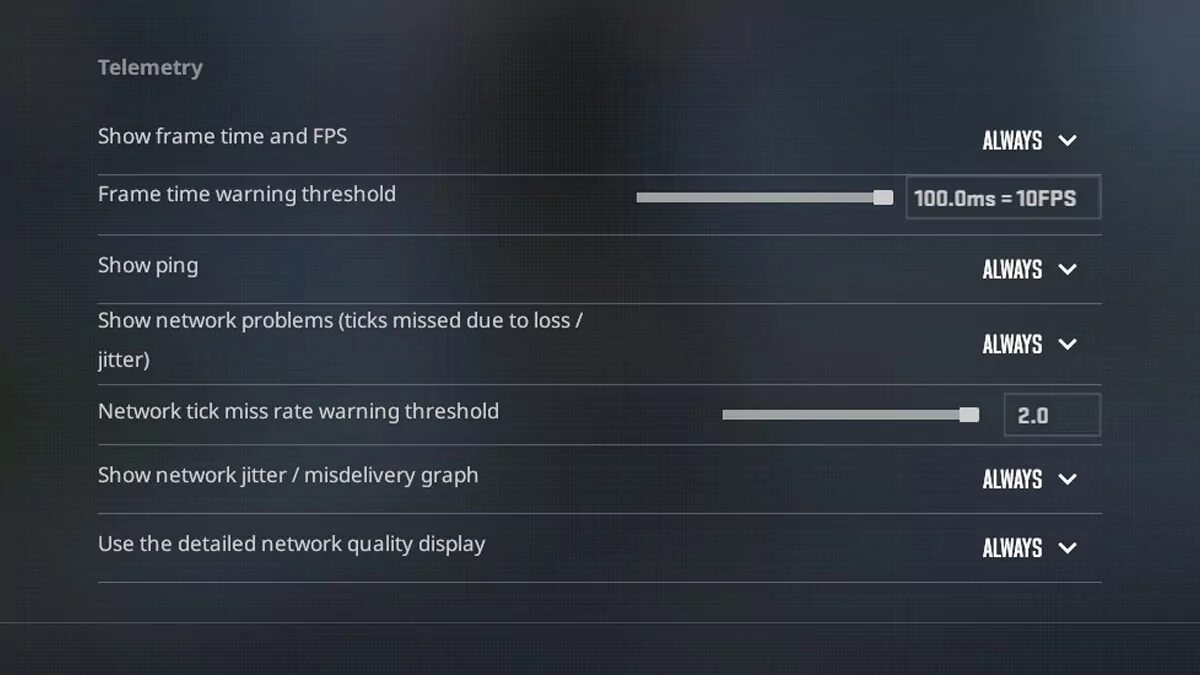
Before changing anything, turn on the network information inside CS2.
Open CS2 and go to:
Settings > Game > Telemetry
Enable the network problem display and the detailed network quality information. Play a Deathmatch or Competitive match and watch the network information when the game starts feeling choppy.
Valve’s telemetry system is designed to show when packet loss or jitter is actually affecting gameplay. This helps separate a network problem from an FPS drop or hardware issue.
If your FPS stays stable while the network warning appears, continue with the fixes below.
1. Change the CS2 Buffering Setting
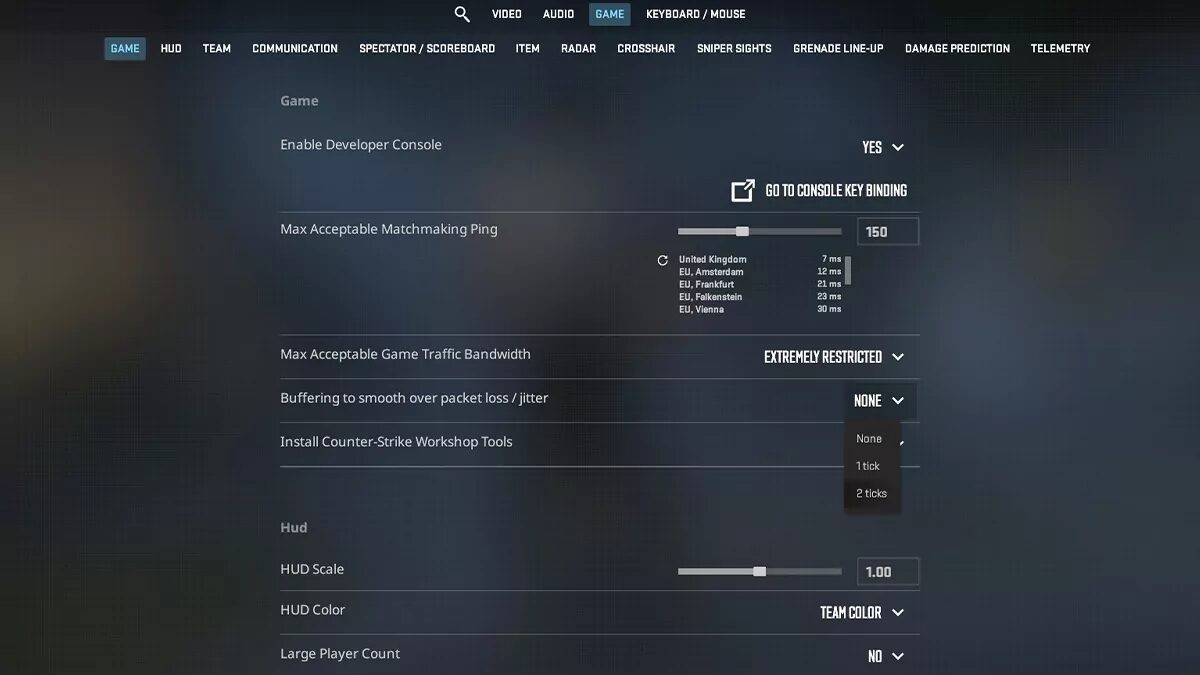
CS2 includes a setting specifically designed to smooth over packet loss and jitter.
Go to:
Settings > Game > Buffering to smooth over packet loss / jitter
Change the setting from None to 1 packet.
Play a full match and see whether the stuttering improves. If the warning still appears constantly, test 2 packets.
Buffering gives delayed packets slightly more time to arrive before CS2 displays the next game update. It can make unstable connections feel smoother, but it may also add a small amount of input delay. That is why you should start with 1 packet instead of immediately choosing the highest setting.
Valve has confirmed that Source 2 automatically applies buffering to help smooth over jitter, while the manual setting allows players to increase that buffer when necessary.
This setting can hide smaller spikes, but it does not repair the actual internet connection causing them.
2. Switch From Wi Fi to Ethernet
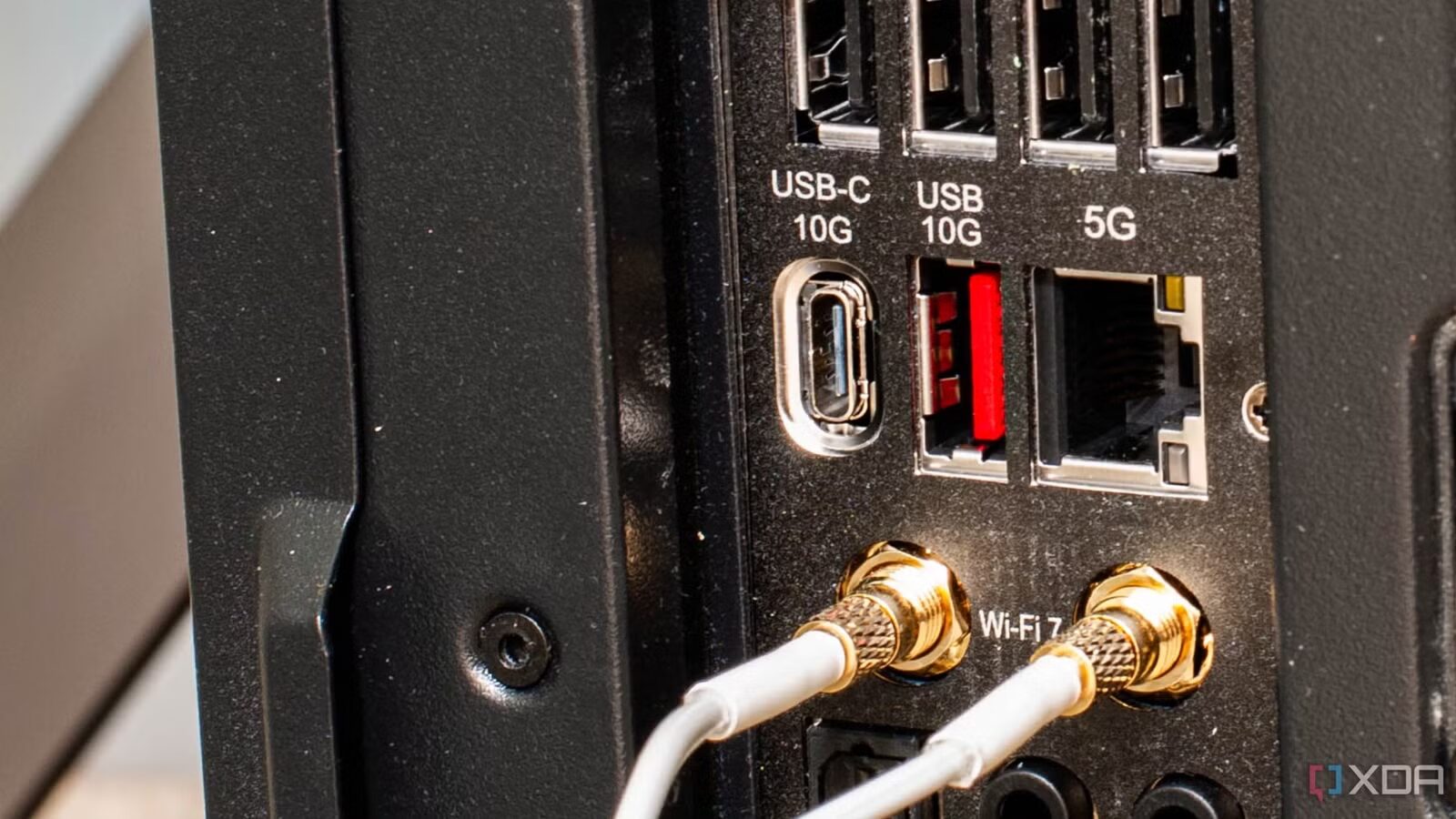
A wired Ethernet connection is usually the biggest improvement you can make.
Wi Fi can be affected by distance, walls, nearby networks, Bluetooth devices, and other electronics. Your download speed may still look excellent during a speed test, while the connection suffers from small timing spikes that become obvious in CS2.
Connect your PC directly to the router with an Ethernet cable and test another match.
Steam officially recommends testing with a wired connection because wireless and powerline connections can experience intermittent interference.
When Ethernet fixes the jitter, the problem is probably your wireless connection rather than CS2.
3. Stop Background Uploads and Downloads
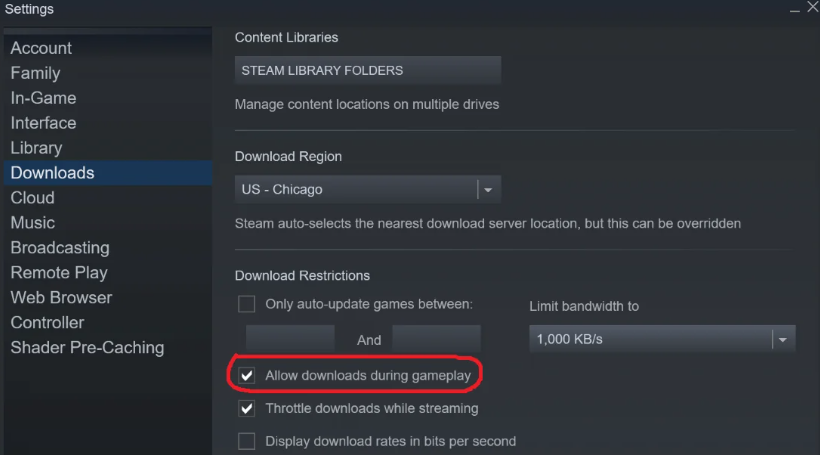
CS2 does not require a huge amount of bandwidth, but it does require a steady connection.
Pause anything that could suddenly consume bandwidth, including:
Steam downloads
Windows updates
Cloud backups
Discord streams
Twitch or YouTube streams
File uploads
Downloads running on another computer
Uploads are especially important. When your upload bandwidth becomes overloaded, your game packets may be forced to wait behind other traffic.
Check phones, consoles, smart televisions, and other computers connected to the same network. Someone uploading files or downloading a large game can create jitter for everyone else.
4. Restart Your Modem and Router
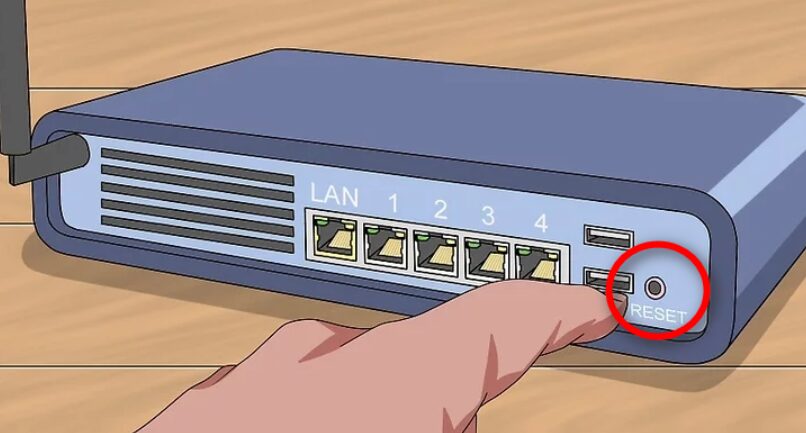
Restarting your network equipment sounds basic, but it is worth doing before changing advanced Windows settings.
Turn off your modem and router, wait around 30 seconds, then turn the modem back on. Allow it to reconnect before turning the router back on.
Steam notes that network hardware can enter a slow or broken state after running for a long period. Restarting it can clear temporary connection problems.
Do not press the small factory reset button. A normal power restart is enough.
5. Test a Different CS2 Server
Sometimes the problem is not inside your home.
A poor route between your internet provider and a specific CS2 server can cause jitter. Try another matchmaking region, community server, or game mode and see whether the problem continues.
You can also lower the Max Acceptable Matchmaking Ping setting inside CS2. This may help the game place you on closer servers, although setting it too low can increase queue times.
When one server feels terrible but the next match runs normally, the issue may have been server related or caused by the route your connection took to that server.
6. Update Your Network Adapter Driver
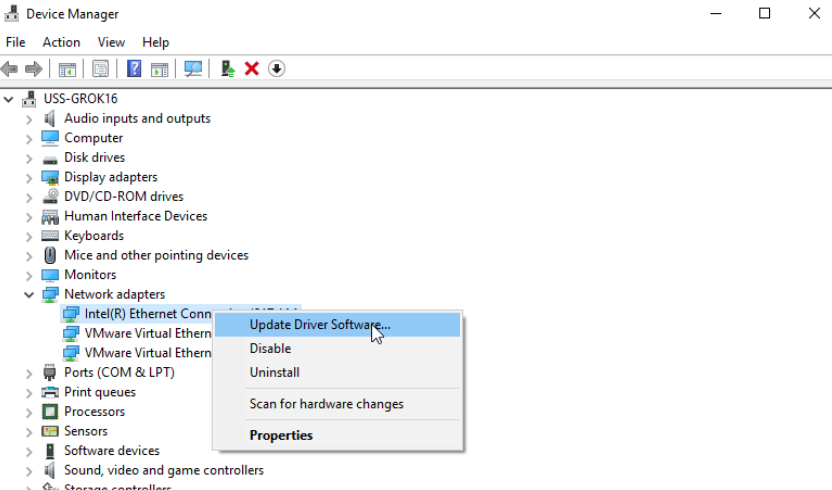
An old or unstable network driver can cause connection problems.
Open Device Manager, expand Network adapters, and identify your Ethernet or Wi Fi adapter. Download the newest driver directly from the adapter or motherboard manufacturer.
Restart your PC after installing it.
Avoid random driver updater programs. Get the driver from Intel, Realtek, your laptop manufacturer, or your motherboard support page.
7. Reset the Windows Network Settings
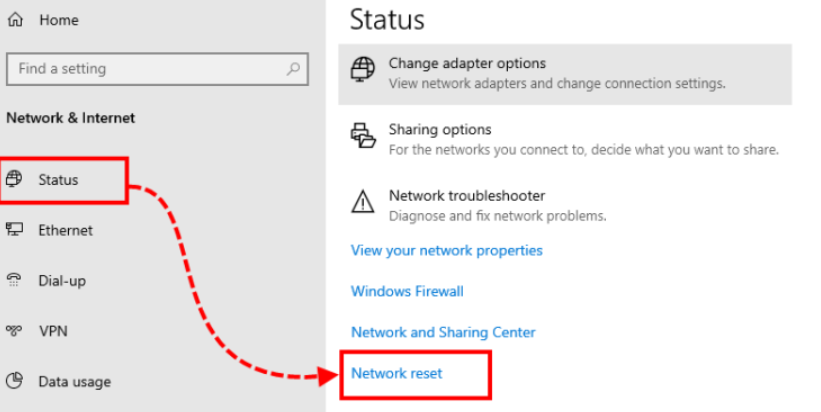
Use this as a later step because Windows will remove and reinstall your network adapters.
On Windows 11, open:
Settings > Network and Internet > Advanced network settings > Network reset
Select Reset now and restart your computer.
Microsoft recommends network reset as a troubleshooting step for persistent Ethernet and Wi Fi connection problems.
You may need to reconnect to your Wi Fi network afterward.
8. Test Whether the Problem Is Inside Your Home
Open Command Prompt and enter:
ping 192.168.1.1 -n 50
Your router address may also be 192.168.0.1.
The response times should remain low and consistent. Large spikes while pinging your own router usually point to a local Wi Fi, cable, adapter, or router problem.
Next, test an outside connection:
ping 8.8.8.8 -n 50
When the router test is stable but the outside test jumps around, the issue may involve your modem, internet provider, or the route outside your home.
Steam also recommends tools such as PathPing or MTR when diagnosing where latency or packet loss begins along a network route.
Does Changing DNS Fix CS2 Jitter?
Usually, no.
DNS helps your computer find the address of a service. Once you are already connected to a CS2 server, switching DNS providers normally will not fix unstable packet timing.
It can help with connection or lookup problems, but it should not be your first fix for net jitter.