
CS2 can feel laggy even when your FPS looks high and your ping looks normal. Your aim feels heavy, enemies skip across the screen, sprays feel delayed and movement never feels as clean as it should.
I have played Counter Strike since the older versions, and one thing I learned early is that players call almost every performance problem “lag.” In reality, CS2 can feel bad for several completely different reasons.
The problem could be unstable FPS, poor frame times, input delay, net jitter, packet loss or simply a struggling server. You need to identify which one you are dealing with before changing random settings.
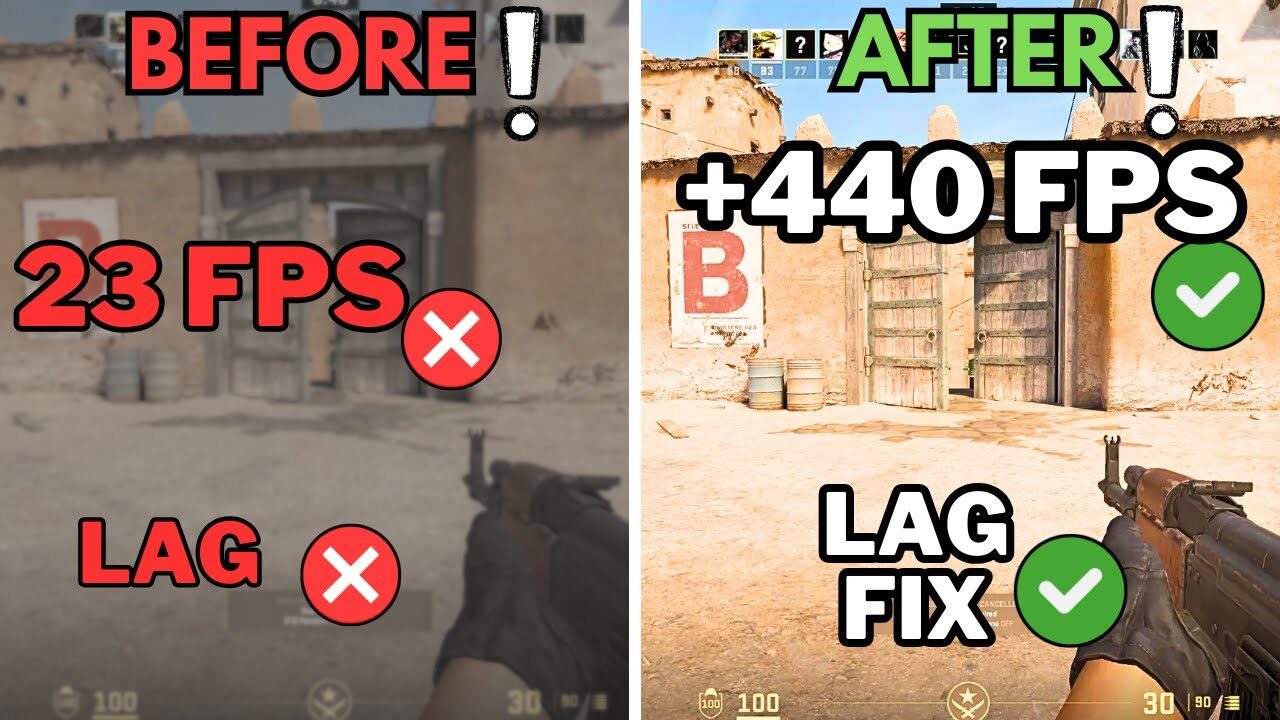
Why Does CS2 Feel Laggy?
CS2 usually feels laggy because of one of these problems:
- Your FPS is dropping or constantly fluctuating
- Your frame time is spiking even with high average FPS
- Your connection has packet loss or net jitter
- V Sync or another setting is adding input delay
- A background program is taking CPU, GPU or network resources
- Your graphics driver or shader cache is causing stutters
- The CS2 server itself is performing poorly
The fastest fix is figuring out whether the lag is coming from your computer or your connection.
1. Turn On the CS2 Telemetry Information
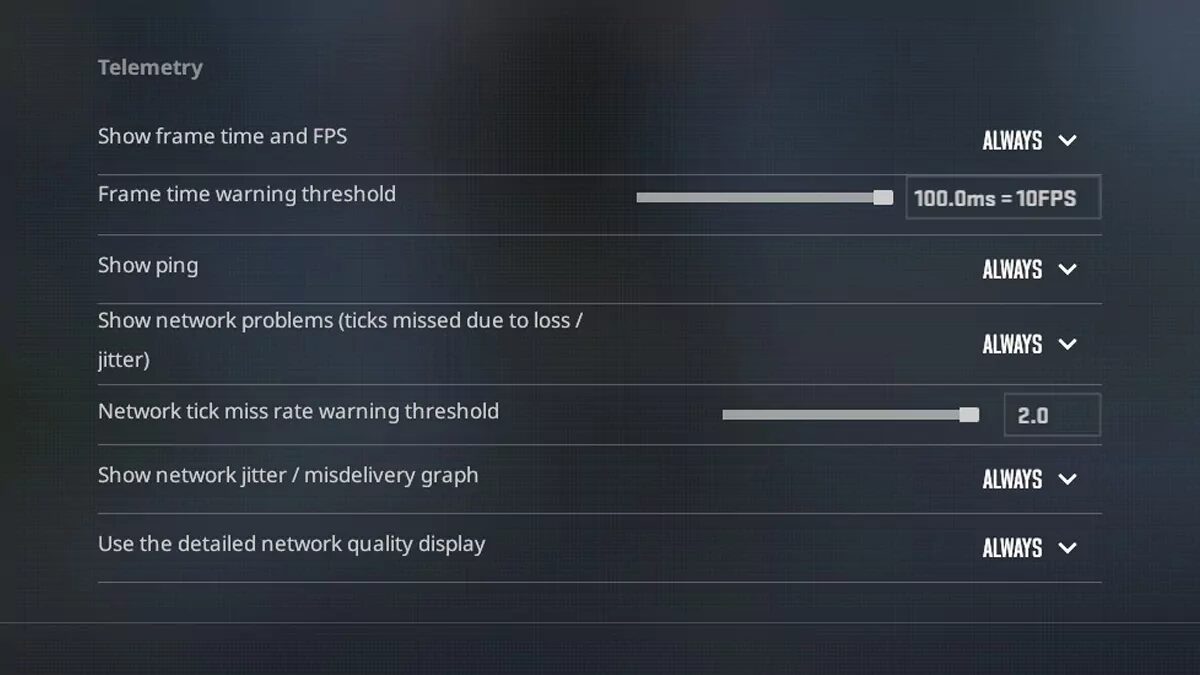
Start with CS2’s built in Telemetry menu.
Open CS2 and go to:
Settings > Game > Telemetry
Turn on the options that display frame time and network problems. You can set them to Always while troubleshooting and change them back later.
Play a Deathmatch match and watch what happens when the game feels laggy.
When the frame time number suddenly jumps, the problem is probably related to your PC or graphics settings.
When the network warning appears, you are more likely dealing with jitter, packet loss or an unstable connection.
You can also follow our guide on how to show FPS in CS2 for another simple way to monitor performance.
2. Fix Unstable FPS and Frame Times
A high FPS number does not always mean the game is running smoothly.
You might average 250 FPS, but sudden drops to 130 FPS can still make aiming and movement feel inconsistent. Stable performance normally feels better than a higher number that constantly jumps around.
Start by lowering the settings that create the biggest performance spikes:
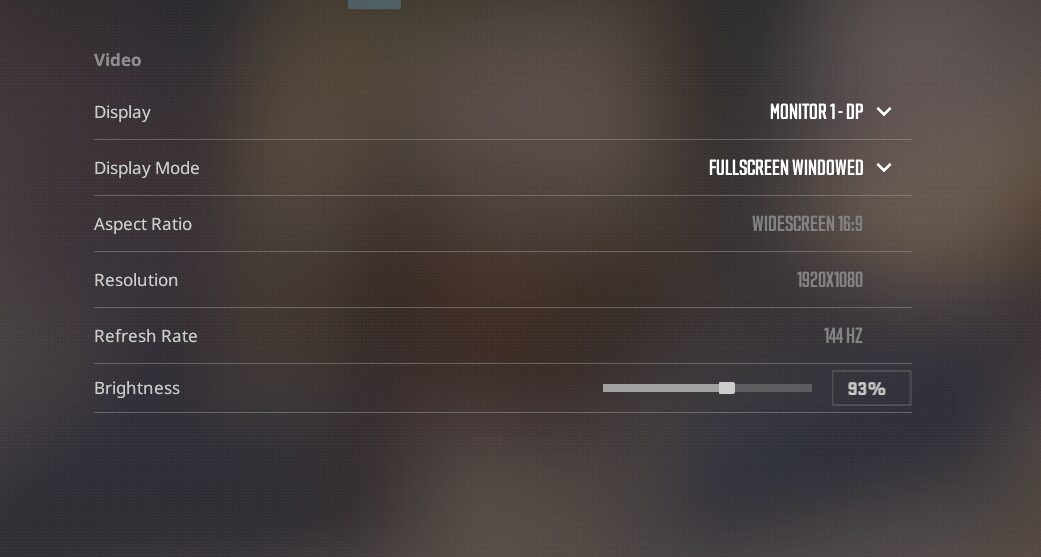
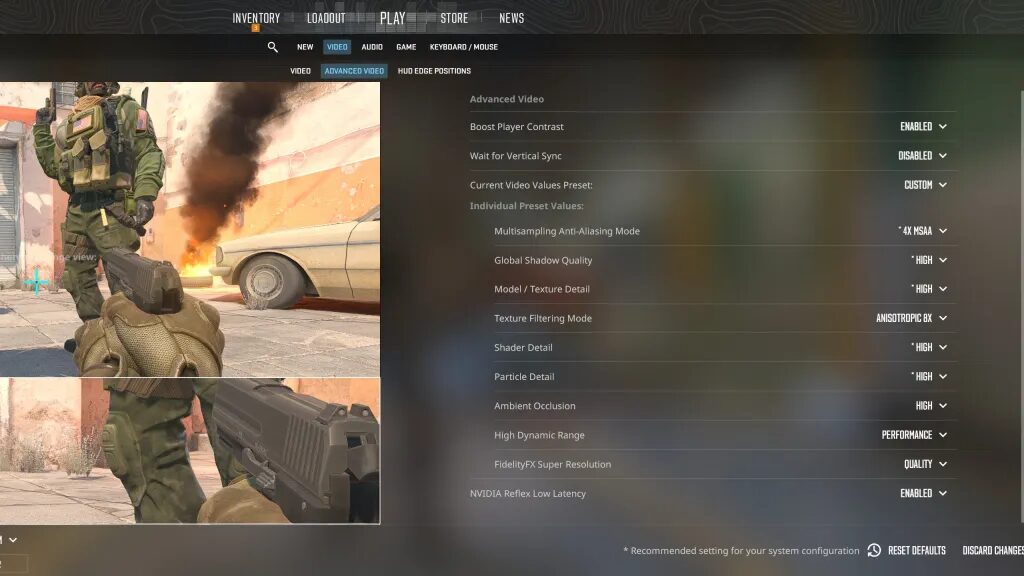
- Set Display Mode to Fullscreen
- Turn V Sync off
- Lower Multisampling Anti Aliasing
- Lower Shader Detail
- Lower Particle Detail
- Set Ambient Occlusion to Disabled
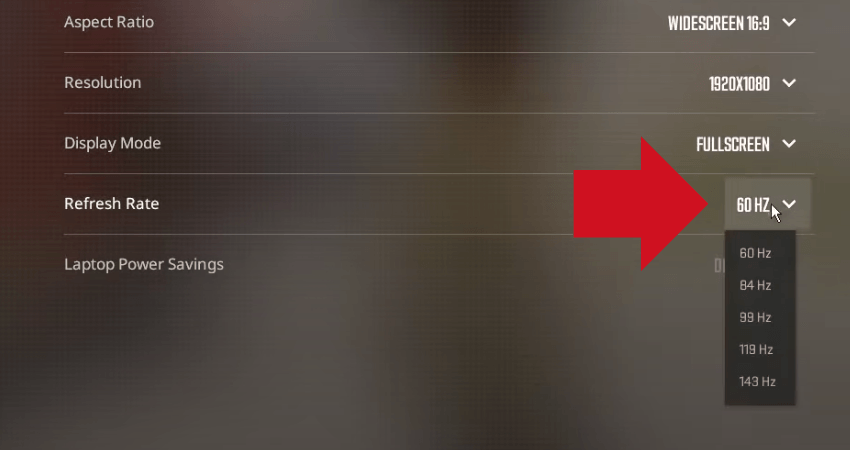
- Make sure your monitor is running at its highest refresh rate
You do not need to put every setting on the lowest option. Global Shadow Quality can still provide useful competitive information, so test Low or Medium instead of disabling everything blindly.
Our best CS2 settings for 2026 guide has a complete competitive setup. You can also check the best CS2 graphics settings if your GPU is struggling.
3. Try a Stable FPS Cap
Unlimited FPS is not automatically the smoothest option for every computer.
When your CPU and GPU are constantly running at maximum capacity, frame times can become inconsistent. Try capping your FPS at a number your PC can maintain during actual fights, not just while standing in spawn.
Open the developer console and enter:
fps_max 300
Change 300 to a number your computer can consistently hold. A player averaging between 220 and 350 FPS might get a smoother experience with a 240 or 300 FPS cap.
Do not cap your FPS at 300 when your system regularly drops below 200. Pick a realistic limit and test it during smokes, Molotovs and crowded fights.
Read our CS2 max FPS guide for more ways to test capped and uncapped performance.
4. Fix CS2 Stuttering After an Update
CS2 sometimes develops micro stutters after a game update, graphics driver update or settings change.
Start by restarting your PC and playing a few minutes of Deathmatch. The game may need time to rebuild or load certain resources again.
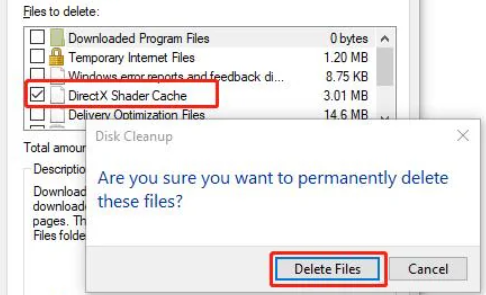
When the stuttering continues, clear the DirectX Shader Cache:
- Search for Disk Cleanup in Windows
- Select your main drive
- Check DirectX Shader Cache
- Complete the cleanup
- Restart your computer
You should also update your graphics driver. When the problem started immediately after installing a new driver, a clean reinstall or rollback may work better than simply installing it again.
NVIDIA players can check our best NVIDIA settings for CS2. We also have a dedicated guide for fixing CS2 stuttering.
5. Fix Net Jitter and Packet Loss
Network lag usually looks different from an FPS problem.
Enemies may teleport slightly, your character may get pulled backward or your shots may appear to register late. Your ping can still look normal because ping only measures delay. It does not show how consistently each packet arrives.
Start with these fixes:
- Connect your PC directly to the router with Ethernet
- Pause Steam downloads and Windows updates
- Stop cloud backups, streams and large uploads
- Restart your modem and router
- Check whether another device is using most of your connection
- Test a different CS2 server
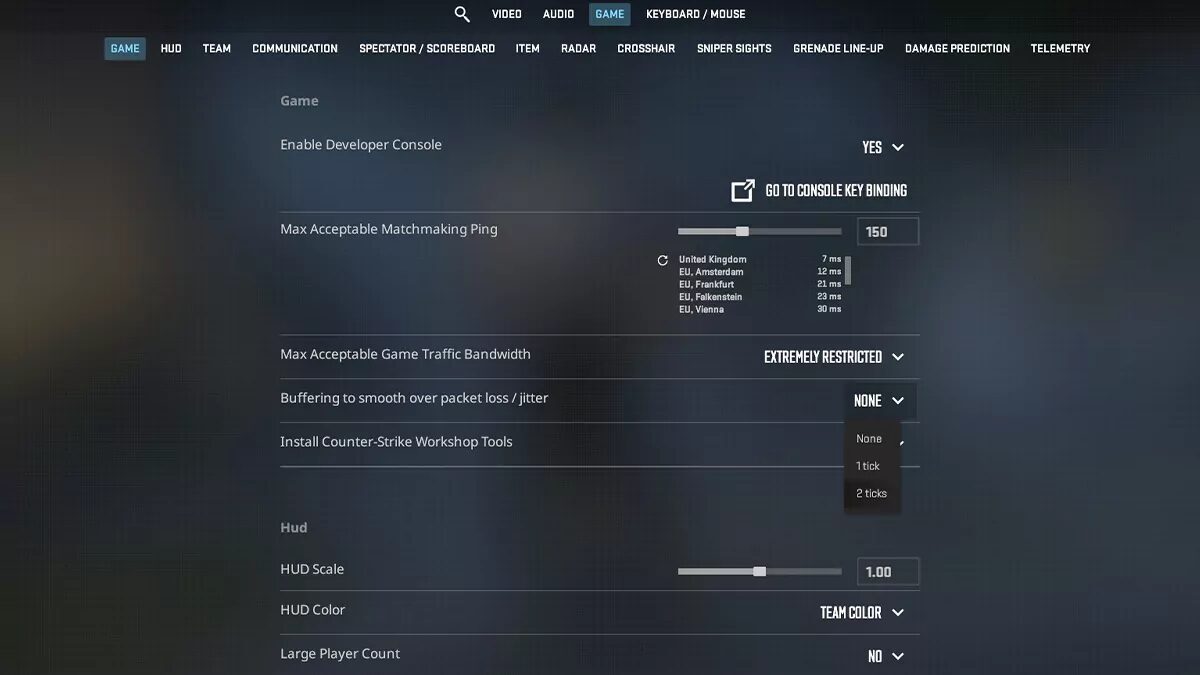
CS2 also has a setting called Buffering to Smooth Over Packet Loss or Jitter.
Go to:
Settings > Game > Buffering to Smooth Over Packet Loss or Jitter
Start with 1 packet. This can make an unstable connection feel smoother, but it may add a small amount of latency. Only test 2 packets when 1 is not enough.
For more detailed steps, read our guides on how to fix net jitter in CS2 and how to fix packet loss in CS2.
When your character keeps getting pulled back to an older position, our CS2 rubberbanding guide covers that specific problem.
6. Reduce Input Lag
Sometimes CS2 is running smoothly, but your mouse still feels delayed or heavy.
That is input lag rather than normal network lag.
Turn off V Sync and make sure CS2 is running in Fullscreen mode. Check Windows display settings and confirm that your monitor is actually set to 144 Hz, 240 Hz or whatever its maximum refresh rate is.
NVIDIA players should test NVIDIA Reflex on Enabled. Enabled and Boost can lower latency further on certain systems, but it may increase power consumption and slightly affect performance.
Also close unnecessary overlays from Discord, Steam, recording software and GPU applications. An overlay may work perfectly for months and suddenly cause problems after an update.
Our complete CS2 input lag guide goes deeper into mouse delay, display latency and system settings.
7. Remove Old CS GO Launch Options
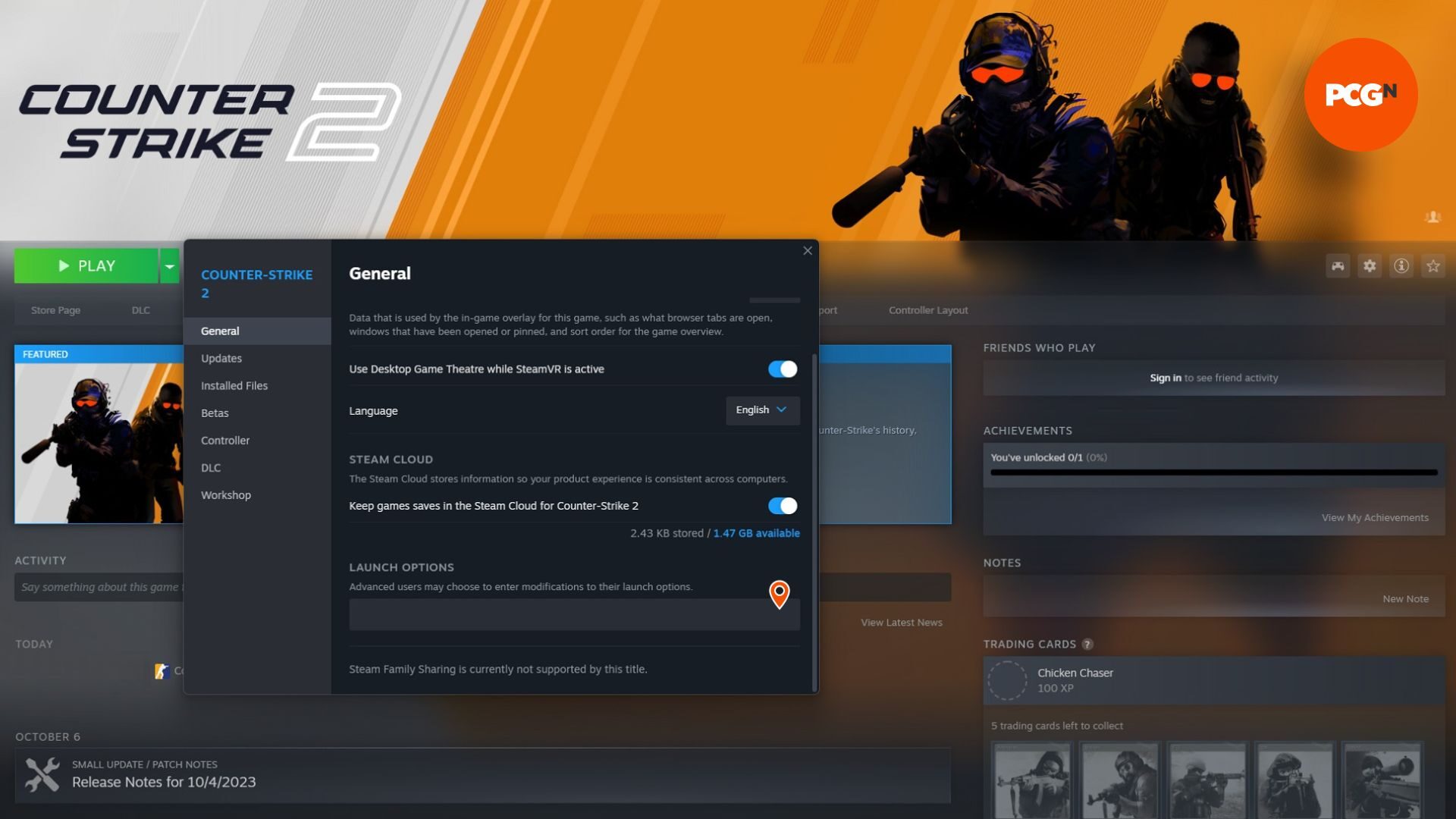
Old CS GO launch options and network commands are still copied across Reddit, YouTube and outdated config guides.
Remove everything from your CS2 launch options and test the game with a clean setup.
In Steam:
- Right click Counter Strike 2
- Select Properties
- Find Launch Options
- Delete the existing commands
- Restart CS2
Options such as thread commands, old tickrate settings and copied network configs may do nothing in CS2 or make troubleshooting more confusing.
Only add an option back when you understand exactly what it changes. Our CS2 start options guide explains which options are worth testing.
8. Verify the CS2 Game Files
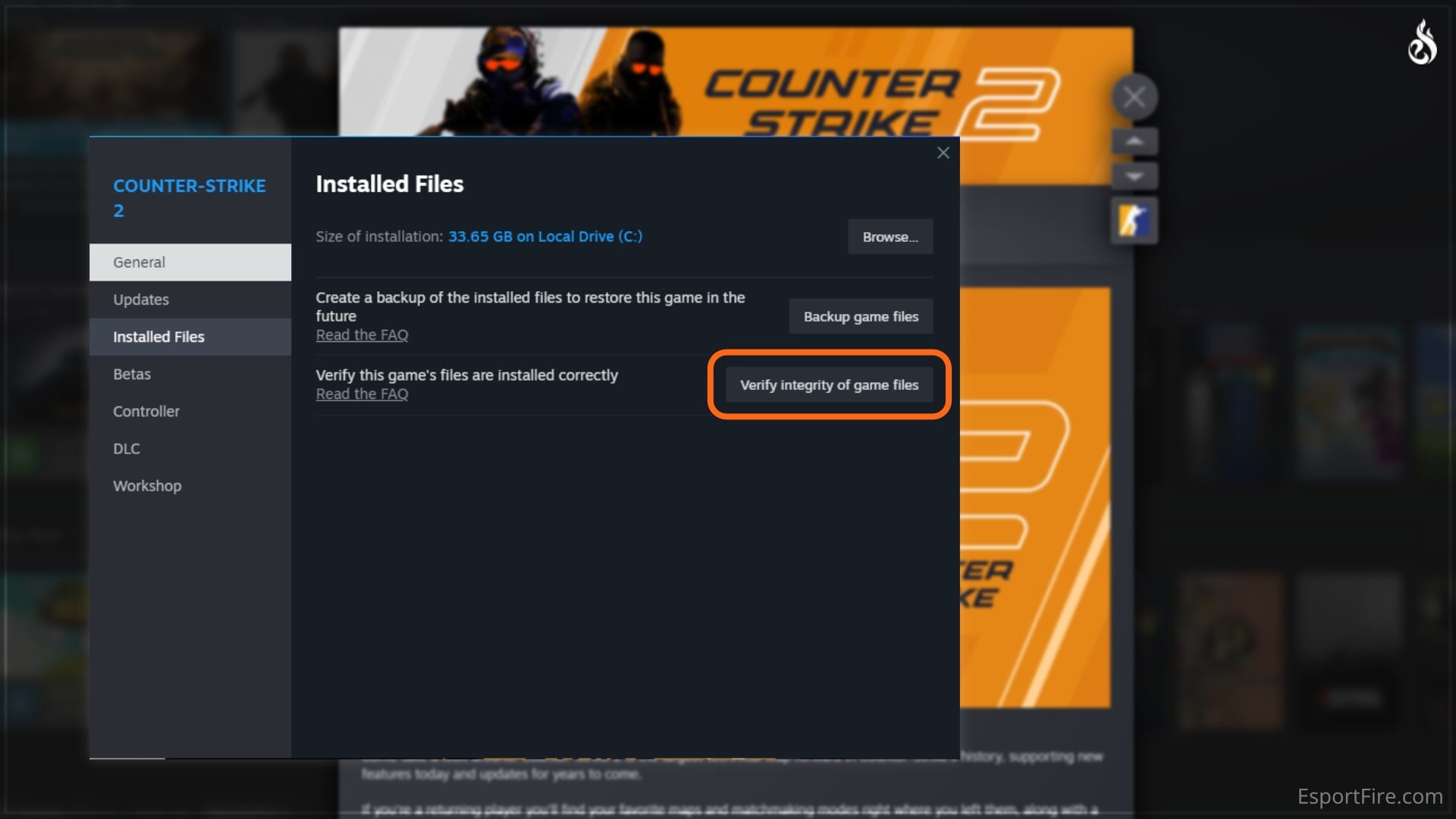
Missing or damaged files can cause freezing, stuttering and strange performance problems.
To verify CS2:
- Open your Steam Library
- Right click Counter Strike 2
- Select Properties
- Open Installed Files
- Select Verify Integrity of Game Files
Let Steam complete the process and restart the game.
When your game completely freezes rather than simply feeling choppy, follow our guide on how to fix CS2 freezing.
9. Check Whether the Server Is the Problem
Not every laggy match is caused by your computer.
When CS2 only feels bad on one server, but Deathmatch, FACEIT or another community server feels normal, the server or your route to it could be the problem.
Test another game mode and compare the results. You can also temporarily lower your maximum acceptable matchmaking ping so CS2 searches for nearby servers.
When the problem only happens on community servers, read our CS2 community servers guide before changing your entire PC setup.
Final Thoughts
When CS2 feels laggy, do not immediately paste a massive list of console commands.
Turn on Telemetry, determine whether the problem is FPS or network related and test one fix at a time. Most players can solve the issue by stabilizing their FPS, switching to Ethernet, fixing jitter, turning off V Sync or removing an outdated config.
The important part is consistency. CS2 feels best when your frames, connection and input timing remain stable throughout the entire match.