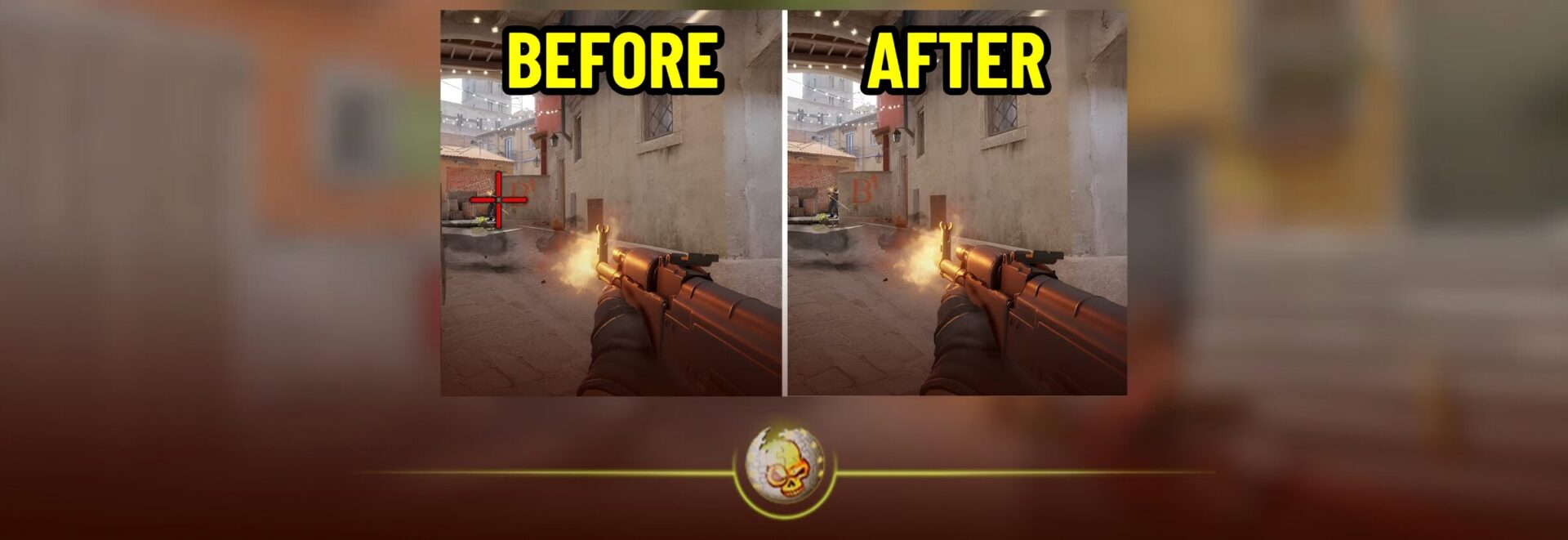
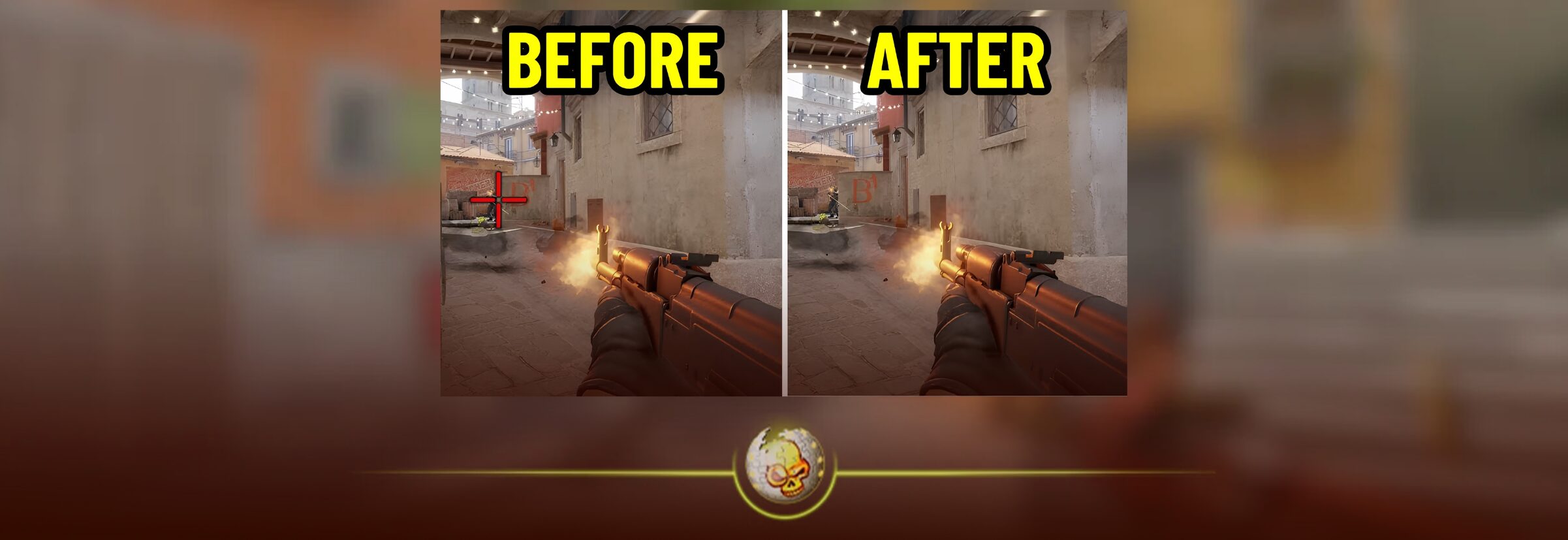
To remove the HUD and crosshair in CS2, open the developer console and type cl_drawhud 0. This hides the full HUD, including the crosshair, radar, ammo, health, armor, weapon display, round timer, and kill feed. To bring everything back, type cl_drawhud 1.
If you want a cleaner screen for clips but still want the kill feed to show, use cl_draw_only_deathnotices 1 instead. If you only want to hide your crosshair, use crosshair 0.
These commands are useful for clean screenshots, skin showcases, frag movies, cinematic clips, YouTube thumbnails, TikToks, and any CS2 content where you do not want the game interface covering the screen.
Quick CS2 HUD and Crosshair Commands
| What You Want to Do | Console Command |
|---|---|
| Remove full HUD and crosshair | cl_drawhud 0 |
| Bring full HUD back | cl_drawhud 1 |
| Hide most HUD elements but keep kill feed | cl_draw_only_deathnotices 1 |
| Return death notices setting to normal | cl_draw_only_deathnotices 0 |
| Hide only the crosshair | crosshair 0 |
| Bring crosshair back | crosshair 1 |
For screenshots, the best command is cl_drawhud 0 because it gives you the cleanest screen possible. For frag movies and highlight clips, cl_draw_only_deathnotices 1 is usually better because it keeps the kill feed visible while removing most of the clutter.
How to Enable the Developer Console in CS2
Before you can remove the HUD or crosshair, you need to enable the developer console in CS2.
Open CS2, go to Settings, then go to Game, and turn on Enable Developer Console. After that, press the tilde key on your keyboard. This is usually the key under Escape and above Tab.
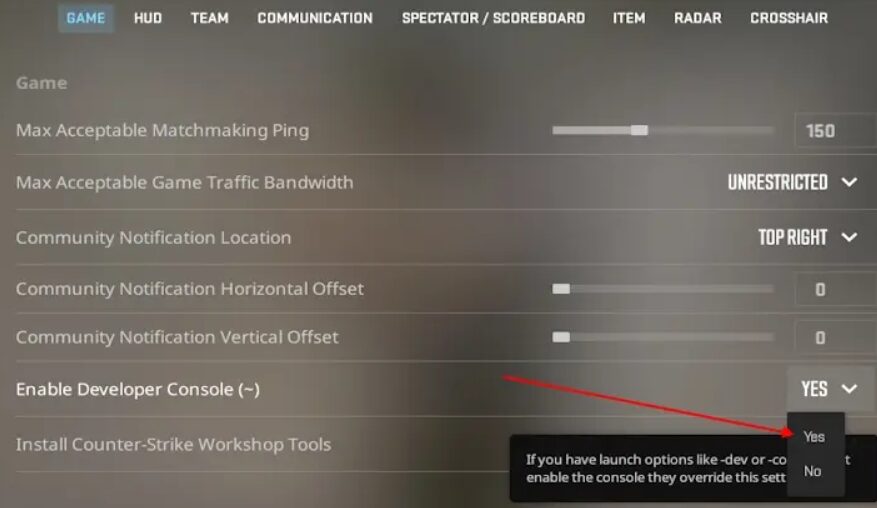
Once the console opens, type the command you want and press Enter.
If the console does not open, check your CS2 keybind settings. Some keyboard layouts may require you to bind the console to a different key.
How to Remove the Full HUD in CS2
To remove the full HUD in CS2, open the console and type:
cl_drawhud 0
This removes almost everything from the screen, including your radar, health, armor, ammo, weapon display, timer, kill feed, and crosshair. It is the cleanest option if you are taking screenshots, recording cinematic scenes, or making skin showcase content.
To turn the HUD back on, type:
cl_drawhud 1
This brings the normal CS2 interface back.
How to Hide the HUD but Keep the Kill Feed
If you are making CS2 frag movies or highlight clips, you may not want to remove everything. A completely empty screen can look clean, but it can also make the clip harder to understand because viewers cannot see the kills.
For that, use:
cl_draw_only_deathnotices 1
This hides most of the HUD while keeping the death notices visible. It is one of the best commands for editors because it makes the screen cleaner without removing the most important part of a highlight clip.
To turn this setting off, type:
cl_draw_only_deathnotices 0
This returns the HUD to normal.
How to Remove Only the Crosshair in CS2
If you only want to remove your crosshair, use:
crosshair 0
This hides the crosshair while keeping the rest of your HUD visible. It is useful if you want a cleaner screenshot but still want to keep the radar, ammo, health, or other match information on screen.
To bring your crosshair back, type:
crosshair 1
This is the better option if the crosshair is the only thing you want to hide. If you use cl_drawhud 0, you will remove much more than just the crosshair.
Best Commands for CS2 Screenshots
For clean CS2 screenshots, use:
cl_drawhud 0
This removes the full interface and gives you a clean screen. It works best for skin screenshots, map screenshots, thumbnail images, cinematic angles, and social media posts.
If you are taking skin screenshots, try to use good lighting and a clean background. The command removes the HUD, but your screenshot will still look better if the weapon is easy to see and not covered by shadows or motion blur.
Best Commands for CS2 Frag Movies and Clips
For CS2 frag movies, use:
cl_draw_only_deathnotices 1
This is usually better than removing the full HUD because the kill feed still shows what happened. Viewers can see the kills without the radar, ammo, health, and other UI elements taking up the screen.
If you are recording cinematic B roll, skin clips, or map shots, use cl_drawhud 0. If you are recording real kills or highlight clips, use cl_draw_only_deathnotices 1.
How to Restore Your HUD and Crosshair
If your screen looks empty and you want to bring everything back, use these commands:
cl_drawhud 1
cl_draw_only_deathnotices 0
crosshair 1
These commands should restore your normal HUD and crosshair. If your crosshair still does not look right, go into your CS2 crosshair settings or reload your saved crosshair code.
Why Is My HUD Command Not Working?
If the HUD command does not work, first make sure the developer console is enabled. Then check that you typed the command correctly.
The correct command is:
cl_drawhud 0
Do not type cl_draw_hud 0 because that is not the same command.
If it still does not work, try using it in a practice server, demo, private match, or offline session. Some commands may behave differently depending on the server, match type, or game mode.
For content creation, demos and private servers are usually the easiest places to use HUD commands.
Should You Remove HUD and Crosshair While Playing?
You should not remove your HUD or crosshair while seriously playing CS2. It may look clean, but it makes the game much harder. You lose important information like health, ammo, armor, radar, utility, round timer, and your aim reference.
These commands are mainly for content creation. Use them for screenshots, YouTube videos, TikToks, skin showcases, frag movies, demos, and thumbnails. When you are playing Premier, FACEIT, or matchmaking, keep your HUD and crosshair on.
Read More From Daddyskins
- How Do Professionals Trade CS2 Skins?
- Cheapest Red Skins in CS2 (2026)
- CS2 Bunny Hop Commands 2026
- CS2 Cases Banned
- Best CS2 Prop Hunt Servers (2026 List)
- Animgraph 2 Beta CS2 Update April 2026 What Changed
- Cheapest Purple Skins CS2 (2026 List)
- Top Best Cheap CS2 Gloves Under $100 Right Now
- Top CS2 Cases to Open in 2026
- CS2 Viewmodel Settings Guide: How to Find Your Perfect Viewmodel
- PGL Bucharest 2026 CS2: Full Tournament Guide
- How to 1v1 in CS2 Complete Guide (2026)
- Mirage Callouts CS2: Full Guide
- Top 7 Best White CS2 Skins (2026 List)
- CS2 Rio Tournament 2026: + DaddySkins Vitality Case
- Is CS2 a Free to Play Game in 2026?
- 7 Cheapest Red Skins in CS2 to Trade Up (UPDATED)
- What Is the Cheapest Knife in CS2? (UPDATED)
- Best CS2 Cases to Open in May 2026 (UPDATED)
- Top 10 CS2 Players of 2026
- Best CS2 Knife Trade Ups (UPDATED)
- Best CS2 Viewmodel and FOV Settings for 2026
- CS2 Knife Tier List: All Knives Ranked in 2026
- Best Blue Stickers in CS2: Perfect for Blue Loadouts
- Best Pink Stickers in CS2 2026
- PGL Astana 2026 CS2 Results
- New CS2 Update Fixes Spectator Bugs and Adds More Cache Improvements
- Falcons Reach Upper Final at CS Asia Championships 2026 After Beating M80
- MIBR Reach Upper Final at CS Asia Championships 2026 After Dominant PARIVISION Win
- Best CS2 Cases to Open (June 2026)
- Souvenir Trade Up Update 2026
- Best Souvenir Skins to Trade Up in CS2 2026
- Complete Schedule for IEM Cologne 2026 Major
- Best IEM Cologne 2026 Stickers – Top 5
- How to Save Money on CS2 Skins in 2026
- Best Budget Loadouts in CS2