
If you are looking for NiKo CS2 settings, you are probably not just looking for random numbers to copy. You want to know what one of the cleanest riflers in Counter Strike actually uses, why it feels so sharp, and whether it makes sense for your own setup.
NiKo has been one of the most respected aimers in Counter Strike for years. He is known for clean rifle mechanics, sharp Deagle shots, calm crosshair placement, and that kind of aim that looks simple until you try to do it yourself. His settings are not magic, but they do show you something important. He keeps things clean, simple, and built around comfort.
This guide breaks down NiKo’s CS2 settings in a way that is easy to copy, but also easy to understand. You will find his sensitivity, DPI, crosshair, resolution, viewmodel, radar, video settings, and some tips on how to test them without completely ruining your own muscle memory.
If you are comparing pro settings, you can also check our donk CS2 settings guide and our ropz CS2 settings guide after this one.
Quick NiKo CS2 Settings
Here is the fast version for people who just want to copy the main settings and get into a server.
| Setting | NiKo CS2 Setting |
|---|---|
| DPI | 800 |
| Sensitivity | 0.9 |
| eDPI | 720 |
| Zoom Sensitivity | 0.9 |
| Windows Sensitivity | 6 |
| Resolution | 1280×960 |
| Aspect Ratio | 4:3 |
| Scaling Mode | Stretched |
| Refresh Rate | 600Hz setup |
| Crosshair Style | Classic Static |
| Crosshair Color | Custom green |
| Viewmodel FOV | 68 |
| Radar Centers Player | Yes |
| Radar Rotates | Yes |
The main thing you notice right away is that NiKo’s setup is not weird. He is not using some crazy high sensitivity or a massive crosshair. It is a very normal looking pro setup, but every part of it is built for clean aim and fast reactions.
Who Is NiKo?
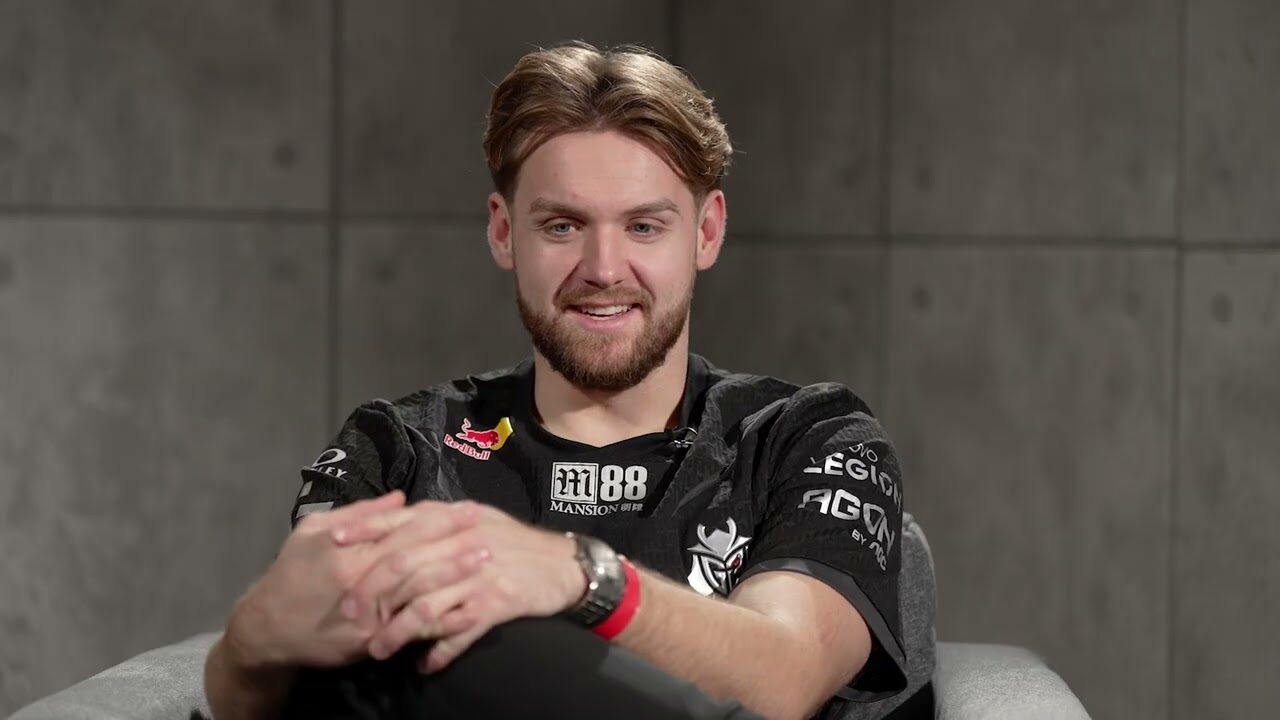
NiKo, real name Nikola Kovač, is a Bosnian Counter Strike player and one of the most famous riflers in the history of the game. He has played at the top level for years and is the type of player people watch when they want to improve raw aim, first bullet accuracy, and rifle control.
A lot of CS2 players copy NiKo because his style looks very pure. He is not just relying on chaos or running around taking random fights. His crosshair is usually placed exactly where it should be, his movement is controlled, and his aim looks sharp without being flashy for no reason.
That is why NiKo CS2 settings are searched so often. People do not just want his crosshair because it looks cool. They want to understand how he sets up the game so aiming feels clean.
If you are still newer to CS2 and want the basics before copying a pro setup, read our CS2 beginner’s guide first. It will make all of these settings feel a lot easier to understand.
NiKo Mouse Settings in CS2
NiKo uses 800 DPI with 0.9 in game sensitivity, which gives him 720 eDPI.
That is a pretty balanced sensitivity. It is not super low, but it is also not high. For a rifler, this makes sense. You want enough control to hold tight angles and land clean headshots, but you also need enough speed to clear corners, turn from flashes, and react when someone swings wide.
His zoom sensitivity is 0.9, which keeps scoped weapons feeling slightly controlled. NiKo is obviously known more for rifling than AWPing, but having a normal zoom sensitivity still matters for Scout, AWP, and AUG or SG moments.
Here are the main mouse settings:
DPI: 800
Sensitivity: 0.9
eDPI: 720
Zoom Sensitivity: 0.9
Windows Sensitivity: 6
Polling Rate: 2000Hz
Should you copy this exactly? You can, but do not expect to instantly aim like NiKo. Sensitivity is personal. The better way is to try it for a few deathmatches and see if your crosshair feels too slow or too fast.
If you are currently on a very high sensitivity, NiKo’s settings may feel slow at first. Give it time. A lot of players play too fast because it feels easier to move around, but then they struggle to make tiny adjustments in real duels.
For testing this properly, go into a private server or play a few aim maps. You can also duel a friend using our CS2 1v1 guide and see how the sensitivity feels in real fights.
NiKo Crosshair Settings
NiKo’s crosshair is small, clean, and made for headshots. It does not take up much space, and that is the whole point. A smaller crosshair lets you focus on the enemy model instead of staring at a giant shape in the middle of your screen.
His crosshair uses a custom green color, no dot, no outline, and a tight gap. This kind of crosshair is great for players who already have decent crosshair placement. If you are new, it might feel a little too small at first, but once you get used to it, it feels very clean.
NiKo crosshair settings:
Style: Classic Static
Follow Recoil: No
Dot: No
Length: 1.5
Thickness: 0
Gap: 4
Outline: No
Red: 0
Green: 255
Blue: 145
Alpha: Yes
Alpha Value: 255
T Style: No
Sniper Width: 0
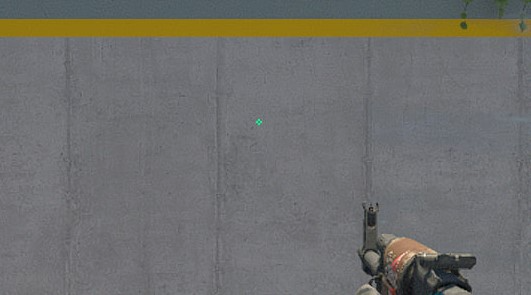
If you want to change your crosshair manually, go to Settings, then Game, then Crosshair. You can also import a crosshair code if you have one.
If you are not sure how to do that, we have a full CS2 crosshair change guide that explains it step by step.
The important thing with NiKo’s crosshair is not just the size. It is how it matches his style. He has clean placement, so he does not need a big crosshair to guide him. If your crosshair placement is still messy, this setup may expose that. That is not a bad thing. It can actually help you improve faster because it forces you to aim properly.
NiKo Viewmodel Settings
NiKo’s viewmodel is also very normal for a pro player. It keeps the weapon out of the way without making the game feel strange.
His viewmodel settings:
FOV: 68
Offset X: 2
Offset Y: 0
Offset Z: 1.5
Presetpos: 2
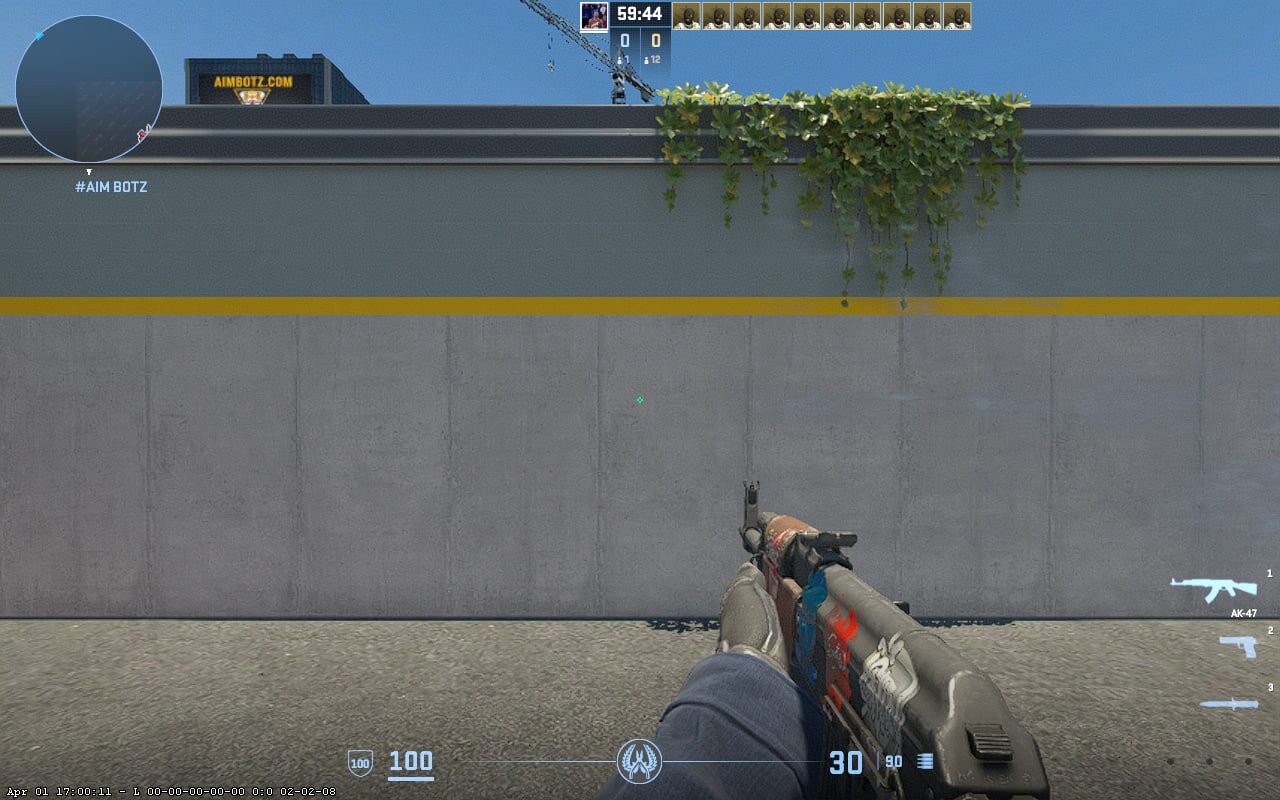
The reason viewmodel matters is simple. In CS2, you do not want your gun blocking too much of the screen. A clean viewmodel gives you better visibility when holding angles, clearing corners, and watching utility land.
That does not mean you should obsess over viewmodel for hours. It is one of those settings you change once, test, and then leave alone. Constantly changing it can mess with how the game feels.
If you want a deeper breakdown, read our full CS2 viewmodel settings guide. It explains what each command does and why some viewmodels feel better for rifling.
NiKo Resolution and Video Settings
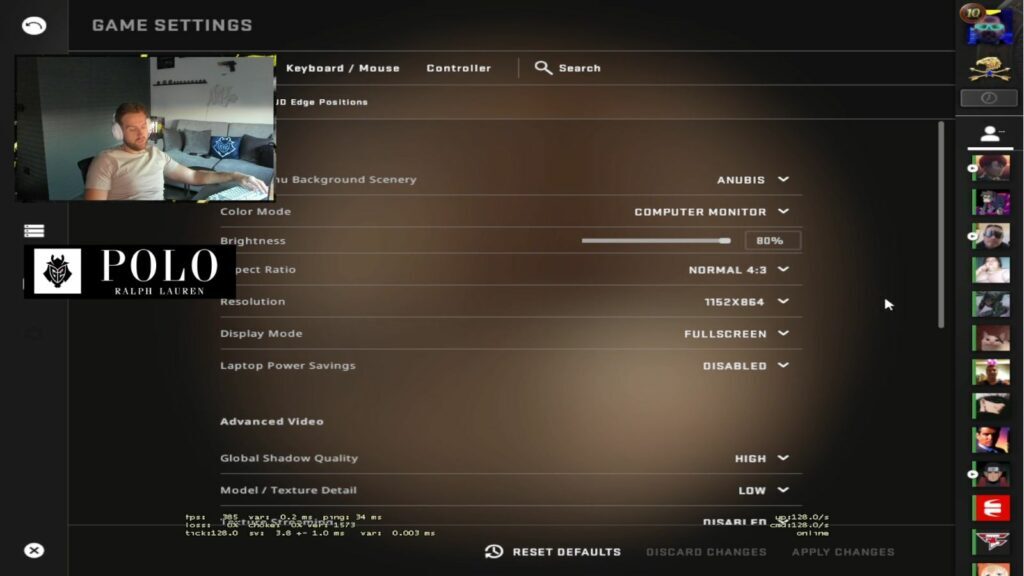
NiKo uses 1280×960 stretched, which is one of the most common resolutions among CS pros. This gives the game that stretched look where player models feel wider and movement looks faster.
Some players love stretched because it makes enemies feel easier to see. Other players prefer native because it feels cleaner and more natural. There is no perfect answer here. NiKo uses stretched because it works for him, and a lot of riflers like that feeling.
NiKo video settings:
Resolution: 1280×960
Aspect Ratio: 4:3
Scaling Mode: Stretched
Brightness: 93 percent
Display Mode: Fullscreen
Boost Player Contrast: Disabled
V Sync: Disabled
NVIDIA Reflex Low Latency: Disabled
NVIDIA G Sync: Disabled
Maximum FPS In Game: 400
MSAA: 8x
Global Shadow Quality: High
Dynamic Shadows: All
Model and Texture Detail: Low
Texture Filtering: Trilinear
Shader Detail: Low
Particle Detail: Low
Ambient Occlusion: Disabled
High Dynamic Range: Quality
FidelityFX Super Resolution: Disabled
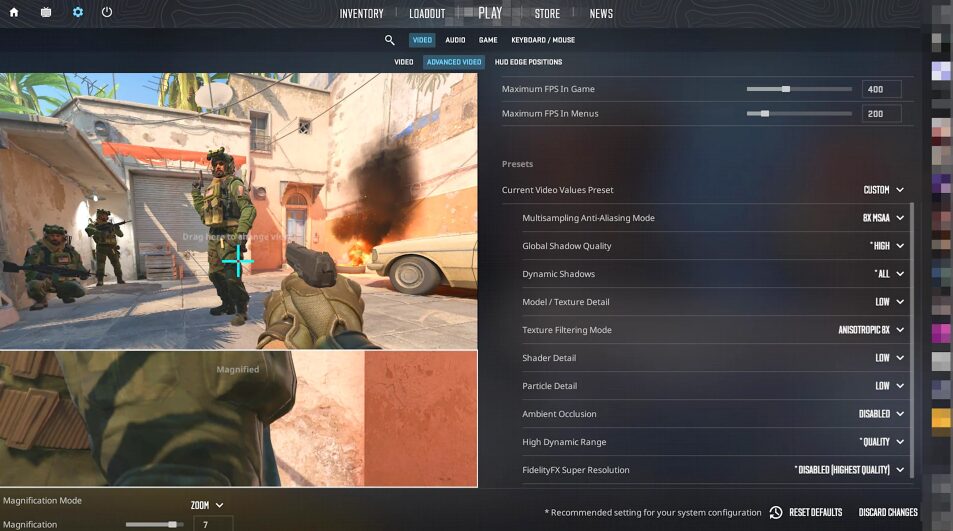
The interesting part is that NiKo does not just put everything on low. He keeps some settings higher, like shadows and MSAA, while lowering other visual details. That gives him a clean mix of visibility and performance.
If your PC is weaker, do not copy every video setting blindly. Keep the resolution and stretched setup if you want that NiKo feel, but adjust graphics based on your FPS. Smooth frames matter more than copying every single option.
For a bigger competitive setup breakdown, check our CS2 pro settings guide.
NiKo Radar Settings
Radar is one of the most underrated parts of a good CS2 setup. A lot of players copy crosshairs and sensitivity, but then they play with bad radar settings and miss free information.
NiKo’s radar settings are simple and useful:
Radar Centers Player: Yes
Radar Rotates: Yes
Toggle Shape With Scoreboard: Yes
Radar HUD Size: 1
Radar Map Zoom: 0.35
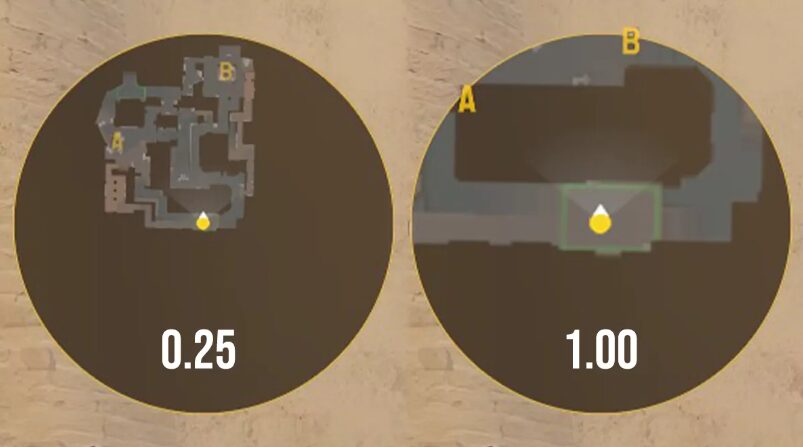
This setup gives you enough map information without making the radar feel too zoomed in. In CS2, especially in Premier and FACEIT, radar awareness can win rounds. You can see gaps, rotations, bomb movement, and teammate positioning without needing everyone to over talk.
If you feel like you always rotate late or get surprised by enemy positions, your radar might be part of the problem. Our CS2 radar settings guide explains how to set it up properly.
NiKo Launch Options and Config
NiKo does not currently use special launch options, which is actually worth mentioning. A lot of players think they need a giant launch option list to play better, but most modern CS2 setups are much simpler now.
For most players, the best setup is just stable FPS, correct refresh rate, fullscreen mode, and settings that feel consistent.
If you are trying random commands from old CS GO videos, be careful. Some of them are outdated, useless, or just placebo. Use launch options only when you actually understand what they do.
For practice commands and private server setups, you can read our CS2 sv cheats command guide and our how to give yourself money in CS2 guide. Those are better for training servers than ranked matches.
Should You Copy NiKo CS2 Settings?
Yes, NiKo’s settings are a very good starting point, especially if you are a rifler. His sensitivity is controlled, his crosshair is clean, his resolution is classic stretched, and his video settings are made for competitive play.
But you should not copy them like they are a cheat code. Settings help you feel comfortable. They do not replace aim practice, movement, map knowledge, trading, utility, and confidence.
The best way to use NiKo CS2 settings is to test them for a few days. Do not change everything after one bad match. Play deathmatch, Premier, and maybe a few 1v1s. See if your aim feels stable. See if you are over flicking or under flicking. See if stretched resolution helps you spot enemies faster.
If it feels good, keep it. If something feels off, adjust slowly. Small changes are better than completely rebuilding your setup every day.
If you are grinding Premier with these settings, our CS2 Premier ratings explained guide can help you understand how the ranking system works while you test your setup.
Best Skins To Match NiKo’s Style
This is not required, obviously, but NiKo has always had that clean rifler vibe, so darker red, black, and simple skins fit the style well. Think AK Redline, Deagle Blaze, clean M4 skins, and gloves that do not distract too much.
If you want a budget inventory that still looks clean in game, check our best budget loadouts in CS2 guide. If you are trying to build a better inventory without overpaying, our how to save money on CS2 skins guide is also worth reading.
You can also browse our best CS skins guide if you want more skin ideas for your own setup.
Final Thoughts on NiKo CS2 Settings
NiKo’s CS2 settings are popular for a reason. They are clean, simple, and built around precision. You get a balanced sensitivity, a small crosshair, stretched resolution, and a viewmodel that keeps the screen clear.
The biggest lesson from NiKo’s setup is not that you need to copy every number forever. It is that your settings should make the game easier to read. Less clutter, less overthinking, more focus on the fight in front of you.
Try the settings, give them a real chance, and then adjust what needs adjusting. If you are a rifler who likes clean aim and controlled movement, NiKo’s setup is one of the best pro settings to start with.
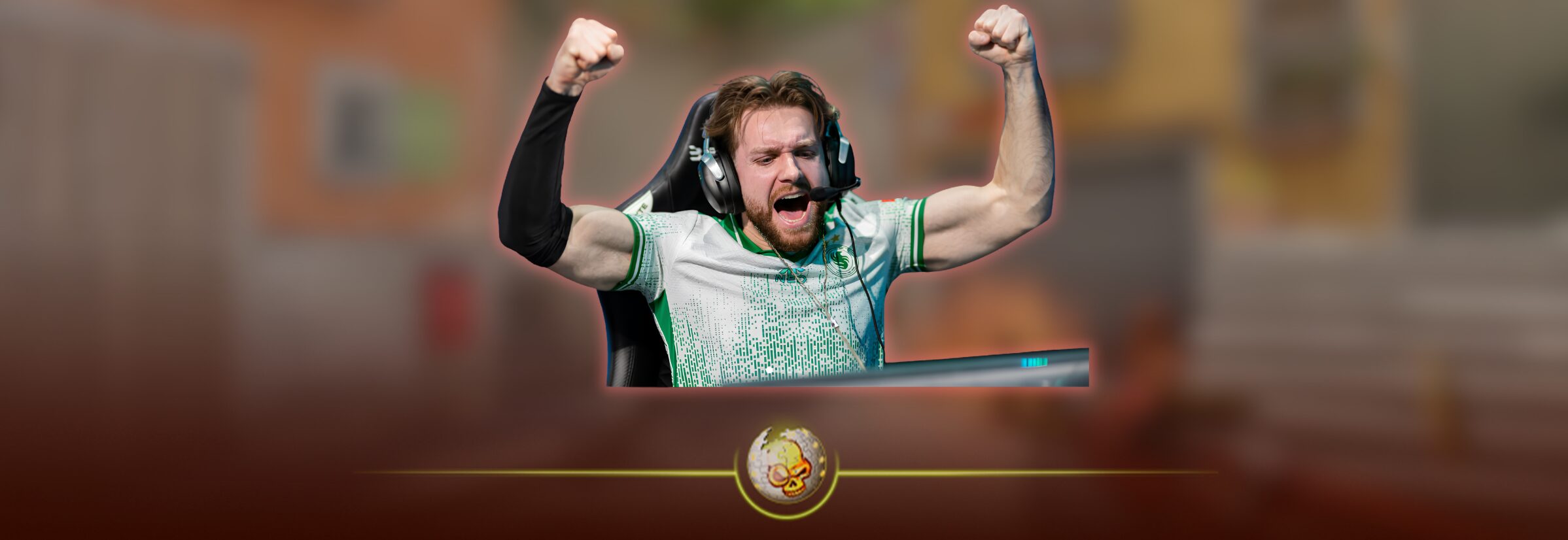
NiKo uses 0.9 in game sensitivity with 800 DPI, giving him 720 eDPI. This is a controlled sensitivity that works well for rifling, small aim adjustments, and clean headshots.
NiKo uses a small classic static crosshair with no dot, no outline, and a custom green color. It is very clean on screen and does not block much of the enemy model.
NiKo uses 1280×960 with a 4:3 aspect ratio and stretched scaling. This is a very common pro resolution because enemy models can feel wider and easier to track.
Yes, but beginners may need time to adjust. His sensitivity and resolution are very usable, but his small crosshair might feel harder at first if your crosshair placement is not consistent yet.
You can copy them as a starting point, but do not force yourself to keep every setting if it feels wrong. Try his settings for a few days, then adjust small things like sensitivity, crosshair gap, or video settings based on your own comfort.
NiKo is currently listed as using the Razer DeathAdder V4 Pro. The mouse helps, but the settings and comfort matter more than copying the exact gear.
NiKo is currently listed as playing for Falcons. Since team rosters can change, it is always worth checking the latest roster before publishing an updated version of the blog.
Players copy NiKo’s settings because he is one of the cleanest riflers in Counter Strike history. His setup is simple, low clutter, and built around sharp aim instead of flashy visuals.
Yes. NiKo uses 4:3 stretched resolution in CS2. A lot of riflers like stretched because player models can look wider, although it also makes movement feel faster.
They can help your game feel cleaner, but they will not instantly make you aim like NiKo. Settings are only the base. You still need aim practice, good crosshair placement, movement, and smart positioning.