If you just want the current Grim CS2 settings, here is the important stuff first.
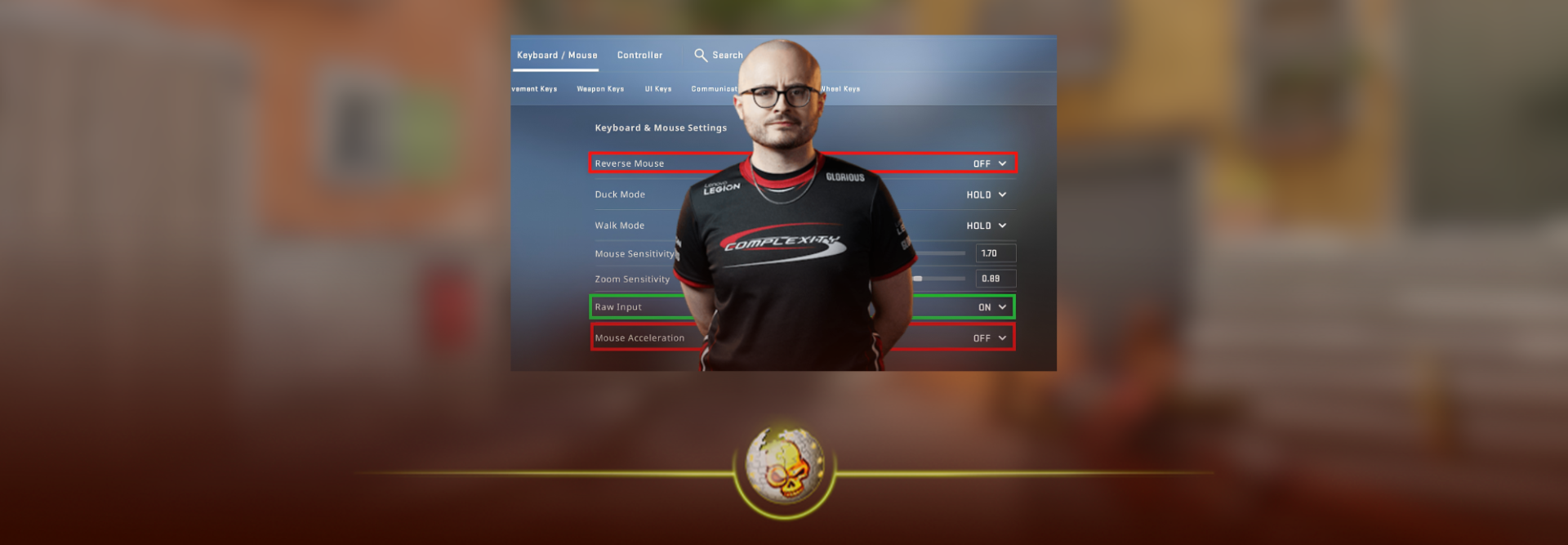
Michael “Grim” Wince currently plays with 800 DPI, 0.72 sensitivity and 576 eDPI. His latest tracked setup uses 1920×1080 at 16:9 native, a fairly large static crosshair and a 68 FOV viewmodel.
We checked Grim’s latest available settings on September 19, 2026. That matters because you will still find older Grim configs online using different resolutions, crosshairs and gear.
Grim CS2 Settings: Quick Overview
| Setting | Grim Setting |
|---|---|
| DPI | 800 |
| Sensitivity | 0.72 |
| eDPI | 576 |
| Zoom Sensitivity | 1.00 |
| Polling Rate | 2000 Hz |
| Windows Sensitivity | 6 |
| Resolution | 1920×1080 |
| Aspect Ratio | 16:9 |
| Scaling | Native |
| Display Mode | Fullscreen |
| Viewmodel FOV | 68 |
| HUD Scale | 0.95 |
The first thing that stands out is the 576 eDPI.
That is pretty low, even by professional CS2 standards. Grim clearly prefers slower mouse movement and more control instead of a super fast sensitivity.
If eDPI still sounds like random math, our CS2 aiming and sensitivity guide explains how DPI and in-game sensitivity work together.
Grim Mouse and Sensitivity Settings
Grim currently uses 800 DPI with 0.72 sensitivity, giving him an eDPI of 576.
| Mouse Setting | Value |
|---|---|
| DPI | 800 |
| In-Game Sensitivity | 0.72 |
| eDPI | 576 |
| Zoom Sensitivity | 1.00 |
| Polling Rate | 2000 Hz |
| Windows Sensitivity | 6 |
576 eDPI is definitely on the slower side.
For a rifler, there are some obvious benefits. Lower sensitivity makes small corrections easier and can feel extremely controlled when holding angles, tapping heads or making tiny adjustments during a spray.
The downside is that you need more physical mouse movement.
If you normally play something like 1000 or 1200 eDPI and instantly switch to Grim’s settings, the game is probably going to feel ridiculously slow at first.
That does not mean the sensitivity is bad. It just means copying a pro player’s numbers does not magically copy their muscle memory.
If you are trying Grim’s sensitivity, use it for a few Deathmatches or test it during a CS2 1v1 before deciding whether you hate it.
Grim CS2 Crosshair
Grim’s latest tracked crosshair is much bigger than the tiny crosshairs you see from a lot of other professional players.
| Crosshair Setting | Value |
|---|---|
| Style | Classic Static |
| Length | 7 |
| Thickness | 1.5 |
| Gap | -1 |
| Center Dot | Off |
| Outline | Off |
| Follow Recoil | Off |
| Red | 0 |
| Green | 255 |
| Blue | 145 |
| Alpha | 255 |
| T Style | Off |
Grim Crosshair Code
Current tracked crosshair code:
CSGO-oW44F-BAcEC-EdHQF-ErYY4-jurBE
And yes, the code starting with CSGO- is normal. CS2 still uses that format for crosshair share codes.
To import it:
- Open Counter-Strike 2
- Go to Settings
- Select Game
- Open the Crosshair section
- Click Share or Import
- Paste the code
- Click Import
If you have never imported one before, our guide to changing your CS2 crosshair walks through the entire process.
You can also build it manually with the CS2 crosshair commands.
Grim Crosshair Commands
cl_crosshairstyle 4
cl_crosshairsize 7
cl_crosshairgap -1
cl_crosshairthickness 1.5
cl_crosshairdot 0
cl_crosshair_drawoutline 0
cl_crosshaircolor_r 0
cl_crosshaircolor_g 255
cl_crosshaircolor_b 145
cl_crosshairalpha 255
What is interesting here is the size.
A lot of pros have moved toward extremely compact crosshairs, while Grim is comfortable with something much easier to see.
There is no rule saying smaller automatically means better.
If you want to compare his crosshair against other players, check our CS2 pro crosshair codes for 2026 or the full DaddySkins CS2 crosshair guide.
Grim Resolution and Video Settings
One of the more interesting parts of Grim’s current setup is his resolution.
The latest available data lists him at 1920×1080, 16:9 native.
| Video Setting | Grim Setting |
|---|---|
| Resolution | 1920×1080 |
| Aspect Ratio | 16:9 |
| Scaling Mode | Native |
| Display Mode | Fullscreen |
| Brightness | 93% |
| Boost Player Contrast | Enabled |
| V-Sync | Disabled |
| MSAA | None |
| Global Shadow Quality | Low |
| Model / Texture Detail | Low |
| Texture Filtering | Bilinear |
| Shader Detail | Low |
This is worth pointing out because a lot of old Grim pages still show 1280×960.
Settings change.
That is also why we would rather tell you when the information was checked than pretend a CS2 config stays the same forever.
Native 1920×1080 gives Grim a wider field of view than a 4:3 setup and keeps the game looking sharp. At the same time, most of his graphics settings remain low to keep things clean and performant.
If you want to optimize the rest of your setup, see our best CS2 settings for 2026 and our more detailed CS2 graphics settings guide.
Grim Viewmodel Settings
Grim uses a 68 FOV viewmodel with the weapon pushed fairly far away from the center of the screen.
| Viewmodel Setting | Value |
|---|---|
| FOV | 68 |
| Offset X | 2.5 |
| Offset Y | -2 |
| Offset Z | -2 |
| Preset Position | 1 |
You can recreate the main viewmodel with:
viewmodel_fov 68
viewmodel_offset_x 2.5
viewmodel_offset_y -2
viewmodel_offset_z -2
A 68 FOV is extremely common among competitive players because it moves the weapon farther out and keeps more of your screen visible.
If you want to understand what each value actually changes instead of blindly pasting commands, read our CS2 viewmodel settings guide.
Grim Radar and HUD Settings
Grim keeps his radar fairly normal.
| Setting | Value |
|---|---|
| Radar Centers Player | Yes |
| Radar Rotates | Yes |
| Square With Scoreboard | Yes |
| Radar HUD Size | 0.845 |
| Radar Map Zoom | 0.5 |
| HUD Scale | 0.95 |
| HUD Color | Yellow |
Radar settings are one of those things people forget about while spending an hour changing their crosshair by half a pixel.
Do not.
Being able to quickly read teammate positions, spotted enemies and rotations can actually affect a round.
Our CS2 radar and minimap settings guide has the commands if you want to build your own.
Grim CS2 Config
If you only want to recreate the important parts of Grim’s setup, you do not really need some mystery .cfg file downloaded from a random website.
The main settings are:
sensitivity 0.72

cl_crosshairstyle 4
cl_crosshairsize 7
cl_crosshairgap -1
cl_crosshairthickness 1.5
cl_crosshairdot 0
cl_crosshair_drawoutline 0

viewmodel_fov 68
viewmodel_offset_x 2.5
viewmodel_offset_y -2
viewmodel_offset_z -2
Open the developer console and enter the commands you actually want.
If your console is disabled, here is how to open the console in CS2.
You may also find websites listing a massive set of Grim launch options copied over from older configs. Be careful with those. A lot of CS:GO launch commands have either become unnecessary or behave differently in CS2.
Our CS2 launch options guide explains which ones are actually worth using instead of pasting a ten-year-old command string into Steam.
What Gear Does Grim Use?
Current settings trackers list Grim with a competitive setup built around a high-refresh ZOWIE monitor and lightweight Logitech mouse.
| Gear | Current Listed Equipment |
|---|---|
| Mouse | Logitech G Pro X2 SUPERSTRIKE |
| Monitor | ZOWIE XL2546K |
| Keyboard | ASUS ROG Falchion Ace 75 HE |
| Headset | HyperX Cloud III Wireless |
| Mousepad | ZOWIE G-TR |
Gear changes even more often than sensitivity, so treat this section as a snapshot rather than something permanent.
Also, you absolutely do not need Grim’s exact mouse or monitor to use his settings.
Start with the free stuff first: sensitivity, crosshair, viewmodel and video settings.
Who Is Grim?
Michael “Grim” Wince is an American professional Counter-Strike player currently playing as a rifler for NRG.
He has been around high-level North American Counter-Strike for years, including time with Team Liquid and Complexity before joining NRG.
His settings fit the way you would expect a controlled rifler to play: extremely low sensitivity, a visible static crosshair and a setup that prioritizes consistency.
If you want to compare Grim with other riflers, look at our updated NiKo CS2 settings and donk CS2 settings. The difference between their sensitivities alone shows why there is no single “correct” pro setup.
Should You Copy Grim’s CS2 Settings?
Grim’s settings are definitely worth trying if you like low sensitivity and controlled rifling.
The 576 eDPI gives you a lot of room for precise micro-adjustments, and his larger crosshair is easier to track than the tiny dots used by some other pros.
But copying everything exactly is not the goal.
Try the sensitivity. Try the crosshair. Play some Deathmatch.
If 576 eDPI feels like you are dragging your mouse through mud, raise it a little. If his crosshair feels massive, make it smaller.
The best settings are the ones you can stop thinking about once the round starts.
For a completely different pro setup, you can also compare Grim against gr1ks’ CS2 settings.
Grim CS2 Settings FAQ
What sensitivity does Grim use in CS2?
Grim currently uses 800 DPI and 0.72 in-game sensitivity, giving him 576 eDPI.
What is Grim’s CS2 crosshair code?
Grim’s currently tracked crosshair code is:
CSGO-oW44F-BAcEC-EdHQF-ErYY4-jurBE
What resolution does Grim use?
The latest available Grim settings list 1920×1080 at 16:9 native.
You may find older configs showing 1280×960, which is why checking the date on pro-setting pages matters.
What viewmodel does Grim use?
Grim currently uses 68 FOV with X 2.5, Y -2 and Z -2.
What team does Grim play for?
Grim currently plays for NRG as a rifler.
Is Grim’s sensitivity good for CS2?
576 eDPI is a good option for players who prefer slow, controlled aim, but it is lower than what many players are comfortable with. Use it as a starting point rather than assuming you need to copy it exactly.
Final Thoughts
The most interesting part of Grim’s current CS2 setup is not some secret command.
It is how controlled everything is.
800 DPI, 0.72 sensitivity, 576 eDPI, a visible static crosshair and a simple 68 FOV viewmodel.
Try the setup if you like slower rifling sensitivities, but give yourself some time before changing everything back after two rounds.
Settings last checked: September 19, 2026.