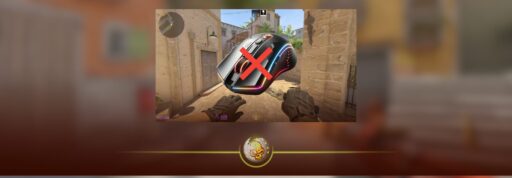
You open Counter Strike 2, join a match, and suddenly your mouse stops working. Maybe the cursor works in the menu but your aim will not move in game. Maybe Mouse 1 no longer shoots, Mouse 2 does nothing, or your clicks feel delayed and inconsistent.
The good news is that this is usually fixable without reinstalling everything.
This guide covers the best CS2 mouse not working fixes, starting with the quick ones and moving toward the more advanced options.
Quick CS2 Mouse Fix Checklist
| Problem | Best Fix to Try First |
|---|---|
| Mouse not working anywhere | Change USB port and restart the PC |
| Mouse works in menus but not in a match | Disconnect controllers and reset binds |
| Mouse moves but cannot shoot | Rebind Mouse 1 and Mouse 2 |
| Mouse feels delayed or heavy | Close overlays and mouse software |
| Cursor clicks the wrong menu option | Reset resolution or display mode |
| Problem started after an update | Verify CS2 game files |
1. Reconnect Your Mouse
Start with the boring fix because it genuinely works more often than people expect.
Close CS2 completely, unplug your mouse, wait about 10 seconds, and connect it again. Try a different USB port, preferably one directly on the PC instead of a USB hub.
Wireless mouse users should also check the battery, reconnect the USB receiver, and confirm that the correct DPI profile is active.
Microsoft recommends reconnecting the device, testing another USB port, and removing USB hubs when troubleshooting mouse problems in Windows.
Once your mouse is responding again, check our best DPI for CS2 guide before changing your sensitivity.
2. Restart CS2 and Fully Exit Steam
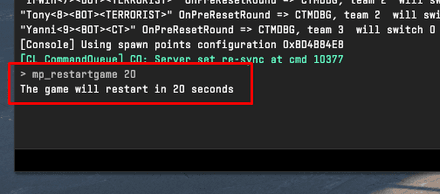
Closing the CS2 window is not always enough.
Exit Counter Strike 2, click Steam in the upper left corner of the Steam client, and select Exit. Open Steam again and launch CS2.
Steam also recommends restarting the client while troubleshooting strange input behaviour.
A complete Windows restart is worth trying if the mouse stopped working after your PC woke from sleep or installed an update.
3. Disconnect Controllers and Extra Input Devices
A connected controller, steering wheel, joystick, drawing tablet, or virtual controller program can sometimes take control of the game’s input.
Close CS2 and disconnect everything except your keyboard and mouse. Launch the game again and test it in a practice match.
Steam’s own troubleshooting advice recommends unplugging controllers and isolating input devices one at a time when inputs stop behaving correctly.
You can also open:
Steam Library > Counter Strike 2 > Properties > Controller
Set the CS2 override to Disable Steam Input, then restart the game.
For more general optimization, read our best CS2 settings for 2026 and CS2 pro settings guide.
4. Reset Your CS2 Mouse Binds
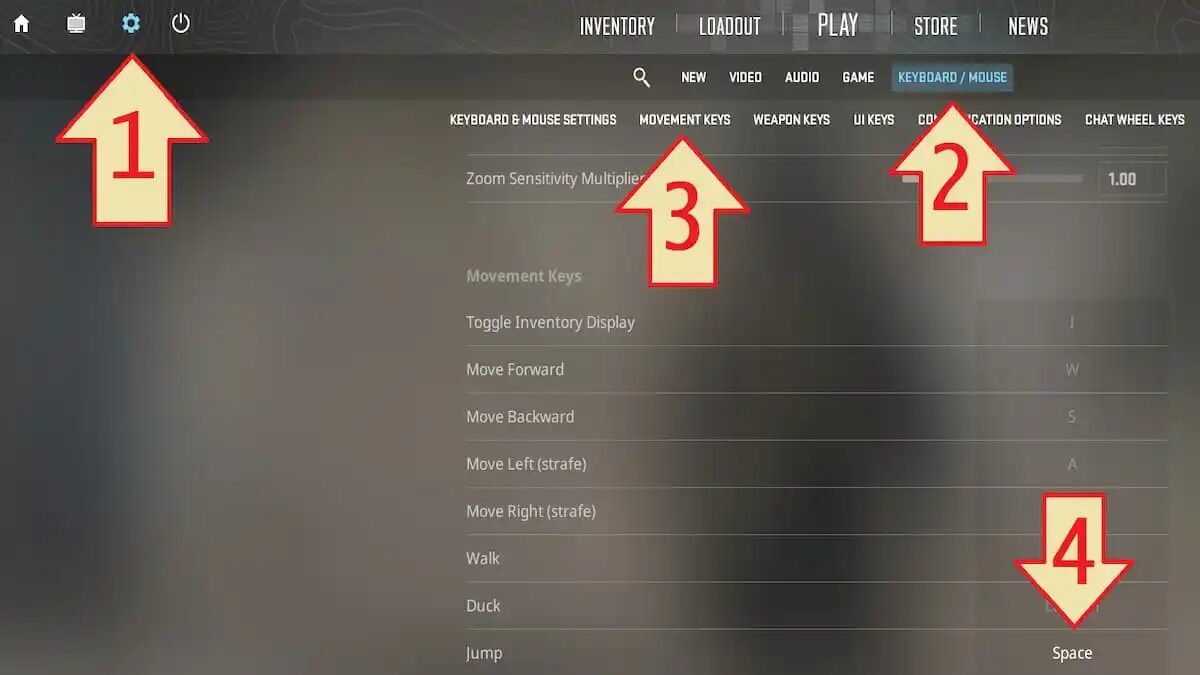
When the mouse moves normally but the buttons do not work, your binds may have been changed by a config, console command, or workshop setup.
Open CS2 and go to:
Settings > Keyboard and Mouse
Reset your controls to default and test the mouse again.
You can also enable the developer console and enter these commands:
bind "MOUSE1" "+attack"
bind "MOUSE2" "+attack2"
The first command restores shooting. The second restores aiming, scoping, and alternate fire.
Our guide to opening the CS2 console explains how to enable it properly. You can also check the CS2 binds pros use before rebuilding your complete setup.
Avoid using unbindall unless you are ready to recreate every keyboard and mouse bind manually.
5. Temporarily Remove Your Autoexec and Launch Options
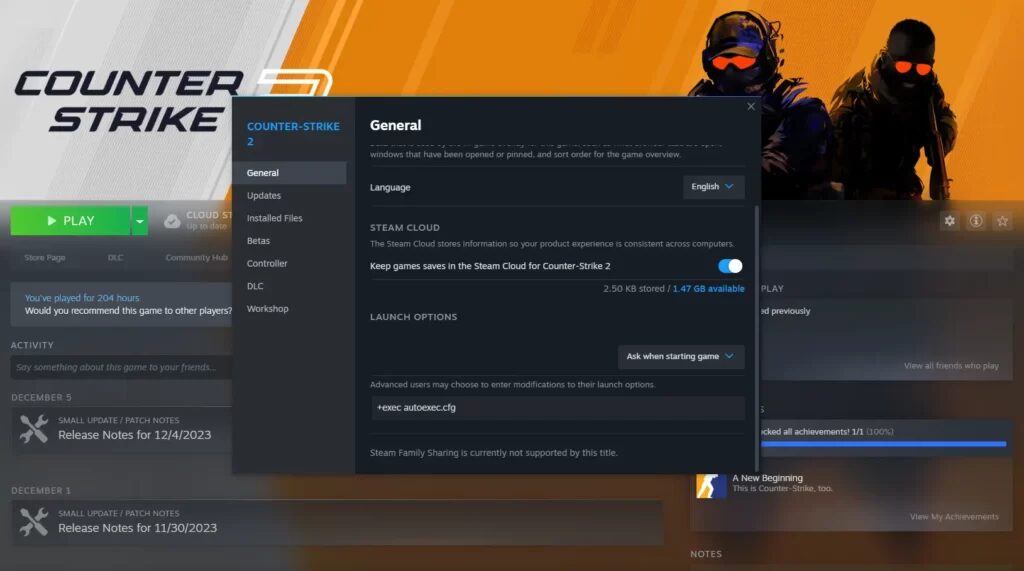
Custom configs are useful, but one outdated command can create strange input problems.
Open Steam, right click CS2, select Properties, and remove everything from the Launch Options box. Launch the game without any custom commands.
You should also temporarily rename your autoexec file so CS2 cannot load it. Do not delete the file immediately. Keep a backup so you can restore your working commands later.
Add each option back individually after the mouse starts working. This makes it much easier to find the exact command causing the issue.
Our CS2 FPS boost guide covers safer performance settings without filling your launch options with old CS:GO commands.
6. Verify the Integrity of CS2 Game Files
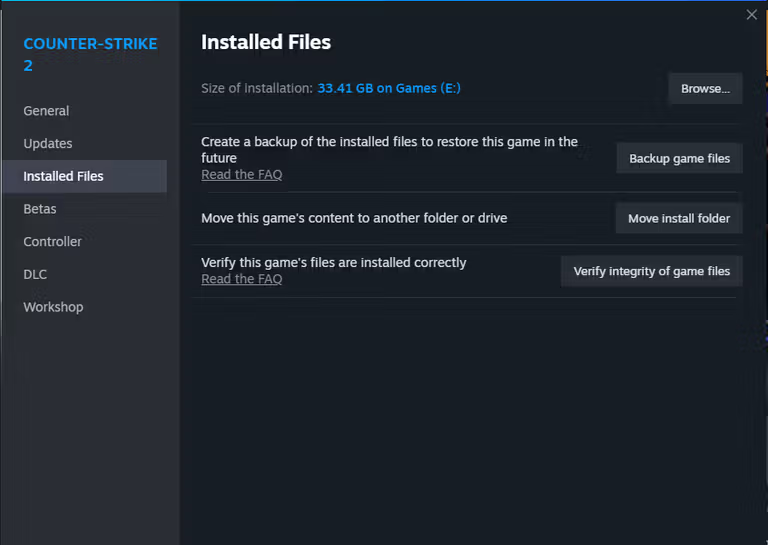
A damaged or incomplete game file can affect menus, settings, input, and other parts of CS2.
To verify the installation:
- Open your Steam Library.
- Right click Counter Strike 2.
- Select Properties.
- Open Installed Files.
- Select Verify integrity of game files.
Steam will check the installation and download any files that are missing or corrupted. Valve recommends this process when local game files are causing problems.
You can find more Steam troubleshooting steps in our CS2 won’t launch fix and CS2 crashing guide.
7. Close Overlays and Conflicting Programs
Mouse software and overlays can occasionally interfere with input, especially when several programs are running at the same time.
Temporarily close programs such as:
Razer Synapse, Logitech G Hub, SteelSeries GG, controller emulators, recording software, Discord Overlay, NVIDIA Overlay, MSI Afterburner, and RivaTuner.
Restart CS2 after closing them. If the mouse begins working, reopen the programs one at a time until you identify the conflict.
Steam has specifically documented controller emulators, capture programs, Razer Synapse, MSI Afterburner, and other background applications as possible sources of input conflicts.
Players experiencing movement that feels delayed rather than completely broken should also read our CS2 input lag fix.
8. Update or Reinstall the Mouse Driver
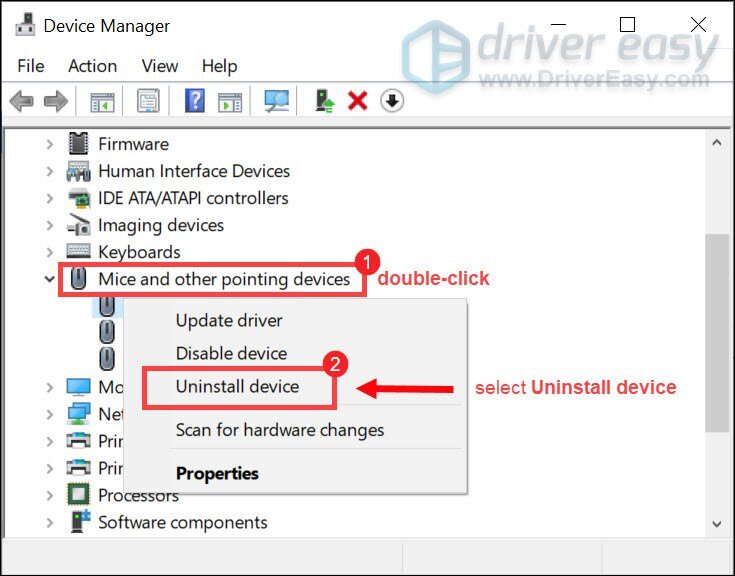
When the mouse also behaves strangely outside CS2, the problem is probably related to Windows or the device driver.
Right click the Windows Start button and open Device Manager. Expand Mice and other pointing devices, right click your mouse, and select Update driver.
If updating does nothing, select Uninstall device and restart the computer. Windows should attempt to reinstall the driver during startup. Microsoft documents both updating and reinstalling drivers through Device Manager as standard troubleshooting methods.
After the driver is restored, reopen your mouse software and confirm that the correct DPI profile is selected. Our CS2 sensitivity guide explains how DPI and in game sensitivity work together.
9. Reset Your Resolution and Display Mode
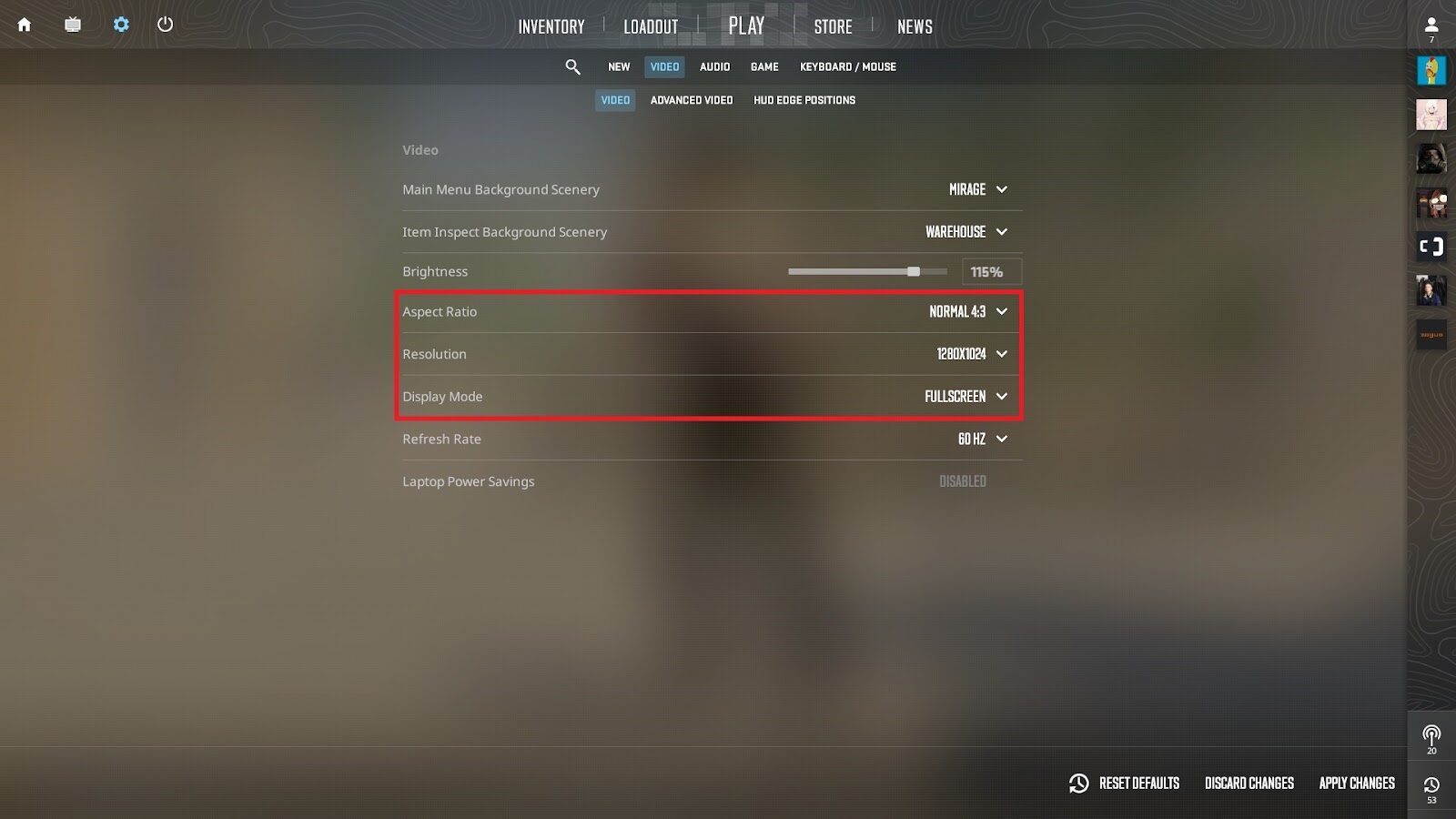
This fix is mainly for players whose cursor is offset, clicks the wrong menu option, or breaks after using Alt and Tab.
Open CS2 video settings and temporarily select:
Display Mode: Windowed or Fullscreen Windowed
Resolution: Your monitor’s native resolution
Aspect Ratio: Widescreen 16:9
Apply the settings and restart CS2. You can switch back to your preferred competitive resolution afterward.
Valve’s public CS2 issue tracker includes player reports of cursor alignment breaking after minimizing the game while using 4:3 resolution.
Players using stretched resolution can follow our complete CS2 4:3 setup guide.
10. Reinstall CS2 as a Final Fix
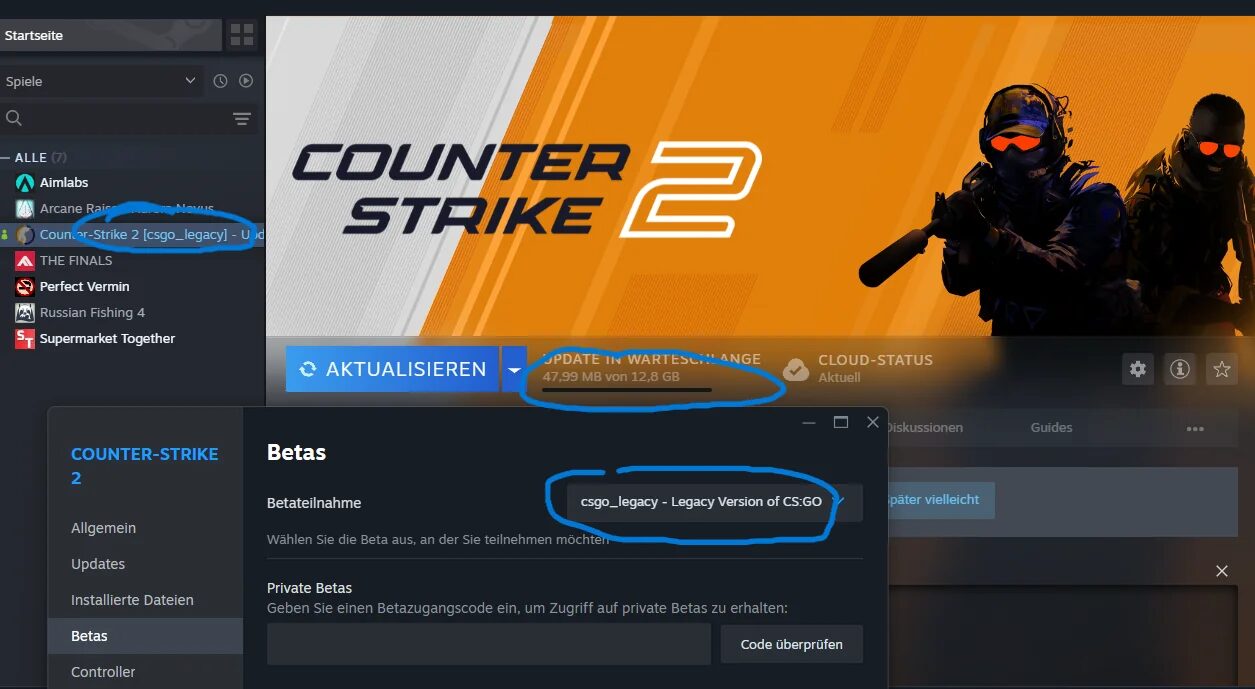
Reinstalling should be your last option.
First back up any custom configs you want to keep. Uninstall CS2 through Steam, restart your computer, and install the game again.
Test the game before restoring your autoexec, launch options, or workshop configs. If you restore everything immediately, you could bring the original problem straight back.
Once the mouse works normally, use our CS2 aiming guide to rebuild your sensitivity and monitor settings. You can also read the CS2 mouse acceleration guide if your aim still feels inconsistent.
Final Thoughts
When your mouse stops working in CS2, do not immediately reinstall the game or start pasting random console commands.
Test the mouse in Windows first. Then disconnect controllers, reset the binds, remove custom configs, verify the game files, and close conflicting software. This order helps you find the actual cause instead of changing five settings at once and never knowing what fixed it.
For more troubleshooting, settings, skins, and Counter Strike guides, visit the DaddySkins CS2 blog. Once everything is working again, you can head back to DaddySkins and upgrade your loadout.