Last updated: September 25, 2026
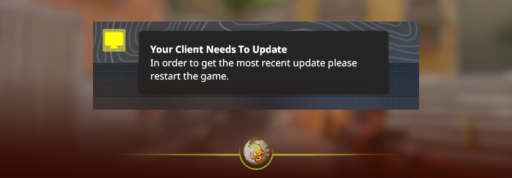
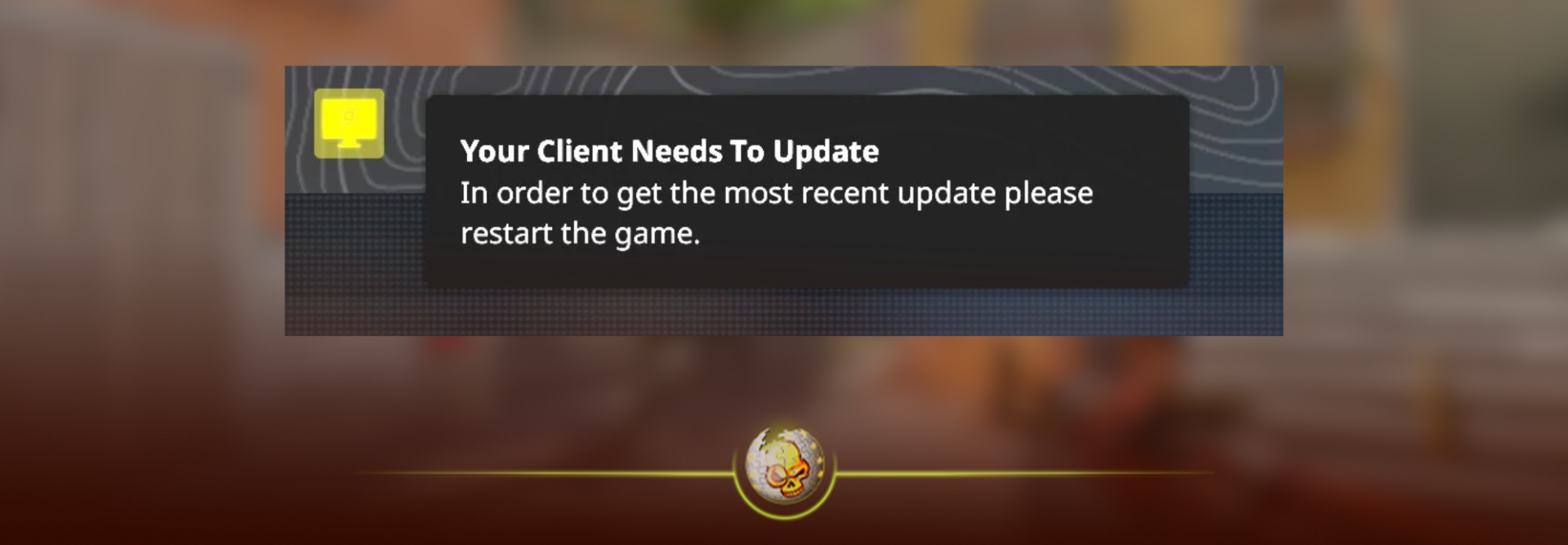
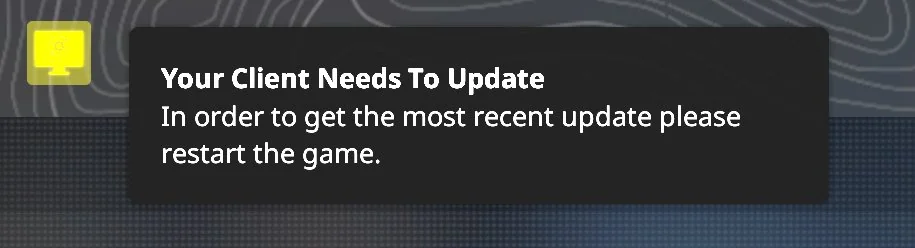
If CS2 is telling you “Your client needs to update,” the fix is usually simple: completely close Counter-Strike 2, restart Steam, and let Steam download the newest CS2 update before launching the game again.
If Steam says CS2 is already updated but the error is still there, don’t reinstall the entire game yet. There are a few faster fixes that normally solve it.
Quick answer: Close CS2 → fully exit Steam → reopen Steam → go to Library → Counter-Strike 2 and check for an update. If nothing appears, check Steam Downloads, verify your game files, and restart Steam again.
CS2 receives patches regularly, so you can also check our CS2 Update Log if you want to see what recently changed.
How to Update Your CS2 Client
1. Close CS2 Completely
Start by closing Counter-Strike 2.
Don’t just disconnect from the server or return to the main menu. Exit the game completely so Steam can update the game files.
Once CS2 is closed:
- Open your Steam Library.
- Find Counter-Strike 2.
- Look for an Update button where the normal Play button appears.
- Click it and wait for the download to finish.
- Launch CS2 again.
For most players seeing the “client needs to update” message immediately after a new patch, this is all you need to do.
2. Fully Restart Steam
If no CS2 update appears, restart Steam itself.
Closing the Steam window isn’t always enough because Steam can continue running in the background.
Click Steam → Exit from the top-left menu, or close Steam through the system tray.
Then reopen Steam.
Steam should check CS2 again and detect any update that was previously missing.
This is especially useful when Valve releases a patch while you already have Steam or CS2 running.
3. Check Your Steam Downloads
Sometimes the update exists, but Steam hasn’t started downloading it yet.
Open:
Steam → Downloads
Look for Counter-Strike 2.
The update may be:
- queued behind another game
- paused
- waiting for disk space
- scheduled for later
- partially downloaded
Resume the CS2 download and let it completely finish before reopening the game.
If you started getting connection problems at the same time, check our guide for the CS2 “We Are Experiencing Issues With Our Queues” error as well. Sometimes an update and server-side problems happen around the same time.
4. Verify Your CS2 Game Files
If Steam says CS2 is updated but you continue getting the message, verify the installation.
Go to:
Steam Library → Right-click Counter-Strike 2 → Properties → Installed Files → Verify integrity of game files
Steam will scan your CS2 installation and replace files that are missing or don’t match the current version.
This can take a few minutes.
Once it finishes, restart Steam and launch CS2 again.
5. Clear the Steam Download Cache
Still not working?
Your Steam download cache may be preventing Steam from properly detecting or finishing the update.
Go to:
Steam → Settings → Downloads → Clear Download Cache
Steam may ask you to sign in again afterward.
Once Steam restarts, return to your Library and check Counter-Strike 2 again.
Don’t worry: clearing the download cache does not uninstall CS2.
6. Restart Your PC
It sounds basic, but if Steam has been open through multiple CS2 updates, restarting your computer can clear processes that are still holding older game or Steam files open.
Restart your PC, open Steam, wait a few seconds for it to check for updates, and then launch CS2.
What If CS2 Says “Client Needs to Update” but There Is No Update?
This is the part confusing a lot of players.
Sometimes the problem isn’t your PC.
If Valve has just released a CS2 patch, players and servers may temporarily be on different versions while the update rolls out. You might see:
“Your client needs to update”
even though Steam isn’t immediately showing you a new download.
If you’ve already:
- restarted CS2
- restarted Steam
- checked Downloads
- verified your files
then repeatedly reinstalling the game probably isn’t your best next move.
Wait a short period, reopen Steam and check again.
If matchmaking is also failing for lots of players, the problem may be related to the Counter-Strike network rather than your installation.
Why Does CS2 Keep Saying My Client Needs to Update?
The message normally means the version of CS2 you’re running doesn’t match the version currently required by the server you’re trying to join.
This often happens shortly after Valve pushes a new patch.
Your CS2 client may still be running the previous build because:
- CS2 was open when the update released
- Steam hasn’t checked for the update yet
- the download is paused or queued
- part of the update didn’t install properly
- the newest version is still rolling out
That’s why restarting Steam is usually the first thing worth trying.
Do You Need to Reinstall CS2?
Usually, no.
Reinstalling Counter-Strike 2 should be one of your last options, not your first.
A full reinstall takes much longer than restarting Steam, verifying your game files or clearing the download cache.
Try all of those first.
If your installation remains broken after Steam verifies the files and you’ve confirmed other players can connect normally, then reinstalling CS2 becomes more reasonable.
Did a Recent CS2 Update Cause the Error?
Very possibly.
Valve has been actively updating Counter-Strike 2, and players often run into version mismatch errors immediately after a patch is released.
Recent updates have also introduced new CS2 content and systems. For example, the recent update added the new CS2 Chicken Egg system, which has already led players to discover dozens of different CS2 chicken skins.
The Chicken Egg is tied into the Weekly Care Package system, so we’ve also broken down the CS2 Weekly Drop Reset and the current CS2 Weekly Drop Chances separately.
CS2 Client Update FAQ
How do I manually update CS2?
Close CS2 and open your Steam Library. Select Counter-Strike 2 and click Update if an update is available.
If there is no Update button, restart Steam and check the Downloads page.
Why isn’t my CS2 update showing up?
Steam may not have checked for the newest update yet, or the download could be paused or queued. Fully exit Steam, reopen it and check Steam → Downloads.
Why does CS2 still say my client needs to update after updating?
First restart both CS2 and Steam. If the message remains, verify your CS2 game files through Properties → Installed Files → Verify integrity of game files.
If a patch was just released and many players are experiencing the same issue, it may take time for every server and client to be running the same version.
Will verifying CS2 files delete my skins?
No. Your CS2 inventory is tied to your Steam account, not the local game files being verified.
Your weapon cosmetics will still be there.
If you’re getting deeper into how CS2 items work, our guides explain CS2 pattern indexes and paint seeds, how the CS2 Skin Upgrader works, and how official CS2 Trade Up Contracts differ from upgrading skins.
Is the “client needs to update” error a ban?
No.
The message itself simply means your CS2 client needs to be on the correct game version. It isn’t a VAC ban or game ban.
Still Can’t Update CS2?
Try these in this exact order:
Close CS2 → restart Steam → check Steam Downloads → verify CS2 files → clear the Steam download cache → restart your PC.
For most players, you shouldn’t need to go any further than that.
And once you’re back in the game, you can check out our guide to CS2 case battles if you want to understand how case battles, different modes and their odds work.