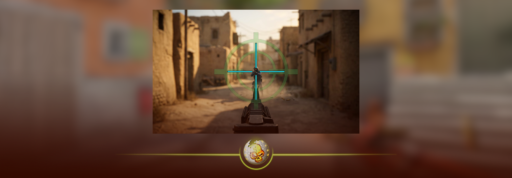
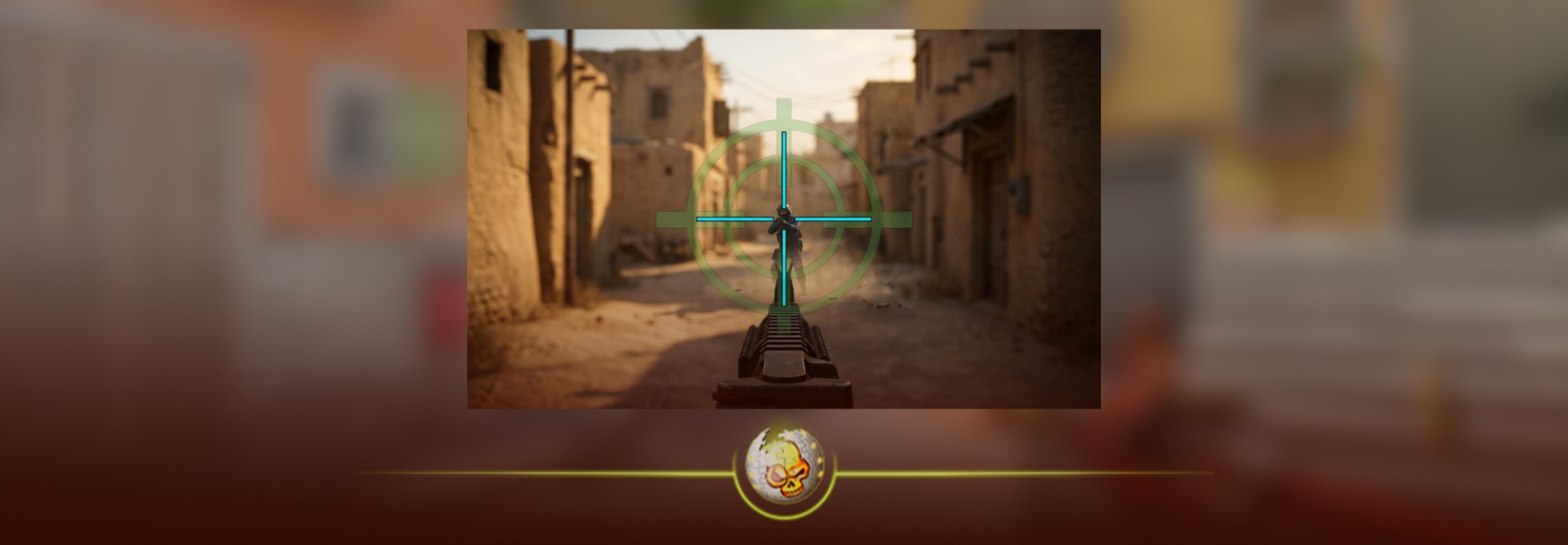
CS2 crosshairs just got one of their biggest changes in a long time.
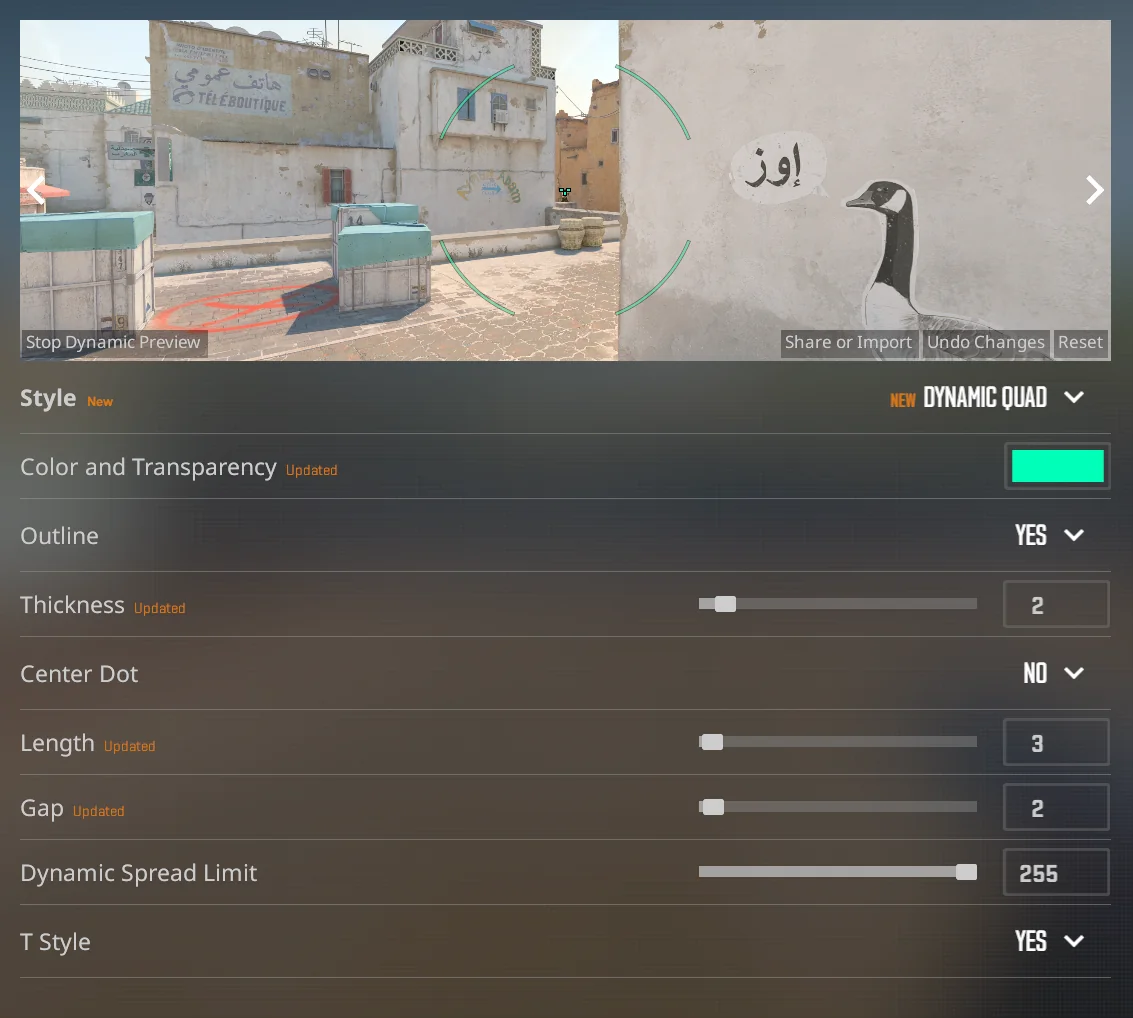
Valve has rebuilt how crosshairs scale, added new styles and moved the settings into a dedicated Crosshair/Scopes menu. The default crosshair has also changed, and settings like thickness, length and gap now behave differently than they did before.
If your old crosshair suddenly looks different, or you opened the settings menu and have no idea what changed, here is everything you need to know.
What Changed With CS2 Crosshairs?
The biggest change is that CS2 crosshairs are now resolution independent.
Previously, the same crosshair values could look different depending on the resolution you played at. Someone using 1280×960 could enter the same values as someone playing 1920×1080 and still end up with a slightly different-looking crosshair.
The new system is designed to make that much more consistent.
Valve also added:
- Pixel-based crosshair measurements
- A new Crosshair/Scopes settings tab
- New crosshair styles
- Dynamic Quad as the new default
- A static square crosshair
- Half outlines
- Improved dynamic spread visualization
- Proper support for a gap value of 0
That means this is more than a visual redesign. Valve has changed how some of the actual crosshair values are calculated and displayed.
If you are completely new to crosshair customization, our guide on how to change your crosshair in CS2 explains the basic settings and how to import a crosshair.
CS2 Crosshairs Are Now Resolution Independent
This is probably the most important change.
Your crosshair can now automatically scale when you change resolution.
For example, imagine you build a crosshair while playing at 1280×720. If you later switch to 2560×1440, CS2 can scale the crosshair with your new resolution so that it keeps roughly the same proportions on your screen.
Before this update, crosshair values could look different across resolutions and aspect ratios. Now the system is much more predictable.
This should be especially useful for players who regularly switch between native resolution and something like 4:3 stretched.
If that is you, check our CS2 4:3 stretched resolution guide to see how stretched resolutions work and why so many competitive players still use them.
You can also compare different options in our best CS2 resolution guide.
Even with the new scaling system, it is still worth checking your crosshair after changing resolution. The proportions may stay more consistent, but the rest of the game can still feel very different on a stretched display.
Crosshair Size, Thickness and Gap Now Use Pixels
This is the change that may confuse returning players the most.
Crosshair thickness, length and gap are now measured using pixels.
That makes the values much easier to understand.
For example:
| Setting | Value |
|---|---|
| Thickness | 1 |
| Length | 8 |
| Gap | 4 |
This represents a crosshair with 1-pixel-thick lines, an 8-pixel bar length and a 4-pixel gap.
That is much easier to visualize than the older system, where values were based on a less intuitive scale.
So if you open CS2 and your old crosshair settings no longer seem to make sense, this is probably why.
Do not automatically copy your old size, thickness and gap values and expect the exact same result.
Instead, use your old crosshair as a reference and adjust the new sliders until it looks right.
What Is Dynamic Quad in CS2?
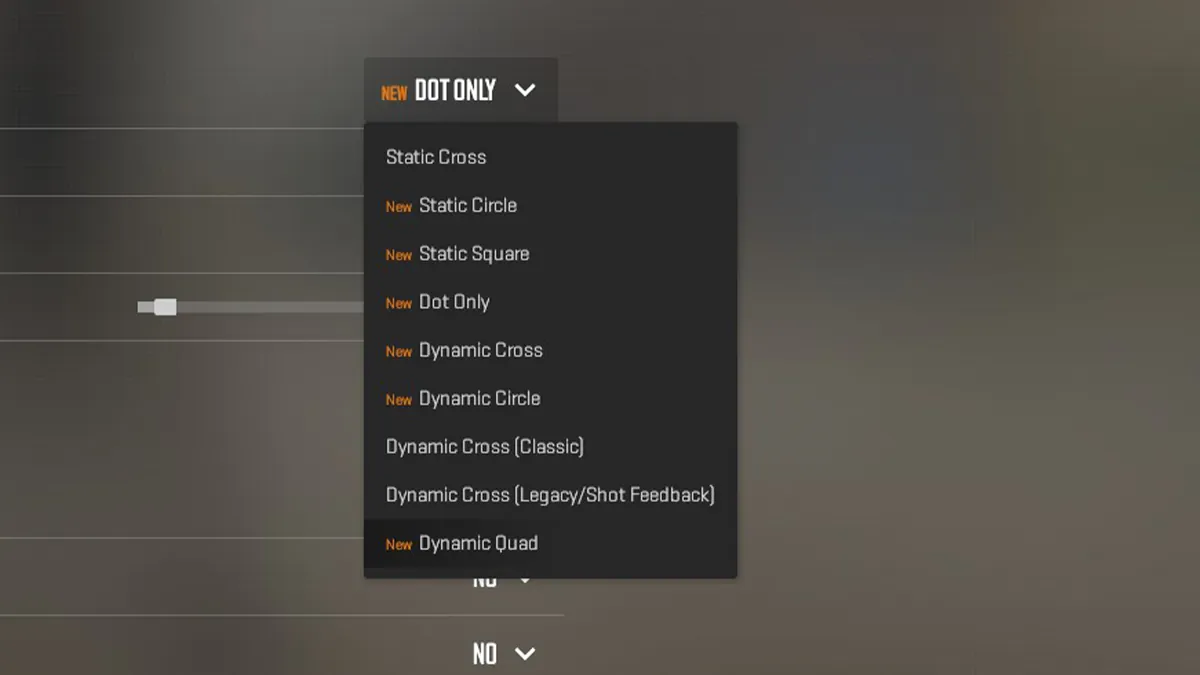
Dynamic Quad is now the default CS2 crosshair style.
The idea behind it is simple: the crosshair gives you more visual information about how accurate your weapon currently is.
Instead of remaining completely still, a dynamic crosshair can move outward as your weapon becomes less accurate.
That means running, jumping, firing or using a weapon with more spread can change what you see around the center of your screen.
For newer players, this can actually be useful.
You get a visual reminder that just because your crosshair is pointed at someone’s head does not necessarily mean your shot is perfectly accurate.
If you are still learning the fundamentals, our CS2 aiming guide also covers sensitivity, DPI and other settings that can affect how consistent your aim feels.
Should You Use Dynamic Quad?
Try it before immediately changing it.
A dynamic crosshair can help you understand when your weapon is accurate, especially if you are still learning movement and counter-strafing.
Experienced players may still prefer a small static crosshair that never expands.
Neither one automatically makes your aim better.
If you find yourself staring at the crosshair movement instead of the enemy, switch back to static.
If seeing your accuracy visually helps you understand why certain shots miss, Dynamic Quad is worth keeping for a while.
What Is the New Static Square Crosshair?
Valve also added a static square crosshair style.
Unlike Dynamic Quad, the square does not need to expand to represent your movement or weapon spread.
It gives players another clean, simple shape to use in the middle of the screen.
This probably will not replace the classic four-line crosshair for everyone, but it is one of the more interesting new options if you like very compact crosshairs.
Try it with a bright color and smaller size before deciding whether you like it.
If you would rather copy something already being used at a high level, our CS2 pro crosshair codes page has crosshairs from some of the biggest professional players.
What Are Half Outlines?
Crosshair outlines have always been useful when your crosshair disappears against parts of a map.
The problem is that a full outline can make a small crosshair look thicker and more cluttered.
The new half-outline option gives you something in between.
When enabled, CS2 only draws portions of the outline rather than surrounding the entire crosshair.
It is a small setting, but it could be useful if you want extra contrast without turning your crosshair into a thick black shape.
This is something worth testing on multiple maps. A crosshair that is easy to see against one wall can practically disappear against another.
Dynamic Spread Limit Explained
There is also a setting called Dynamic Spread Limit.
This controls how far the newer dynamic crosshair styles can visually spread when your weapon becomes inaccurate.
The important part for normal players is simple:
The expanding crosshair is trying to show you how inaccurate your weapon actually is.
If you are running with an AK, jumping with a weapon or spraying heavily, the crosshair can give you a much clearer visual representation of that lost accuracy.
The Dynamic Spread Limit prevents the crosshair from becoming unnecessarily large while doing it.
You probably do not need to obsess over the exact number. Set it somewhere that gives you useful feedback without covering too much of your screen.
Where Are the New CS2 Crosshair Settings?
The new crosshair options can be found inside the dedicated Crosshair/Scopes section.
To find them:
- Open CS2
- Go to Settings
- Open Game
- Select Crosshair/Scopes
- Adjust your crosshair using the preview
This is now the easiest way to experiment with the new system.
Change one setting at a time and watch what happens in the preview.
That is much faster than copying a giant list of console commands without knowing what any of them actually change.
If you do want to use commands, start by learning how to open the console in CS2.
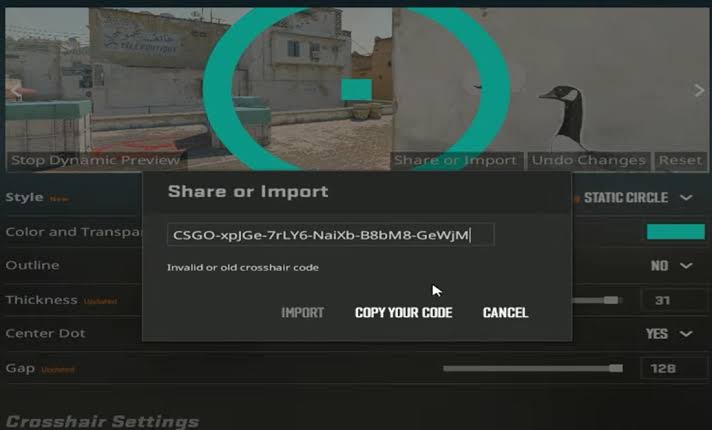
You can still use console commands and crosshair share codes if you prefer them.
Do Old CS2 Crosshair Codes Still Work?
You can still import and share CS2 crosshairs, but there is an important thing to remember after an update this large.
A crosshair someone shared months ago may not look exactly how you expect after the system changes.
The same applies to old tutorials showing specific size, gap or thickness values.
If you are copying a professional player’s crosshair, make sure the settings you are looking at are recent.
A good example is donk, who is known to change his crosshair fairly often. If you want to see the rest of his setup as well, our donk CS2 settings guide includes his crosshair, sensitivity, resolution and viewmodel.
You can also compare that setup with our NiKo CS2 settings to see how another elite rifler approaches his crosshair and sensitivity.
What Is the Best CS2 Crosshair Now?
There still is not one perfect CS2 crosshair.
For most players, a good starting point is:
- Easy-to-see color
- Small or medium size
- Thin lines
- Small center gap
- Minimal or no outline
- Static style if you want consistency
- Dynamic style if you want accuracy feedback
Green and cyan are popular because they are usually easy to see against CS2 maps, but visibility matters more than copying whatever color your favorite pro uses.
The easiest test is simple.
Load into a map and aim at bright walls, dark corners, player models and areas with lots of visual detail.
If you keep losing your crosshair, change it.
A crosshair that looks perfect in the settings preview but disappears during an actual gunfight is not a good crosshair for you.
You can also test changes against another real player using a CS2 1v1 setup instead of judging everything from the settings preview.
Your Crosshair Is Only One Part of Your Setup
It is easy to spend an hour adjusting your crosshair because it is the most obvious thing sitting in the middle of your screen.
But if CS2 still feels bad after changing it, the crosshair might not actually be the problem.
Resolution, sensitivity, FPS and visibility all affect how aiming feels.
Our best CS2 settings guide covers the bigger picture, including video settings, resolution and competitive performance.
Your viewmodel can also make the screen feel more or less crowded. If your weapon feels like it is taking up too much space, check the CS2 viewmodel settings guide.
The goal is not to copy ten different settings from ten different pros.
It is to build a setup you stop thinking about once the round starts.
Should You Change Your Crosshair After the Update?
Not necessarily.
If your current crosshair still feels comfortable, there is no reason to completely rebuild your setup just because Valve added new options.
But you should at least open the new Crosshair/Scopes menu and see how your current crosshair behaves.
Players using unusual resolutions, old crosshair configs or very specific gap and thickness values will probably notice the changes the most.
This is also a good opportunity to stop blindly copying pro settings.
Try the new options yourself.
A tiny crosshair might look clean but be difficult for you to track. A big dynamic crosshair might provide useful accuracy information but feel distracting. A static square might feel amazing to one player and horrible to another.
The best crosshair is the one you can see clearly without having to think about it.
New CS2 Crosshair System FAQ
Why does my CS2 crosshair look different?
Valve changed the CS2 crosshair system so that crosshairs scale more consistently between resolutions and measurements such as thickness, length and gap now use pixels. Older settings may therefore look or behave differently.
What is the new default crosshair in CS2?
The new default style is Dynamic Quad, which visually changes to better represent weapon accuracy.
Does CS2 automatically scale your crosshair with resolution?
The new system is designed to keep crosshairs more consistent when your display resolution changes instead of making the same settings appear dramatically different between resolutions.
What is the static square crosshair?
Static Square is a new crosshair style added by Valve. It gives players a compact square-style aiming point that remains static.
What do half outlines do?
Half outlines add only part of the normal crosshair outline, giving you extra contrast without outlining every side of the crosshair.
Is a static or dynamic crosshair better?
It depends on the player. Static crosshairs stay consistent and are popular with experienced players, while dynamic crosshairs can help visualize movement and weapon inaccuracy.
What crosshair do CS2 pros use?
There is no single crosshair used by every professional player. Most competitive players use relatively small crosshairs built around visibility and consistency. You can compare several current setups in our CS2 pro crosshair codes guide.
Final Thoughts
The new CS2 crosshair system looks complicated at first, but most of the changes actually make customization easier.
Crosshairs now scale more consistently between resolutions, important measurements use pixels, and there are more ways to control exactly what appears in the middle of your screen.
The biggest mistake you can make is spending hours searching for the supposed “best” crosshair.
Open the new settings, build something you can clearly see, play a few matches with it and give yourself time to adjust.
Then leave it alone long enough to actually get used to it.