Updated October 10, 2026
To fix “Unable to establish a connection with the gameserver” in CS2, restart CS2 and Steam, finish pending updates and test another server. If the error only appears on a Workshop map or in a friend’s lobby, troubleshoot that session first.
The message means CS2 could not complete the connection. It does not identify one specific cause, so checking where it happens is more useful than trying every fix at once.
1. Restart and Check Where the Error Happens
Exit CS2, fully close Steam and reopen both. Let any game or Workshop downloads finish before trying again.
Then test a different server or an official game mode.
If several players cannot connect at the same time, check for Steam service problems before changing your PC settings. If official matches work but one community server fails, ask its administrator whether it is online and updated. Our CS2 community servers guide covers joining those servers.
2. Verify Your CS2 Game Files
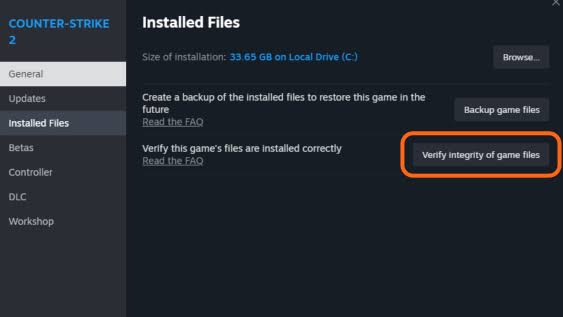
In Steam, open Library → right click Counter Strike 2 → Properties → Installed Files → Verify integrity of game files.
Wait for verification to finish, then launch CS2 again. This is Steam’s built in verification tool for checking the installation and replacing missing or damaged files. It cannot fix an unavailable server.
3. Check Workshop Maps and Friend Lobbies
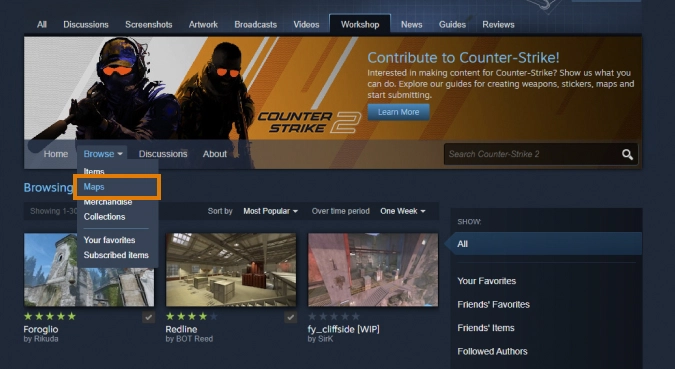
For CS2 Workshop maps, confirm that everyone has downloaded the same map and completed its updates. Test a different map to narrow down the problem.
If the error starts after switching maps, try entering disconnect in the developer console before creating a fresh session. Players have reported that this helps with some Workshop connection failures, but it is a community workaround.
If only one map fails while others load normally, check its recent comments or contact its creator before reinstalling CS2.
For the hosting setup, follow our guide to playing Workshop maps with friends.
4. Check Your Network and Firewall
If multiple online servers fail, restart your router and test a wired connection if possible. Temporarily disconnect any VPN to check whether it is interfering.
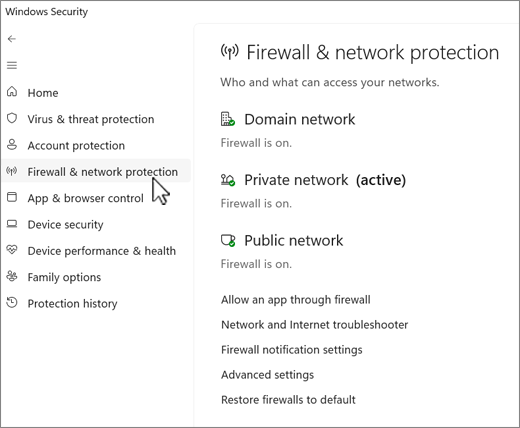
On Windows, open Windows Security → Firewall & network protection → Allow an app through firewall. Check the permissions for Steam and CS2 on your active network.
Keep the firewall enabled. Changing DNS or opening router ports should not be your first response to this error.
5. Still Unable to Connect?
Save the exact error, the affected map or server and any console messages. Note whether another network or a different host changes the result.
Different messages need different fixes. Use our server reserved for game lobby guide or VAC verification error guide if either matches your warning.