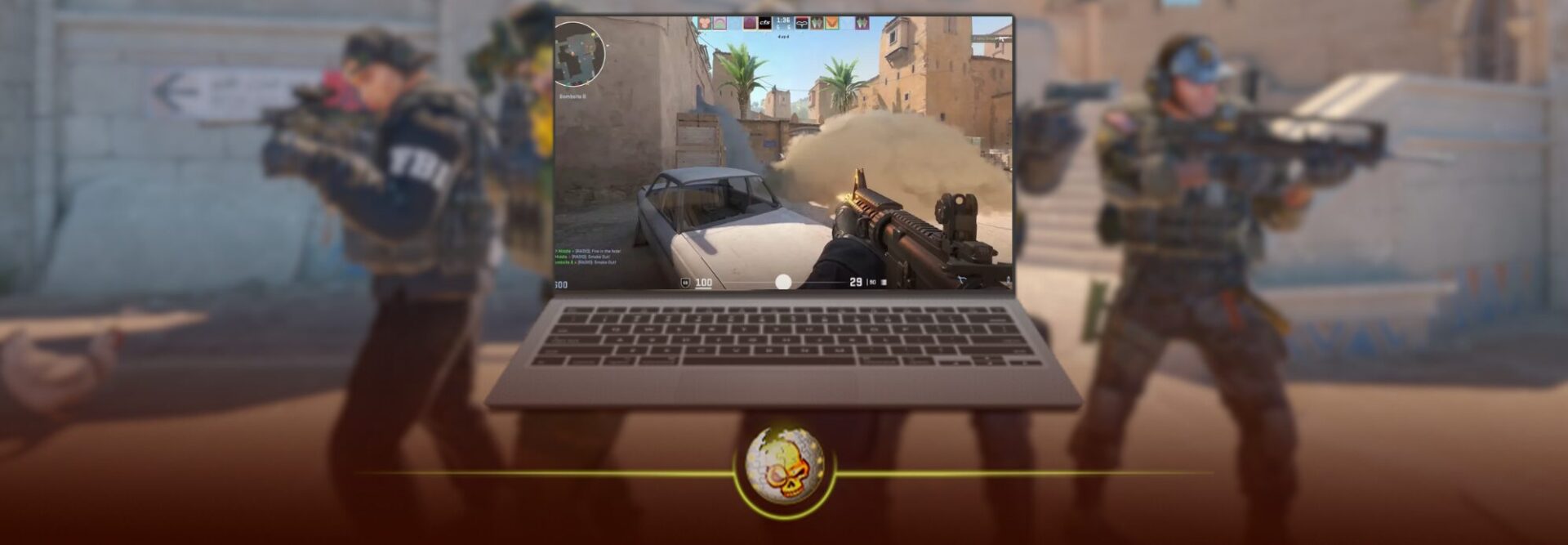
Yes, you can play CS2 on a MacBook in 2026. You just cannot install a native Mac version.
Valve still officially supports CS2 on Windows and Linux, not macOS. So if you have an M1, M2, M3, M4 or M5 MacBook, you need to run the Windows version through another app or stream the game.
Right now, the three options actually worth knowing about are CrossOver, Pixel Port and GeForce NOW.
If you want CS2 installed locally, I would start with CrossOver. If you want a free option, Pixel Port is interesting. If you just want the easiest possible way to play, use GeForce NOW.
Before installing anything, check the current CS2 system requirements so you have enough storage and know what you are getting into.
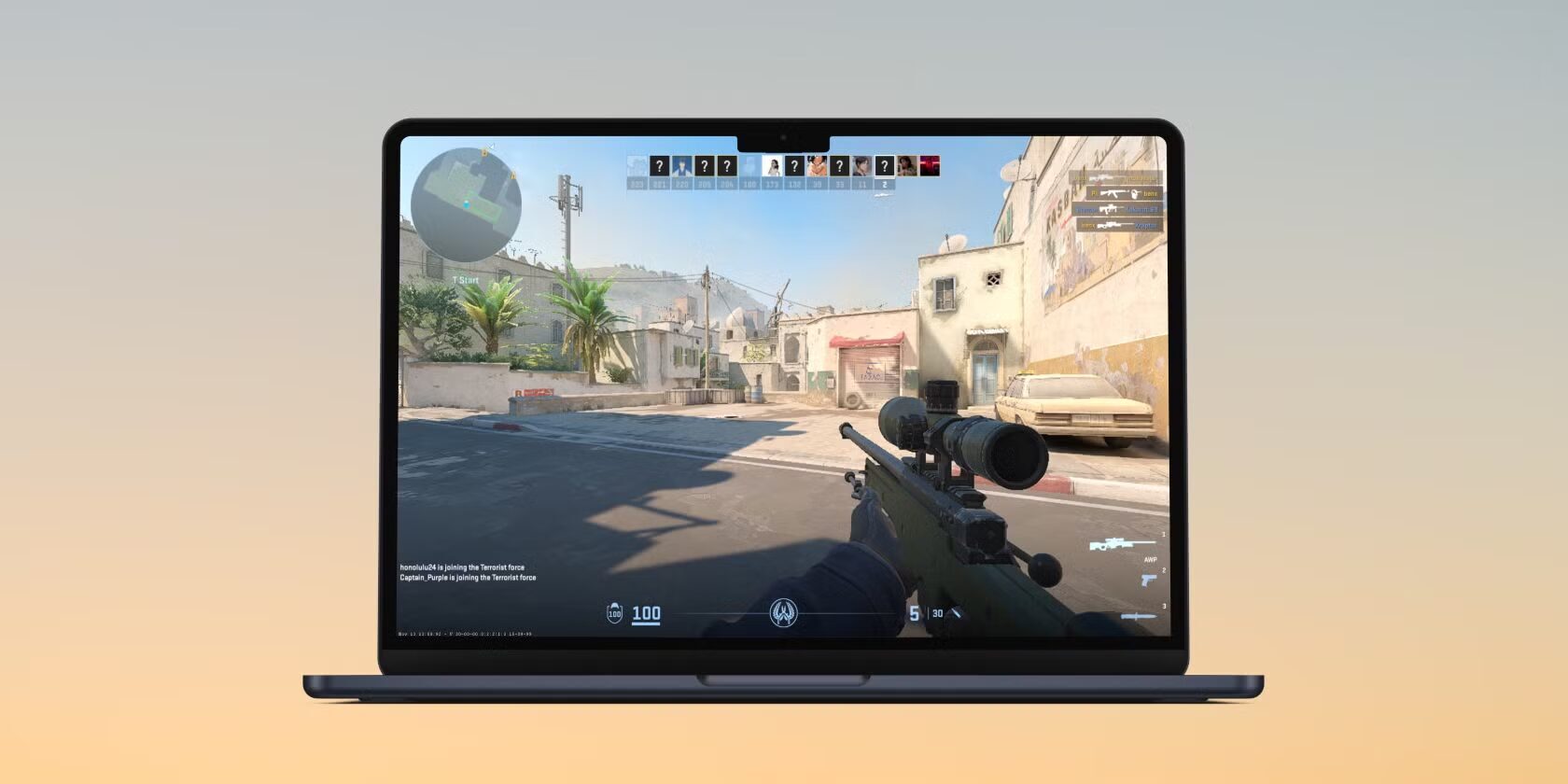
The Best Way to Play CS2 on MacBook: CrossOver
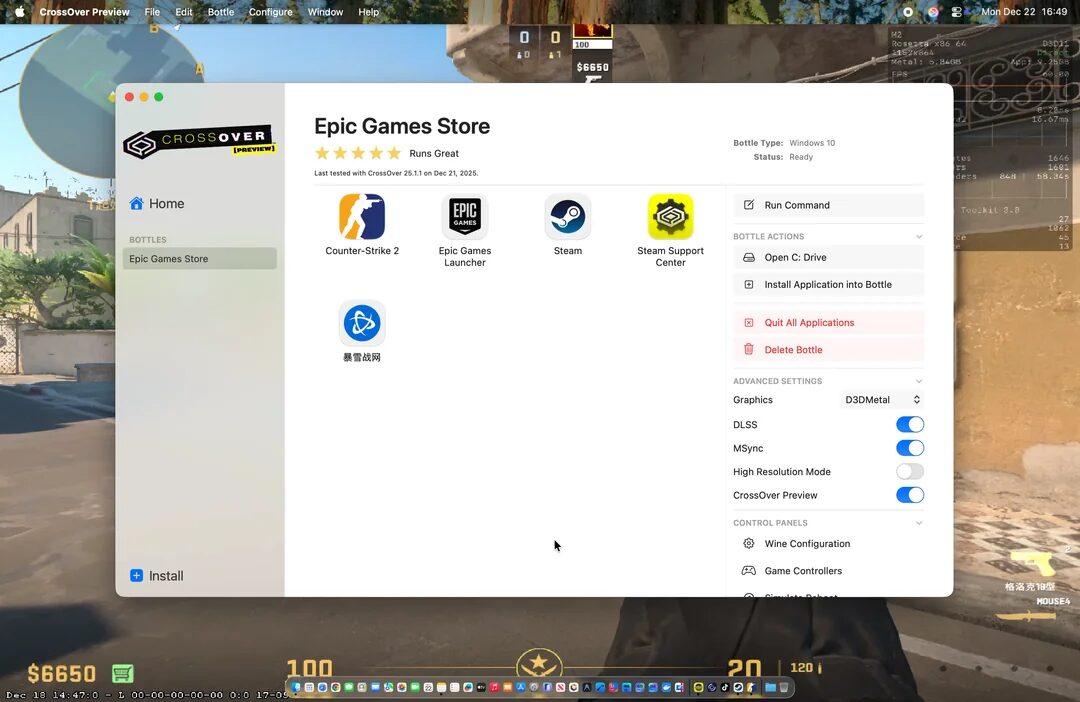
CrossOver is currently the option I would trust most if you actually want CS2 installed on your Mac.
The current CrossOver 26.3 compatibility page rates CS2 as Runs Well, and recent Mac gaming threads have people playing it across M1, M2, M3 and M4 machines.
Setting it up is pretty simple:
- Download and install CrossOver
- Search for Steam inside CrossOver and install it
- Open Steam and sign into your account
- Download Counter Strike 2
- Launch CS2 through Steam inside CrossOver
If you have never installed the game before, our CS2 download guide covers the Steam side of it.
I would also leave CrossOver’s graphics option on Auto at first. Newer versions can choose the graphics backend automatically.
If CS2 runs badly, then start experimenting.
Recent MacGaming users have had good results with DXMT, while others still prefer D3DMetal. There is no one setting that wins on every MacBook, which is why copying a 20 step YouTube setup before even opening the game usually makes things harder.
How Well Does CS2 Run on M1, M2, M3, M4 and M5 Macs?
Better than it used to.
Recent community reports include an M1 MacBook Air running around 40 to 100 FPS, an M2 Air around 70 to 90 FPS, and M3 and M4 systems regularly pushing past 100 FPS with the right configuration.
Do not take those numbers as guaranteed benchmarks. CrossOver performance can change depending on the MacBook, cooling, resolution, macOS version and even the map you are playing.
The MacBook Air is also fanless, so long competitive sessions can perform differently from a MacBook Pro.
Another thing Mac players keep mentioning is shader caching. Your first few minutes can feel awful. Maps stutter, grenades go off and the game suddenly freezes for a second.
Give it some time before deciding it is broken.
If it keeps happening, check our CS2 freezing guide or CS2 black screen fix.
Pixel Port Is the New Free Option
This is the method older CS2 on Mac guides are missing.
Pixel Port is a newer way to run the Windows version of CS2 directly on Apple Silicon without installing Windows. It is currently free while in beta.
The main advantage is that it is easier to set up than messing around with old Wine wrappers.
The downside is obvious. It is still beta software.
A CS2 update, Steam update or macOS update could temporarily break something, so I would still pick CrossOver if you want the more established option.
Whisky used to fill this free option spot, but I would not recommend building a fresh CS2 setup around Whisky anymore. The project was archived in 2025 and is no longer actively maintained.
GeForce NOW Is the Easiest Way
If you do not care whether CS2 is actually running on your MacBook, GeForce NOW is easily the simplest option.
You install GeForce NOW, connect your Steam account, find CS2 and play.
The MacBook itself does very little work because the game is running on NVIDIA’s servers.
That makes GeForce NOW especially useful on an older Mac.
The problem is latency.
For something like Cyberpunk, a little extra delay might not bother you. In Counter Strike, you feel it immediately.
If you are playing Premier seriously, I would rather have CS2 running locally through CrossOver. If you just want Casual, Deathmatch or the occasional game with friends, cloud gaming is completely reasonable.
A wired connection also helps. If the game starts teleporting players around, check our CS2 packet loss guide before blaming the Mac.
Best CS2 Settings for a MacBook
Do not start by trying to make CS2 look pretty.
Start by making it smooth.
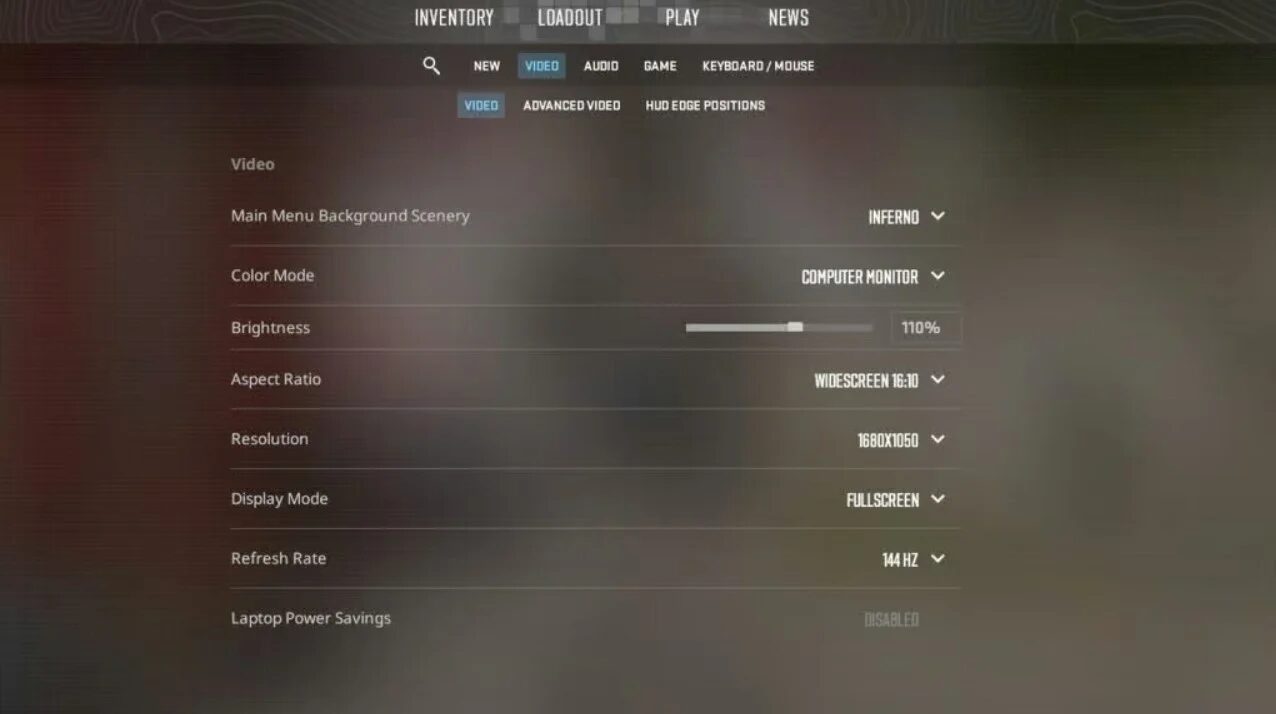
Lower the resolution and reduce the expensive graphics settings. Our best CS2 settings for 2026 and CS2 graphics settings guide are good starting points.
You can also try 4:3 stretched in CS2 if you want a lower competitive resolution.
Keep an eye on your frames with the CS2 FPS counter while testing settings instead of guessing based on how the game feels.
If CrossOver gives you display problems, we also have a separate guide for making CS2 fullscreen on Mac.
Is CS2 Worth Playing on a MacBook?
If you already own the MacBook, yes.
I would not buy a Mac specifically for Counter Strike, and I still would not expect it to feel exactly like a proper Windows gaming PC.
But the situation is way better than it was a couple of years ago.
For an M series MacBook, CrossOver is my first choice, Pixel Port is worth trying if you want something free, and GeForce NOW is the easy fallback.
Once you actually have the game running smoothly, stop messing with the Mac stuff and play. Set up your mouse properly with our CS2 sensitivity and DPI guide and you are good to go.
Last checked: August 22, 2026.