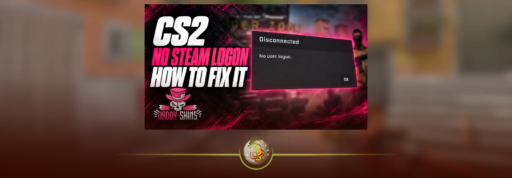
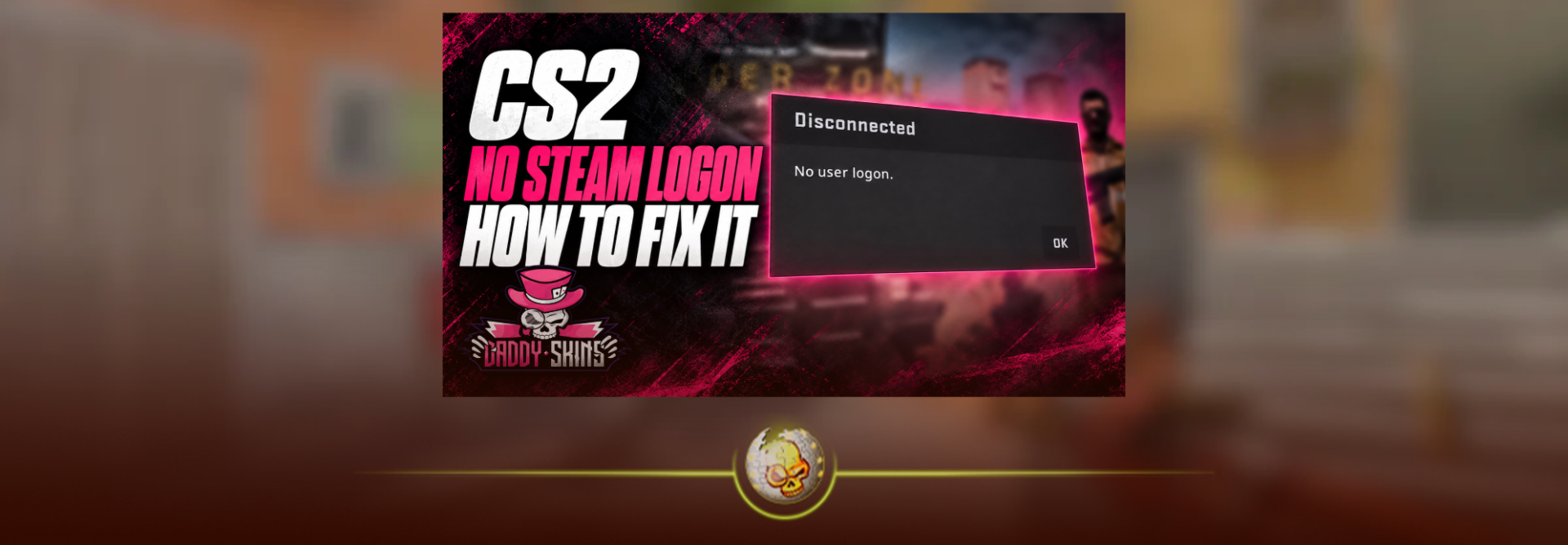
To fix the No Steam Logon error in CS2, first check for a Steam service outage. If services are working, fully exit CS2 and Steam, reopen Steam, and sign in again if needed. Then check updates, connection stability, and software interference. Verify game files if the problem continues.
Getting kicked halfway through a round is frustrating, especially when Discord still works and your internet looks fine. The message points to Steam login or connection trouble, but it does not identify the cause on its own. Work through the checks below in order, testing after each change.
What Does No Steam Logon Mean in CS2?
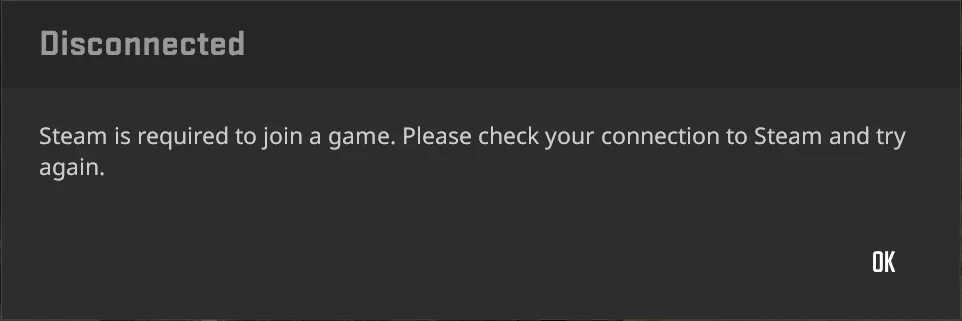
No Steam Logon means CS2 cannot proceed with the Steam login connection it needs for online play. An interrupted connection or a Steam service problem can leave you unable to join a server or stay in a match.
Valve includes this message in its secure connection troubleshooting guidance. Steamworks also documents separate authentication responses for a user who is disconnected from Steam, an invalid login ticket, and a VAC ban. The logon message alone is not proof of a ban.
If the main menu instead stays on “Connecting to the Counter-Strike network,” follow our connecting to CS2 network guide.
How to Fix No Steam Logon in CS2
1. Check for a Steam or CS2 Outage
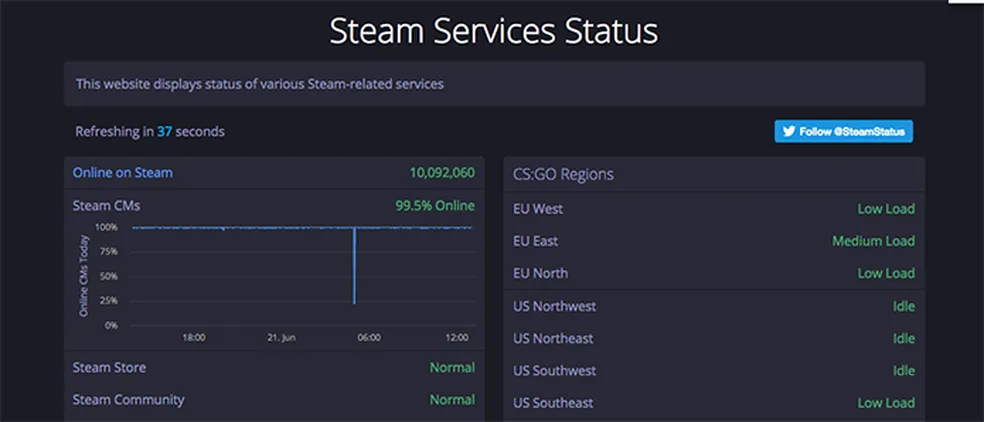
Start with a CS2 server status check. Look for Steam connection or login issues as well as Counter-Strike service problems.
Ask whether friends on different connections are getting the same message. Several people disconnecting together is a reason to investigate a wider issue before changing your PC settings.
A working Steam Store page does not establish that every Steam service is healthy. If there is a confirmed outage, wait for recovery before testing again.
2. Fully Restart Steam
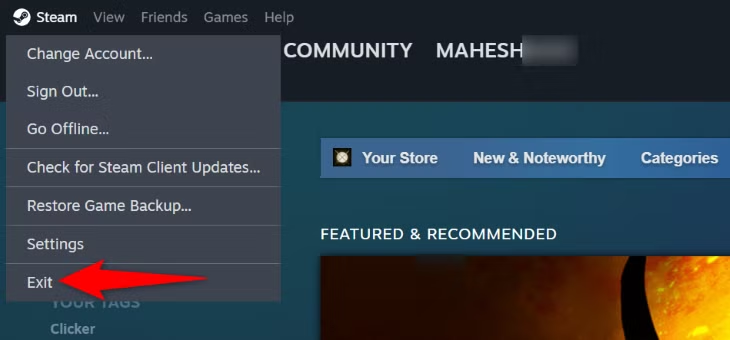
Restarting only CS2 leaves the Steam client running. Close both so you can test a fresh connection.
- Quit CS2.
- In Steam, select Steam > Exit.
- On Windows, check Task Manager if Steam appears stuck after exiting.
- Reopen Steam and let it finish connecting and updating.
- Launch CS2 from your Steam Library.
If the error returns, close the game and sign out of Steam, then sign back in. Have your Steam Guard authentication available before doing this.
Keep Steam running while you play. If the client is in Offline Mode, switch it back online before attempting online multiplayer.
3. Finish Pending Updates
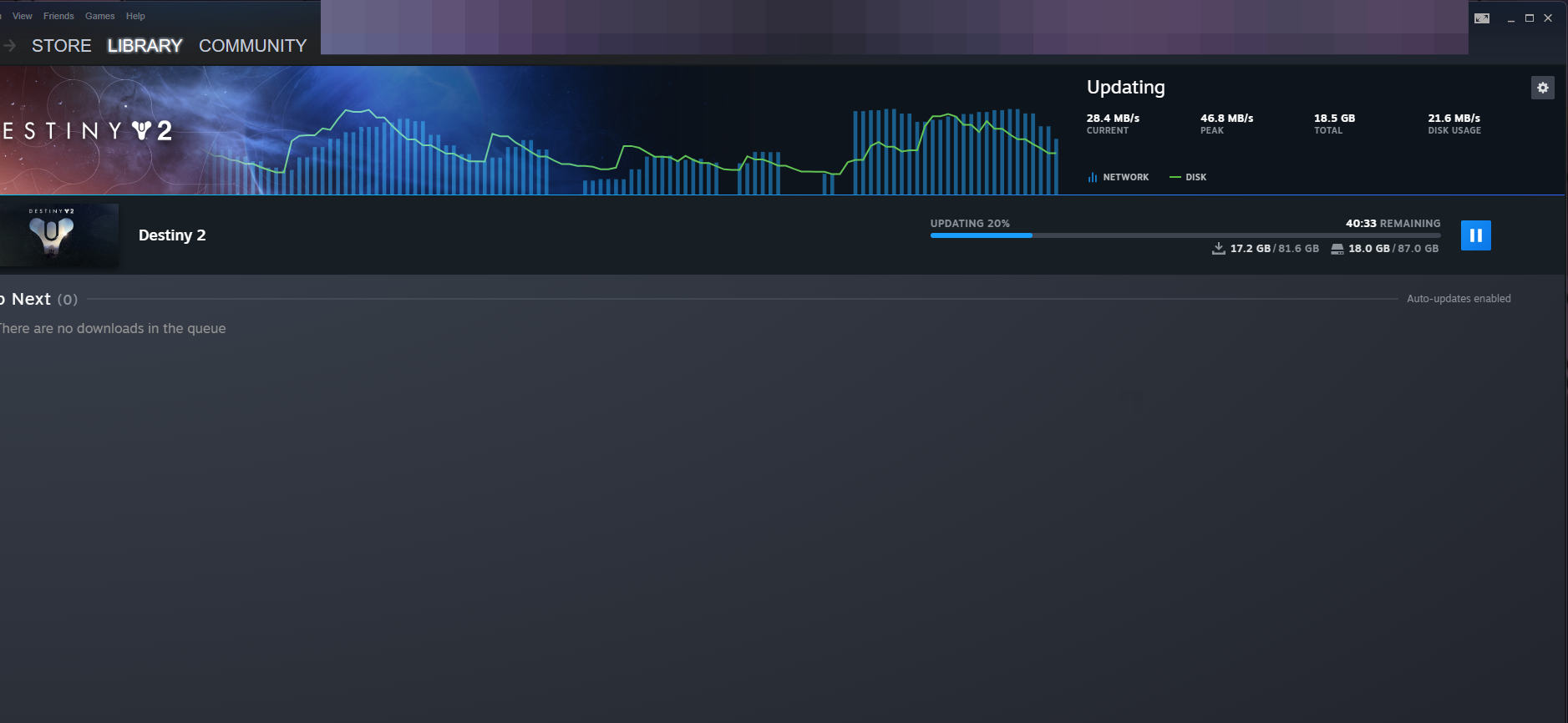
Check Steam’s Downloads page and let any CS2 update finish. Restart Steam if it asks to install a client update.
Do this before testing another match, especially if the problem began around a patch. Updating is a basic check, rather than confirmation that an outdated client caused the logon error.
If the message changes to “Your client needs to update,” use our CS2 client update fix, which addresses that warning separately.
4. Test Your Connection
A browser loading normally does not rule out trouble reaching Steam. Valve’s Steam login help specifically distinguishes the client’s connection from web browser access. help.steampowered.com
Restart your router if other connection symptoms are present. Try Ethernet if you normally use Wi-Fi, and pause large downloads during the test.
If practical, briefly test another network. The error disappearing there would point toward your usual connection or its configuration, although one successful attempt is not conclusive.
Our guides to packet loss in CS2 and CS2 net jitter cover those symptoms if they accompany the disconnects.
5. Check VPN and Security Software
Valve lists VPNs, antivirus programs, and firewalls among applications that can interfere with Steam. help.steampowered.com
If you use a VPN or proxy, disconnect it temporarily, restart Steam, and retest. Change one thing at a time so you can identify whether it helped.
Check whether your security software has blocked Steam or CS2, particularly after an update. Review its application permissions rather than leaving protection disabled. If you are unsure which rule to change, use the security software’s official instructions.
You do not need to buy a connection booster to perform these checks.
6. Verify CS2’s Game Files
File verification checks the installation. It cannot repair a Steam outage, so leave it until after the login and connection checks.
To follow Valve’s game file verification instructions:
- Open your Steam Library.
- Right-click Counter-Strike 2 and select Properties.
- Open Installed Files.
- Select Verify integrity of game files.
- Wait for it to finish, then relaunch CS2.
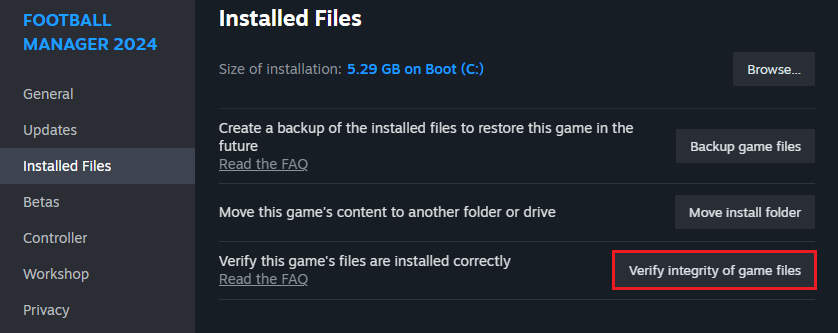
Steam notes that some files failing verification can be normal because they are local configuration files. A verification message alone does not prove you found the cause. help.steampowered.com
Why Does CS2 Keep Kicking Me With No Steam Logon?
If you can join but disconnect again, note what happens immediately beforehand. Does Steam also lose connection? Does the game freeze first? Does it happen on every server or only one?
Those details help separate a recurring login problem from another issue that appears alongside it.
If CS2 freezes before the message appears, investigate the freeze too. If the wording instead says “Unable to establish a connection with the gameserver,” follow our CS2 server connection guide.
Avoid repeatedly using competitive matches as your test. Check whether the disconnect returns in a lower-stakes online mode before queueing again.
Frequently Asked Questions
Does No Steam Logon Mean I Am VAC Banned?
The message alone does not mean you have a VAC ban. Steam documents login connection failures and VAC bans separately. If your actual warning is “VAC was unable to verify your game session,” use our VAC verification error guide. partner.steamgames.com
Is No User Logon the Same as No Steam Logon?
Both messages concern Steam login or authentication and warrant the initial checks above. Record the exact wording if you contact support, rather than assuming every authentication error has an identical cause.
Can Reinstalling CS2 Fix It?
Reinstalling may help an installation problem, but it will not resolve a Steam service outage or a blocked connection. Try restarting Steam, checking connectivity, and verifying files first.
Is This the Same as Matchmaking Unavailable?
No. A closed queue or unavailable matchmaking service is a different symptom. If you cannot start searching for a match, our CS2 matchmaking unavailable guide is the better starting point.
What to Do if Nothing Works
Contact Steam Support with a screenshot of the exact error, when it started, whether Steam disconnects too, and which checks you completed. Include whether another network changed the result.
For a reproducible game issue, our CS2 bug reporting guide explains what information to collect.
A useful report describes the pattern. “Disconnects three minutes after joining on two different networks” gives support more to investigate than “CS2 does not work.”