
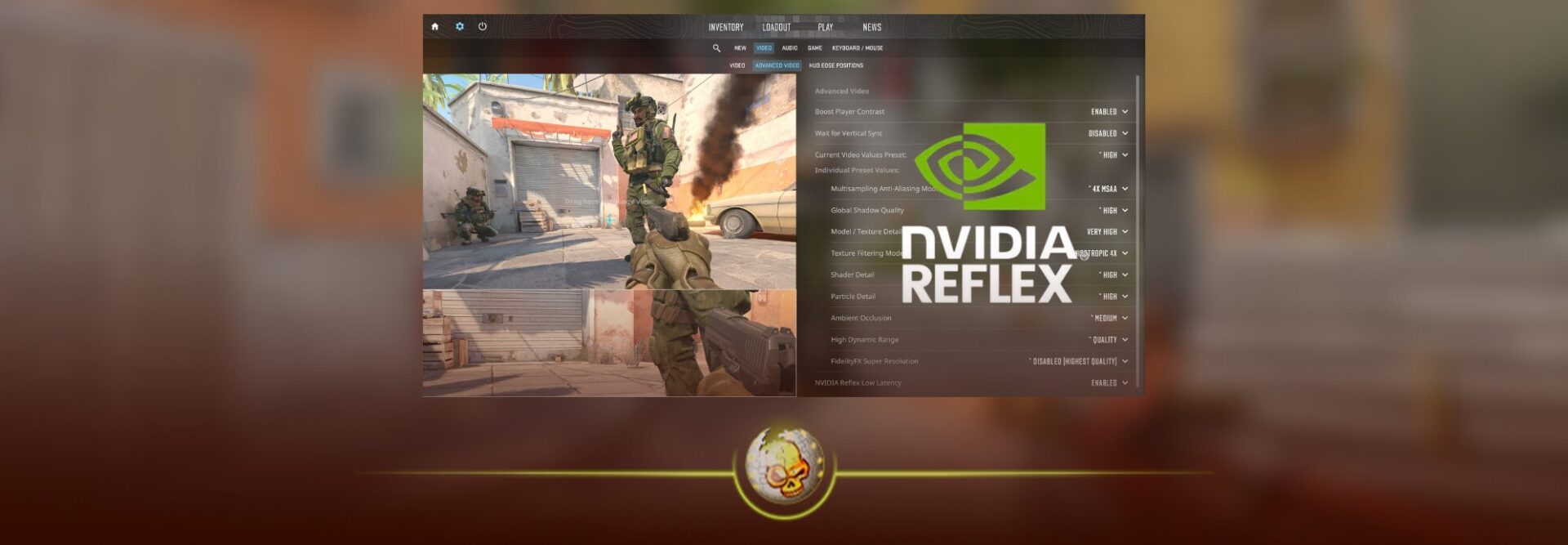
If you are wondering whether NVIDIA Reflex should be on or off in CS2, the best starting point in 2026 is simple: set NVIDIA Reflex Low Latency to Enabled.
Enabled + Boost can reduce latency even further on some systems, but it uses more power and can slightly affect FPS. Disabled is mainly worth testing if Reflex causes worse frame pacing or another performance issue on your specific PC.
NVIDIA continues to recommend Reflex for Counter Strike 2. In May 2026, NVIDIA reported that Reflex reduced PC latency by up to 42% on the RTX 5080 systems used at the CS Asia Championship. That does not mean every PC will see a 42% improvement, but it confirms that Reflex is still actively supported and relevant in CS2.
For a complete performance setup beyond Reflex, see our best CS2 settings for 2026 and how to increase FPS in CS2 guides.
Should NVIDIA Reflex Be On or Off in CS2?
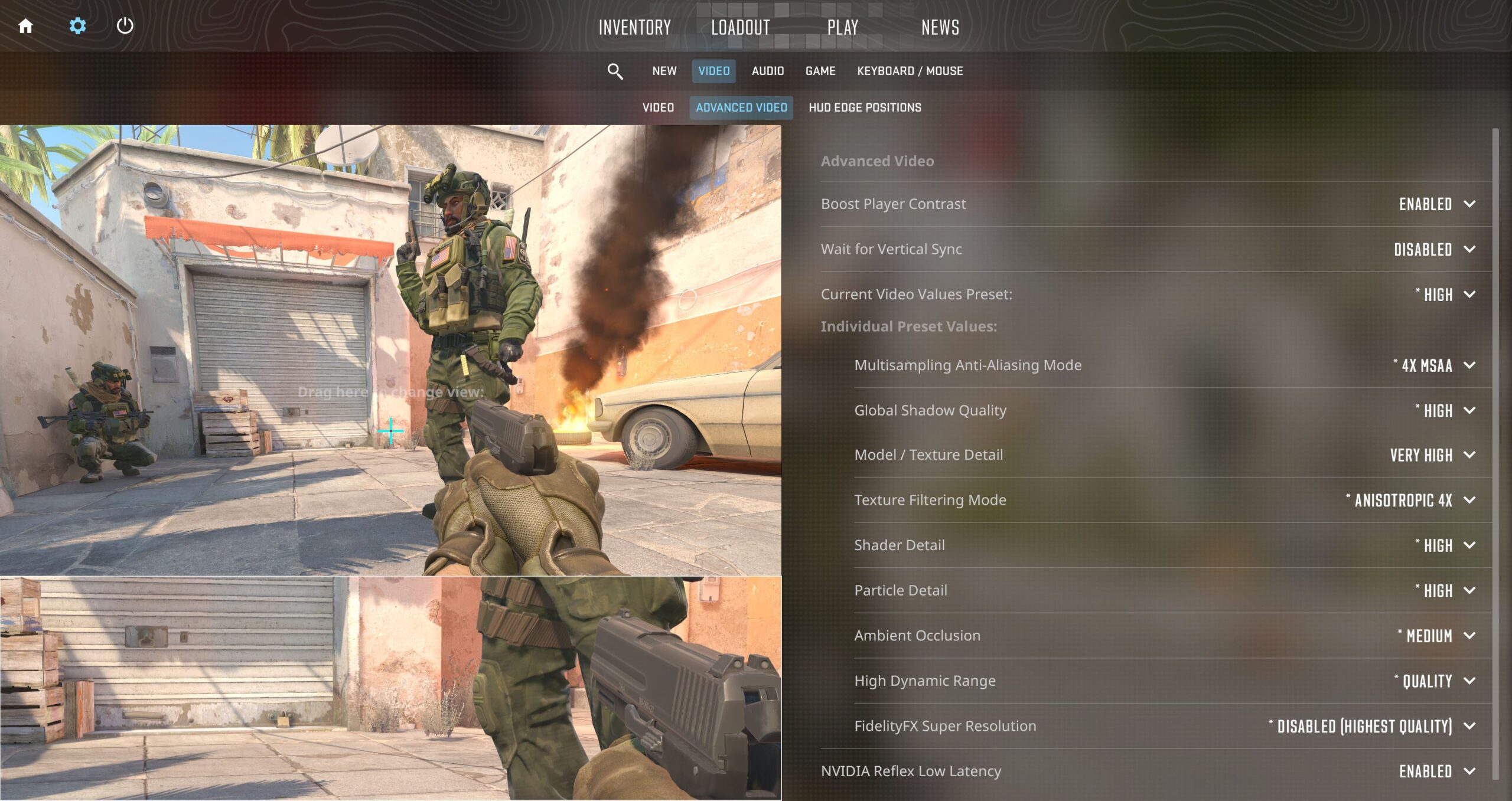
For most NVIDIA players, use Enabled.
Here is the simple recommendation:
Enabled: Best starting point for almost everyone
Enabled + Boost: Best to test if you want the lowest possible latency and do not mind higher GPU power usage
Disabled: Mainly for troubleshooting or when repeated testing shows better frame consistency on your particular system
NVIDIA explains that Reflex works by synchronizing CPU and GPU work so the CPU does not build up a render queue ahead of the GPU. It is especially useful when the graphics card is under heavy load or the system is GPU limited.
That is why simply looking at FPS is not enough. A PC showing 400 FPS can still have worse latency or frame pacing than another configuration showing slightly fewer frames.
If your game already feels inconsistent, our guide on why CS2 feels laggy in 2026 covers frame time spikes, stuttering and network problems separately.
NVIDIA Reflex Enabled vs Enabled + Boost
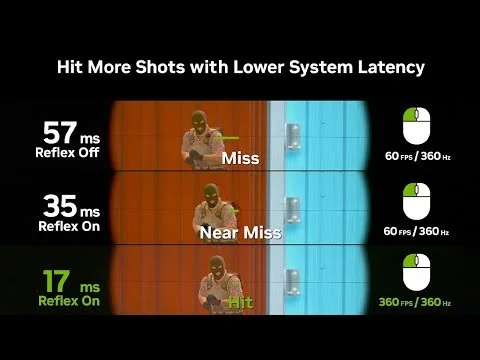
This is where most of the confusion comes from.
NVIDIA Reflex Enabled
Enabled is the setting we recommend first.
Reflex manages the rendering pipeline and reduces the amount of time a completed input has to wait before reaching the screen.
It normally gives you most of the benefit of Reflex without forcing the GPU to maintain higher clock speeds unnecessarily.
For competitive CS2, start here and play several real matches before changing anything.
NVIDIA Reflex Enabled + Boost
Enabled + Boost uses the same Reflex latency system but also tries to keep GPU clock speeds higher.
NVIDIA says this can reduce latency further, although it comes with additional power consumption and potentially slightly lower frame rates in CS2.
Boost makes the most sense when you are chasing every possible reduction in latency or when GPU clock speeds are frequently dropping.
On a desktop with good cooling, there is little harm in testing it.
On a gaming laptop, Boost can mean more power draw, heat and fan noise, so regular Enabled may provide the better overall experience.
NVIDIA Reflex Disabled
Turning Reflex off removes its latency optimization completely.
There are CS2 players who prefer this. Some community tests have also found individual systems where disabling Reflex changes frame pacing or simply feels better.
That does not make Disabled the universally faster setting.
Recent latency testing from the CS2 community has continued to find that Reflex usually performs well, while player reports remain mixed because hardware, drivers, FPS and GPU utilization differ from one PC to another.
The correct approach is to test it rather than disabling Reflex because somebody else’s PC felt better without it.
What Do CS2 Pros Use?
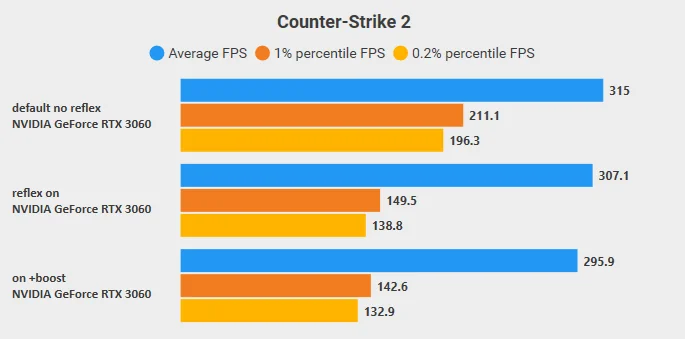
Professional players do not all agree on NVIDIA Reflex either.
As of August 2026, donk’s listed CS2 setup has NVIDIA Reflex Disabled, while ropz uses Enabled. Both also play with V Sync and G Sync disabled.
You can compare their full setups in our donk CS2 settings guide and ropz CS2 settings guide.
This is a good example of why copying a professional player’s settings one for one is not always useful. Pros use different processors, GPUs, monitors, resolutions and FPS limits.
Our CS2 pro settings guide is better used as a reference point rather than a rulebook.
Best CS2 Low Latency Settings in 2026
If your priority is competitive responsiveness and your PC can produce FPS comfortably above your monitor’s refresh rate, start with this setup:
Display Mode: Fullscreen
Refresh Rate: Highest available
NVIDIA Reflex Low Latency: Enabled
V Sync: Disabled
NVIDIA G Sync: Disabled for a raw competitive setup
NVIDIA Control Panel Low Latency Mode: Off
FidelityFX Super Resolution: Disabled
Maximum FPS: Uncapped first, then test a stable cap if frame times fluctuate
The goal is not simply generating the largest FPS number possible. You want high FPS with consistent frame delivery.
If CS2 jumps between 250 and 500 FPS and constantly feels uneven, a stable cap may actually feel better.
You can monitor this with our guide on how to show FPS in CS2 and then make broader changes using the CS2 graphics settings guide.
Should You Use G Sync, V Sync and Reflex Together?
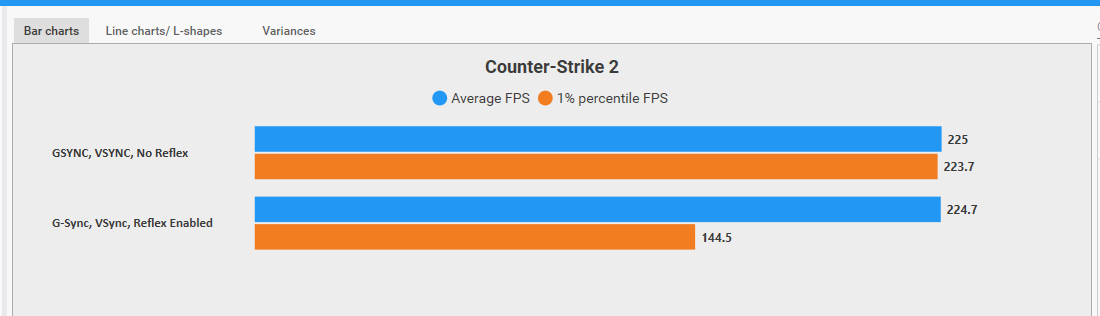
There are actually two valid approaches here.
For players chasing raw competitive latency, V Sync and G Sync are commonly disabled while Reflex remains Enabled. This is also the type of setup used by many professional players.
For players who care more about eliminating tearing and getting extremely smooth frame pacing, Valve recommends another configuration.
Valve’s CS2 settings guidance says that if G Sync is supported, it is generally recommended to enable G Sync, V Sync and NVIDIA Reflex together. CS2 will then limit the frame rate to the monitor refresh rate or slightly below it. Valve describes this combination as usually providing the smoothest looking experience with low input latency.
So there is no contradiction.
If you want maximum uncapped competitive performance, try:
G Sync Off
V Sync Off
Reflex Enabled
If you want smoother tear free gameplay, try:
G Sync On
V Sync On
Reflex Enabled
Test both. A 240Hz or 360Hz monitor can feel excellent with either setup depending on your PC.
Our full CS2 video settings guide explains the other display options that can affect performance and visibility.
NVIDIA Reflex vs NVIDIA Low Latency Mode
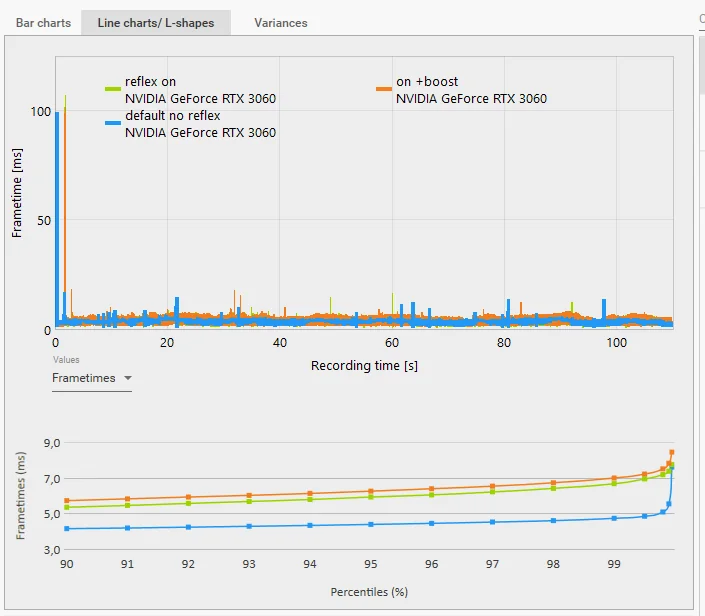
Do not confuse NVIDIA Reflex with Low Latency Mode in NVIDIA Control Panel.
They are different technologies.
NVIDIA Reflex is integrated directly into supported games such as CS2. NVIDIA’s own documentation recommends the Control Panel’s Ultra Low Latency Mode primarily for games that do not support Reflex.
Because CS2 already supports Reflex natively, you do not need to stack Ultra Low Latency Mode on top of it.
For CS2:
NVIDIA Reflex: Enabled
NVIDIA Control Panel Low Latency Mode: Off
If you disable Reflex entirely, you can then experiment with the driver level Low Latency Mode, but that should not be your default configuration.
How to Enable NVIDIA Reflex in CS2
Changing Reflex takes a few seconds.
- Open Counter Strike 2
- Open Settings
- Select Video
- Open Advanced Video
- Find NVIDIA Reflex Low Latency
- Select Enabled
- Test Enabled + Boost afterward if you want to compare latency
NVIDIA lists the same process in its official CS2 Reflex documentation.
If your graphics menu or FPS setup does not match what you expect, check our CS2 system requirements guide before assuming Reflex itself is causing the problem.
Does NVIDIA Reflex Lower FPS in CS2?
It can slightly affect FPS, particularly with Enabled + Boost, but FPS and latency are not the same thing.
Losing a small number of frames can still be worthwhile if the game responds faster to your input.
This is why NVIDIA specifically measures PC latency when demonstrating Reflex rather than only showing FPS.
If your FPS is already too low, work on overall performance first with our CS2 FPS optimization guide and consider whether your resolution is putting unnecessary load on the GPU. Our best CS2 resolution guide compares common competitive resolutions.
Does NVIDIA Reflex Work on Older Graphics Cards?
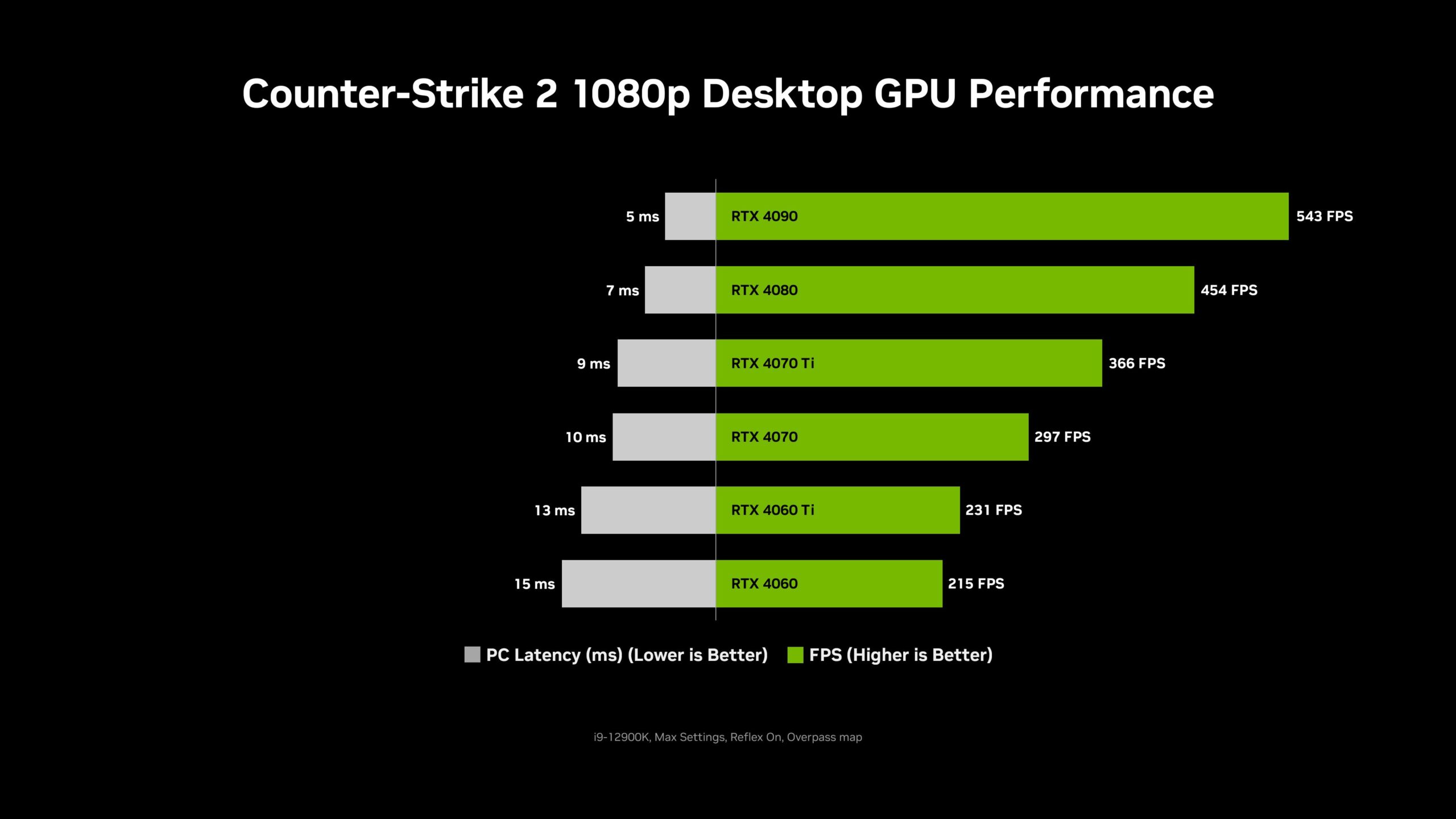
Yes.
NVIDIA lists Reflex Low Latency support on GeForce GTX 900 Series GPUs and newer, although the exact benefit depends heavily on the rest of the system.
You do not need an RTX 50 Series card to use Reflex.
The huge latency reductions NVIDIA advertises are simply more noticeable in particular GPU limited scenarios.
Is Enabled + Boost Better Than Enabled?
Not automatically.
Enabled + Boost is designed to push latency lower by maintaining higher GPU clocks, but the tradeoff is increased power consumption and potentially a small FPS reduction.
For most players:
Start with Enabled.
If your PC has good cooling and you want to optimize for the lowest latency possible, test Enabled + Boost afterward.
Keep whichever setting produces the best combination of latency and stable frame times on your actual system.
Final Verdict
NVIDIA Reflex should be Enabled in CS2 for most NVIDIA players in 2026.
Enabled gives you the main latency reduction without the extra power requirements of Boost.
Enabled + Boost is worth testing on high performance systems when minimum latency matters more than power consumption or a small FPS difference.
Disabled should not be the default just because certain professional players use it. Players such as donk currently run Reflex off, while others such as ropz run it on. The hardware and setup around the setting matter just as much as the setting itself.
Start with Reflex Enabled, Fullscreen, your monitor’s maximum refresh rate and V Sync disabled for a straightforward competitive setup.
Then test Enabled + Boost.
If you use G Sync and prefer smoother tear free gameplay, Valve recommends running G Sync, V Sync and Reflex together instead.
That gives you a clean baseline without relying on outdated CS GO optimization tricks.