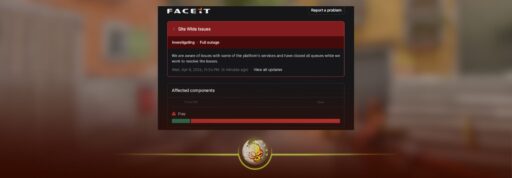
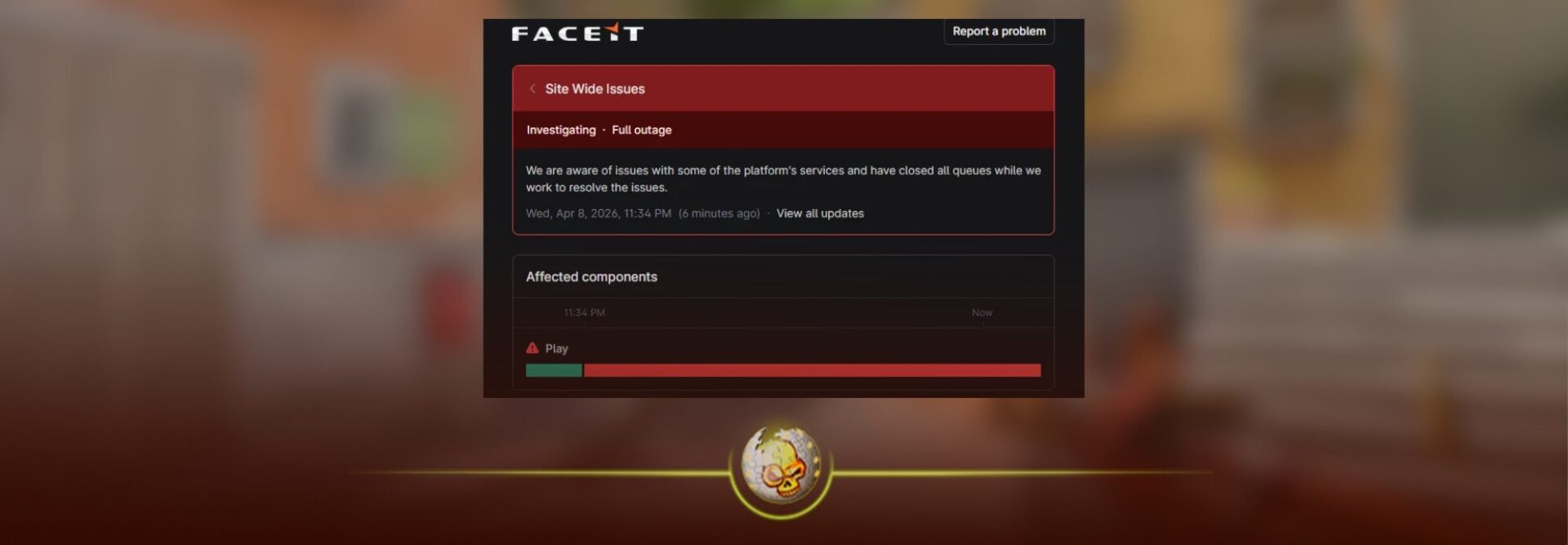
If you see the message “We are experiencing issues with our queues” while trying to play CS2, it usually means matchmaking is temporarily not working properly.
In most cases, this is not caused by your PC, settings, or CS2 account. It often happens when CS2, Steam, or a third-party platform like FACEIT is having queue, server, or match creation problems. FACEIT has previously closed CS2 queues during platform issues, game update problems, and Steam network outages, then reopened them after stability returned.
That said, there are still a few things you should check before assuming the problem is fully server-side.
Quick Answer
To fix the CS2 “We are experiencing issues with our queues” message, first check if CS2, Steam, or FACEIT servers are down. If the servers are having problems, you cannot force the queue to work. You need to wait until matchmaking is restored. If servers look normal, restart CS2 and Steam, update the game, verify your game files, check your internet, and make sure your firewall is not blocking Steam or CS2.
Step 1: Check CS2 and Steam Server Status
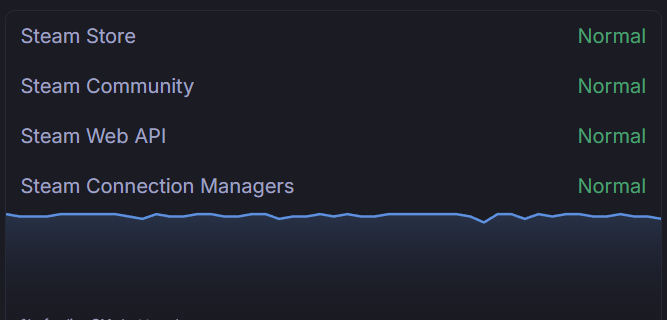
Start here before changing anything on your PC.
CS2 matchmaking depends on Steam services, Counter-Strike services, and regional matchmaking servers. If those services are overloaded, delayed, or down, you may see queue errors, failed match creation, long queue times, or messages saying queues are unavailable.
Check a CS2 server status tracker and look for services like:
Counter-Strike API
Sessions Logon
Matchmaking Scheduler
Steam connection managers
Regional server load
CS2 status trackers monitor things like matchmaking, inventories, server regions, and player search activity, which can help confirm whether the issue is widespread.
If the status page shows problems, the fix is simple: wait. Do not keep restarting the queue every few seconds, because the problem is likely on the server side.
Step 2: Check FACEIT Status if You Are Playing FACEIT
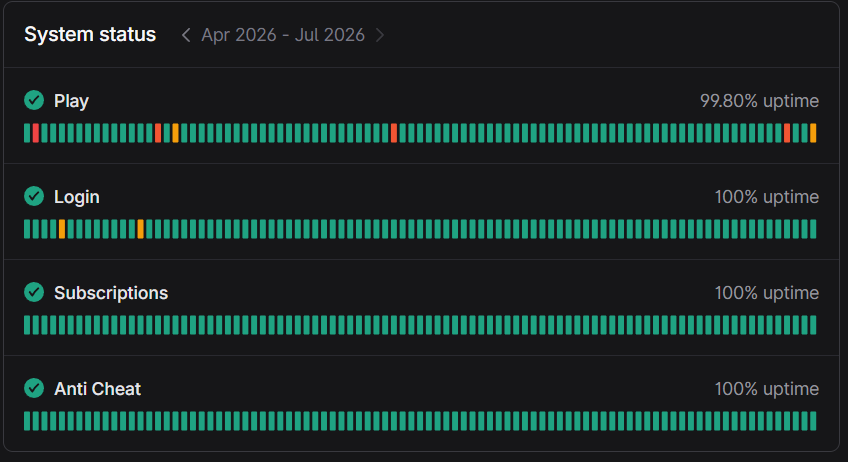
If the message appears on FACEIT, check FACEIT’s status page or support updates. FACEIT can temporarily close CS2 queues when matches are not creating, Steam has an outage, or a CS2 update breaks integration with the platform. Past incidents show that FACEIT usually reopens queues once the problem is fixed and stable.
If FACEIT queues are closed, there is nothing wrong with your CS2 install. You just need to wait for FACEIT to reopen matchmaking.
Step 3: Restart CS2 and Steam
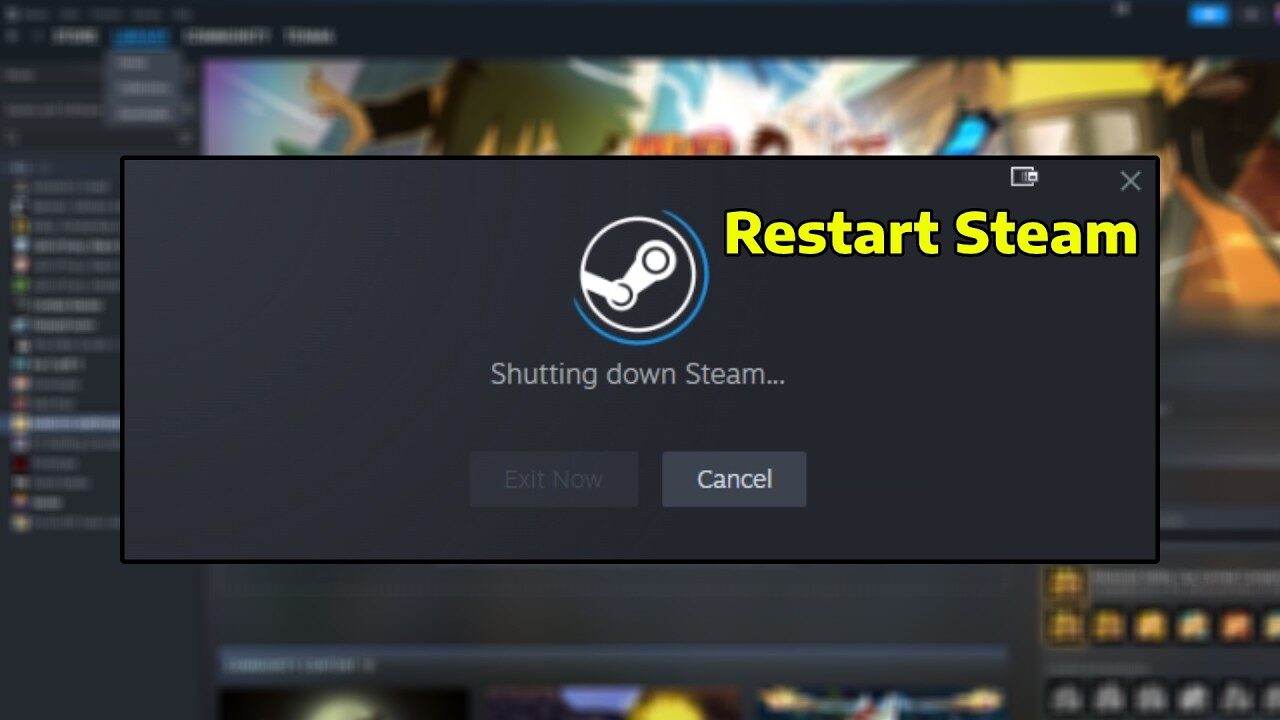
If server status looks normal, restart everything properly.
Close CS2.
Exit Steam completely.
Open Task Manager and make sure Steam is not still running in the background.
Reopen Steam.
Launch CS2 again.
Try queueing once more.
This refreshes your Steam session and reconnects CS2 to the Counter-Strike network. It is a simple step, but it fixes a lot of temporary queue and connection errors.
Step 4: Update CS2 and Steam
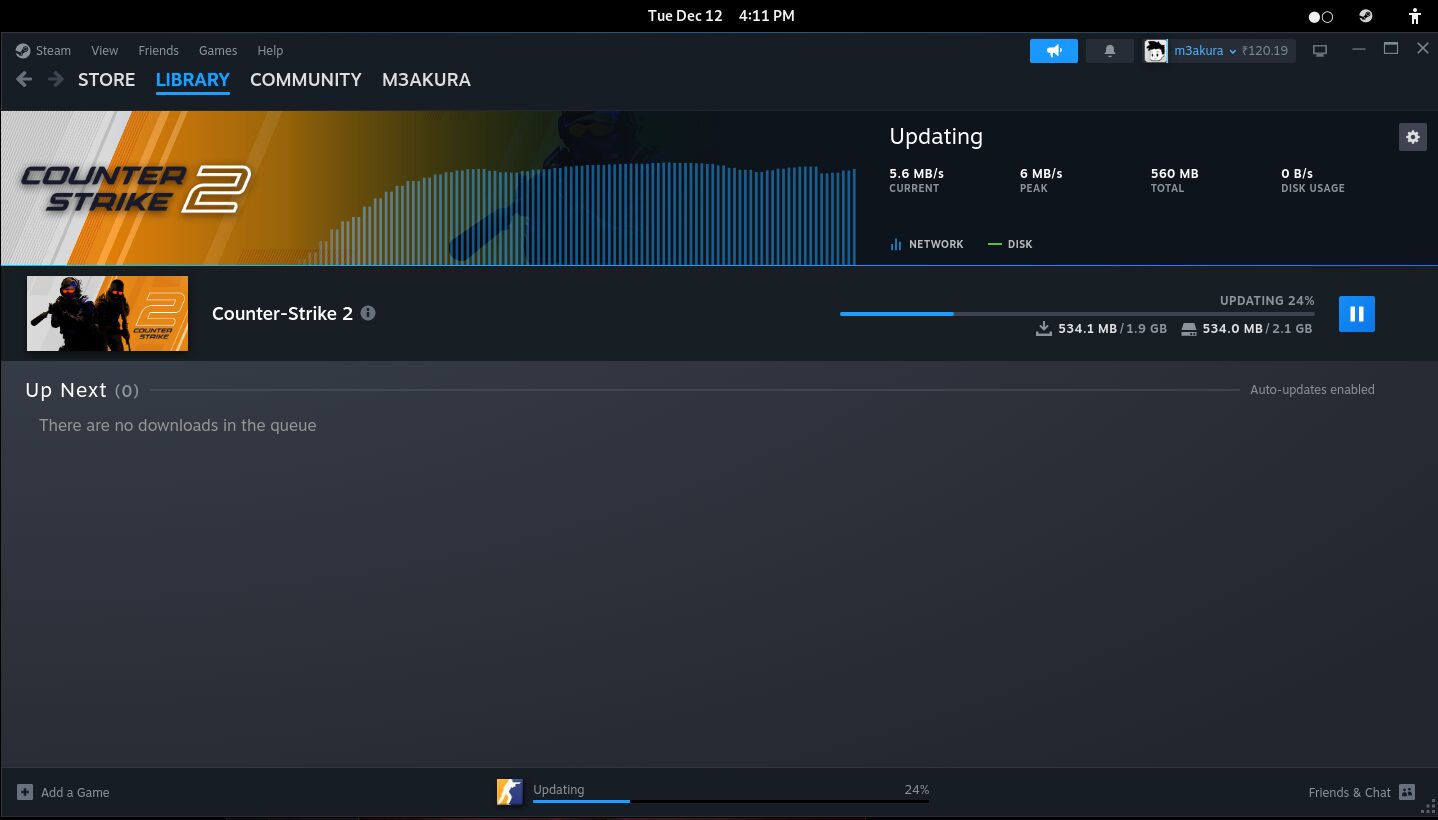
Queue issues can happen right after a CS2 update if your game client is not fully updated. This can create a mismatch between your version of CS2 and the live servers.
Open Steam.
Go to your Library.
Click Counter-Strike 2.
Check if an update is waiting.
Restart Steam and let it finish any pending downloads.
If you are playing through FACEIT, updates matter even more, because FACEIT needs CS2, Steam, and its own matchmaking system to sync properly after patches.
Step 5: Verify CS2 Game Files
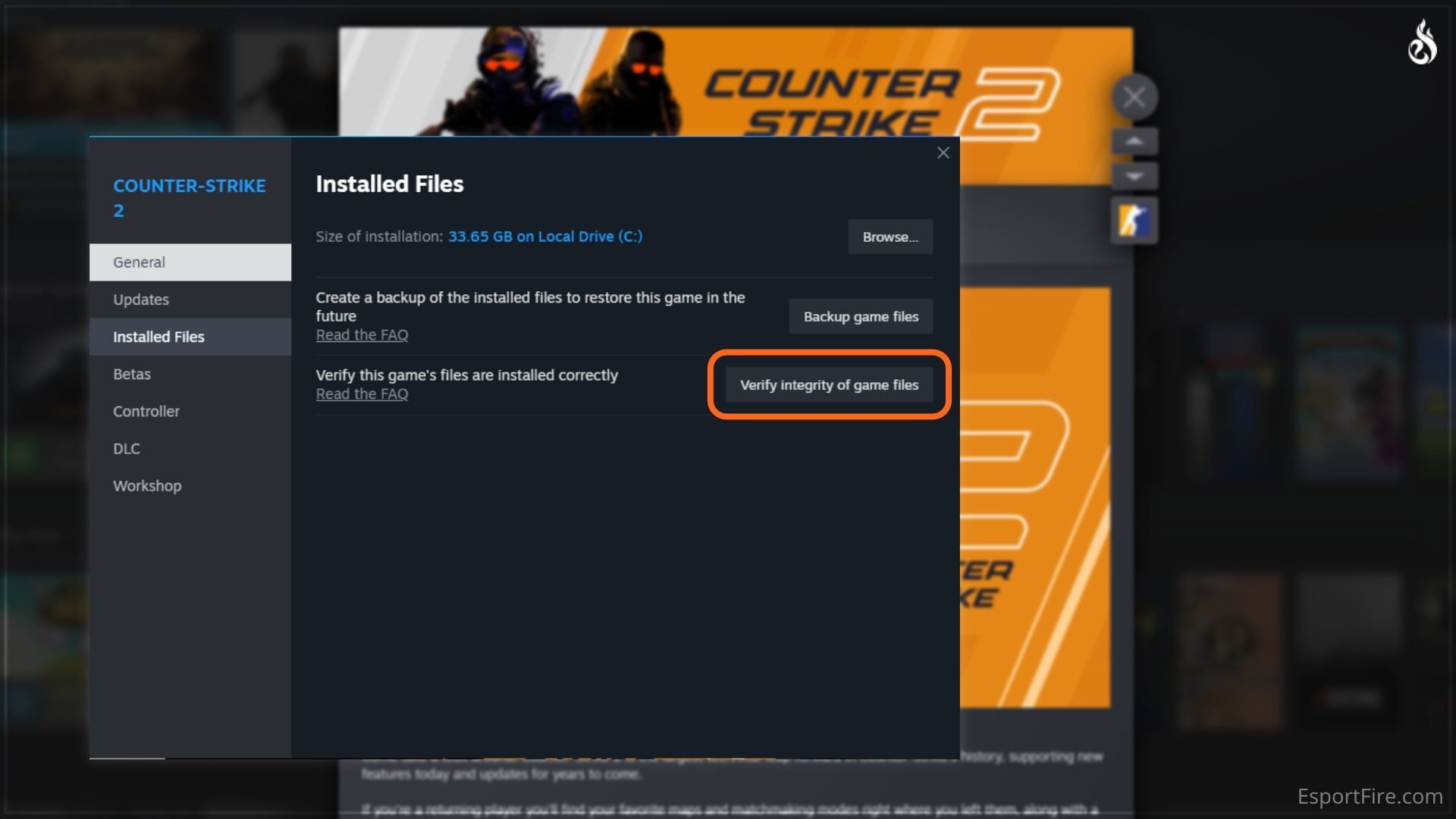
If CS2 servers are online but your game still cannot queue, verify your game files through Steam.
Open Steam Library.
Right-click Counter-Strike 2.
Select Properties.
Go to Installed Files.
Click Verify integrity of game files.
Wait for Steam to finish, then restart CS2.
Steam’s own support page recommends verifying game files when game content may be missing, broken, or corrupted.
This will not fix a server outage, but it can fix local CS2 files that are stopping matchmaking from working correctly.
Step 6: Restart Your Router and Test Your Connection
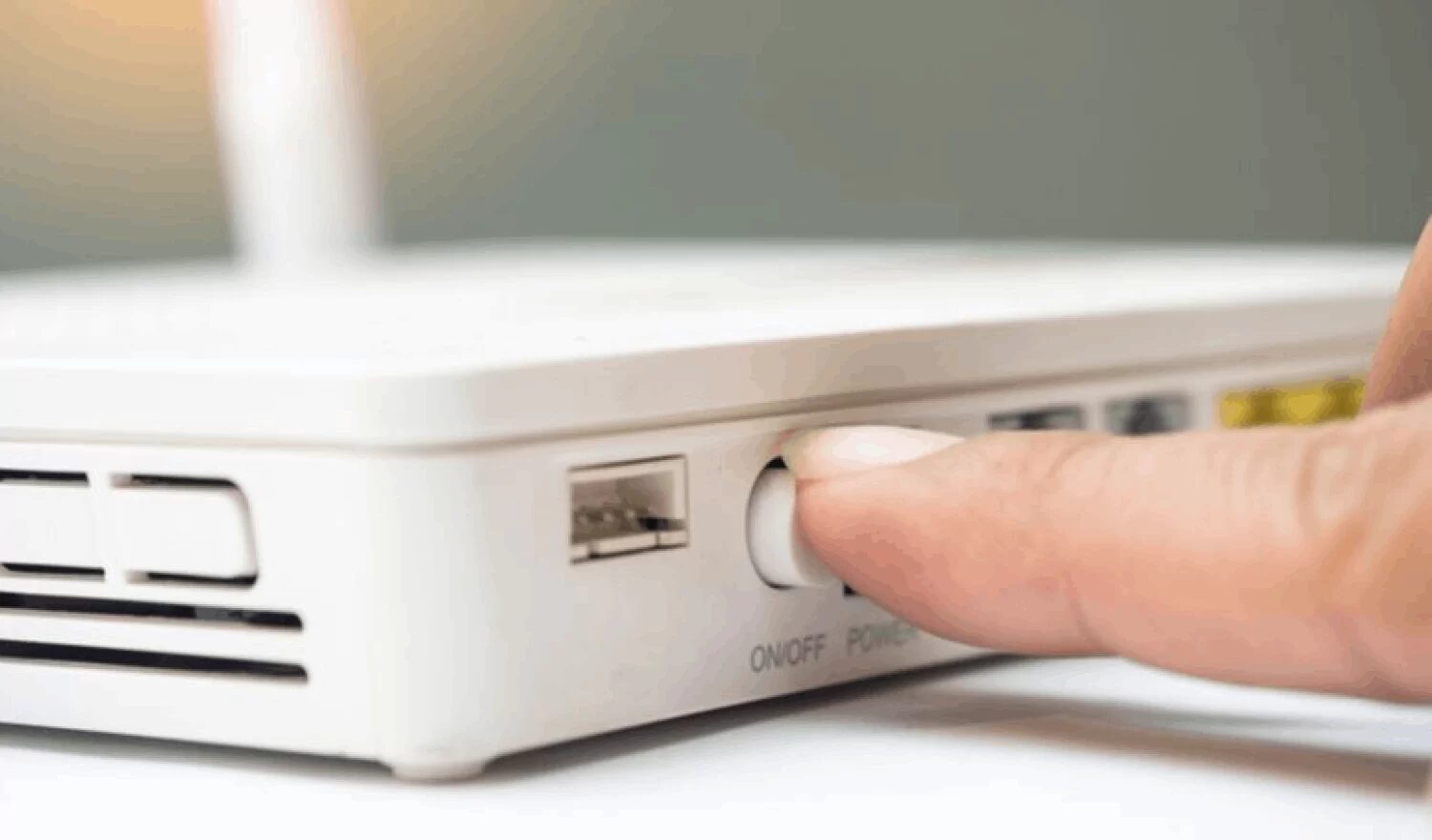
If your game files are fine, check your connection.
Restart your router.
Use Ethernet instead of Wi-Fi if possible.
Test another online game or website.
Turn off VPNs or proxies temporarily.
Try a different DNS only if normal connection fixes do not help.
If CS2 cannot reliably connect to Steam or official servers, matchmaking may fail even when the servers are online. Some CS2 connection errors are linked to internet, firewall, or HTTPS network configuration problems.
Step 7: Check Firewall and Antivirus Settings
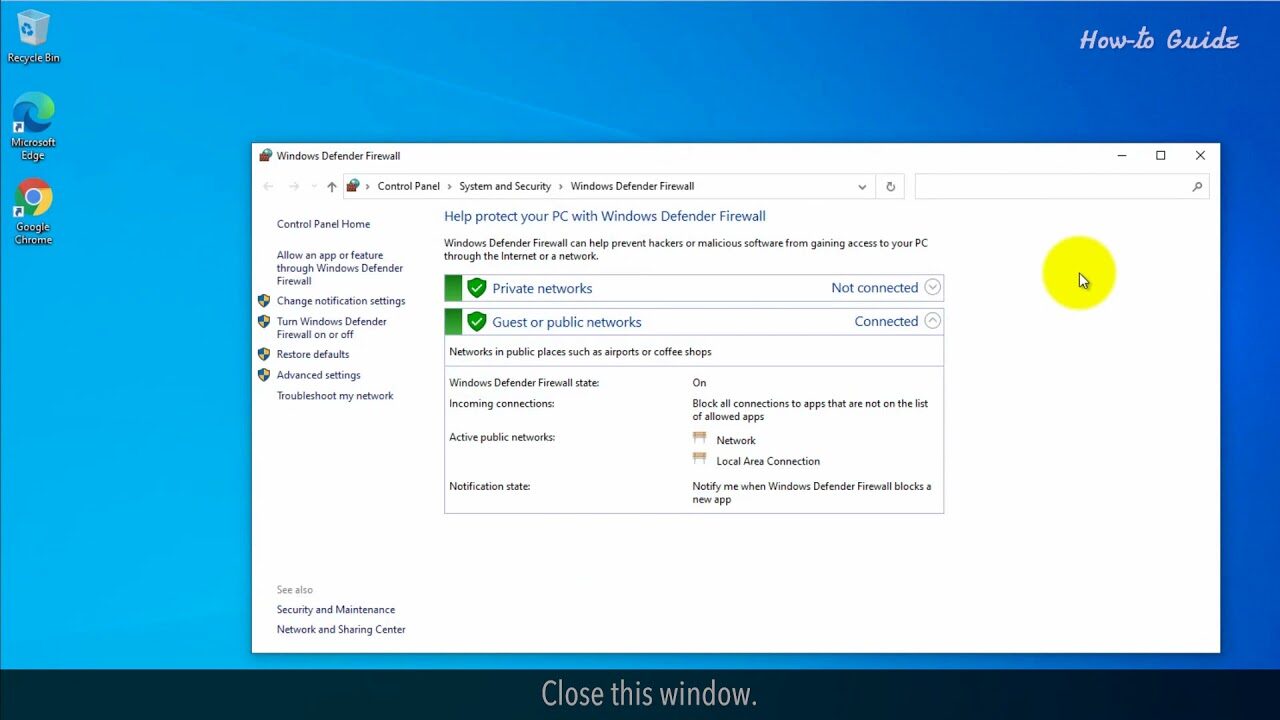
Your firewall or antivirus can block Steam or CS2 from connecting properly. Steam Support notes that firewalls may prevent Steam from connecting to the Steam Network, and antivirus software can interfere with disk and network operations.
Make sure Steam and CS2 are allowed through Windows Firewall.
On Windows:
Open Windows Security.
Go to Firewall & network protection.
Click Allow an app through firewall.
Find Steam and Counter-Strike 2.
Allow both on Private networks.
Restart Steam and try again.
Do not fully disable your security software long term. Use this only to test whether it is causing the issue.
Step 8: Wait if It Is a Real Queue Outage
If multiple players are reporting the same queue issue, or FACEIT/Steam status shows problems, waiting is the only real fix.
This error is often not something you can solve with launch options, console commands, or reinstalling CS2. If matchmaking is down, the queue has to be fixed by Valve, Steam, or the platform you are using.
The best move is to check status updates, give it time, and avoid forcing repeated queues until the issue is marked as resolved.
Bottom Line
The CS2 “We are experiencing issues with our queues” message usually means matchmaking is temporarily unstable or disabled. Most of the time, it is a server-side issue, especially on FACEIT or after a CS2 update.
Check server status first. If queues are down, wait for them to reopen. If everything looks normal, work through the local fixes one by one: restart Steam, update CS2, verify files, test your connection, and check your firewall.