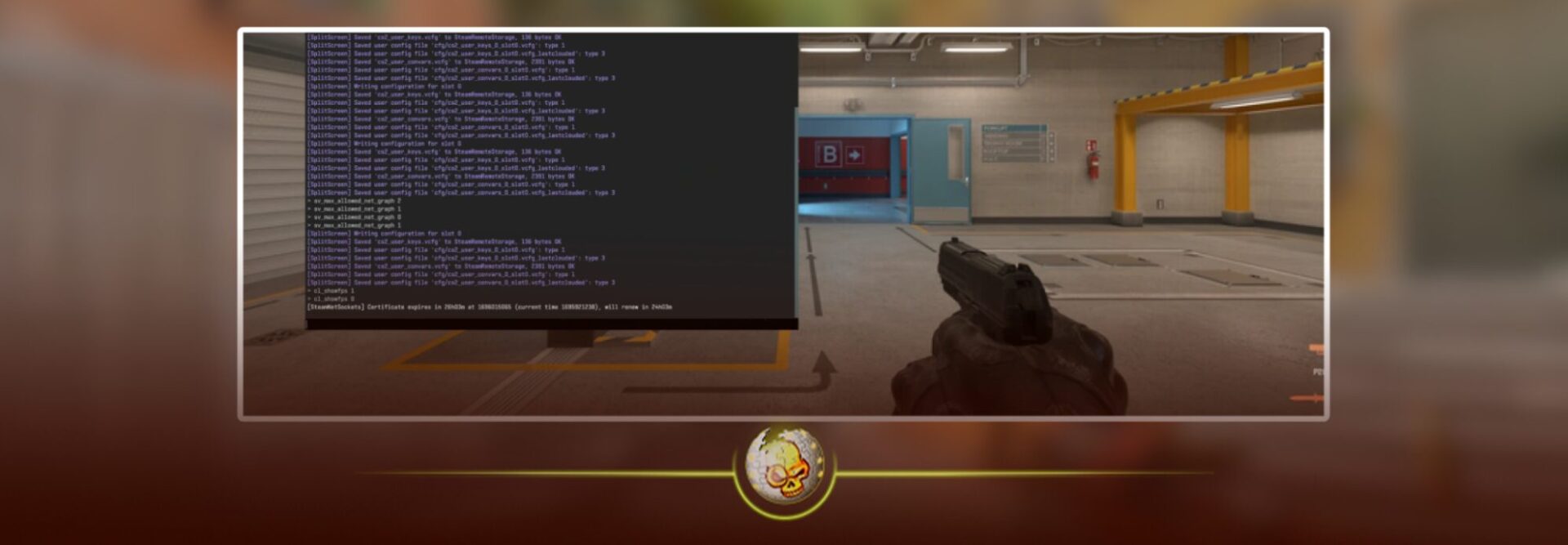
Opening the console in Counter Strike 2 is one of the most important things any player can learn. Whether you want to change your crosshair, adjust FPS settings, bind keys, or practice smokes, everything begins with the console.
This guide explains exactly how to enable and open the developer console in CS2, why it might not work for some players, and the most useful console commands to start with. It is simple, updated, and written so even brand new players can follow it.
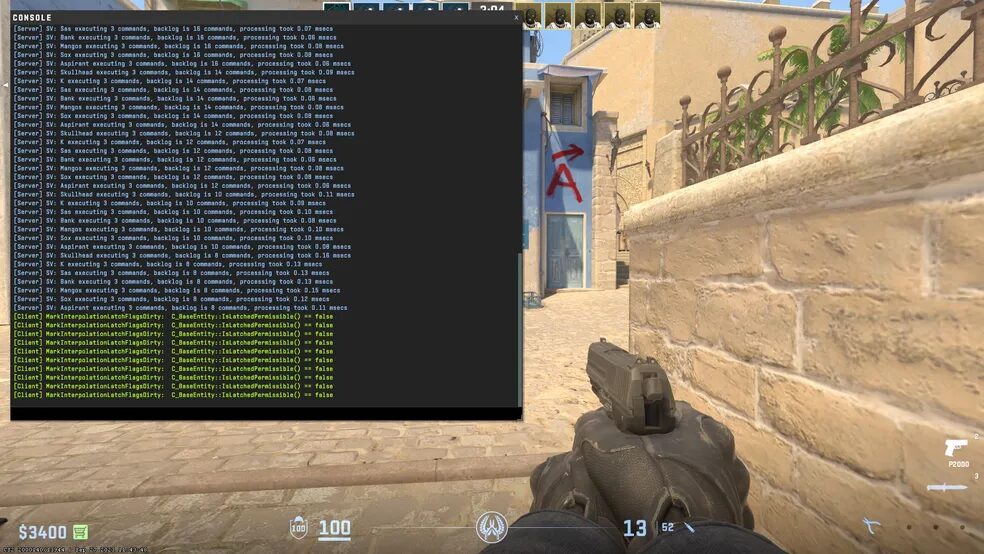
How To Enable The Console In CS2
The console is disabled by default in CS2. You must turn it on before you can open it.
Step 1
Open CS2 and click on Settings in the top left of your screen.
Step 2
Go to the Game tab.
Step 3
Find the option that says Enable Developer Console.
Step 4
Change this setting to Yes.
Once this is on, you can open the console at any time inside the game.
How To Open The Console In CS2
The default key to open the console is the tilde key. This is the key located under the escape button on a normal keyboard.
Press the tilde key and the console will appear.
If nothing opens when you press the key, keep reading because CS2 has some common key binding issues.
What To Do If Console Does Not Open
Some players see nothing happen when they press the console key. This is usually caused by one of three reasons.
1. The console key is set to another key
Sometimes CS2 maps the console to a different key depending on your keyboard layout.
To fix it, open Settings then Keyboard and Mouse then scroll until you find the option Toggle Console.
Bind this to any key you want.
2. Your keyboard layout is not English US
The tilde key changes position on different keyboard layouts.
Switching your Windows keyboard to English US usually fixes the issue instantly.
3. You are using a laptop keyboard
Some laptops require you to press FN plus the tilde key to open the console.
How To Open The Console
Press the tilde key which is located under the escape key on most keyboards.
The console should appear instantly.
If it does not open, here are the fixes.
What To Do If The Console Does Not Open
Some players press the tilde key and nothing happens. This is usually caused by a keyboard layout issue, a wrong keybind, or a laptop function key requirement.
Common Console Keys Table
| Keyboard Layout | Console Key | Notes |
|---|---|---|
| English US | Tilde key | Located under the escape key |
| English UK | Grave accent key | Same position as tilde |
| French AZERTY | ² key | May require FN |
| German QWERTZ | Circumflex key | Often needs rebinding |
| Laptop keyboards | FN plus tilde key | Varies by brand |
DaddySkins also runs daily giveaways and special events. You can join them here https://daddyskins.com/en/giveaways and win skins while you play CS2.
Console Commands Table
| Command | What It Does |
|---|---|
| bind | Binds an action to a key |
| fps max 0 | Unlocks your FPS |
| cl show fps 1 | Shows FPS on screen |
| sensitivity | Adjusts mouse sensitivity |
| viewmodel commands | Changes weapon position |
| sv cheats 1 | Enables practice commands on custom servers |
| noclip | Lets you fly around the map |
Practice Mode Commands Table
| Command | Purpose |
|---|---|
| sv cheats 1 | Enables practice features |
| noclip | Fly around the map |
| sv infinite ammo 1 | Unlimited ammo and nades |
| mp roundtime 60 | Long training rounds |
| mp freeze time 0 | No delay at round start |
Why The Console Is Essential In CS2
The console controls almost every hidden setting in the game.
It lets you fix FPS drops, adjust your visuals, load practice maps, test sensitivities, and make your CS2 settings match professional players.
Every pro player uses the console.
Every serious casual player uses the console.
If you want the best performance and the easiest gameplay experience, you cannot play without it.
Read More From Daddyskins
- CS2 Mic Not Working – How to Fix in 2 Minutes
- How to Reverse Trade CS2
- How to Trade Up to a Knife in CS2: Complete Step-by-Step Trade-Up Guide (2025 Update)
- CS2 Trade Reversal Guide: How to Undo a Steam Trade?
- CS2 Cheapest Mil Spec Skins To Start A Trade Up Path To Covert
- CS2 Trade up Calculator (How Do They Work)
- CS2 Trade Up Odds From Covert To Knives, Explained
- Who is Donk CS2?
- Cheapest Coverts CS2 to Upgrade (UPDATED, November)
- Are CS2 Skins Still a Good Investment in 2025
- Is CS2 Down How To Check Server Status Instantly
- Knife and Glove Trade Ups in CS2 How to Turn 5 Covert Skins into a Specific Item
- CS2 Skin Float and Wear Explained Full Guide to Float Values, Wear Ratings, and Prices
- CS2 Skin Trading for Beginners
- How to Show FPS in CS2?
- FaZe vs RED Match Results StarLadder Budapest Major 2025
- CS2 Christmas Loadouts