
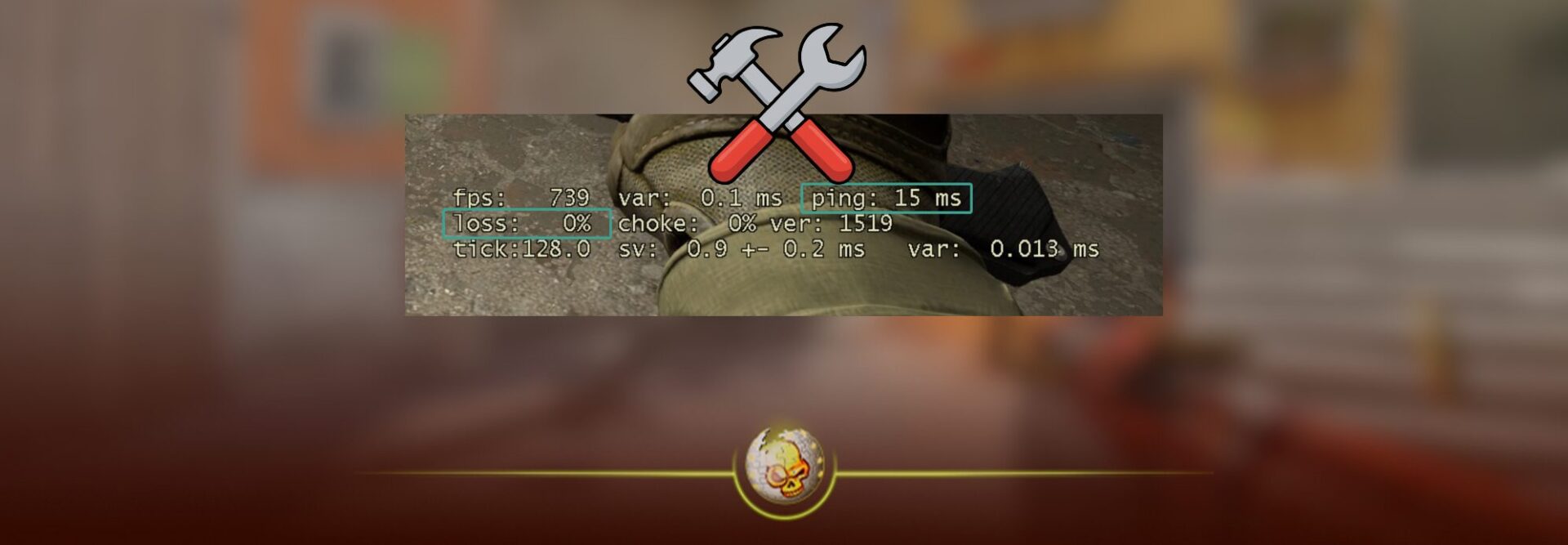
Packet loss in CS2 means some of the data your PC sends to the server never arrives. When that happens the server has to guess what you did and you feel it as rubberbanding, delayed shots, or dying after you already made it behind cover.
This guide is built for 2026 CS2 and focuses on fixes that actually move the needle, starting with quick checks, then the real causes like WiFi interference, bufferbloat, router settings, and bad routes.

First confirm it is really packet loss
Before changing settings, prove where the loss is happening. CS2 replaced the old net graph style workflow with the Telemetry HUD and network quality display options inside the game.
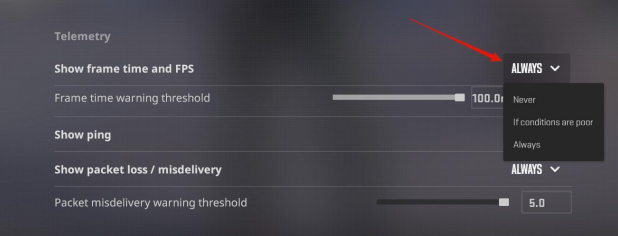
Step 1 Turn on the CS2 Telemetry HUD
1 Open CS2 Settings
2 Go to Game
3 Scroll to Telemetry
4 Enable network related telemetry so you can see ping and packet loss while you play
Tip
If you only see loss during gunfights and fast peeks, keep the HUD on while you reproduce it in a real match, not only in offline practice.
Step 2 Identify which type of problem you have
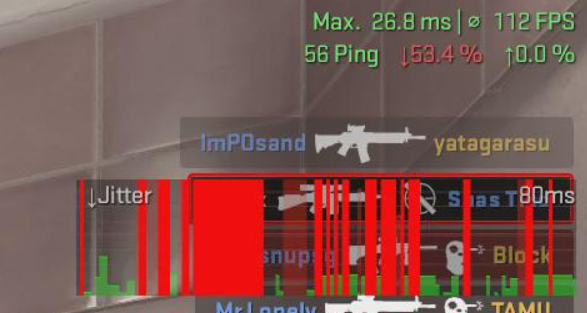
Use this simple rule while watching Telemetry
1 Loss spikes only in CS2
Often routing, server region selection, or game networking settings
2 Loss spikes in every game and voice chat too
Almost always home network, WiFi, router, modem, ISP congestion, or Windows adapter settings
3 Loss appears when someone streams or uploads
That is classic bufferbloat, your connection gets saturated and real time packets suffer
Fast fix for CS2 packet loss
1 Switch to Ethernet for real testing
WiFi can be fine, but it is the number one source of intermittent packet loss in competitive games. Steam support specifically recommends testing with a direct wired connection because wireless can introduce interference and intermittent failures.
If Ethernet fixes it instantly, you do not need any CS2 command magic, you need a better WiFi setup.
Quick checklist
1 Plug directly into the router, not into a powerline adapter
2 Test a different router port
3 Swap the cable if it is old or damaged
2 Power cycle the network correctly
Do this once, properly
1 Turn off PC
2 Unplug modem and router for 60 seconds
3 Plug modem in first, wait until fully online
4 Plug router in, wait until fully online
5 Boot PC
This clears stuck states and can fix random loss that started after an update or a long uptime.
3 Fix bufferbloat with QoS or SQM
If packet loss or rubberbanding happens when your network is busy, you likely have bufferbloat. The practical fix is router QoS, ideally SQM QoS, so game packets stay priority even during downloads. A quick bufferbloat test can help confirm this pattern.
Router settings vary, but the goal is always the same
Prioritize your gaming PC and keep upload from saturating
4 Update router firmware and your network driver
Router firmware updates can resolve stability issues and weird dropouts.
Also update your Ethernet or WiFi driver from the manufacturer, not only Windows Update.
5 Disable Windows power saving on the network adapter
Windows can put your network adapter into a power saving state which can cause drops or instability. In Device Manager, many adapters have a Power Management option where you can disable allowing the computer to turn off the device to save power.
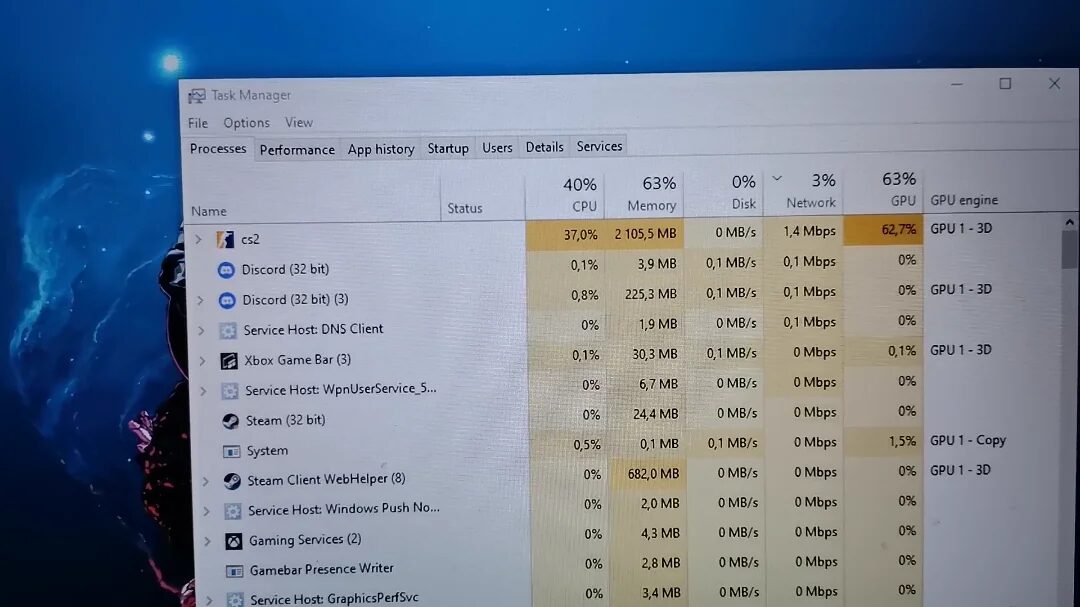
CS2 settings that actually matter for packet loss
Step 1 Set your in game connection display to always
Keep Telemetry visible until you solve it. It is the easiest way to confirm whether each change helped.
Step 2 Use sensible network rates
CS2 networking tweaks are not one size fits all. If your connection is unstable, pushing the highest possible rates can make things worse on some setups. Some guides recommend lowering rate and sticking to more conservative update values when loss or choke appears.
Try this approach
1 Start with stable defaults
2 If you still see loss, reduce rate slightly and retest
3 Only push higher once the line is clean
If you want a safe starting point to test, use a simple config like this and adjust one variable at a time
rate 786432
cl_updaterate 128
cl_cmdrate 128
cl_interp_ratio 1
cl_interp 0.015625
Note
Interpolation is a smoothing tool. Lower values can feel snappier, but if your connection is unstable you may need a slightly higher interp for a smoother experience.
Server and route problems that look like your fault
Sometimes your home network is fine and the route to a specific server cluster is not.
Step 1 Verify your CS2 server region and ping table
In CS2 you can view ping to regions in the settings and refresh the list. Some players use this to identify which data centers are being pinged and then avoid regions that are unstable for them.
Step 2 Test different match types
1 If Premier has loss but community servers do not
Likely a route or region issue
2 If one community server has loss but others do not
That server host may be overloaded or far away
Advanced fixes if nothing worked
1 Replace WiFi with a real solution
If Ethernet is not possible, do not rely on weak WiFi signal.
Use one of these upgrades
1 A good WiFi 6 or WiFi 6E router placed closer
2 A dedicated access point
3 A mesh system with wired backhaul if possible
2 Check for local bandwidth hogs
Cloud sync, Windows updates, Steam downloads, browser tabs with streams, and phone backups can all create loss when upload saturates.
3 Consider connection routing tools only after you fix your home network
Some services claim to improve routing by choosing different paths. They can help in specific cases, but they are not a substitute for fixing WiFi, bufferbloat, or unstable hardware.
Quick troubleshooting table
| What you feel in CS2 | What Telemetry usually shows | Most common cause | Best fix to try first |
|---|---|---|---|
| Rubberbanding every minute | Loss spikes | WiFi interference or unstable route | Test Ethernet, then change region |
| Shots feel delayed | Loss or misdelivery rises | Congestion or bufferbloat | QoS or SQM, stop uploads |
| Fine until someone streams | Loss during network activity | Bufferbloat | QoS or SQM, cap upload |
| Loss in all games | Loss everywhere | Router modem ISP line | Firmware, cables, ISP ticket |
Read More From Daddyskins
- CS2 Mic Not Working – How to Fix in 2 Minutes
- How to Reverse Trade CS2
- How to Trade Up to a Knife in CS2: Complete Step-by-Step Trade-Up Guide (2025 Update)
- CS2 Trade Reversal Guide: How to Undo a Steam Trade?
- CS2 Cheapest Mil Spec Skins To Start A Trade Up Path To Covert
- CS2 Trade up Calculator (How Do They Work)
- CS2 Trade Up Odds From Covert To Knives, Explained
- Who is Donk CS2?
- Cheapest Coverts CS2 to Upgrade (UPDATED, November)
- Are CS2 Skins Still a Good Investment in 2025
- Is CS2 Down How To Check Server Status Instantly
- Knife and Glove Trade Ups in CS2 How to Turn 5 Covert Skins into a Specific Item
- CS2 Skin Float and Wear Explained Full Guide to Float Values, Wear Ratings, and Prices
- CS2 Skin Trading for Beginners
- How to Show FPS in CS2?
- Best CS2 Plays of 2025
- Best CS2 Settings Guide 2026
- Where To Watch The Grand Final Of The StarLadder Budapest Major CS2
- How to Unlock Premier Mode in CS2
- Cheapest CS2 Gloves 2025 [UPDATED]
- Prediction for MOUZ vs FaZe — StarLadder Budapest Major 2025 Playoffs
- CS2 Trade up Contracts Full Guide
- CS2 Major Budapest Results Vitality Win StarLadder Major Back to Back
- How to test skins in CS2 before buying them
- How to Get the 2025 Service Medal in CS2
- What Is Follow Recoil in CS2 Guide for Better Spray Control
- Abertura de Caixas CS2: Guia Completo
- DaddySkins Interview
- CS2 Removes All Rare Case Drops From the Active Drop Pool
- Cheapest Red Skins CS2 (UPDATED)
- Top 5 Rarest CS2 Cases Right Now
- CS2 Removing Cases by 2026
- ropz CS2 Settings, Crosshair, Config & Gear (2025)
- CS2 to Valorant Sens Converter How to Match Your Sensitivity Exactly
- What Is ADR in CS2? Damage Per Round Explained Simply
- Wingman Ranks in CS2: Full Guide [2026]
- CS2 developers hint at Cache returning in 2026
- CS2 Premier Season 3 end date and Season 4 start date