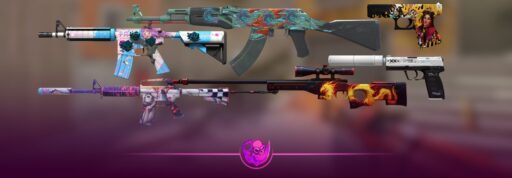
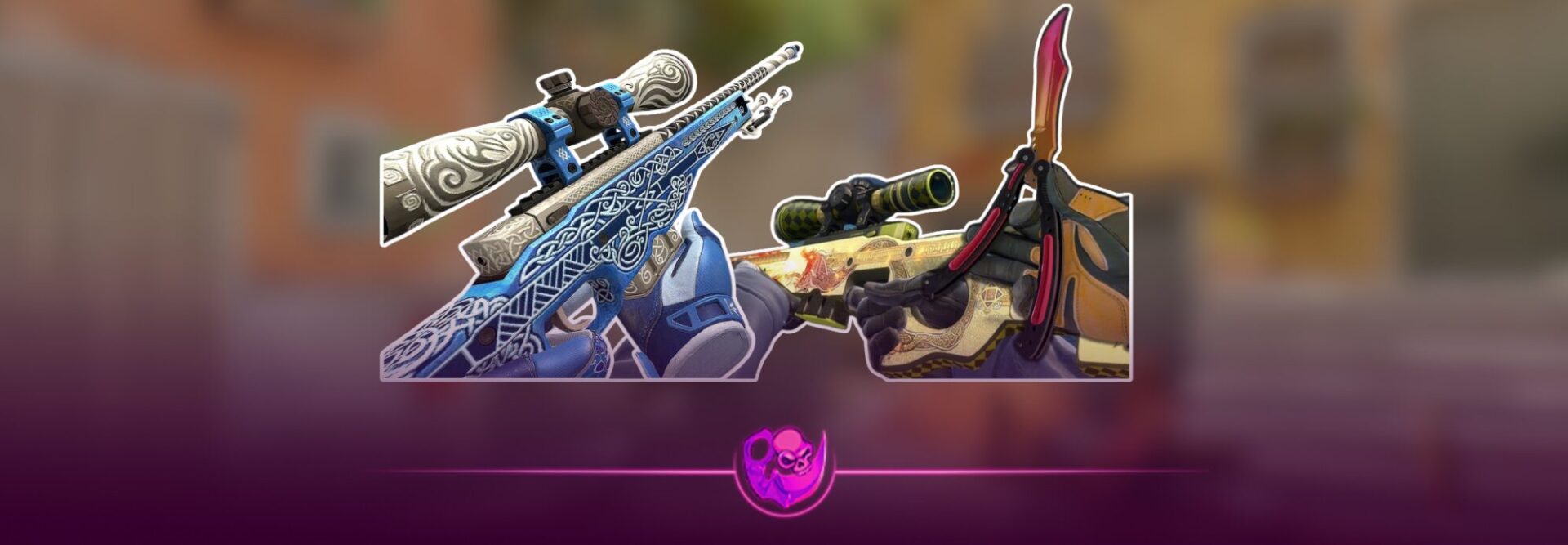
If you have ever bought a skin that looked insane in a screenshot but weird in game lighting, you already know why testing matters. In CS2, the best move is to preview the exact skin, with the exact wear, pattern, and stickers, inside the game before you spend money.
Below are the safest, most practical ways players test skins in CS2 right now, with steps you can follow even if you are not technical.
The fastest way for most people
Use a CS2 inspect server with an inspect link
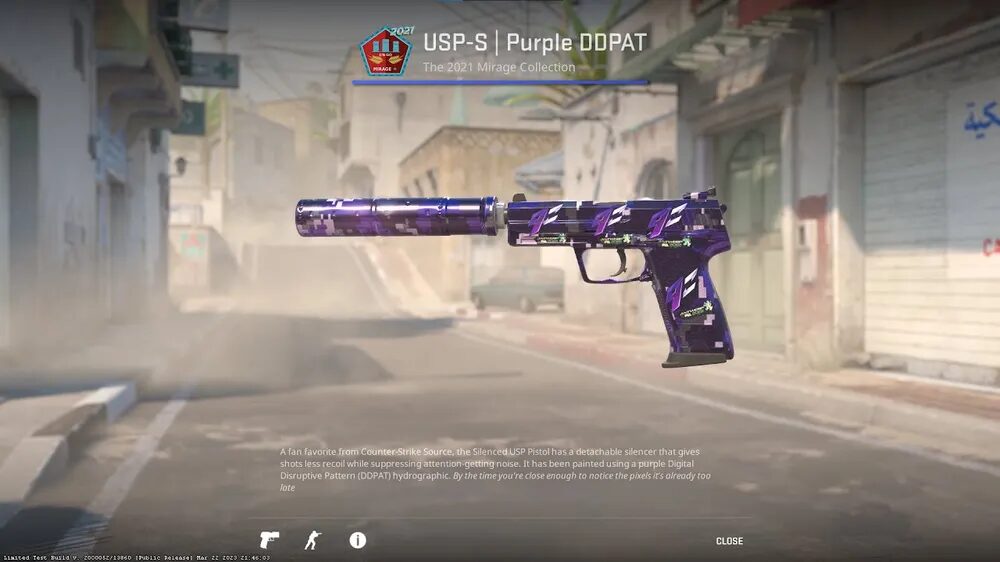
This is the closest thing to a real try before you buy. You join a community server built for skin testing, paste an inspect link, and the server spawns the skin so you can hold it, inspect it, and see it under CS2 lighting. Community guides commonly use a chat command like “!i” followed by the inspect link.
Step by step
1 Open CS2 and go to your Inventory
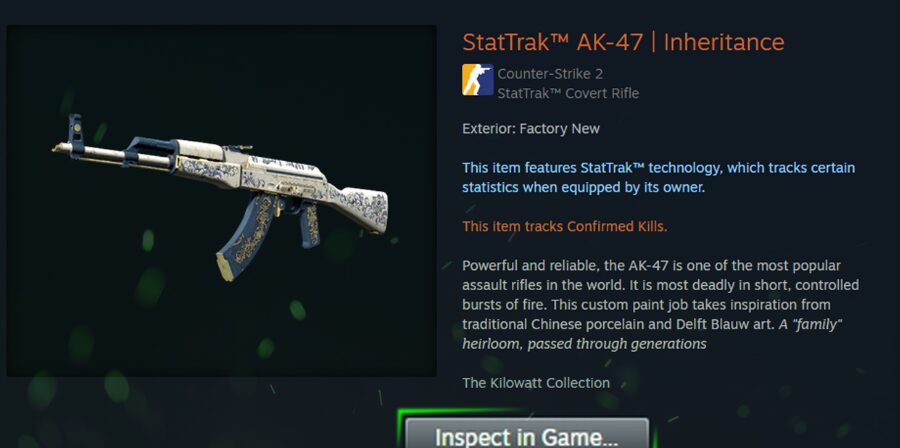
2 Right click a skin you already own and choose Inspect in Game, then copy the inspect link shown there
3 Join a CS2 inspect server
4 Open chat and paste !i then a space then the inspect link
5 Test it properly
• Walk around and inspect it in bright areas and shadow
• Check how stickers sit on the model
• Look for wear spots that only show in motion
That same workflow also works when you copy inspect links from listings on marketplaces, traders, or friends, as long as you are using the actual inspect link for that specific item, not just the skin name.
The easiest way to preview crafts and combos
Use CS2Inspects style generators plus their servers
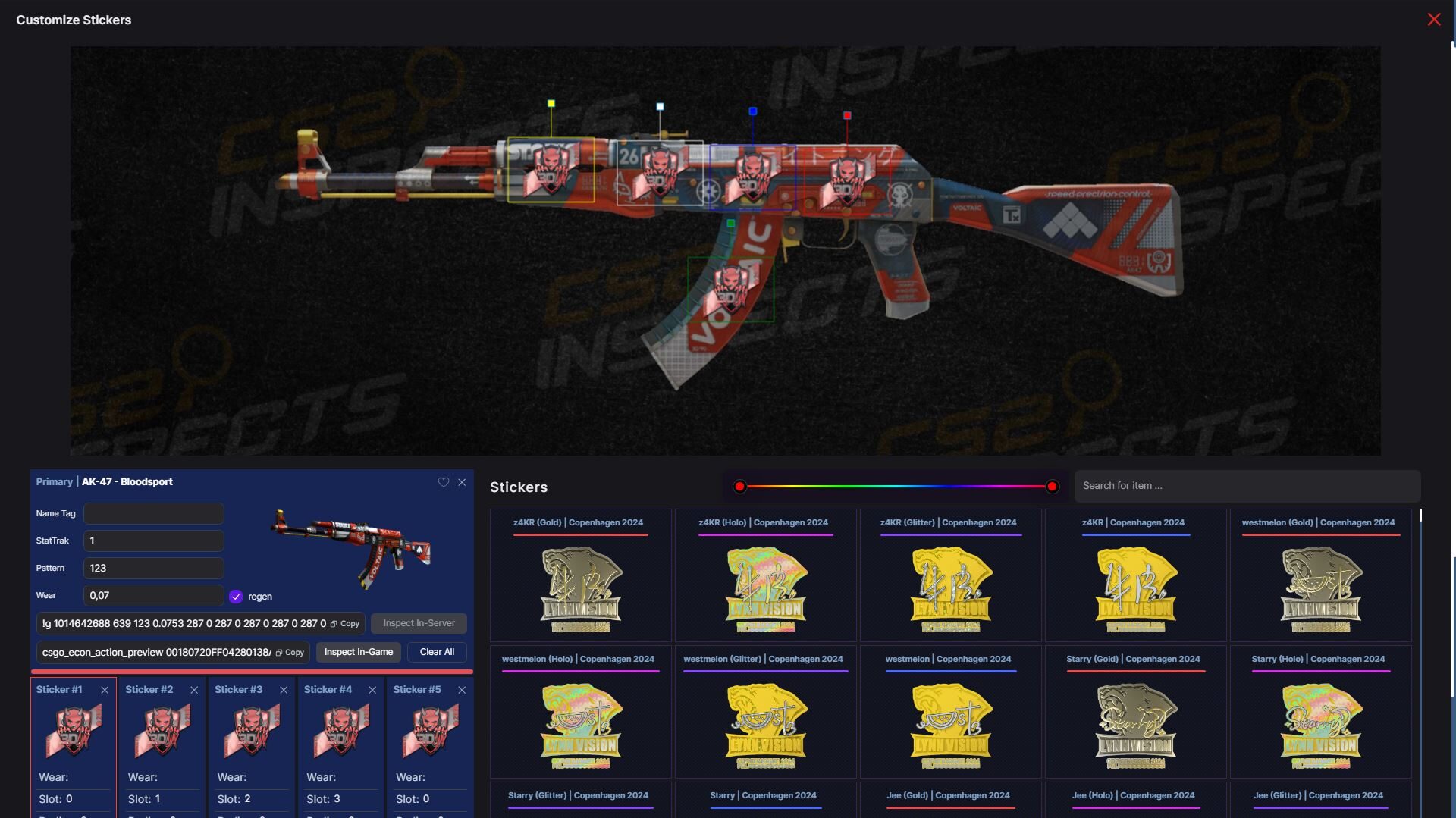
If you want to test a craft idea like stickers, charms, glove plus knife combo, or a full loadout vibe before you commit, generators are made for this. Sites like CS2Inspects let you build the skin setup, then generate a code you paste in game on their tester servers, so you can see your idea instantly.
Step by step
1 Build the skin or combo on the generator site
2 Copy the generated in game code
3 Connect to one of their listed community servers
4 Paste the code into chat and spawn the item
Then test it the same way you would a real purchase under different lighting and angles.
This method is perfect for deciding between sticker placements, checking if a craft feels too busy in game, and making sure your glove and knife combo matches the way you think it does.
The cleanest single player option
Use a Workshop inspect map
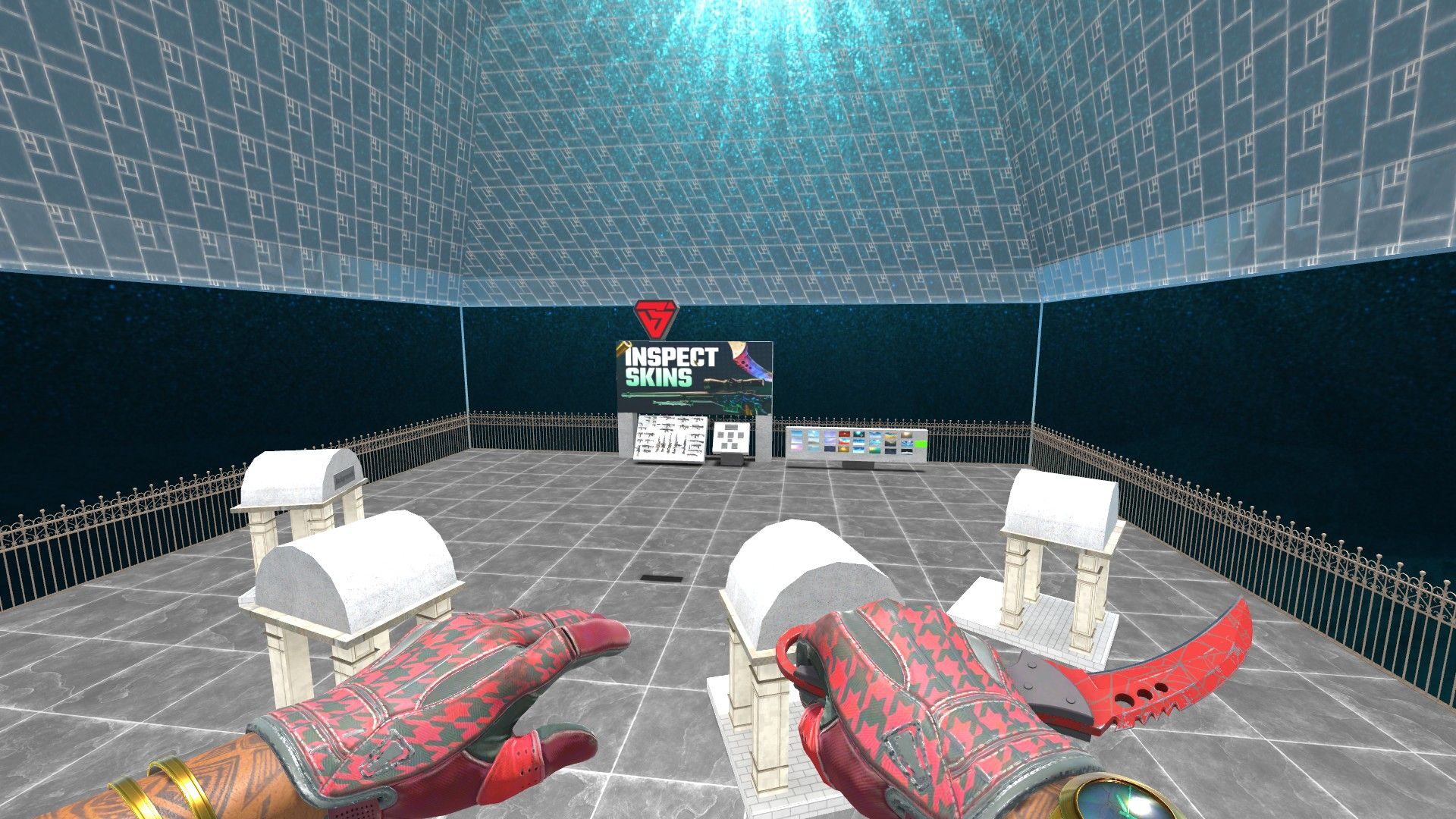
If you prefer testing alone without joining a public server, Workshop maps can help you preview skins in a controlled environment. Some guides recommend subscribing to an inspect map from the Steam Workshop, launching it through Workshop Maps, and using it to preview items.
Why people like this method
• No random players
• Stable lighting setup for comparisons
• Good for screenshots and quick checks
Limitations
It may not be as flexible as an inspect server for spawning a specific market listing with its exact float and pattern, depending on the map and how it is set up.
How to test knives and animations properly
Do not just inspect the model, move with it
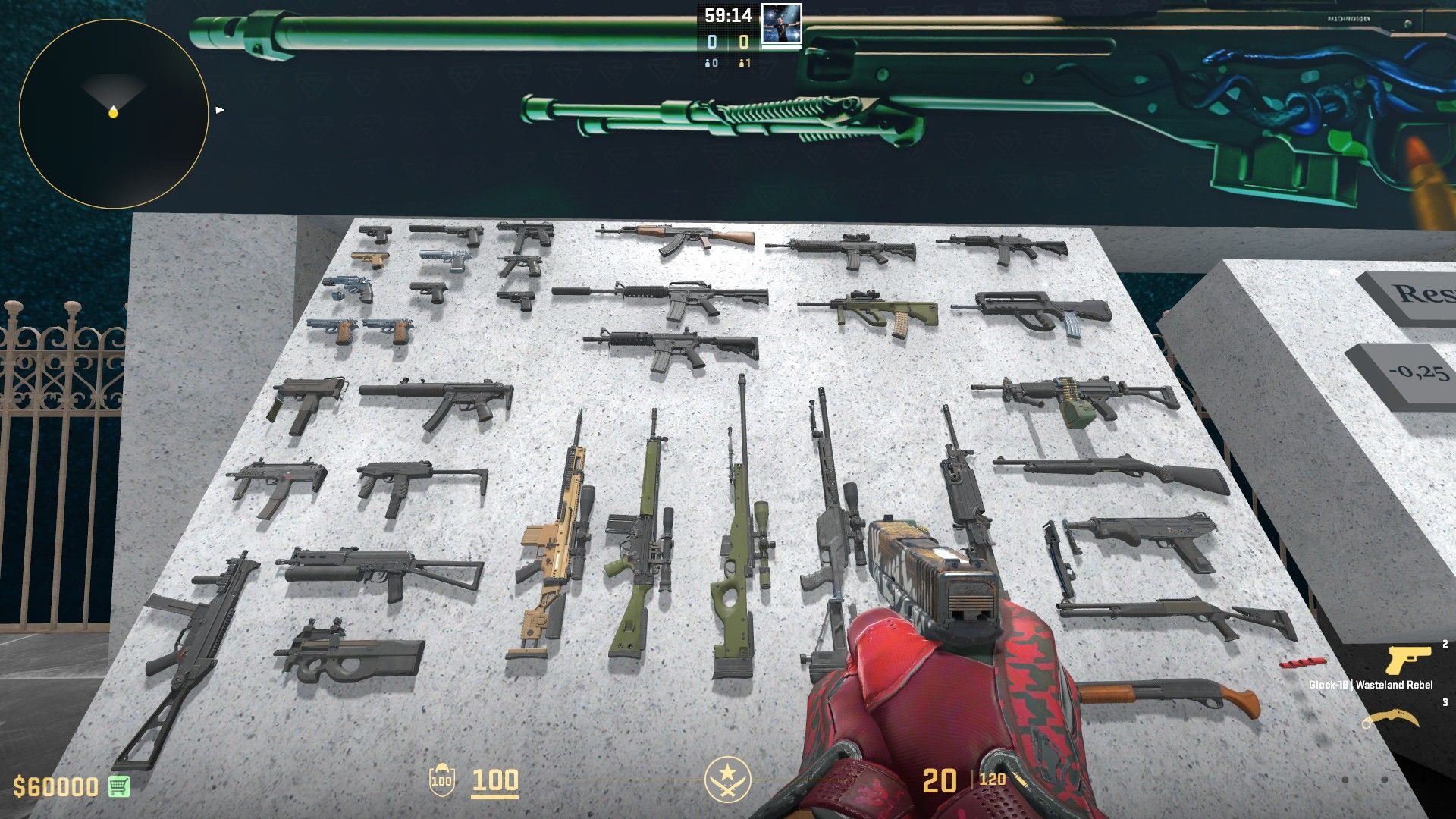
Knives are where people get buyers remorse, because animations and feel matter more than screenshots. Some guides focus on using practice settings and commands to try knife behavior and inspect animations before committing.
What to actually test
• Pull out animation speed feel
• Inspect animation timing
• How the blade looks while running and strafing
• How it looks in dark corners on common maps
If you are testing a knife only by spinning it once in bright light, you are not really testing it.
Wear does not show evenly
Even skins with the same wear tier can have ugly wear spots in different places. Look closely at
• Edges and corners on rifles
• The top of the slide on pistols
• Grip areas and common scratch zones
Pattern and seed matters a lot on certain skins
If you are buying skins where pattern is a big deal, you must test the exact item listing, not a generic preview. Inspect links help because they point to a specific item.
Sticker placement can ruin a craft
Two crafts with the same stickers can look totally different depending on placement and scratches. Always inspect while moving the gun around, not just a single still angle.
Safety checklist so you do not get scammed while testing
Inspecting skins is safe, but scammers love skin buyers
Follow these rules
• Never log into random sites you found in a comment section
• Do not paste your Steam login into any site you do not fully trust
• Prefer using known community server methods and links from reputable sources or your own inventory
• If someone is pressuring you to buy fast because the listing will disappear, slow down and test it first
Read More From Daddyskins
- CS2 Mic Not Working – How to Fix in 2 Minutes
- How to Reverse Trade CS2
- How to Trade Up to a Knife in CS2: Complete Step-by-Step Trade-Up Guide (2025 Update)
- CS2 Trade Reversal Guide: How to Undo a Steam Trade?
- CS2 Cheapest Mil Spec Skins To Start A Trade Up Path To Covert
- CS2 Trade up Calculator (How Do They Work)
- CS2 Trade Up Odds From Covert To Knives, Explained
- Who is Donk CS2?
- Cheapest Coverts CS2 to Upgrade (UPDATED, November)
- Are CS2 Skins Still a Good Investment in 2025
- Is CS2 Down How To Check Server Status Instantly
- Knife and Glove Trade Ups in CS2 How to Turn 5 Covert Skins into a Specific Item
- CS2 Skin Float and Wear Explained Full Guide to Float Values, Wear Ratings, and Prices
- CS2 Skin Trading for Beginners
- How to Show FPS in CS2?
- Best CS2 Plays of 2025
- Best CS2 Settings Guide 2026
- Where To Watch The Grand Final Of The StarLadder Budapest Major CS2
- How to Unlock Premier Mode in CS2
- Cheapest CS2 Gloves 2025 [UPDATED]
- Prediction for MOUZ vs FaZe — StarLadder Budapest Major 2025 Playoffs
- CS2 Trade up Contracts Full Guide
- CS2 Major Budapest Results Vitality Win StarLadder Major Back to Back