

Steam Machine CS2 Performance: FPS, Settings and Is It Worth It?
Valve’s new Steam Machine looks almost purpose-built for Counter-Strike 2. It is compact, quiet, runs SteamOS and is considerably more powerful than the Steam Deck. On paper, it should have no problem handling Valve’s own competitive shooter.
The more important question is not whether the Steam Machine can run CS2. It clearly can. The real question is whether it delivers the high and consistent frame rates competitive players expect from a system starting at $1,049.
Current testing shows that CS2 is one of the Steam Machine’s strongest games. It can reach triple-digit frame rates at 4K, and competitive settings should push performance considerably higher. However, the price, CPU limitations and lack of native FACEIT Anti-Cheat support make the final verdict more complicated.
What Is the New Steam Machine?
The 2026 Steam Machine is Valve’s compact living room gaming PC. It runs SteamOS and combines a console-style interface with the flexibility of a desktop computer.
Unlike the original Steam Machines released by third-party manufacturers in the 2010s, this version is designed and sold directly by Valve.
Its main specifications include:
| Component | Steam Machine Specification |
|---|---|
| Processor | Custom AMD Zen 4, 6 cores and 12 threads |
| Maximum CPU speed | Up to approximately 4.8 GHz |
| Graphics | Custom AMD RDNA 3 GPU with 28 compute units |
| Video memory | 8GB GDDR6 |
| System memory | 16GB DDR5 |
| Storage | 512GB or 2TB NVMe SSD |
| Operating system | SteamOS |
| Display support | Up to 4K output with high refresh rate support |
| Starting price | $1,049 USD |
These specifications are far beyond the official CS2 system requirements, which only call for 8GB of memory, four CPU threads and a Vulkan-compatible graphics card on Linux.
CS2 also has a native Linux version, so it does not need to run through Proton. That removes one potential layer of compatibility problems and makes it a natural fit for SteamOS. Our guide to playing CS2 on Linux explains how the Linux version works in more detail.
Can the Steam Machine Run CS2?
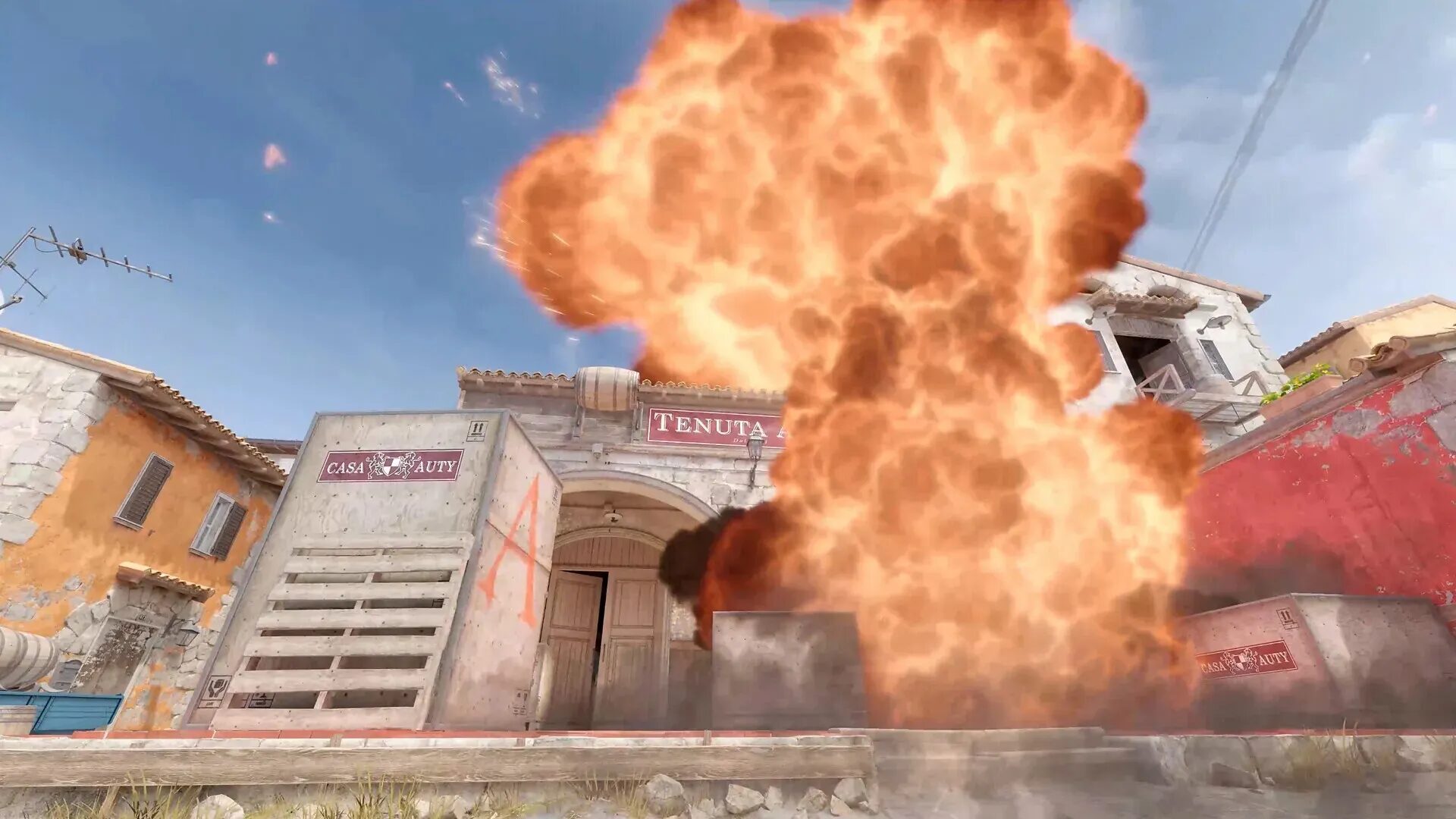
Yes. CS2 runs comfortably on the Steam Machine and is much less demanding than the modern AAA games Valve uses to advertise the system’s 4K capabilities.
Independent Steam Machine testing has already shown CS2 producing high triple-digit frame rates at UHD resolution while using the Very High preset and FSR Performance mode.
That means CS2 can remain above 100 FPS even when the Steam Machine is connected to a 4K display and pushed well beyond the resolution most competitive players use.
However, that result needs context.
FSR Performance does not render the game internally at native 4K. It renders at a lower resolution before reconstructing the image for a 4K display. That is perfectly acceptable for couch gaming, but most serious CS2 players would be better served by running a lower native resolution without aggressive upscaling.
Steam Machine CS2 FPS Expectations
There is not yet one standardized Steam Machine CS2 benchmark covering every map, resolution and graphics preset. Published testing confirms triple-digit 4K performance, but exact results at competitive settings can change considerably based on the map, smoke effects, player count and current SteamOS drivers.
The table below separates confirmed results from reasonable performance expectations.
| CS2 configuration | Expected experience |
|---|---|
| 1080p competitive settings | Very high FPS, with performance more limited by the CPU than the GPU |
| 1280×960 stretched | Excellent high-refresh performance and lower GPU usage |
| 1440p competitive settings | Strong triple-digit FPS with a sharper image |
| 4K Very High with FSR Performance | Confirmed high triple-digit frame rates in published testing |
| 4K native without FSR | Playable, but unnecessary for serious competitive CS2 |
At 1080p or a stretched competitive resolution, the Steam Machine should be suitable for a 144Hz monitor. It may also provide enough performance for 240Hz gameplay, although the actual experience will depend on its 1% low FPS rather than the highest number shown by the counter.
Players should use the game’s telemetry tools or follow our guide explaining how to show FPS in CS2 before judging performance.
A system that averages 250 FPS but regularly drops below 140 FPS can feel worse than one holding a stable 180 FPS. Average FPS looks good in screenshots. Frame-time consistency wins gunfights.
Why CS2 Is More CPU Dependent Than It Looks
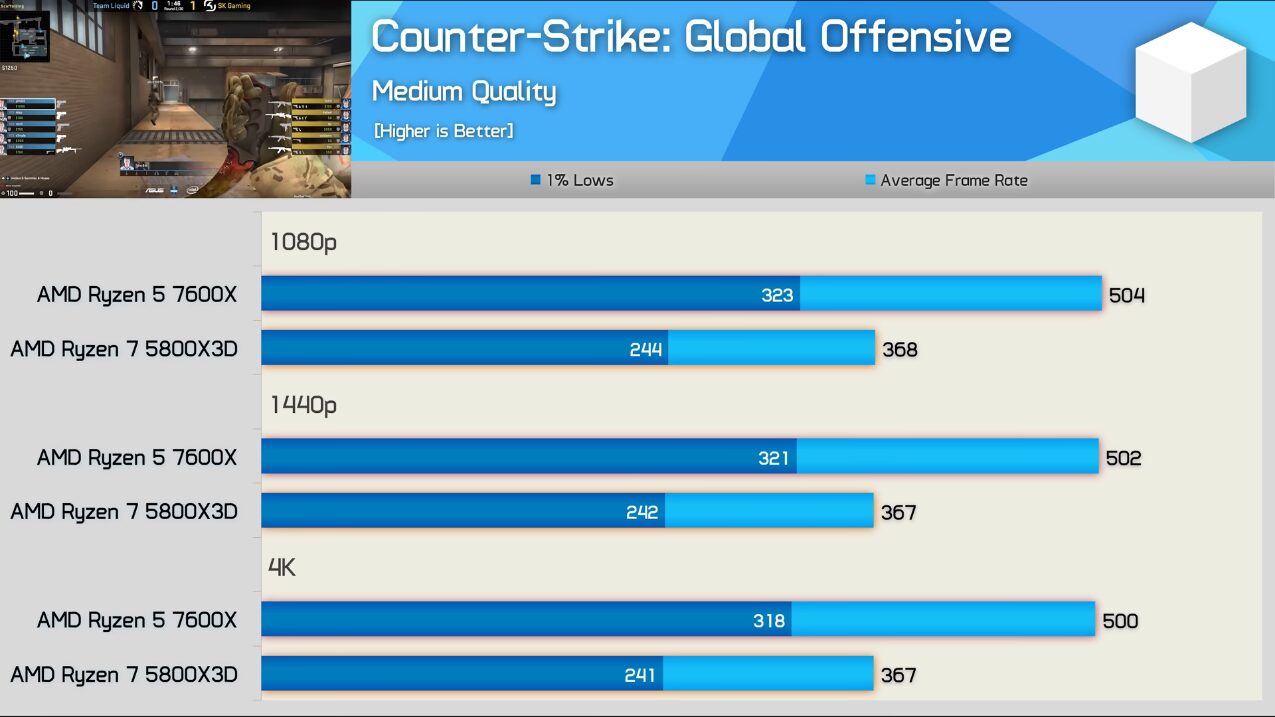
Lowering CS2’s resolution reduces GPU load, but it does not remove the work being handled by the processor.
The CPU still has to process player movement, networking, physics, particles, audio, animations and dynamic smoke calculations. Once the graphics card is producing frames faster than the processor can prepare them, lowering the graphics settings further may provide only a small improvement.
The Steam Machine’s six-core Zen 4 processor is modern and fast enough for CS2, but it is not comparable to a high-end desktop gaming processor with AMD’s 3D V-Cache.
That distinction matters for players chasing 300 FPS or more. The Steam Machine should run CS2 extremely well, but it is unlikely to compete with a dedicated esports computer built around one of the processors in our best CPU for CS2 guide.
For regular Premier matchmaking, the difference may not matter. For someone using a 360Hz or 500Hz monitor and demanding the highest possible 1% lows, it will.
Best CS2 Settings for the Steam Machine
The Steam Machine does not need extremely low graphics settings to run CS2. The best configuration should balance visibility, latency and frame-time stability.
Start with these settings:
| Setting | Recommended value |
|---|---|
| Display mode | Fullscreen |
| Resolution | 1920×1080 or 1280×960 stretched |
| Refresh rate | Highest supported by the monitor |
| Boost Player Contrast | Enabled |
| V-Sync | Disabled |
| FSR | Disabled at 1080p unless more performance is needed |
| Global Shadow Quality | High |
| Model and Texture Detail | Low or Medium |
| Shader Detail | Low |
| Particle Detail | Low |
| Ambient Occlusion | Disabled |
| HDR | Performance |
| Motion Blur | Disabled |
Keeping shadows enabled can help reveal enemy shadows in certain positions, so blindly setting everything to its lowest value is not always the best competitive choice.
Our best CS2 settings for 2026 and full CS2 graphics settings guide provide more detailed explanations for each option.
Players who want to compare stretched and native resolutions can also use our dedicated CS2 video settings guide.
Should You Use FSR in CS2?
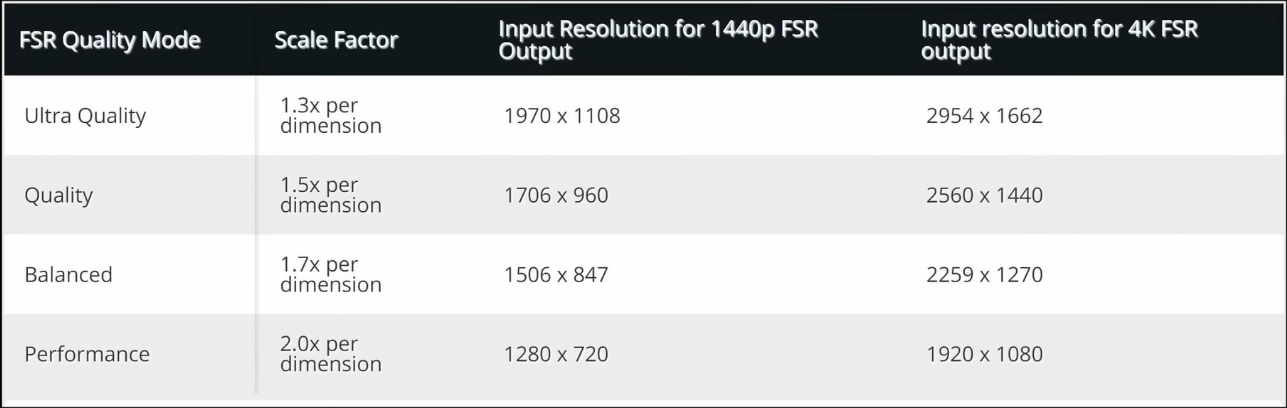
FSR can increase FPS by rendering CS2 at a lower internal resolution and reconstructing the final image. It is useful when playing at 4K, but it is unlikely to be necessary at 1080p on the Steam Machine.
Competitive players should first test native resolution with FSR disabled. Native rendering usually produces a clearer image, particularly around distant enemies, fences and thin map geometry.
Use FSR when:
- Playing CS2 on a 4K television
- Performance drops below your display’s refresh rate
- You prefer higher FPS over maximum image clarity
- You are using demanding graphics settings
Avoid aggressive FSR modes when the Steam Machine already produces enough frames. Adding more average FPS is not worth making distant targets harder to identify.
SteamOS, Input Lag and Competitive Play
CS2 runs natively on SteamOS, which is a major advantage compared with games that depend on Windows-only compatibility layers.
SteamOS also gives players access to Valve’s performance overlay, frame-rate limits, refresh-rate controls and detailed hardware monitoring. The operating system is designed around controllers, but a keyboard and mouse can be connected like they would be on a normal PC.
For serious CS2, a keyboard and mouse are effectively required. The Steam Controller may be fine for casual matches, but it cannot match the speed and precision of a properly configured mouse.
Players should also disable V-Sync and avoid unnecessary frame generation. Frame generation can make an FPS counter look higher, but it adds latency and does not improve the underlying game simulation.
Our CS2 input lag guide covers the difference between high displayed FPS and genuinely responsive gameplay.
Safe CS2 launch options may also help control the FPS cap, but players should avoid copying long lists of outdated CS:GO commands. Many old commands no longer work in Source 2 and some can make performance less stable.
The Biggest Problem: FACEIT on SteamOS

The most important limitation for competitive CS2 players is not performance. It is FACEIT compatibility.
CS2 itself works on SteamOS, including Valve matchmaking and Premier. However, the FACEIT Anti-Cheat client used for CS2 does not currently support SteamOS or desktop Linux in the same way it supports Windows.
That means players primarily using FACEIT may need to install Windows on the Steam Machine or create a dual-boot setup. Running the FACEIT website alone is not enough because protected matches require the Anti-Cheat client.
This limitation immediately makes the Steam Machine less attractive to serious FACEIT grinders, even though the hardware can run CS2 well.
Premier players will not have the same problem. They can install CS2, connect a keyboard and mouse and start playing through SteamOS.
A stable Ethernet connection is also recommended. High FPS cannot compensate for unstable networking, jitter or packet loss. Our guide to fixing CS2 packet loss covers the networking side of competitive performance.
Steam Machine vs a Gaming PC for CS2
| Category | Steam Machine | Traditional gaming PC |
|---|---|---|
| Setup | Simple SteamOS interface | More initial configuration |
| Size | Extremely compact | Usually larger |
| Noise | Very quiet | Depends on components |
| CS2 performance | Strong triple-digit performance | Can be significantly faster |
| FACEIT | Requires Windows | Fully supported on Windows |
| Upgrades | Limited | Much easier |
| Value for CS2 alone | Weak | Usually better |
| Living room experience | Excellent | Depends on setup |
The Steam Machine offers something different from a standard desktop. It is a quiet Steam console that also happens to be a Linux computer.
That does not automatically make it the best CS2 computer.
Players who remember how light CS:GO felt should also understand that Source 2 is more demanding. Our CS2 versus CS:GO comparison explains why the newer game requires more processing power.
Storage should not be ignored either. CS2 currently requires a substantial installation, so the 512GB model can fill quickly once several large games are added. Check our guide explaining the current CS2 download and installation size before choosing between the two storage options.