
CS2 looks incredible on Source 2, but it is also one of the most sensitive shooters when it comes to settings. A bad setup can make your aim feel floaty, your FPS unstable, and your visibility inconsistent from match to match.
This guide breaks down the optimal CS2 settings that players are using in twenty twenty five to boost FPS, reduce input lag, and get crystal clear visuals that make spotting enemies easier. Everything is based on modern testing and actual player trends, not recycled CS GO settings.
Quick One Minute Settings Preset
If you want the fastest setup with minimum effort, start with this table. You can fine tune from there.
| Profile | Resolution | Aspect Ratio | Display Mode | Graphics Quality | Vsync | Refresh Rate |
|---|---|---|---|---|---|---|
| Competitive Performance | 1280×960 | 4:3 Stretched | Fullscreen | Low | Off | Max Supported |
| Balanced | 1920×1080 | 16:9 | Fullscreen | Medium | Off | Max Supported |
| Visual Quality First | Native Size | Native | Fullscreen | High Mixed | On w Cap | Max Supported |
Prep Your PC Before Touching CS2 Settings
Most performance problems don’t actually come from CS2 itself. Fixing these first can stabilize your game instantly.
• Update your GPU drivers
• Set Windows power mode to High Performance
• Close overlays and unnecessary apps
• Turn on G Sync or FreeSync on your monitor if supported
These changes alone remove micro stutters for many players.
Best CS2 Video Settings For FPS And Clear Visibility
These settings strike the perfect balance between smooth frames and clean enemy models. You get better aim tracking, less input delay, and fewer distracting effects.
| Setting | Performance Focus | Balanced | Why It Matters |
|---|---|---|---|
| Display Mode | Fullscreen | Fullscreen | Lowest input lag |
| Aspect Ratio | 4:3 Stretched | 16:9 | Stretched enlarges models |
| Resolution | 1280×960 | 1920×1080 | Lower res = higher FPS |
| Global Shadows | Low | Medium | Medium gives info but uses FPS |
| Textures | Low | Medium | Medium looks better, costs VRAM |
| Effect Detail | Low | Low or Medium | High effects lower FPS |
| Shader Detail | Low | Medium | Lower = cleaner image |
| Anti Aliasing | Off | Low | High AA tanks performance |
| Vsync | Off | Off | Removes latency |
| Ambient Occlusion | Off | Off | No competitive value |
Driver Sync And Frame Cap Setup (The Hidden Advantage)
Your GPU control panel settings matter more in CS2 than most players realize.
| Feature | Recommended Setting | Notes |
|---|---|---|
| Adaptive Sync (G Sync or FreeSync) | On | Must use fullscreen |
| Vsync in CS2 | Off | Prevents input lag |
| Vsync in GPU Panel | On or Fast | Works well with adaptive sync |
| FPS Cap | 3 below refresh rate | Example: 237 on 240 Hz |
Correct CS2 Launch Options For 2025
Most old CS GO launch codes are useless now. These are the only ones that still matter.
| Launch Option | What It Does | Why Use It |
|---|---|---|
| +fps_max 0 | Removes FPS limit | Lets GPU run freely |
| -high | Higher CPU priority | Reduces micro stutters |
| -novid | Skips intro | Saves loading time |
| -forcenovsync | Forces Vsync off | Keeps latency low |
Audio Settings That Give You Better Positional Awareness
The new CS2 audio engine is powerful, but the wrong settings can bury footsteps and reload cues.
| Setting | Recommended Value | Why |
|---|---|---|
| Audio Device | Headphones | Best positional detail |
| EQ Profile | Crisp | Boosts key frequencies |
| HRTF | On | Accurate directional sound |
| L R Isolation | Around 50 | Cleaner separation |
| Master Volume | 60–80 | Prevents clipping |
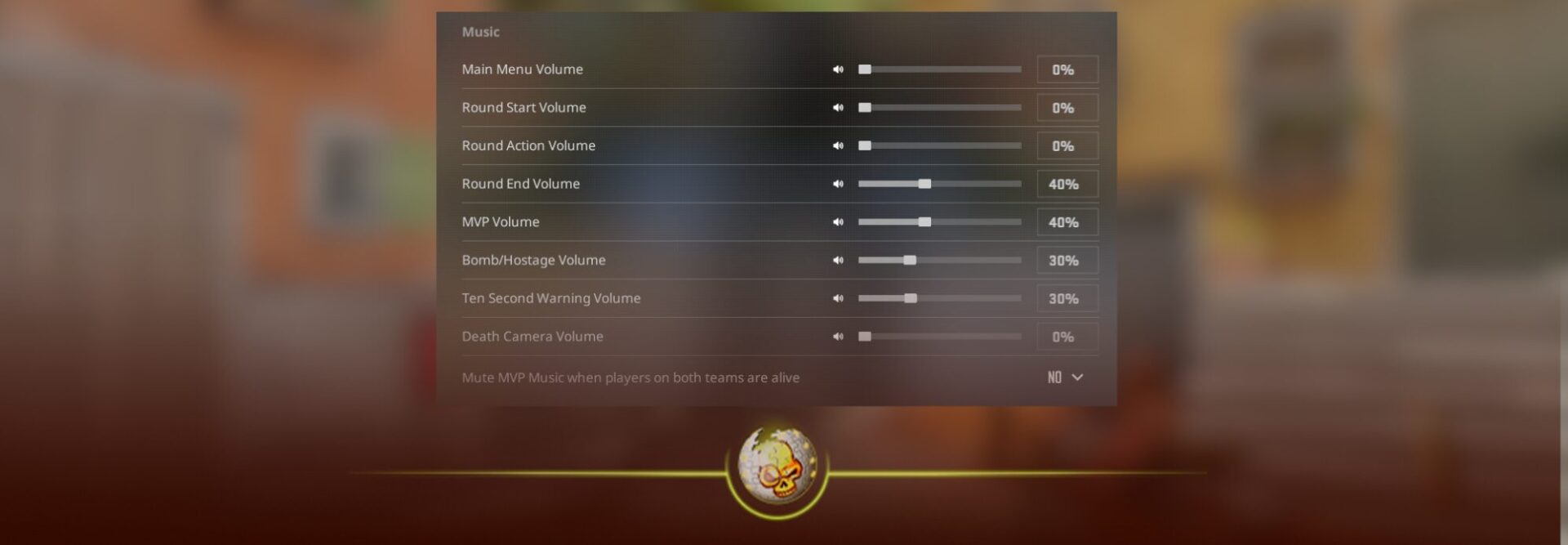
| Music During Round | Off or Very Low | Keeps focus on sounds |
| Clutch Music | Off | Removes distractions |
| Voice Chat Volume | ~50 | Teammates won’t overpower game sounds |
Crosshair And Viewmodel For Cleaner Aim And Visibility
Your crosshair should be simple, readable, and stable.
Your weapon model should stay out of your line of sight.
| Category | Recommended Setting | Notes |
|---|---|---|
| Crosshair Style | Classic Static | No animation distractions |
| Thickness | Thin | Precision without clutter |
| Gap | Small | Good at all ranges |
| Color | Cyan or Green | Visible everywhere |
| Outline | Thin On | Helps against bright backgrounds |
| Viewmodel Position | Lower Right / Minimal | Shows more screen space |
Mouse And Sensitivity Settings That Actually Help You Improve
A lot of players struggle because their mouse setup is wrong, not because their aim is bad.
| Setting | Recommended Value | Reason |
|---|---|---|
| DPI | 800 | Standard for precision |
| In Game Sensitivity | Medium Low | Better recoil control |
| Raw Input | On | True 1:1 movement |
| Windows Pointer Speed | Default | No interference |
| Mouse Acceleration | Off | Predictable aim |
Network Settings Under CS2’s Sub Tick System
CS2 handles much of the timing automatically now, but your connection still matters.
| Setting | Recommended | Notes |
|---|---|---|
| Connection Type | Wired | Most consistent |
| Background Downloads | Off | Avoids packet loss |
| Rate / Cmd Update | Default | CS2 auto manages these |
Two Ready Made Preset Profiles You Can Copy
These two setups cover 90 percent of players.
| Category | Performance Focused | Balanced |
|---|---|---|
| Resolution | 1280×960 Stretched | 1920×1080 Native |
| Graphics | All Low | Medium Mix |
| Shadows | Low | Medium |
| Anti Aliasing | Off | Low |
| Sync | Vsync Off, Adaptive Sync On, FPS capped | Same |
| Audio | Crisp EQ, Low Music | Same |
| Mouse | 800 DPI, Low Sens | Same |
| Launch Options | +fps_max 0 -high -novid -forcenovsync | Same |
Final Thoughts
Having the right CS2 settings does not instantly make you a pro, but it removes every hidden disadvantage that holds players back: input lag, unstable FPS, muddy visibility, bad audio cues, and inconsistent aim tracking.
Fine tune these settings, warm up with a few rounds, and if you want a fun break between matches, you can check out today’s most opened cases on DaddySkins:
https://daddyskins.com/cases
Good luck in your matches and may your aim feel smooth every single round.
Read More From Daddyskins
- CS2 Mic Not Working – How to Fix in 2 Minutes
- How to Reverse Trade CS2
- How to Trade Up to a Knife in CS2: Complete Step-by-Step Trade-Up Guide (2025 Update)
- CS2 Trade Reversal Guide: How to Undo a Steam Trade?
- CS2 Cheapest Mil Spec Skins To Start A Trade Up Path To Covert
- CS2 Trade up Calculator (How Do They Work)
- CS2 Trade Up Odds From Covert To Knives, Explained
- Who is Donk CS2?
- Cheapest Coverts CS2 to Upgrade (UPDATED, November)
- Are CS2 Skins Still a Good Investment in 2025
- Is CS2 Down How To Check Server Status Instantly
- Knife and Glove Trade Ups in CS2 How to Turn 5 Covert Skins into a Specific Item
- CS2 Skin Float and Wear Explained Full Guide to Float Values, Wear Ratings, and Prices
- CS2 Skin Trading for Beginners
- How to Show FPS in CS2?
- Best CS2 Plays of 2025